
Introduction
Thank you for purchasing the Havit HV-SKK521 Wireless Speakers. This manual provides essential information for setting up, operating, and maintaining your speaker. Please read these instructions carefully before use to ensure optimal performance and longevity of your device. Keep this manual for future reference.
Package Contents
Upon unpacking, please verify that all the following items are included:
- Havit HV-SKK521 Wireless Speaker
- Charging Cable (USB)
- AUX Cable (3.5mm audio cable)
- User Manual (this document)
- Warranty Card
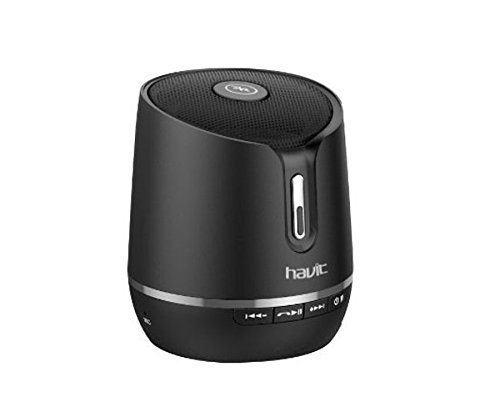
Image: The Havit HV-SKK521 Wireless Speaker shown with its included charging and AUX cables.
Product Overview
The Havit HV-SKK521 is a compact and versatile wireless speaker designed for portable audio enjoyment. It features a simple and contemporary design with intuitive controls.
Control Buttons and Ports
The speaker includes several buttons and ports for various functions:
- Power Button: To turn the speaker on or off.
- Volume Up/Next Track Button: Press briefly to increase volume, press and hold to skip to the next track.
- Volume Down/Previous Track Button: Press briefly to decrease volume, press and hold to go to the previous track.
- Play/Pause Button: To play or pause audio playback.
- Call Button: To answer, end, or redial calls.
- Mode Button: To switch between Bluetooth, FM Radio, and Memory Card modes.
- Micro USB Charging Port: For charging the speaker's internal battery.
- AUX Input Port (3.5mm): For wired audio connection.
- MicroSD Card Slot: For playing music directly from a memory card.

Image: A detailed view of the Havit HV-SKK521 speaker, highlighting its various control buttons and input ports.
Setup
1. Charging the Speaker
Before first use, fully charge the speaker. Connect the supplied USB charging cable to the Micro USB port on the speaker and the other end to a USB power adapter (not included) or a computer's USB port. The charging indicator light will illuminate during charging and turn off when fully charged. A full charge typically takes 3-4 hours.
2. Powering On/Off
- To Power On: Press and hold the Power button for a few seconds until you hear an audible prompt or see an indicator light.
- To Power Off: Press and hold the Power button again for a few seconds.
3. Bluetooth Pairing
To connect your speaker wirelessly to a Bluetooth-enabled device:
- Ensure the speaker is powered on and in Bluetooth mode (it usually defaults to Bluetooth mode or you can press the Mode button to switch). The speaker will enter pairing mode, indicated by a flashing LED light.
- On your mobile device (smartphone, tablet, laptop), enable Bluetooth and search for available devices.
- Select "HV-SKK521" or "HV-SK521BT" from the list of found devices.
- Once paired, the speaker will emit a confirmation tone, and the LED light will stop flashing.
The speaker will automatically attempt to reconnect to the last paired device when powered on, if that device is within range and has Bluetooth enabled.
4. FM Radio Operation
To use the FM radio function:
- Power on the speaker.
- Press the Mode button repeatedly until you enter FM radio mode.
- Press the Play/Pause button once to initiate an automatic scan for available FM stations. The speaker will save the found stations.
- Use the Volume Up/Next Track and Volume Down/Previous Track buttons to navigate between the saved stations.
5. Memory Card Playback
To play music from a MicroSD card:
- Insert a MicroSD card (with MP3 audio files) into the MicroSD card slot on the speaker.
- Power on the speaker.
- Press the Mode button repeatedly until you enter Memory Card mode. The speaker will automatically start playing music from the card.
6. AUX Input Connection
To connect an audio device via the AUX cable:
- Connect one end of the supplied 3.5mm AUX cable to the AUX input port on the speaker.
- Connect the other end of the AUX cable to the headphone jack or audio output of your external audio device.
- Power on the speaker. It should automatically switch to AUX mode, or you may need to press the Mode button.
Operating Instructions
Music Playback
- Play/Pause: Press the Play/Pause button once.
- Volume Adjustment: Briefly press the Volume Up (+) button to increase volume, or the Volume Down (-) button to decrease volume.
- Next Track: Press and hold the Volume Up (+) button.
- Previous Track: Press and hold the Volume Down (-) button.
Call Management (in Bluetooth mode)
- Answer Incoming Call: Press the Call button once.
- End Call: Press the Call button once during a call.
- Reject Incoming Call: Press and hold the Call button for 2 seconds.
- Redial Last Number: Double-press the Call button.
Maintenance
Proper care ensures the longevity of your Havit HV-SKK521 speaker.
- Cleaning: Use a soft, dry cloth to clean the speaker's surface. Do not use abrasive cleaners, alcohol, or other chemical solvents, as these may damage the finish.
- Storage: Store the speaker in a cool, dry place away from direct sunlight and extreme temperatures.
- Battery Care: To preserve battery life, avoid fully discharging the battery frequently. If storing for an extended period, charge the speaker to about 50% every few months.
- Water Resistance: The product specifications indicate it is waterproof. However, avoid submerging the speaker in water or exposing it to heavy rain for prolonged periods to prevent damage. Ensure all port covers are securely closed if present.
Troubleshooting
If you encounter issues with your speaker, refer to the following common problems and solutions:
| Problem | Possible Cause | Solution |
|---|---|---|
| Speaker does not power on. | Battery is depleted. | Charge the speaker using the provided USB cable. |
| Cannot pair via Bluetooth. | Speaker is not in pairing mode; Bluetooth is off on device; device is out of range. | Ensure speaker is in Bluetooth pairing mode (flashing LED). Turn on Bluetooth on your device. Move device closer to speaker (within 8-10m). Forget previous pairings on your device and try again. |
| No sound or low volume. | Volume too low on speaker or connected device; incorrect mode selected. | Increase volume on both the speaker and your connected device. Ensure the correct input mode (Bluetooth, AUX, MicroSD) is selected. |
| FM radio reception is poor. | Weak signal; environmental interference. | Move the speaker to a different location. Ensure no large metal objects are nearby. |
| Speaker is not charging. | Faulty cable or power adapter; charging port issue. | Try a different USB charging cable and power adapter. Ensure the charging cable is fully inserted. If the issue persists, contact customer support. |
Specifications
The following are the technical specifications for the Havit HV-SKK521 Wireless Speakers:
- Model Name: HV SKK521 (also known as HV-SK521BT)
- Speaker Type: Bookshelf
- Connectivity Technology: Bluetooth, Wireless
- Wireless Communication Technology: Bluetooth
- Wireless Operation Range: 8-10 meters (without obstacles)
- Output Power: 3W*1 (Total 3W)
- Speaker Maximum Output Power: 5 Watts
- Power Source: Battery Powered (Built-in rechargeable lithium battery)
- Talk/Playing Time: 3-4 hours (up to 5 hours depending on usage)
- Control Method: Touch buttons
- Special Features: FM Radio, MicroSD Card Playback, AUX Input
- Compatible Devices: Laptop, MP3 Player, Media Player, Mobile, Tablet
- Colour: Black
- Is Waterproof: TRUE (Note: Avoid prolonged submersion)
- Item Weight: 240 g
- Package Dimensions: 10.2 x 9.4 x 9 cm
Warranty and Support
The Havit HV-SKK521 Wireless Speakers come with a 1-year manufacturer warranty from the date of purchase. Please retain your proof of purchase for warranty claims.
For technical support, warranty claims, or further assistance, please refer to the contact information provided on your warranty card or visit the official Havit website.


