
1. Introduction
This manual provides comprehensive instructions for the installation, operation, and maintenance of your XTRONS 7 Inch Car Stereo Radio. This unit features a digital touch screen, DVD player, GPS navigation, screen mirroring functionality, and dual CANbus integration, specifically designed for Mercedes Benz Sprinter, B-W245, and Vito models. Please read this manual thoroughly before using the product to ensure proper operation and to prevent damage.
2. Key Features
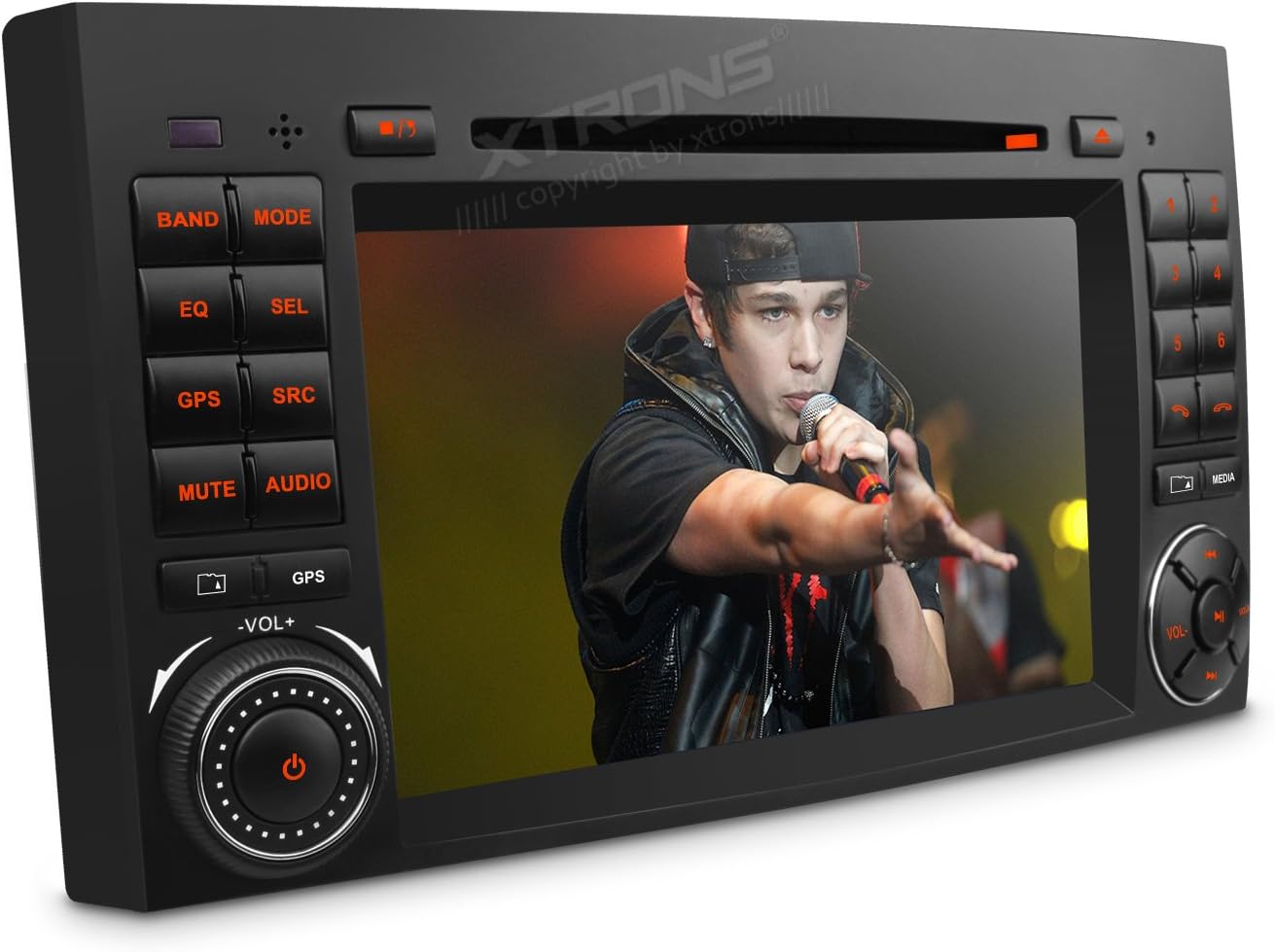
Figure 2.1: The XTRONS 7 Inch Car Stereo unit, showcasing its digital touch screen and physical controls.

Figure 2.2: Visual representation of the unit's core features including its user interface, screen mirroring capability, CANbus integration, and display quality.
- Refreshing User Interface: Enjoy a modern and intuitive operating system.
- Latest Official Licence Kudos Map: Integrated GPS navigation with up-to-date mapping data.
- Screen Mirroring Function: Seamlessly display content from your Android smartphone directly onto the stereo screen.
- Supports Steering Wheel Control: Maintain control of audio functions safely with the included Dual CANbus Box.
- High Transmittance & Anti-dazzle Touch Screen: Provides clear visibility and reduces glare for an optimal viewing experience.
- Efficient Heat Dissipation: Designed for stable and long-term performance.
- Bluetooth Connectivity: Enables hands-free calling, Bluetooth music streaming, and contacts information search.
- Region Free DVD Player: Play DVDs from any region.
- Built-in Radio Tuner: Features RDS (Radio Data System) with 18 FM and 12 AM station presets.
- USB & SD Port: Supports USB devices up to 32GB and SD cards up to 4GB for media playback.
- Orange Button Light: Aesthetic illumination for controls.
- AUX IN & AV OUT: Supports NTSC and PAL systems for external audio/video connections.
- Powerful Audio Output: 4*45W for clear and robust sound.
- Multi-language Support: Includes Simplified Chinese, English, Traditional Chinese, Hebrew, Russian, Italian, German, French, Spanish, Portuguese, Arabic, and Japanese.
- Built-in Dual Zone: Allows passengers in the back to enjoy DVD/Radio while the driver uses GPS navigation.
3. Compatibility
This XTRONS car stereo is designed for specific Mercedes-Benz models and years. Please verify your vehicle's compatibility before installation.

Figure 3.1: Compatible Mercedes-Benz vehicle models and their corresponding year ranges.
Applicable Models & Years:
- Mercedes-Benz A-W169 (2004-2012)
- Mercedes-Benz B-W245 (2004-2012)
- Mercedes-Benz Viano / Vito W639 (2006-2012)
- Mercedes-Benz Sprinter W906 / W209 / W311 / W315 / W318 (2006-2012)
Important Note: Although every effort has been made to ensure compatibility, please ensure you have the correct shape/style OEM unit before purchasing. If your vehicle has a Fiber Optic sound system, an additional adapter may be required to retain the original sound system functionality.
4. Installation & Setup
Professional installation is highly recommended for this product. Incorrect installation can lead to damage to the unit or your vehicle's electrical system.
4.1 Wiring Connections
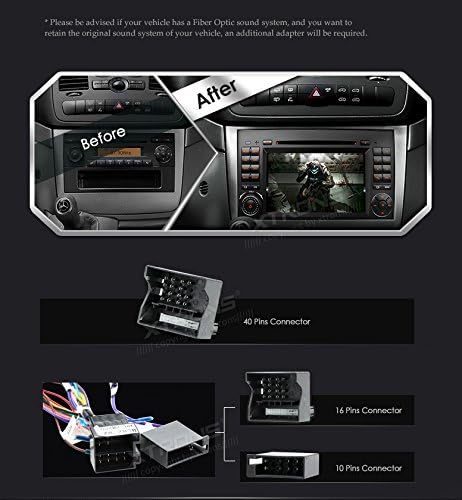
Figure 4.1: Overview of the installation process and the various connectors required for the unit.
Ensure all necessary connectors are properly identified and connected. The unit typically uses a 40-pin connector, a 16-pin connector, and a 10-pin connector for power, speakers, and other functions. Refer to your vehicle's wiring diagram and the unit's specific wiring instructions for detailed connections.
4.2 Dual Channel CANbus Configuration

Figure 4.2: Details of CANbus integration and the required dial switch settings for different Mercedes-Benz models.
The provided Dual CANbus box integrates the stereo with your vehicle's existing systems. Proper configuration of the CANbus box dial switch is crucial for correct functionality. Refer to the table below to set the dial switches according to your vehicle model:
| CANbus Dial Switch Setting | Vehicle Model & Years |
|---|---|
| Refer to Figure 4.2 for specific switch positions (Serial mode) | A-W169 (2004-2012) |
| Refer to Figure 4.2 for specific switch positions (Serial mode) | B-W245 (2004-2012) |
| Refer to Figure 4.2 for specific switch positions (Serial mode) | Viano / Vito W639 (2006-2012) |
| Refer to Figure 4.2 for specific switch positions (Serial mode) | Sprinter W906 / W209 / W311 / W315 / W318 (2006-2012) |
CANbus Integrated Functions:
- Headlight Control: When the vehicle's headlights are on, the buttons of this unit will illuminate. This also applies to night mode when headlights are on.
- ACC (Accessory): The stereo will automatically turn on when you start the ignition.
- LCD Screen: Your unit's working mode can be displayed on the vehicle's information display.
- Reversing Control: This stereo allows automatically switching to the reversing view without the need for additional wiring (requires compatible reversing camera, sold separately).
- Steering Wheel Control: Take control of your music safely on the move using your vehicle's steering wheel buttons.
5. Operating Instructions
5.1 Basic Operation
The XTRONS unit features a responsive digital touch screen for most operations. Power on the unit by turning your vehicle's ignition to the ACC position or by pressing the power button (if available). Navigate through menus and select functions by tapping the corresponding icons on the screen.
5.2 GPS Navigation

Figure 5.1: Examples of the 3D and 2D visual effects of the Kudos Map navigation system.
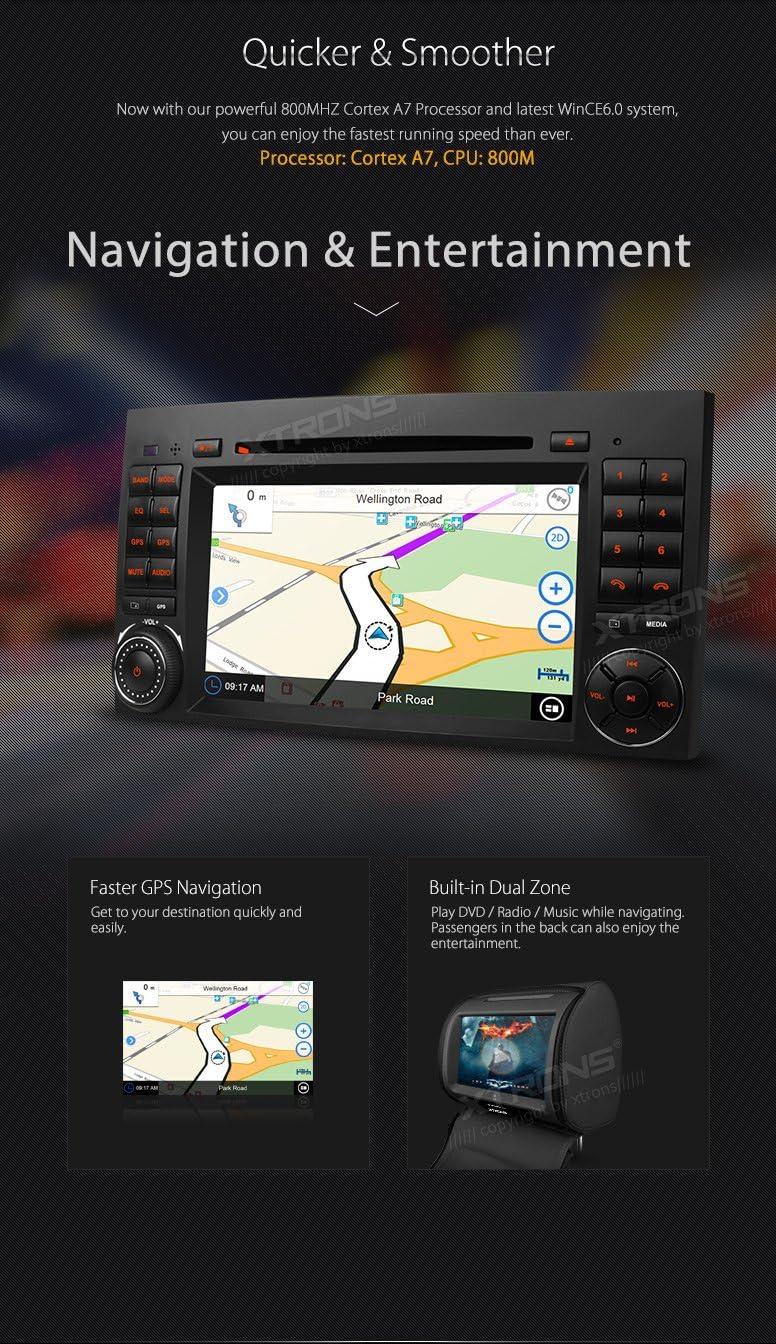
Figure 5.2: Illustration of the unit's fast GPS navigation and the dual-zone entertainment feature.
Access the GPS navigation by tapping the "GPS" icon on the main menu. The unit comes with a pre-installed Kudos Map. You can switch between 2D and 3D views for enhanced visual experience. The powerful 800MHz Cortex A7 Processor ensures quick and smooth navigation.
Dual Zone Function: While the driver uses the GPS navigation, passengers can enjoy multimedia content (DVD/Radio) on connected rear screens.
5.3 Multimedia Playback
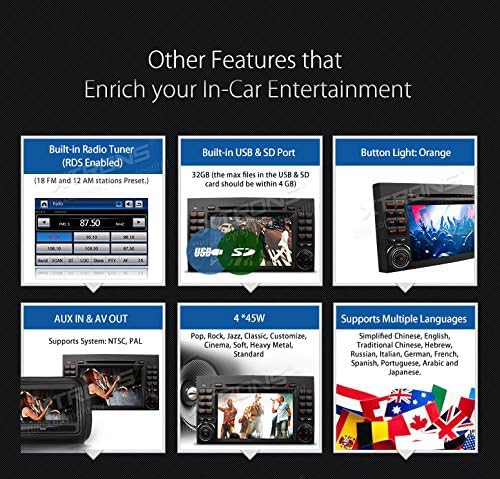
Figure 5.3: Overview of additional multimedia and connectivity features.
DVD Player: Insert a DVD disc into the slot. The unit will automatically detect and begin playback. Use the on-screen controls for playback functions (play, pause, skip, etc.).
Radio: Select the "Radio" function. Use the touch screen to scan for stations, manually tune, or select from preset stations (18 FM, 12 AM). RDS (Radio Data System) provides additional information where available.
USB/SD Playback: Insert a USB drive or SD card into the respective ports. The unit will detect compatible media files (audio, video, images). Navigate through folders and select files for playback.
Bluetooth Audio: Pair your smartphone via Bluetooth to stream music wirelessly. Select "Bluetooth Music" from the menu. Use the unit's controls or your phone to manage playback.
AUX IN/AV OUT: Connect external audio/video sources to the AUX IN ports. Use the AV OUT ports to send audio/video signals to external displays (e.g., headrest monitors).
5.4 Screen Mirroring (Android Only)
Connect your Android smartphone to the unit via USB or Wi-Fi (if supported by the unit's specific firmware). Follow the on-screen instructions to enable screen mirroring. This function allows you to display your phone's screen directly on the stereo's display.
5.5 Bluetooth Hands-free Calling
Pair your Bluetooth-enabled phone with the unit. Once paired, you can make and receive calls directly through the stereo. The unit supports contacts information search for easy dialing.
6. Maintenance
To ensure the longevity and optimal performance of your XTRONS car stereo, follow these maintenance guidelines:
- Cleaning: Use a soft, dry cloth to clean the screen and unit exterior. For stubborn smudges on the screen, slightly dampen the cloth with a screen cleaner solution. Avoid abrasive cleaners or solvents.
- Temperature: Do not expose the unit to extreme temperatures (very hot or very cold) for extended periods, as this can affect electronic components.
- Disc Care: Handle DVD discs by their edges. Keep them clean and free of scratches to ensure smooth playback.
- Software Updates: Periodically check the XTRONS official website for any available firmware or map updates to ensure your unit has the latest features and bug fixes.
7. Troubleshooting
If you encounter issues with your XTRONS car stereo, refer to the following common troubleshooting steps:
- No Power:
- Check vehicle's ignition (ACC position).
- Verify all power cables are securely connected.
- Check the vehicle's fuse box and the unit's inline fuse (if applicable).
- No Sound:
- Ensure volume is not muted or set to minimum.
- Check speaker wire connections.
- Verify audio source selection (Radio, DVD, USB, Bluetooth).
- GPS Signal Loss/Inaccurate:
- Ensure the GPS antenna is properly installed and has a clear view of the sky.
- Move to an open area away from tall buildings or dense foliage.
- Touch Screen Unresponsive:
- Restart the unit by turning off the vehicle's ignition and restarting.
- Perform a factory reset (refer to advanced settings, note this will erase user data).
- Bluetooth Connection Issues:
- Ensure Bluetooth is enabled on both the unit and your phone.
- Delete previous pairings and re-pair the devices.
- Ensure your phone is within range.
If the problem persists after attempting these steps, please contact XTRONS customer support or a qualified technician.
8. Specifications
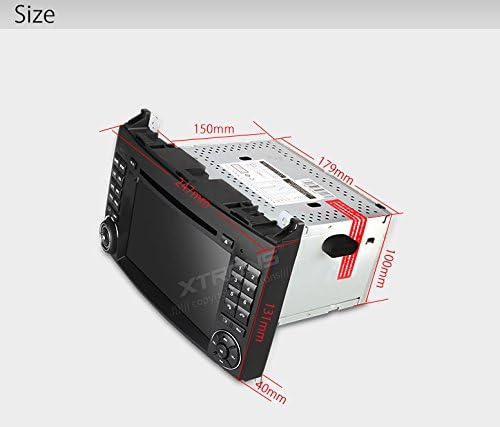
Figure 8.1: Physical dimensions of the XTRONS car stereo unit.
| Feature | Detail |
|---|---|
| Model Number | PF7M245S+KDS05TF |
| Brand | XTRONS |
| Screen Size | 7 Inches |
| Connectivity Technology | Bluetooth |
| Map Type | Street (Kudos Map) |
| Human Interface Input | Touchscreen |
| Control Method | Touch |
| Processor | 800MHz Cortex A7 |
| Max USB Support | 32GB |
| Max SD Card Support | 4GB |
| Audio Output Power | 4*45W |
| Date First Available | April 18 2019 |
9. Warranty & Support
For warranty information, please refer to the warranty card included with your product or visit the official XTRONS website. Warranty terms and conditions may vary by region and retailer.
For technical support, troubleshooting assistance beyond this manual, or inquiries about parts and service, please contact XTRONS customer service through their official channels. Have your product model number (PF7M245S+KDS05TF) and purchase details ready when contacting support.