
Epson HC3100
Epson Home Cinema 3100 1080p 3LCD Home Theater Projector User Manual
Model: HC3100
Introduction
This manual provides essential information for the safe and efficient operation of your Epson Home Cinema 3100 1080p 3LCD Home Theater Projector. Please read it thoroughly before use and retain it for future reference.
Setup
Unpacking and Initial Setup
Carefully remove all components from the packaging. Ensure the following items are present:
- Epson Home Cinema 3100 Projector
- Power Cord
- Remote Control with Batteries
- Quick Setup Guide
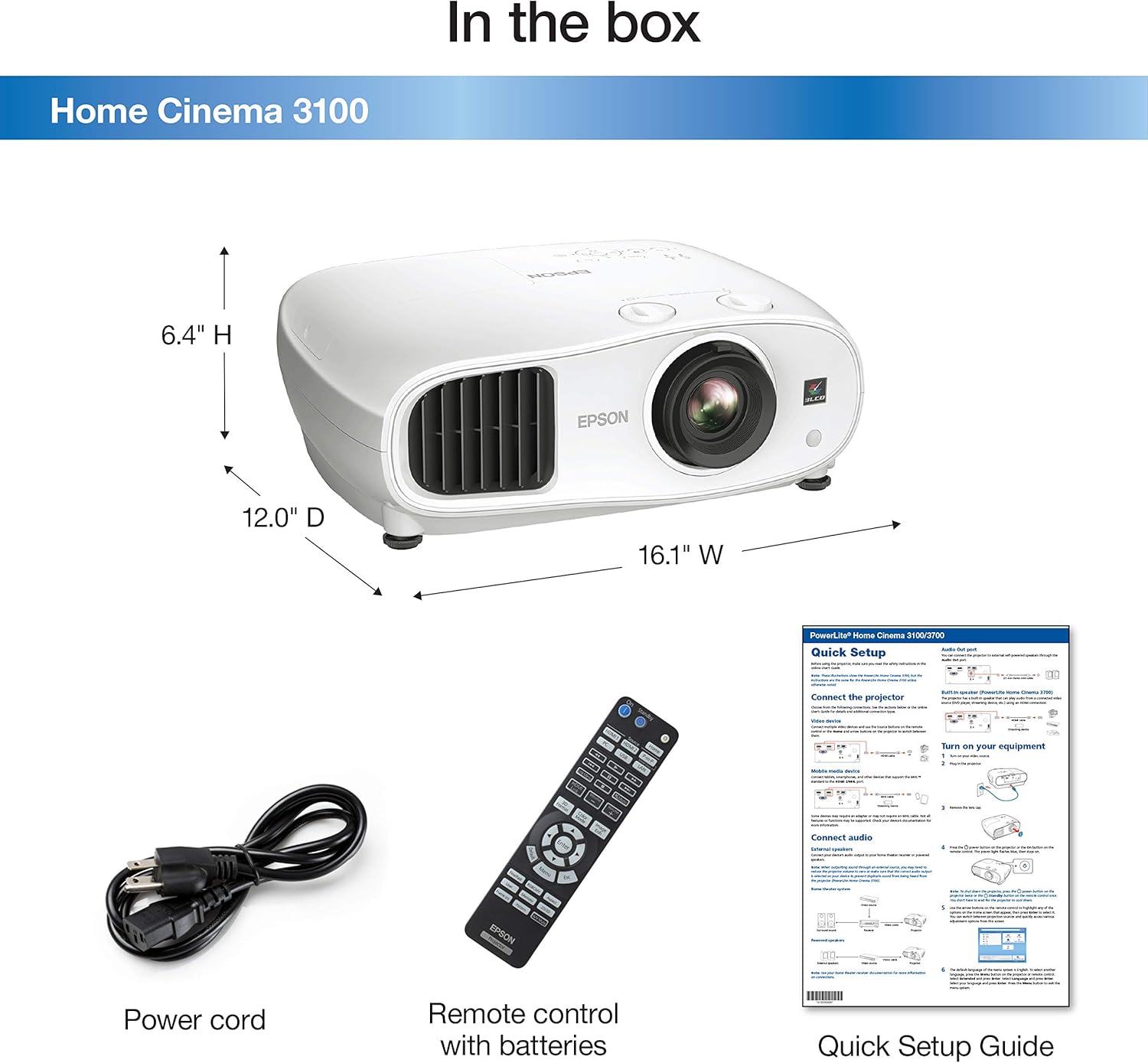
Image Description: A white Epson Home Cinema 3100 projector is shown alongside its accessories: a black power cord, a black remote control with various buttons, and a folded quick setup guide. The image also indicates the projector's dimensions: 16.1" W, 12.0" D, 6.4" H.
Place the projector on a stable, level surface. Ensure adequate ventilation around the unit. Connect the power cord to the projector and then to a power outlet.

Image Description: A white Epson Home Cinema 3100 projector is displayed from a front-angle perspective, highlighting its lens, ventilation grilles, and control buttons on the top surface.
Operation
Powering On/Off
Press the power button on the projector or the remote control to turn the unit on. Press it again to turn off. Allow the projector to cool down completely before unplugging or moving.
Connecting Devices
The Home Cinema 3100 supports various input sources. Connect your devices using the appropriate ports on the rear of the projector.

Image Description: An illustration detailing the compatibility and connectivity options for the Epson Home Cinema 3100. It shows icons for various devices like tablets, smartphones, laptops, game consoles, Amazon Fire TV Stick, Chromecast, Blu-ray/DVD players, Sat/Cable boxes, Roku, Apple TV, and digital cameras. Below these, the projector's rear panel is depicted with its input ports: 1x HDMI1, 1x HDMI2/MHL, 1x D-sub 15 pin (Computer), 1x USB connector Type A, 1x Mini USB (service only), and 1x Audio out.
HDMI Connection: For most modern devices (Blu-ray players, game consoles, streaming sticks), use an HDMI cable to connect to the HDMI1 or HDMI2/MHL port.
Computer Connection: Use a D-sub 15 pin cable for connecting a computer.
Image Adjustment
Adjust the projected image for optimal viewing using the following controls:
- Focus Ring: Rotate the focus ring around the lens to sharpen the image.
- Zoom Lever: Use the zoom lever to adjust the image size without moving the projector.
- Lens Shift: The projector features vertical (±60%) and horizontal (±24%) lens shift for flexible positioning. Use the dedicated dials to move the image up, down, left, or right without tilting the projector.

Image Description: This diagram shows how the Epson Home Cinema 3100 projector can project different screen sizes (80", 100", 120") from various distances (8', 10', 12'). It visually demonstrates the flexibility in placement and image size adjustment.
Video Playback
The Epson Home Cinema 3100 is designed to deliver a high-quality viewing experience for various content, including movies and games.
Video Description: This video demonstrates the Epson Home Cinema 3100 projector in a home setting, showcasing its use for gaming and general entertainment. It highlights the projector's ability to create a large, immersive viewing experience.
Maintenance
Cleaning the Projector
Regular cleaning helps maintain optimal performance. Use a soft, dry cloth to wipe the exterior of the projector. For the lens, use a lens cleaning cloth and solution specifically designed for optical surfaces. Avoid abrasive cleaners or solvents.
Lamp Replacement
The projector lamp has a finite lifespan. When the lamp reaches the end of its life, a warning message will appear. Refer to the Quick Setup Guide or Epson's official support resources for detailed instructions on how to safely replace the lamp. Always use genuine Epson replacement lamps.
Troubleshooting
Common Issues and Solutions
- No Image:
- Ensure the projector is powered on and the input source is correctly selected.
- Check all cable connections (HDMI, D-sub) between the projector and the source device.
- Verify the source device is powered on and outputting a signal.
- Blurry Image:
- Adjust the focus ring on the projector lens.
- Ensure the projection surface is flat and the projector is stable.
- No Sound:
- Check the audio settings on your source device and ensure the volume is not muted.
- If using external speakers, verify their connection and power.
- The projector has an audio output port; ensure it's connected to an audio system if you are not using the projector's internal speaker.
- Overheating Warning:
- Ensure the projector's ventilation vents are not blocked.
- Operate the projector in a well-ventilated area.
- Clean any dust accumulation from the vents.
Specifications
| Feature | Detail |
|---|---|
| Brand | Epson |
| Model Number | HC3100 |
| Display Resolution | 1920 x 1080 (Full HD 1080p) |
| Color Brightness | 2,600 lumens |
| White Brightness | 2,600 lumens |
| Dynamic Contrast Ratio | Up to 60,000:1 |
| Connectivity Technology | HDMI |
| Special Feature | Ready for 3D |
| Recommended Uses | Gaming, Home Cinema |
| Product Dimensions | 16.1 x 12 x 6.4 inches |
| Item Weight | 14.6 pounds |
| Fan Noise | 24 dB – 35 dB |
Warranty and Support
Warranty Information
Your Epson Home Cinema 3100 projector is covered by a limited warranty. Please refer to the warranty card included with your product or visit the official Epson website for detailed terms and conditions.
Customer Support
For technical assistance, troubleshooting, or service inquiries, please contact Epson customer support. Contact information can be found on the Epson website or in your product's documentation.
Related documentsHC3100


Ask a question about this manual
Ask about setup, troubleshooting, compatibility, parts, safety, or missing instructions. Manuals+ will review the question and use this page’s manual context to help answer it.