
Introduction
This manual provides essential information for the safe and efficient use of your TCL 49D100 49-Inch 1080p LED TV. Please read these instructions thoroughly before operating the television and retain them for future reference. The TCL 49D100 delivers premium picture quality with 1080p resolution and TCL True Color Technology in a slim frame design.
What's in the Box
Carefully unpack your television and ensure all items are present:
- TCL 49D100 49-Inch 1080p LED TV
- Remote Control
- Power Cord
- 2 x AA Batteries (for remote control)
- TV Stands (2 pieces)
- Screws for TV Stands
Setup
1. Attaching the TV Stands
If you are not wall-mounting your TV, you will need to attach the included stands. The stands are typically found within the foam protectors inside the packaging.
- Place the TV face down on a soft, clean surface to prevent screen damage.
- Align each stand with the corresponding screw holes on the bottom of the TV.
- Secure each stand using the provided screws and a Phillips head screwdriver. Do not overtighten.
2. Wall Mounting (Optional)
If you choose to wall-mount your TV, ensure you use a VESA-compatible wall mount (200 x 200 mm). Follow the instructions provided with your wall mount kit. Professional installation is recommended for wall mounting.
3. Connecting Devices
Your TCL 49D100 TV offers various input options for connecting external devices. Refer to the image below for port locations.

Image: Rear view of the TCL 49D100 television, highlighting the various input ports including HDMI, USB, RF, and composite/component connections.
- HDMI: Connect up to three HDMI devices (e.g., Blu-ray player, game console, cable box). One HDMI port supports ARC (Audio Return Channel).
- USB: Connect a USB drive for media playback.
- RF (Antenna/Cable): Connect an antenna for over-the-air broadcasts or a cable connection.
- Composite & Component (Shared): Use these for older devices. Note that these ports are shared.
- Digital Audio Out (Optical): Connect to a soundbar or audio receiver for digital audio output.
4. Power Connection
Connect the power cord to the TV's power input and then plug it into a standard electrical outlet.

Image: Side profile of the TCL 49D100 television, showing the power cord input on the back panel.
5. Initial Setup and Channel Scan
Upon first power-on, the TV will guide you through an initial setup process. If using an antenna, perform a channel scan to find available broadcasts.
Operating Instructions
1. Remote Control
Insert the two AA batteries into the remote control, observing the correct polarity. The remote allows you to power on/off, change channels, adjust volume, select inputs, and access menu settings.
2. Input Selection
Press the 'Input' or 'Source' button on your remote to cycle through available input sources (HDMI 1, HDMI 2, HDMI 3, USB, AV, TV). Select the input corresponding to your connected device.
3. Picture Settings
Access the 'Picture' menu to adjust settings such as Brightness, Contrast, Color, Tint, and Sharpness. Experiment with these settings to achieve your preferred visual quality. Note that achieving optimal color balance may require some adjustment.
4. Audio Settings
Access the 'Audio' menu to adjust settings like Volume, Bass, Treble, and Balance. If you are using an external soundbar or audio device connected via the Digital Audio Out (Optical) port, ensure the TV's Sound / SPDIF Type option is set to "PCM" for proper audio output.
5. No Smart Functionality
This television model does not include built-in smart TV features. To access streaming services, an external streaming device (e.g., Roku, Fire TV, Apple TV) connected via HDMI is required.
Maintenance
1. Cleaning the Screen
To clean the screen, gently wipe it with a soft, lint-free cloth. For stubborn marks, lightly dampen the cloth with water or a specialized screen cleaner. Never spray liquid directly onto the screen.
2. General Care
- Avoid placing the TV in direct sunlight or near heat sources.
- Ensure adequate ventilation around the TV.
- Unplug the TV from the power outlet during lightning storms or when it will be left unattended for long periods.
Troubleshooting
Before contacting customer support, try the following solutions for common issues:
| Problem | Possible Solution |
|---|---|
| No Power | Ensure the power cord is securely plugged into both the TV and the wall outlet. Check if the outlet is working by plugging in another device. |
| No Picture, but Sound is Present | Check the input source. Ensure the connected device is powered on and functioning correctly. Try a different HDMI cable. |
| No Sound, but Picture is Present | Check the TV's volume and mute settings. If using external audio, ensure the correct audio output setting (e.g., PCM for optical) is selected on the TV and the external device is powered on. |
| Remote Control Not Working | Replace the batteries. Ensure there are no obstructions between the remote and the TV's IR sensor. |
| Obnoxious Light at Bottom of Screen | This is the power indicator light. If it is too bright, a small piece of opaque tape can be placed over it. |
Specifications
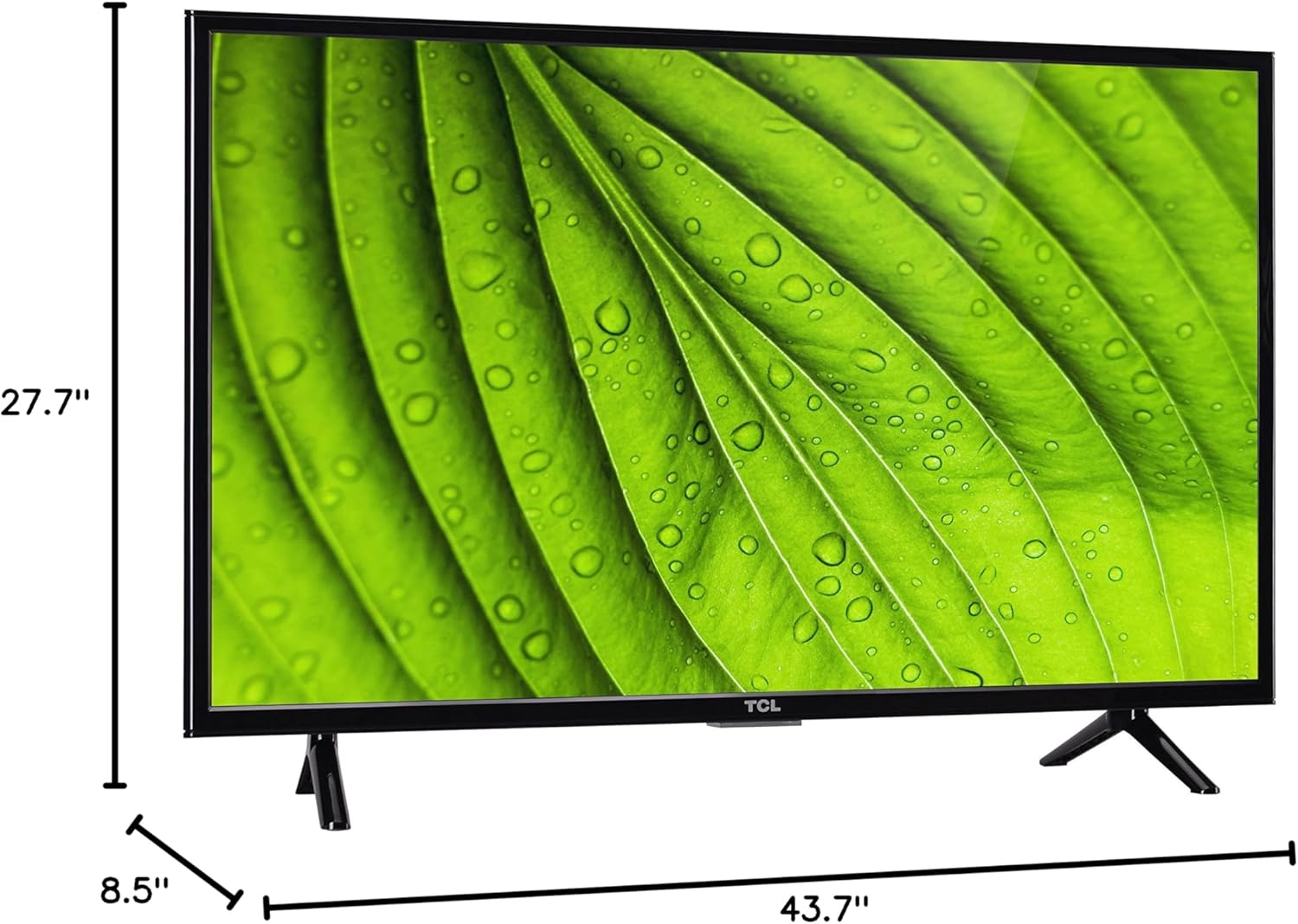
Image: Front view of the TCL 49D100 television with its dimensions clearly labeled: 43.7 inches width, 27.7 inches height (with stand), and 8.5 inches depth (with stand).
- Model: 49D100
- Screen Size: 49 Inches
- Display Technology: LED
- Resolution: 1080p Full HD
- Refresh Rate: 120 Hz
- Aspect Ratio: 16:9
- Connectivity: 3 x HDMI (1 ARC), 1 x USB, RF, Composite & Component (shared), Digital Audio Out (optical)
- Dimensions (without stand): 43.7" W x 25.4" H x 3" D
- Dimensions (with stand): 43.7" W x 27.7" H x 8.5" D
- Weight: 25.4 Pounds
- VESA Mount Standard: 200 x 200 mm
- Power Consumption: 110 W (Operating), 8 watts (Standby)
- Color: Black
Warranty Information
Your TCL 49D100 television is covered by a limited manufacturer's warranty. Please refer to the warranty card included with your product for specific terms, conditions, and registration details. Keep your purchase receipt as proof of purchase for warranty claims.
Customer Support
For technical assistance, troubleshooting beyond this manual, or warranty inquiries, please contact TCL Customer Support. Visit the official TCL website for the most up-to-date contact information, including phone numbers and online support resources.
TCL Official Website: www.tcl.com


