
Introduction
This manual provides essential information for the safe and effective use of your Philips Hue White and Color Ambiance E27 Smart Bulb. This smart LED bulb allows you to adjust light intensity and choose from 16 million colors, enhancing your home's ambiance. For remote control and full smart features, a Philips Hue Bridge is required.
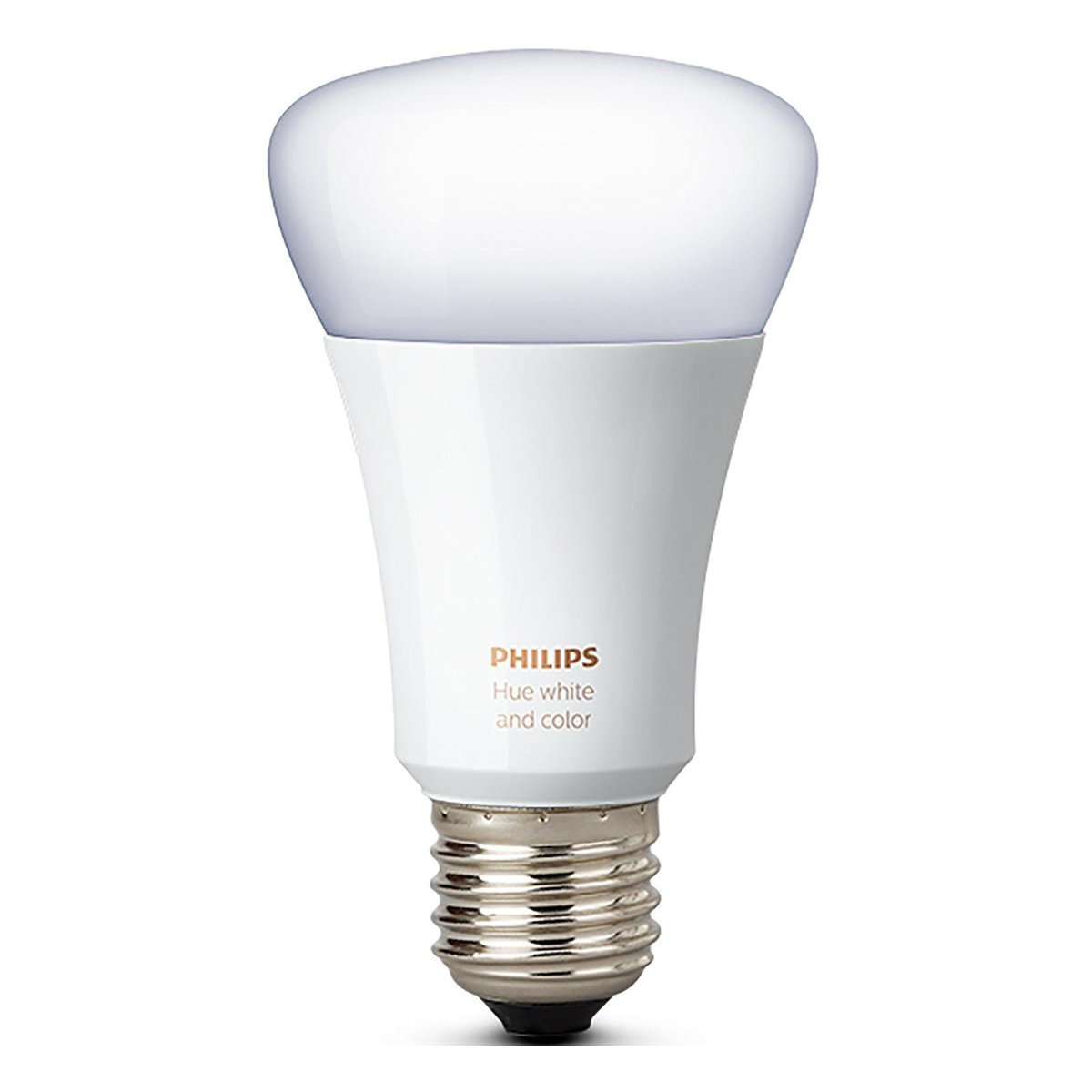
Image: Philips Hue White and Color Ambiance E27 Smart Bulb, showcasing its standard bulb shape and E27 base.
Safety Information
- Ensure the power is off before installing or removing the bulb.
- Do not use in fully enclosed luminaires as this may shorten bulb life.
- Not suitable for use with standard dimmers. Dimming is controlled via the Philips Hue app or compatible accessories.
- For indoor use only.
- Keep away from water and damp environments.
Package Contents
- 1 x Philips Hue White and Color Ambiance E27 Smart Bulb
Note: A Philips Hue Bridge (sold separately) is required for full smart functionality, including remote control and integration with smart home systems.
Setup Instructions
To set up your Philips Hue Smart Bulb, follow these steps:
- Install the Bulb: Screw the Philips Hue E27 bulb into a standard E27 light socket. Ensure the power to the fixture is turned off before installation. Once installed, turn the power back on.
- Connect the Philips Hue Bridge: If you don't already have one, connect your Philips Hue Bridge to your Wi-Fi router using the provided Ethernet cable and power adapter.
- Download the Philips Hue App: Download and open the official Philips Hue app on your smartphone or tablet (available on iOS and Android app stores).
- Connect to the Bridge: Follow the in-app instructions to connect to your Hue Bridge. You may be prompted to press the large button on the Hue Bridge to confirm the connection.
- Discover Lights: Once connected to the Bridge, the app will search for new lights. Ensure your new bulb is powered on. If the bulb is not found automatically, you can add it manually by entering the serial number printed on the bulb.
- Assign to Rooms: After discovery, assign your new bulb to a room within the app (e.g., Living Room, Bedroom). This helps organize and control your lights effectively.
Operating Instructions
Once set up, you can control your Philips Hue bulb in several ways:
1. Using the Philips Hue App
- On/Off: Tap the light or room icon to turn lights on or off.
- Dimming: Use the slider in the app to adjust the brightness level.
- Color Change: Select from 16 million colors or various shades of white (from warm to cool) using the color picker in the app.
- Scenes: Apply pre-set or custom scenes to instantly change the ambiance of a room.
- Routines: Set up automated routines for waking up, going to sleep, or scheduling lights to turn on/off at specific times.
- Remote Control: Create a "My Hue" online account to control your lights from anywhere with an internet connection.
2. Voice Control
The Philips Hue system is compatible with popular voice assistants such as Amazon Alexa, Google Assistant, and Apple HomeKit. To enable voice control:
- Ensure your Hue Bridge is connected and your lights are set up in the Hue app.
- Open the app for your voice assistant (e.g., Alexa app, Google Home app).
- Follow the instructions to link your Philips Hue account or discover new devices.
- Once linked, you can use voice commands like: "Alexa, turn on the living room lights," or "Hey Google, set the bedroom light to blue."
3. Philips Hue Accessories (Sold Separately)
- Hue Dimmer Switch: A wireless switch for dimming, turning on/off, and cycling through scenes.
- Hue Motion Sensor: Automatically turns lights on when motion is detected.
Important: For smart control functionality, the physical light switch connected to the bulb must always remain in the ON position. Turning off the physical switch will cut power to the bulb, making it unresponsive to app or voice commands.
Maintenance
- Cleaning: Ensure the bulb is off and cool before cleaning. Wipe with a soft, dry cloth. Do not use liquid or abrasive cleaners.
- Firmware Updates: Regularly check the Philips Hue app for firmware updates for your bulb and Bridge to ensure optimal performance and access to new features.
- Storage: If storing the bulb for an extended period, ensure it is kept in a dry, cool place.
Troubleshooting
| Problem | Possible Cause / Solution |
|---|---|
| Bulb not responding to app/voice commands |
|
| Bulb not found during setup |
|
| Colors appear inaccurate or limited |
|
Specifications
| Feature | Detail |
|---|---|
| Model Number | 929001257303 |
| Light Type | LED |
| Base Type | E27 (Large Screw) |
| Bulb Shape | A19 / Standard |
| Wattage | 9.5 Watts |
| Incandescent Equivalent | 60 Watts |
| Luminous Flux | 806 Lumens |
| Color Temperature | 5000 Kelvin (White), 16 Million Colors |
| Color Rendering Index (CRI) | 80 |
| Beam Angle | 300 Degrees |
| Voltage | 220-240 Volts, 50 Hertz |
| Connectivity | Wi-Fi (via Philips Hue Bridge) |
| Control Method | Application, Voice Control (Alexa, Google Assistant, HomeKit), IFTTT |
| Material | Plastic |
| Dimensions (L x H) | 7 cm x 8 cm |
| Weight | 1.4 Ounces (approx. 40g) |
| Energy Efficiency Class | A+ |
Warranty and Support
For warranty information, technical support, and frequently asked questions, please visit the official Philips Hue website or contact Philips customer service. Keep your proof of purchase for warranty claims.
Online Support: www.philips-hue.com


