
Power Practical FBA_LYSB01LR3RAVU-ELECTRNCS
Power Practical Luminoodle LED TV Backlight Instruction Manual
Model: FBA_LYSB01LR3RAVU-ELECTRNCS
Brand: Power Practical
Introduction
Thank you for choosing the Power Practical Luminoodle LED TV Backlight. This USB-powered LED strip is designed to enhance your viewing experience by providing bias ambient lighting behind your television or monitor. This manual provides essential information for proper setup, operation, and maintenance of your Luminoodle LED strip.

Image: A television screen displaying vibrant content, surrounded by a soft, white bias light emanating from behind, illustrating an enhanced viewing experience.
Product Overview
What's Included:
- 118-inch LED strip light (suitable for 30-40 inch TVs)
- Integrated USB power cable
- Remote control (for models with color/brightness adjustment)
- Instruction Guide
Key Features:
- True White 6500K Color Temperature: Designed to reduce eye strain and headaches during extended viewing.
- Improved Contrast: Enhances the perceived contrast of your screen for a more immersive experience.
- USB Powered: Conveniently powers directly from your TV's USB port.
- Easy Installation: Features durable 3M adhesive for secure and straightforward attachment.
- Flexible Design: Allows for easy bending around corners of your TV.
- Adjustable Brightness and Color: (For models with remote control) Customize your ambient lighting to suit your preference.
Setup Instructions
Follow these steps for optimal installation of your Luminoodle LED TV Backlight:
1. Prepare the Surface:
Ensure the back of your TV or monitor is clean, dry, and free of dust. Use a soft cloth to wipe down the area where the LED strip will be applied.
Image: A hand cleaning the back of a television with a white cloth, preparing the surface for the LED strip.
2. Plan the Layout:
Unroll the LED strip and temporarily position it around the perimeter of your TV to determine the best fit. The strip features flexible corners for easy bending. If necessary, the strip can be trimmed at designated cut marks (indicated by a small 'P' or scissor icon) to achieve the desired length. Ensure the USB connector reaches your TV's USB port.

Image: A person's hands holding the LED strip, showing how it can be bent around a corner and indicating a cut point with scissors.
3. Apply the LED Strip:
Peel off the red protective backing from the 3M adhesive tape on the back of the LED strip. Carefully press the strip firmly onto the cleaned surface of your TV, following your planned layout. Apply even pressure to ensure strong adhesion.
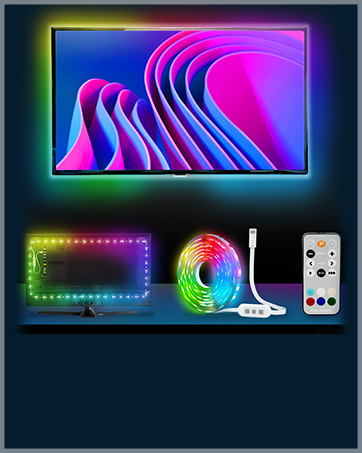
Image: Close-up of hands peeling the red protective layer from the 3M adhesive on the LED strip, revealing the sticky surface.
4. Connect to Power:
Plug the USB connector of the LED strip into an available USB port on your TV or monitor. The lights should illuminate automatically when the TV is powered on. If your TV's USB port does not provide sufficient power or remains powered when the TV is off, you may use a separate USB wall adapter (not included).

Image: A hand inserting the USB plug of the LED strip into a USB port located on the back of a television.
Video: An Amazon Live Stream demonstrating the installation and various color options of the Luminoodle LED TV Backlight. The video shows the strip being applied to a TV and cycling through different colors.
Operating Instructions
For models equipped with a remote control, you can easily adjust the lighting to your preference:

Image: A small, rectangular remote control for the Luminoodle LED strip, featuring power buttons, brightness adjustment, color selection buttons (red, green, blue, white, etc.), and mode controls.
- Power On/Off: Use the ON and OFF buttons to turn the lights on or off.
- Brightness Adjustment: Use the + and - buttons under "BRIGHT" to increase or decrease the light intensity.
- Color Selection: Press the colored buttons (e.g., Red, Green, Blue, White) to select a static color.
- Mode Selection: Use the MODE button or arrow keys to cycle through various dynamic lighting effects (e.g., flash, fade, smooth transitions).
For models without a remote, the lights will typically turn on and off with your TV's power.
Maintenance
- Cleaning: To clean the LED strip, gently wipe it with a dry, soft cloth. Do not use liquid cleaners or abrasive materials.
- Adhesion: If the adhesive begins to weaken over time, you may reinforce it with additional double-sided tape suitable for electronics.
- Storage: If removing the strip for storage, carefully peel it off to avoid damage. Store it in a cool, dry place.
Troubleshooting
| Problem | Possible Cause | Solution |
|---|---|---|
| Lights do not turn on. | USB port not providing power, loose connection, or faulty strip. | Ensure USB cable is securely plugged in. Try a different USB port or a USB wall adapter. Check if the TV's USB port powers off when the TV is off. |
| Lights flicker or are dim. | Insufficient power from USB port. | Use a USB wall adapter for consistent power. Ensure the TV's USB port is rated for sufficient current (e.g., USB 3.0). |
| Remote control not working. | Battery depleted or remote sensor blocked. | Replace the remote battery. Ensure there are no obstructions between the remote and the LED strip's sensor. |
| Adhesive is not sticking. | Surface was not clean or adhesive has lost tackiness. | Clean the surface thoroughly before re-application. Use additional strong double-sided tape if needed. |
Specifications
| Brand: | Power Practical |
| Model Number: | FBA_LYSB01LR3RAVU-ELECTRNCS |
| UPC: | 855640004389 |
| LED Strip Length: | 118 inches (3 meters) |
| Recommended TV Size: | 30-40 inches |
| Color Temperature: | 6500 Kelvin (True White) |
| Power Source: | USB (DC 5V) |
| Wattage: | 5 watts |
| Number of Light Sources: | 60 |
| Control Method: | Remote (for compatible models) / Button Control |
| Material: | Metal, Vinyl |
| Indoor/Outdoor Usage: | Indoor |
Warranty & Support
Specific warranty information for the Power Practical Luminoodle LED TV Backlight is not provided in this manual. Please refer to the product packaging or the manufacturer's official website for detailed warranty terms and customer support contact information.
For further assistance, you may visit the Power Practical Store on Amazon.
Ask a question about this manual
Ask about setup, troubleshooting, compatibility, parts, safety, or missing instructions. Manuals+ will review the question and use this page’s manual context to help answer it.