
Epson DS-530
Epson Workforce DS-530 Document Scanner User Manual
Model: DS-530 | Brand: Epson
1. Introduction
This user manual provides detailed instructions for the setup, operation, and maintenance of your Epson Workforce DS-530 color duplex document scanner. Designed for efficient business document management, the DS-530 offers high-speed scanning and advanced paper handling features to streamline your workflow.
2. Safety Information
Please read all safety instructions before using the scanner to ensure safe and proper operation. Keep this manual for future reference.
- Do not block ventilation openings.
- Use only the power adapter supplied with the scanner.
- Do not expose the scanner to water or excessive moisture.
- Place the scanner on a stable, level surface.
- Unplug the scanner from the power outlet before cleaning or if it will not be used for an extended period.
3. Package Contents
Verify that all items are present in the package:
- Epson Workforce DS-530 Document Scanner
- AC Adapter and Power Cable
- USB 3.0 Cable
- Setup Guide / Installation Guide (may include driver and software download link)
4. Setup
4.1 Unpacking the Scanner
Carefully remove the scanner and all accessories from the packaging. Remove any protective tapes or packing materials from the scanner unit.

Figure 4.1: The Epson Workforce DS-530 scanner in operation, demonstrating its compact design and document feeding capability.
4.2 Connecting Power
- Connect the AC adapter to the power input port on the back of the scanner.
- Plug the power cable into the AC adapter, then plug the other end into a standard electrical outlet.
4.3 Connecting to a Computer
Use the supplied USB 3.0 cable to connect the scanner to your computer. For optimal performance, connect to a USB 3.0 port if available.
- Connect one end of the USB cable to the USB port on the scanner.
- Connect the other end of the USB cable to an available USB port on your computer.
4.4 Software Installation
Before using the scanner, you must install the necessary drivers and software. These can typically be downloaded from the official Epson support website or found via a link in the included setup guide.
- Visit the Epson support website for the DS-530 model.
- Download and run the latest driver and scanning utility software package.
- Follow the on-screen instructions to complete the installation. The scanner supports TWAIN and ISIS drivers for broad compatibility.
5. Operating the Scanner
5.1 Loading Documents
The DS-530 features a 50-page Automatic Document Feeder (ADF) for efficient batch scanning.
- Gently pull open the input tray and output tray extensions.
- Adjust the paper guides to the width of your documents.
- Place the documents face-down in the ADF, ensuring they are aligned properly.

Figure 5.1: Loading documents into the Automatic Document Feeder (ADF) of the DS-530 scanner.
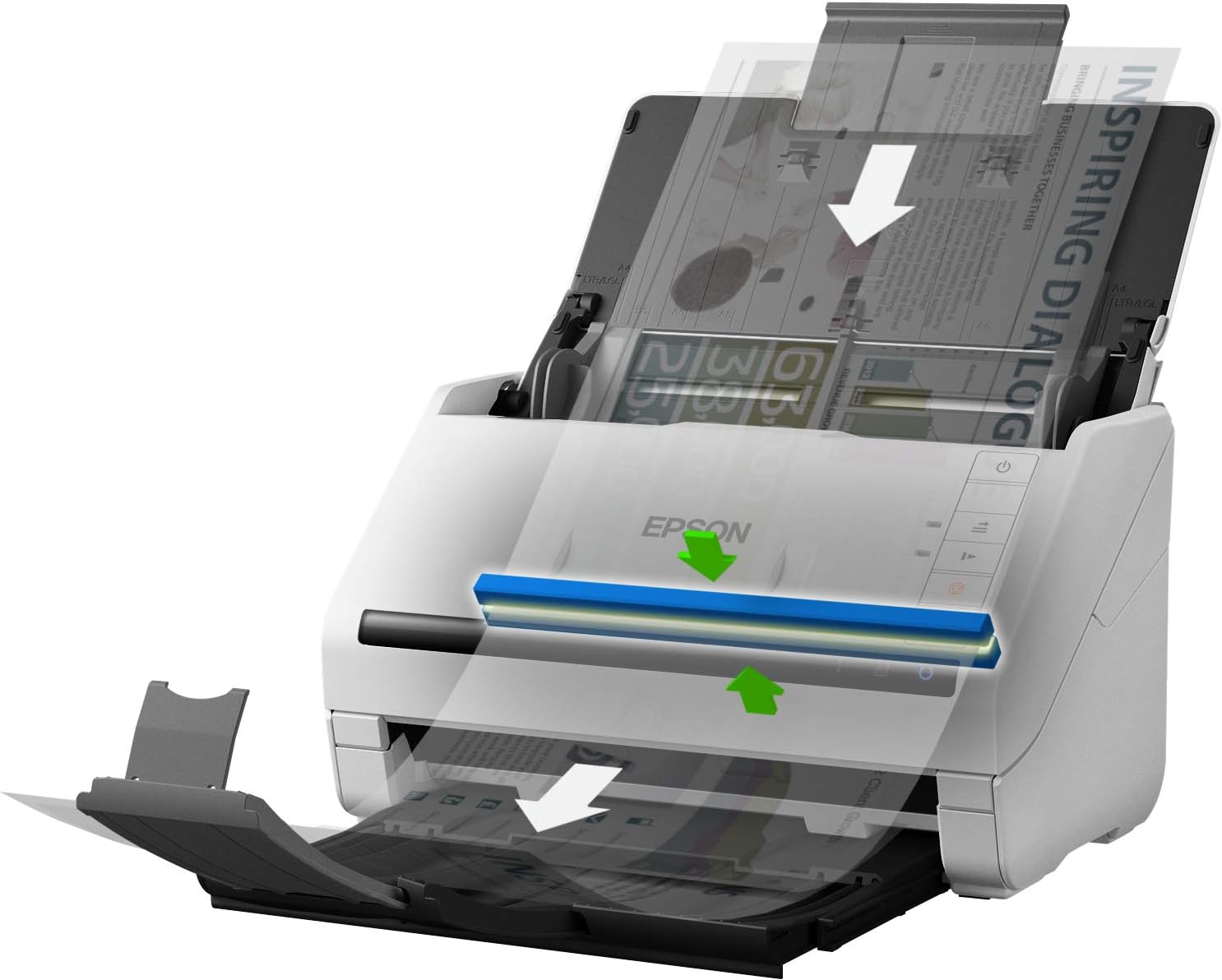
Figure 5.2: Illustration of the document path through the scanner, from the input tray to the output tray.
5.2 Scanning Basics and Features
The DS-530 offers fast scanning speeds up to 35 pages per minute (ppm) or 70 images per minute (ipm) for duplex scanning. It includes several advanced features to ensure reliable and high-quality scans:
- Dynamic Skew Correction: Automatically corrects skewed documents during scanning, ensuring straight images.
- Ultrasonic Double Feed Detection: Prevents multiple pages from being scanned as one, ensuring all documents are captured.
- Double Feed Detection Skip: Allows you to bypass double feed detection for documents with attached items like sticky notes, preventing false positives.
- Slow Speed Mode: Provides a slower feeding speed for delicate or difficult-to-scan documents.
- Programmable Jobs: Configure and save frequently used scan settings for quick access and consistent results.

Figure 5.3: Visual representation of the scanner's paper handling technology, including rollers for feeding and sensors for detecting double feeds and skew.

Figure 5.4: The DS-530 scanner with an optional external network interface unit, allowing for shared use and advanced job programming.
5.3 Scanning to Destinations
Once documents are loaded and software is installed, you can initiate scans and send them to various destinations:
- Scan to PC/Mac: Use the installed Epson Scan software or other compatible TWAIN/ISIS applications to scan directly to your computer's hard drive.
- Scan to Cloud Services: The software allows integration with popular online storage accounts such as Dropbox or SharePoint for easy document sharing and access.
- Scan to Email: Directly attach scanned documents to an email.
- Scan to PDF: Create searchable PDF files from your scanned documents.
6. Maintenance
Regular maintenance ensures optimal performance and longevity of your scanner.
6.1 Cleaning the Scanner
- Exterior: Wipe the exterior with a soft, damp, lint-free cloth. Do not use abrasive cleaners or solvents.
- Glass Surfaces: Use a soft, dry cloth or a specialized glass cleaner (non-ammonia based) to clean the scanner's glass surfaces.
- Rollers: Refer to the software utility for instructions on cleaning the paper feed rollers. This typically involves using a cleaning sheet or a damp cloth.
6.2 Consumables
Periodically check the condition of the paper feed rollers and separation pad. These are consumable parts and may need replacement over time to maintain optimal paper feeding performance. Refer to the Epson support website for replacement part information.
7. Troubleshooting
This section addresses common issues you might encounter with your DS-530 scanner.
| Problem | Possible Cause / Solution |
|---|---|
| Scanner not recognized by computer |
|
| Paper jams |
|
| Scanned images are skewed |
|
| Multiple pages feeding at once (double feed) |
|
8. Specifications
| Feature | Detail |
|---|---|
| Model Name | DS-530 |
| Scanner Type | Document |
| Connectivity Technology | USB 3.0 |
| Optical Resolution | 600 dpi |
| Scanning Speed | Up to 35 ppm / 70 ipm |
| Automatic Document Feeder (ADF) Capacity | 50 sheets |
| Supported Sheet Size | A4 and various others |
| Product Dimensions (L x W x H) | 11.65 x 6.65 x 6.93 inches |
| Item Weight | 8.14 pounds (3.7 Kilograms) |
| Power Consumption | 18 watts (operating) |
| Drivers Supported | TWAIN, ISIS |
9. Warranty and Support
Your Epson Workforce DS-530 scanner typically comes with a manufacturer's limited warranty. Please refer to the documentation included with your purchase or the official Epson website for specific warranty terms and conditions.
For technical support, driver downloads, and additional resources, please visit the official Epson support website. You may also find information regarding extended protection plans available for your device.
- Online Support: Visit Epson Support
- Protection Plans: Consider purchasing an extended protection plan for additional coverage beyond the standard warranty. (e.g., 3-Year Protection Plan, 4-Year Protection Plan, Complete Protect)
Related documentsDS-530


Ask a question about this manual
Ask about setup, troubleshooting, compatibility, parts, safety, or missing instructions. Manuals+ will review the question and use this page’s manual context to help answer it.