1. Introduction
This manual provides essential information for the safe and effective use of your Panasonic AG-AC30 Full-HD AVCCAM Handheld Camera. Please read this manual thoroughly before using the product and retain it for future reference. The AG-AC30 is designed for high-quality video recording with advanced features for professional and enthusiast users.
2. Safety Information
- Do not expose the camera to rain, moisture, or extreme temperatures.
- Avoid dropping or subjecting the camera to strong impacts.
- Use only Panasonic-approved accessories and power adapters.
- Keep the camera away from strong magnetic fields.
- Disconnect the power supply before cleaning or when not in use for extended periods.
3. Package Contents
Verify that all items are present in the package:
- Camcorder
- (Other accessories such as power adapter, battery, lens hood, microphone, and cables may be included depending on the specific package.)
4. Camera Overview
Familiarize yourself with the main components of your AG-AC30 camcorder.

Figure 4.1: Front and side view of the Panasonic AG-AC30 camcorder. This image illustrates the ergonomic design for handheld operation, highlighting the lens, handle, and primary controls accessible during use.

Figure 4.2: Front-angle view of the Panasonic AG-AC30 camcorder, showcasing the attached microphone, lens hood, and audio input ports. This view emphasizes the camera's readiness for professional audio and video capture.
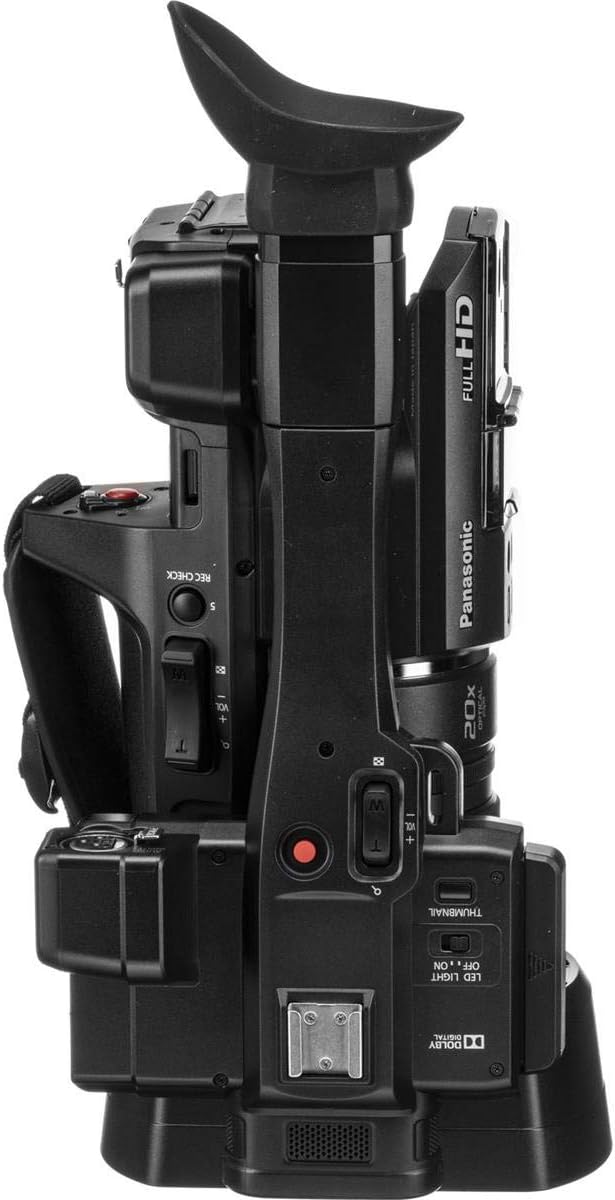
Figure 4.3: Top view of the Panasonic AG-AC30 camcorder. This perspective highlights the integrated handle, electronic viewfinder (EVF), and various control buttons for recording, zoom, and menu navigation.

Figure 4.4: Bottom view of the Panasonic AG-AC30 camcorder. This image displays the standard tripod mounting screw hole and the location of the battery compartment, essential for stable shooting and power management.
5. Setup
5.1. Battery Installation
- Ensure the camera is powered off.
- Open the battery compartment cover, typically located at the rear or bottom of the camera.
- Insert the battery pack, aligning it with the terminals, until it clicks into place.
- Close the battery compartment cover securely.
5.2. SDXC Card Insertion
The AG-AC30 features dual SDXC card slots for extended recording and backup.
- Locate the SD card slot cover, usually on the side of the camera.
- Open the cover and gently insert an SDXC card into the slot with the label facing the correct direction until it locks.
- Close the SD card slot cover. Repeat for the second slot if using two cards.
5.3. Attaching Accessories
- Lens Hood: Attach the lens hood to the front of the lens by aligning the marks and twisting until it locks.
- Microphone: Secure the external microphone to the cold shoe mount on the handle and connect it to the audio input port (XLR inputs are available).
- Shoulder Strap: Attach the shoulder strap to the designated loops for comfortable carrying.
6. Operating the Camera
6.1. Power On/Off
Slide the POWER switch to the ON position to turn on the camera. To power off, slide the switch to OFF.
6.2. Basic Recording
- Set the camera to recording mode using the mode dial.
- Frame your shot using the 0.24" EVF or the 3" LCD Touch Screen.
- Press the REC START/STOP button to begin recording. Press it again to stop.
- The camera records Full HD (1920 x 1080) video at up to 59.94p.
6.3. Zoom Operation
The AG-AC30 features a 20x optical zoom lens. Use the zoom rocker on the handle or the individual zoom ring on the lens for precise control.
6.4. Focus, Iris, and Gain Control
Adjust focus, iris (aperture), and gain using the dedicated rings on the lens and control buttons on the camera body. The individual focus, zoom, and iris lens rings allow for manual adjustments.
6.5. Using the Built-in LED Light
Activate the built-in LED light for illumination in low-light conditions. The control for the LED light is typically located near the light unit.
6.6. Image Stabilization
The 5-Axis Hybrid O.I.S. (Optical Image Stabilization) helps to reduce camera shake during handheld shooting. Ensure this feature is enabled in the camera settings for smoother footage.
7. Maintenance
7.1. Cleaning
- Camera Body: Use a soft, dry cloth to wipe the camera body. For stubborn dirt, slightly dampen the cloth with water and then wipe dry.
- Lens: Use a lens brush or blower to remove dust. For smudges, use a specialized lens cleaning solution and a microfiber cloth.
- LCD Screen: Gently wipe the LCD screen with a soft, lint-free cloth. Avoid pressing too hard.
7.2. Storage
When not in use, store the camera in a cool, dry place, away from direct sunlight and excessive humidity. Remove the battery if storing for an extended period.
8. Troubleshooting
| Problem | Possible Cause | Solution |
|---|---|---|
| Camera does not power on | Battery depleted or incorrectly inserted; Power adapter not connected | Charge battery or insert correctly; Connect power adapter |
| Cannot record video | SDXC card full or not inserted; Write protection enabled on card | Insert new card or delete files; Disable write protection; Format card (data will be lost) |
| Image is blurry | Out of focus; Lens dirty; Image stabilization off | Adjust focus; Clean lens; Enable 5-Axis Hybrid O.I.S. |
| No audio recording | Microphone not connected or muted; Audio settings incorrect | Check microphone connection and volume; Adjust audio input settings |
9. Specifications
| Feature | Detail |
|---|---|
| Model Number | AG-AC30PJ |
| Product Dimensions | 7.87 x 7.87 x 7.87 inches |
| Item Weight | 5.5 pounds |
| Photo Sensor Technology | BSI MOS |
| Video Capture Resolution | 1080p |
| Maximum Focal Length | 29 mm |
| Maximum Aperture | 1.8 f |
| Flash Memory Type | SDXC |
| Video Capture Format | MPEG-4 |
| Supported Audio Format | AAC |
| Screen Size | 30 Inches (LCD Touch Screen) |
| Connectivity Technology | USB |
| Optical Zoom | 20x |
| Image Stabilization | 5-Axis Hybrid O.I.S. |
10. Warranty and Support
For warranty information and customer support, please refer to the warranty card included with your product or visit the official Panasonic website. Keep your purchase receipt as proof of purchase for warranty claims.
Panasonic Customer Support: https://na.panasonic.com/us/support