
1. Introduction
This document provides comprehensive instructions for the installation, configuration, operation, and maintenance of the Juniper EX2300-24T Managed L3 Switch. The EX2300-24T is designed to offer a compact, high-performance solution for supporting modern converged network access deployments. Adhering to these guidelines will ensure optimal performance and longevity of your device.
2. Package Contents
Verify that all items are present and undamaged upon unpacking. If any items are missing or damaged, contact your vendor immediately.
- Juniper EX2300-24T Managed L3 Switch
- Accessories (e.g., power cord, rack-mount kit)
3. Product Overview
The Juniper EX2300-24T is a 24-port managed Layer 3 Ethernet switch, engineered for reliable and efficient network connectivity. It features RJ45 interfaces for network connections and is housed in a durable metal case.
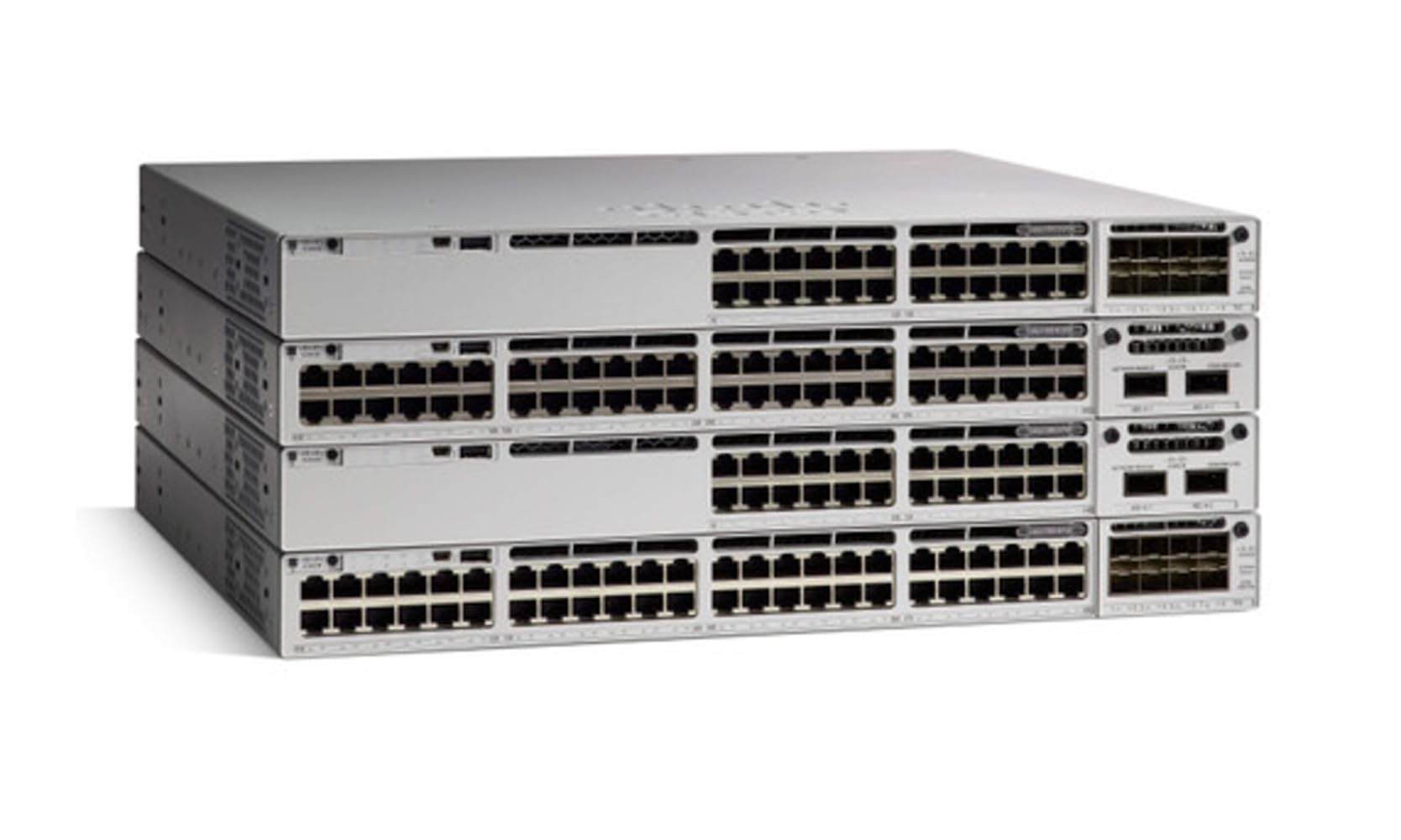
Figure 1: Front view of the Juniper EX2300-24T Managed L3 Switch, showing its ports and indicators.
4. Setup
Follow these steps for initial setup of your EX2300-24T switch:
- Mounting: The switch can be placed on a desktop or mounted in a standard 19-inch equipment rack using the provided rack-mount kit. Ensure adequate ventilation around the device.
- Power Connection: Connect the power cord to the switch's power input and then to a grounded AC power outlet.
- Network Connections: Connect your network devices (servers, workstations, other switches) to the RJ45 Ethernet ports on the front panel. Use appropriate Ethernet cables.
- Initial Configuration Access: For initial configuration, connect a console cable from your management workstation to the console port on the switch. Alternatively, if DHCP is enabled on your network, the switch may obtain an IP address, allowing access via a web browser or SSH.
5. Operating Instructions
Once the switch is physically installed and powered on, you can begin operation and configuration.
- Power On/Off: The switch powers on automatically when connected to a power source. To power off, disconnect the power cord. For controlled shutdowns, use the appropriate command-line interface (CLI) commands if available.
- Accessing the Management Interface:
- CLI: Access the command-line interface via the console port or SSH using a terminal emulator.
- Web UI: If configured, access the web-based management interface by entering the switch's IP address into a web browser.
- Basic Configuration: Refer to the Juniper Networks documentation for detailed instructions on configuring VLANs, port settings, routing protocols, and other advanced features.
6. Maintenance
Regular maintenance ensures the optimal performance and longevity of your switch.
- Cleaning: Keep the switch and its ventilation openings free from dust and debris. Use a soft, dry cloth for cleaning. Do not use liquid cleaners directly on the device.
- Firmware Updates: Periodically check the Juniper Networks support website for firmware updates. Keeping the firmware current can improve performance, add features, and address security vulnerabilities. Follow the provided instructions carefully when performing updates.
- Environmental Conditions: Ensure the switch operates within its specified temperature range (up to 40 degrees Celsius) and humidity levels. Avoid exposing the device to direct sunlight, excessive heat, or moisture.
7. Troubleshooting
This section addresses common issues you might encounter with your EX2300-24T switch.
- No Power:
- Verify the power cord is securely connected to both the switch and the power outlet.
- Ensure the power outlet is functional by testing it with another device.
- No Network Connectivity:
- Check the Ethernet cables for secure connections and damage.
- Verify the link/activity LEDs on the switch ports are illuminated.
- Confirm network configuration (IP addresses, VLANs) is correct.
- Slow Network Performance:
- Check for excessive network traffic or loops.
- Ensure duplex settings match between connected devices.
For more advanced troubleshooting, consult the official Juniper Networks documentation or contact technical support.
8. Specifications
| Feature | Specification |
|---|---|
| Model Number | EX2300-24T |
| Number of Ports | 24 |
| Interface Type | RJ45 |
| RAM | 2000 MB |
| Flash Memory Size | 2000 MB |
| Wireless Type | 802.11ab (for management, if applicable) |
| Product Dimensions (LxWxH) | 17 x 12 x 2 inches |
| Item Weight | 7.26 pounds (3.3 Kilograms) |
| Case Material | Metal |
| Upper Temperature Rating | 40 Degrees Celsius |
| UPC | 832938070820 |
9. Warranty and Support
The Juniper EX2300-24T Managed L3 Switch is covered by a manufacturer's warranty. For specific warranty terms and conditions, please refer to the documentation included with your product or visit the official Juniper Networks website. For technical assistance, product support, or to report issues, please contact Juniper Networks customer support through their official channels.


