
1. Introduction
The Thrustmaster TWCS (Thrustmaster Weapon Control System) Throttle is a standalone throttle designed for advanced flight and space simulation enthusiasts. It offers comprehensive, ergonomic, comfortable, and precise control for an immersive gaming experience. This device is compatible with PC systems running Windows 10, 8, 7, and Vista (32-bit and 64-bit) via a USB connection.

Figure 1: Thrustmaster TWCS Throttle, front-left view.
2. What's in the Box
Upon opening your Thrustmaster TWCS Throttle package, please ensure all the following items are present:
- Thrustmaster TWCS Throttle unit
- Instruction Manual (this document)
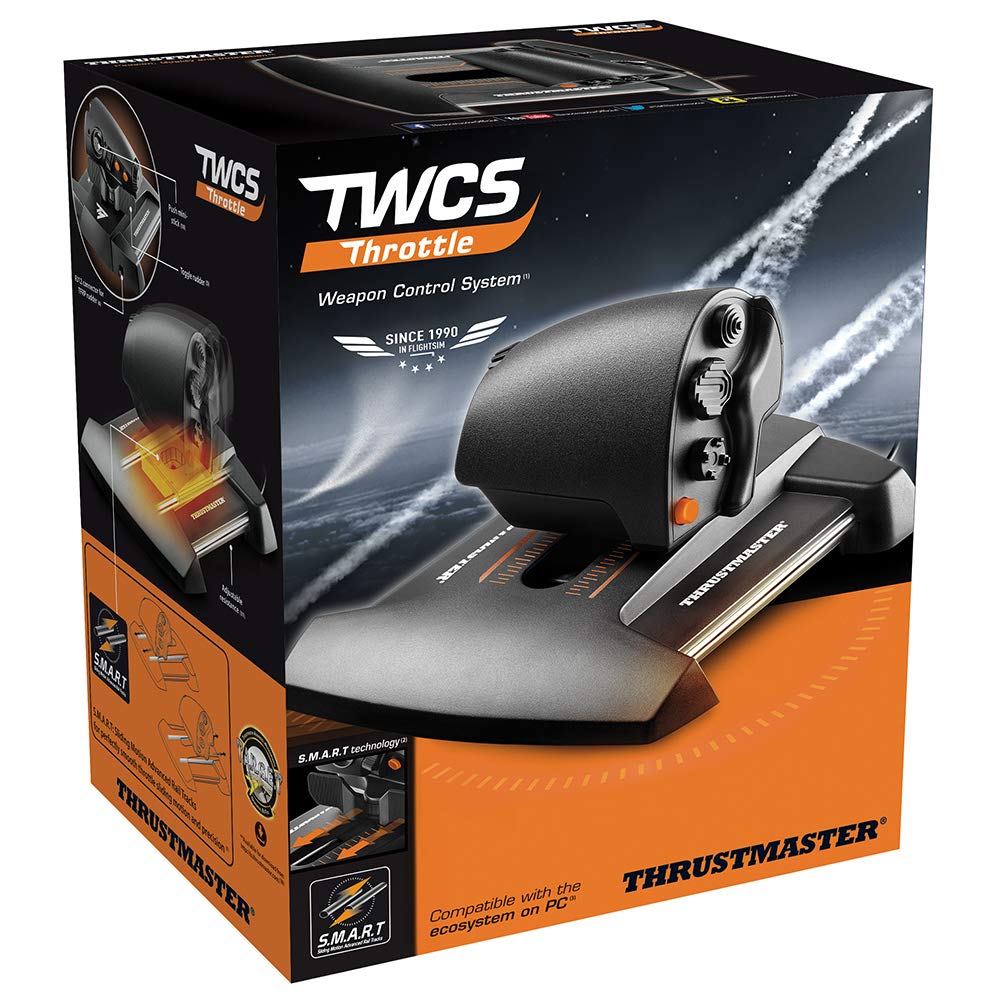
Figure 2: Retail packaging of the Thrustmaster TWCS Throttle, showing included components.
3. Setup and Installation
Follow these steps to set up your Thrustmaster TWCS Throttle for use with your PC.
- Placement: Position the TWCS Throttle on a stable, flat surface such as a desk. Ensure there is enough space for full range of motion.
- Connection: Connect the USB cable from the TWCS Throttle to an available USB port on your PC.
- Driver Installation: Your PC should automatically detect the device and install the necessary drivers. If not, visit the official Thrustmaster support website to download and install the latest drivers for the TWCS Throttle.
- Software Installation (Optional): For advanced customization and mapping, download and install the T.A.R.G.E.T (Thrustmaster Advanced pRogramming Graphical EdiTor) software from the Thrustmaster website.

Figure 3: The TWCS Throttle connected to a PC, ready for use.
4. Operating the TWCS Throttle
The TWCS Throttle is designed for intuitive control in flight and space simulation games.
4.1. Throttle Control
The main throttle lever utilizes S.M.A.R.T (Sliding Motion Advanced Rail Tracks) technology, providing a perfectly smooth and precise sliding motion. This allows for fine adjustments to engine thrust or speed. The "low" position design ensures seamless and precise actions under the hand and at the fingertips.

Figure 4: User's hand demonstrating operation of the TWCS Throttle lever.
4.2. Buttons and Axes
The TWCS Throttle features a total of 5 (+3) axes and 14 action buttons, along with an 8-way Point of View (POV) hat switch. These controls can be mapped to various in-game functions such as weapon systems, targeting, communication, and camera views.
- Throttle Axis: Primary control for thrust/speed.
- Mini-stick: Provides additional control, often used for strafing or camera movement.
- Rocker Switch: Can be used for rudder control or other incremental adjustments.
- Rotary Dial: Offers precise control for functions like trim or radar zoom.
- Buttons: Programmable for various in-game actions.
- 8-way POV Hat Switch: Ideal for looking around the cockpit or menu navigation.

Figure 5: Detailed view of the TWCS Throttle's buttons, mini-stick, and hat switch.
4.3. T.A.R.G.E.T Software
The T.A.R.G.E.T software allows users to create and load specific mapping profiles for different games. This powerful software enables advanced customization of all axes and buttons, including combining multiple Thrustmaster devices into a single virtual USB device. Refer to the T.A.R.G.E.T software manual for detailed instructions on profile creation and management.
5. Key Features
- S.M.A.R.T Technology: Unique system of slide rails for perfectly smooth sliding motion and precision on the throttle axis.
- Extensive Controls: Features 5 (+3) axes, 14 action buttons, and one 8-way Point of View hat switch for comprehensive control.
- Ergonomic Design: The throttle's "low" position facilitates seamless and precise actions, enhancing user comfort and control.
- PC Compatibility: Fully compatible with PC via USB on Windows 10, 8, 7, and Vista (32-bit and 64-bit).
- T.A.R.G.E.T Software: Enables advanced programming and customization of controls, allowing users to create and load specific mapping profiles for various games.

Figure 6: Top-down view of the TWCS Throttle, showcasing its various control inputs.
6. Technical Specifications
| Model Number | 2960754 |
| Connectivity | USB (PC) |
| Compatibility | Windows 10, 8, 7, Vista (32-bit and 64-bit) |
| Axes | 5 (+3) axes |
| Buttons | 14 action buttons + 1 x 8-way POV hat switch |
| Dimensions (L x W x H) | 10.51 x 9.09 x 5.51 inches (approx. 26.7 x 23.1 x 14 cm) |
| Weight | 1.86 pounds (approx. 0.84 kg) |
| Release Date | November 1, 2016 |
7. Maintenance and Care
To ensure the longevity and optimal performance of your Thrustmaster TWCS Throttle, follow these maintenance guidelines:
- Cleaning: Use a soft, dry cloth to wipe down the surface of the throttle. For stubborn dirt, slightly dampen the cloth with water. Avoid using harsh chemicals or abrasive cleaners, as these can damage the finish.
- Storage: When not in use, store the throttle in a clean, dry environment away from direct sunlight and extreme temperatures.
- Cable Care: Avoid sharply bending or twisting the USB cable. Do not pull the cable to disconnect the device; always grasp the connector.
- Moving Parts: The S.M.A.R.T technology is designed for smooth operation. Avoid applying excessive force or attempting to lubricate moving parts unless specifically instructed by Thrustmaster support.
8. Troubleshooting
If you encounter issues with your TWCS Throttle, refer to the following common solutions:
- Device Not Detected:
- Ensure the USB cable is securely connected to both the throttle and the PC.
- Try connecting to a different USB port on your PC.
- Restart your computer.
- Verify that the latest drivers are installed from the Thrustmaster website.
- Controls Not Responding in Game:
- Check in-game control settings to ensure the TWCS Throttle is selected and controls are properly mapped.
- Ensure no other conflicting input devices are active.
- Calibrate the device through Windows Game Controller settings (search "Set up USB game controllers" in Windows).
- Throttle Movement Not Smooth:
- Ensure the throttle's sliding rails are clean and free of debris.
- Avoid placing heavy objects on the throttle that might impede its movement.
- T.A.R.G.E.T Software Issues:
- Ensure you have the latest version of the T.A.R.G.E.T software installed.
- Run the software as an administrator.
- Consult the T.A.R.G.E.T software manual or online support resources for specific issues.
9. Warranty and Support
Thrustmaster products are covered by a limited warranty. For detailed information regarding your product's warranty period and terms, please refer to the official Warranty document provided with your product or available on the Thrustmaster website.
For technical support, driver downloads, FAQs, and additional resources, please visit the official Thrustmaster support website: support.thrustmaster.com.
You can also access the Warranty PDF directly: Thrustmaster Warranty (PDF).


