
Introduction
The Inateck FD2102 is a versatile dual-bay docking station designed for both 2.5-inch and 3.5-inch SATA I/II/III hard disk drives (HDDs) and solid-state drives (SSDs). It provides a convenient solution for data transfer, backup, and offline disk cloning without the need for a computer. Featuring USB 3.0 connectivity, it supports data transfer speeds up to 5Gbps and is compatible with various operating systems.
Package Contents
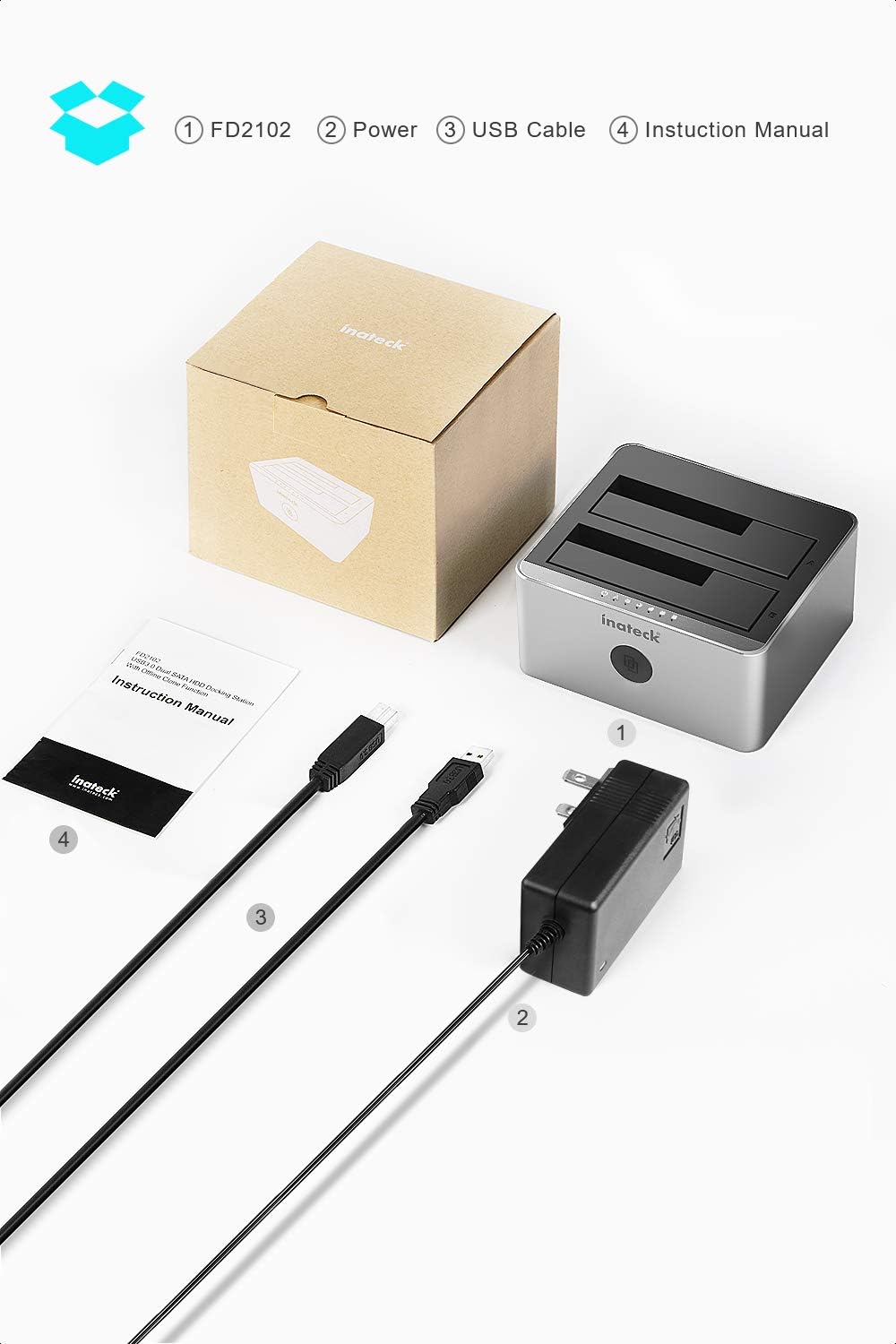
Please verify that all items are present in the package:
- Inateck FD2102 Dual Bay Docking Station
- 12V/3A Power Adapter
- USB 3.0 Data Cable
- User Manual
Setup Instructions
- Connect Power: Connect the provided 12V/3A power adapter to the docking station's power input port and then plug it into a power outlet.
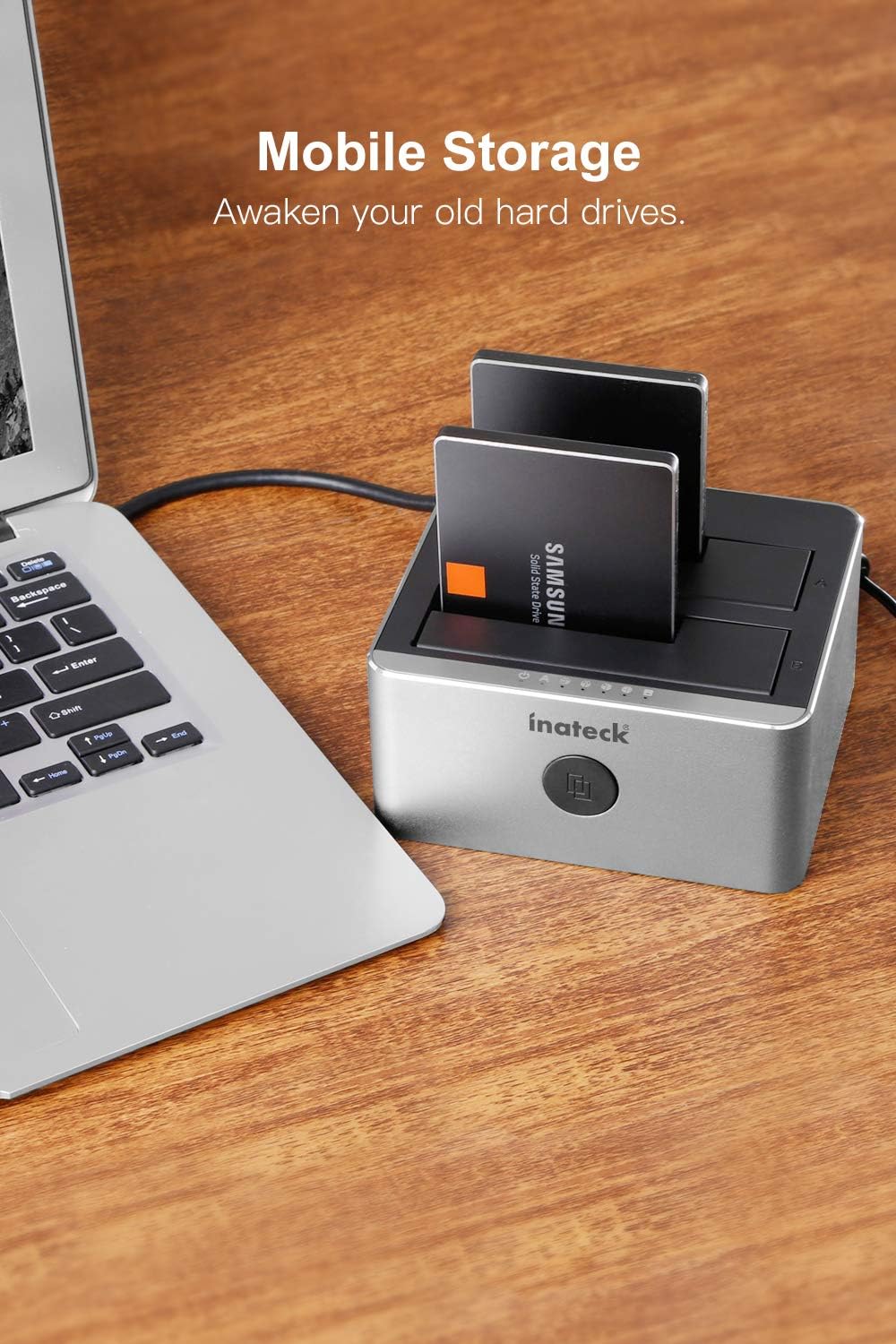
- Insert Hard Drives: Gently insert your 2.5-inch or 3.5-inch SATA HDD/SSD into the drive bays (Slot A and Slot B). Ensure the drive is fully seated into the SATA connector. The docking station supports up to two drives simultaneously.
- Connect to Computer (for data transfer): Connect one end of the USB 3.0 data cable to the docking station's USB 3.0 port and the other end to an available USB 3.0 port on your computer.
- Power On: Press the power button on the back of the docking station to turn it on. The power indicator LED will illuminate.
- Driver Installation: The FD2102 is plug-and-play and typically does not require additional drivers for Windows XP/7/8/10, Linux, or Mac OS 9.1/10.8.4 and above. Your operating system should automatically detect and install the necessary drivers.
Operating Instructions
Data Transfer Mode
Once connected to your computer and powered on, the inserted hard drives will appear as removable storage devices. You can access, transfer, and manage files as you would with any other external drive. The docking station supports UASP (USB Attached SCSI Protocol) for faster data transfer speeds when connected to a UASP-enabled USB 3.0 port.
Offline Cloning Function
The offline cloning function allows you to duplicate a hard drive directly without connecting to a computer. This is useful for creating backups or upgrading to a larger drive.
- Prepare Drives: Ensure the docking station is powered off and disconnected from your computer. Insert the source drive (the drive you want to copy FROM) into Slot A (HDD Source). Insert the target drive (the drive you want to copy TO) into Slot B (HDD Target).
- Important Note: The target drive (Slot B) must be equal to or larger in capacity than the source drive (Slot A). All data on the target drive will be overwritten during the cloning process.
- Start Cloning: Power on the docking station. Press and hold the 'Clone' button on the front panel for approximately 3-5 seconds until the cloning progress indicator LEDs (25%, 50%, 75%, 100%) begin to flash.
- Monitor Progress: The LEDs will indicate the cloning progress:
- 25% LED flashes: Cloning started.
- 25% LED solid, 50% LED flashes: 25% complete.
- 50% LED solid, 75% LED flashes: 50% complete.
- 75% LED solid, 100% LED flashes: 75% complete.
- Cloning Complete: When all four cloning progress LEDs (25%, 50%, 75%, 100%) become solid, the cloning process is complete.
- Power Off: Safely power off the docking station and remove the drives.


Safe Removal of Drives
Before physically removing drives from the docking station, ensure that all data transfer operations are complete. If connected to a computer, safely eject the drives through your operating system's 'Safely Remove Hardware' or 'Eject' function. Then, power off the docking station before removing the drives.
Maintenance
- Cleaning: Use a soft, dry cloth to clean the exterior of the docking station. Avoid using liquid cleaners or solvents, as they may damage the device.
- Storage: When not in use, store the docking station in a cool, dry place away from direct sunlight and extreme temperatures.
- Handling: Handle the docking station and hard drives with care to prevent physical damage. Avoid dropping or subjecting the device to strong impacts.
Troubleshooting
- Drive not recognized by computer:
- Ensure the docking station is powered on and the USB cable is securely connected to both the docking station and your computer.
- Try connecting the docking station to a different USB port on your computer, preferably a USB 3.0 port.
- Verify that the hard drive is properly seated in the bay.
- Check Disk Management (Windows) or Disk Utility (Mac) to see if the drive is detected but uninitialized or unformatted.
- If using a USB hub, try connecting the docking station directly to the computer. Some USB hubs may cause connectivity issues.
- Offline cloning fails or does not start:
- Ensure the source drive (Slot A) is inserted correctly.
- Ensure the target drive (Slot B) is inserted correctly and has a capacity equal to or greater than the source drive.
- Make sure the docking station is disconnected from the computer before initiating offline cloning.
- Press and hold the 'Clone' button for the required 3-5 seconds until the LEDs start flashing.
- Slow data transfer speeds:
- Ensure you are using a USB 3.0 port on your computer and the provided USB 3.0 cable.
- Verify that your operating system and drivers support UASP for optimal performance.
- The actual speed may vary depending on the hard drive's performance and your computer's system configuration.
- Difficulty inserting drives:
- Ensure the drive is aligned correctly with the SATA connector. Apply gentle, even pressure. Avoid forcing the drive, as this can damage the connectors.
Product Specifications
| Feature | Specification |
|---|---|
| Model Number | FD2102 |
| Compatible Drives | 2.5" and 3.5" SATA I/II/III HDD/SSD |
| Number of Bays | 2 (Dual Bay) |
| Max Drive Capacity | Up to 10TB per bay |
| Interface | USB 3.0 (backward compatible with USB 2.0) |
| Data Transfer Rate | Up to 5Gbps (USB 3.0) |
| Offline Clone | Supported (no computer needed) |
| Operating System Compatibility | Windows XP/7/8/10, Linux, Mac OS 9.1/10.8.4 and above |
| Power Adapter | 12V/3A |
| Product Dimensions (LxWxH) | 5.12 x 4.53 x 2.44 inches |
| Item Weight | 11.7 ounces (0.73 Pounds) |
Warranty Information
Inateck products typically come with a manufacturer's warranty. Please refer to the warranty card included in your package or visit the official Inateck website for detailed warranty terms and conditions specific to the FD2102 model.
Customer Support
For technical assistance, troubleshooting, or further inquiries regarding your Inateck FD2102 docking station, please visit the official Inateck website. You can usually find FAQs, driver downloads, and contact information for customer service there.
Official Inateck Website: www.inateck.com

