
Introduction
The ARRIS SURFboard TM822G is a high-performance DOCSIS 3.0 cable modem and a 2-port telephony modem, designed for use with XFINITY from Comcast Internet & Voice service. This device provides a reliable connection for your internet and supports two Voice over IP (VoIP) telephone lines. By owning your modem, you can avoid monthly rental fees from your service provider.
Package Contents
Ensure all items are present in your product package:
- ARRIS SURFboard TM822G Cable Modem
- Ethernet Cable
- Coaxial Cable Splitter
- Two Coaxial Cables
- Power Cord
- User Manual (this document)
Device Overview
Familiarize yourself with the ARRIS SURFboard TM822G's components and indicators.
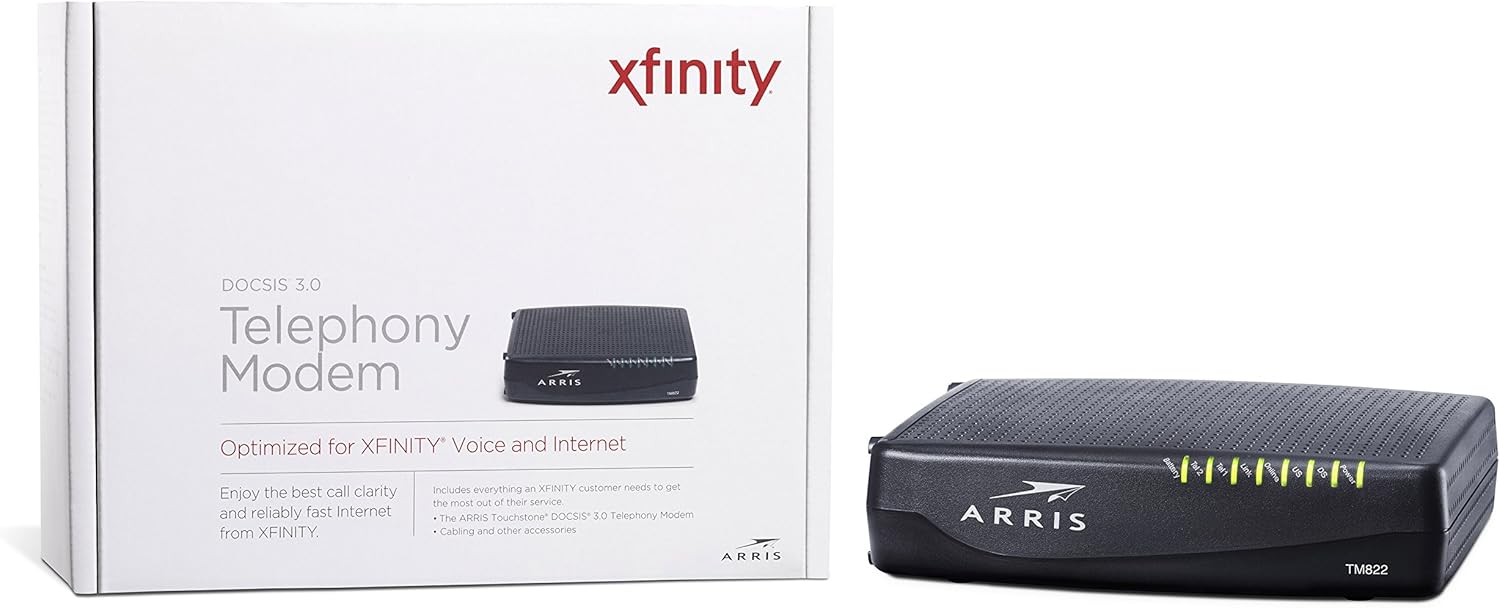
Figure 1: Front View of ARRIS SURFboard TM822G
This image shows the front panel of the ARRIS SURFboard TM822G cable modem, highlighting the status indicator lights.

Figure 2: Rear View of ARRIS SURFboard TM822G
This image displays the rear panel of the ARRIS SURFboard TM822G, detailing the coaxial input, Ethernet port, and two telephone line ports.
LED Status Indicators
The front panel LEDs provide information about the modem's operational status:
- Power: Indicates the modem's power status.
- DS (Downstream): Indicates downstream channel connectivity.
- US (Upstream): Indicates upstream channel connectivity.
- Online: Indicates successful internet connection.
- Link: Indicates Ethernet connection status.
- Tel1 / Tel2: Indicate the status of the two telephone lines.
- Battery: Indicates the status of an optional battery backup (sold separately).
Setup
Follow these steps to set up your ARRIS SURFboard TM822G cable modem:
- Connect Coaxial Cable: Connect one end of a coaxial cable to the cable wall outlet and the other end to the "Cable In" port on the back of the modem. Ensure the connection is finger-tight.
- Connect Ethernet Cable: Connect one end of the Ethernet cable to the Ethernet port on the back of the modem and the other end to your computer or wireless router.
- Connect Telephone Lines: If you have Xfinity Voice service, connect your telephone(s) to the "Tel1" and/or "Tel2" ports on the back of the modem.
- Connect Power: Plug the power cord into the modem's power port and then into an electrical outlet.
- Power On: Wait for the modem to power on and for the front panel LEDs (Power, DS, US, Online, Link, Tel1/Tel2) to become solid green or blue, indicating a stable connection. This may take several minutes.
- Activate Service:
- For Xfinity Users: Open a web browser on a connected device and navigate to xfinity.com/activate. Follow the on-screen instructions to activate your modem. You may need your Xfinity account information.
- For Other ISPs: Refer to your Internet Service Provider's activation instructions or contact their customer support.
Operating Instructions
Once successfully set up and activated, your ARRIS SURFboard TM822G will provide internet and telephone service. The modem operates continuously to maintain your connection. Monitor the front panel LEDs to ensure proper operation. Solid lights typically indicate a stable connection, while blinking lights or specific color changes may indicate activity or a problem.
For optimal performance, ensure the modem is placed in a well-ventilated area, away from direct sunlight or heat sources, and not obstructed by other objects.
Maintenance
Regular maintenance helps ensure the longevity and optimal performance of your modem:
- Cleaning: Periodically wipe the exterior of the modem with a soft, dry cloth. Avoid using liquid cleaners or abrasive materials.
- Ventilation: Ensure the modem's ventilation holes are not blocked to prevent overheating.
- Firmware Updates: Firmware updates are typically managed automatically by your Internet Service Provider. Do not attempt to manually update the firmware unless instructed by your ISP.
- Rebooting: If you experience connectivity issues, a simple reboot of the modem (unplugging the power for 30 seconds and plugging it back in) can often resolve minor problems.
Troubleshooting
If you encounter issues with your ARRIS SURFboard TM822G, refer to the following common troubleshooting tips:
| Problem | Possible Cause | Solution |
|---|---|---|
| No Power LED | Modem is not receiving power. | Check power cord connections to the modem and electrical outlet. Ensure the outlet is functional. |
| DS/US/Online LEDs are blinking or off | No connection to the cable network or internet. | Ensure coaxial cable is securely connected. Check for service outages in your area. Contact your ISP if the issue persists. |
| Link LED is off | No Ethernet connection to your computer/router. | Verify the Ethernet cable is securely connected to both the modem and your device/router. Try a different Ethernet cable. |
| Tel1/Tel2 LEDs are off or blinking | Telephone service issue. | Ensure telephone lines are correctly connected. Contact your Xfinity Voice service provider. |
| Slow Internet Speed | Network congestion, outdated router, or ISP issue. | Reboot the modem and router. Ensure your router is capable of handling your internet speed plan. Contact your ISP to check line quality and service plan. |
The ARRIS SURFboard TM822G supports Loop Diagnostics for remote testing and troubleshooting of in-house wiring, which can be utilized by your service provider.
Specifications
Key technical specifications for the ARRIS SURFboard TM822G:
- Brand: ARRIS
- Model: TM822G
- Modem Type: Cable Modem with Telephony Adapter
- DOCSIS Standard: DOCSIS 3.0
- Downstream Channels: 8 bonded channels
- Upstream Channels: 4 bonded channels
- Maximum Downstream Speed: Up to 343 Mbps
- Maximum Upstream Speed: Up to 131 Mbps
- Ethernet Ports: 1 Gigabit Ethernet port
- Telephone Ports: 2 (for Voice over IP)
- Compatible ISP: Certified for Comcast Xfinity Internet & Voice service only.
- Connectivity Technology: Ethernet
- Color: Black
Warranty and Support
The ARRIS SURFboard TM822G comes with a 2-year limited parts and labor warranty. For technical assistance or warranty claims, please contact ARRIS customer support. You can find contact information and additional resources on the official ARRIS support website.


