
1. Introduction
This manual provides essential information for the safe and efficient use of your ASUS X555DA-WB11 laptop. Please read this manual thoroughly before operating your device and retain it for future reference. This document covers setup, operation, maintenance, and troubleshooting for your laptop.
2. Product Overview
The ASUS X555DA-WB11 is a versatile laptop designed for everyday computing tasks. Familiarize yourself with its main components.
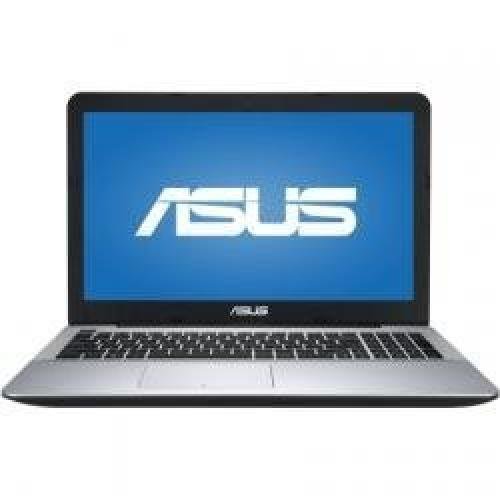
Figure 2.1: Front view of the ASUS X555DA-WB11 laptop. This image displays the laptop open, showing the 15.6-inch display, keyboard, and touchpad. The screen shows the Windows operating system interface.
2.1. Components
- Display: 15.6-inch anti-glare screen.
- Keyboard: Full-size keyboard with numeric keypad.
- Touchpad: Multi-touch gesture supported touchpad.
- Optical Drive: SuperMulti DVD Drive (located on the side).
- Ports: USB 2.0, USB 3.0, HDMI, VGA, Ethernet (RJ-45), SD Card Reader, Headphone/Microphone combo jack.
- Webcam: Integrated webcam above the display.
3. Setup
3.1. Connecting the Power Adapter
- Connect the AC adapter to the power jack on the side of your laptop.
- Plug the power cord into a wall outlet.
- The battery charging indicator will illuminate, indicating that the battery is charging.
3.2. Initial Power On
- Open the laptop lid.
- Press the power button, typically located above the keyboard or on the side.
- Follow the on-screen instructions to complete the Windows 10 initial setup, including language, region, network connection, and user account creation.
4. Operating Your Laptop
4.1. Power Management
- Power On: Press the power button.
- Shut Down: Click the Start button, then Power > Shut down.
- Sleep Mode: Close the lid or click the Start button, then Power > Sleep.
- Restart: Click the Start button, then Power > Restart.
4.2. Using the Touchpad
The touchpad functions as a mouse. Use single-finger gestures for basic navigation and multi-finger gestures for advanced functions.
- Tap: Single tap to click.
- Two-finger Scroll: Drag two fingers up or down to scroll.
- Pinch Zoom: Pinch two fingers together or spread them apart to zoom in or out.
4.3. Connecting to Wi-Fi
- Click the network icon in the taskbar (usually a Wi-Fi symbol).
- Select your desired Wi-Fi network from the list.
- Click Connect and enter the network security key (password) if prompted.
4.4. Using the Optical Drive
To open the SuperMulti DVD Drive, press the eject button located on the drive itself. Insert a disc with the label facing up and gently push the tray back in until it clicks.
5. Maintenance
5.1. Cleaning Your Laptop
- Use a soft, lint-free cloth slightly dampened with water or a specialized screen cleaner for the display.
- For the keyboard and chassis, use a soft cloth. Avoid harsh chemicals or abrasive materials.
- Ensure the laptop is powered off and unplugged before cleaning.
5.2. Battery Care
- Avoid exposing the battery to extreme temperatures.
- For optimal battery life, avoid fully discharging the battery frequently.
- If storing the laptop for an extended period, charge the battery to approximately 50% and store it in a cool, dry place.
5.3. Software Updates
Regularly update your Windows operating system and drivers to ensure optimal performance and security. Windows Update can be accessed via Settings > Update & Security > Windows Update.
6. Troubleshooting
6.1. Common Issues and Solutions
| Issue | Possible Solution |
|---|---|
| Laptop does not power on | Ensure the AC adapter is securely connected and the power outlet is functional. Check if the battery is charged. |
| No display on screen | Connect an external monitor to check if the issue is with the laptop's display. Restart the laptop. |
| Wi-Fi connection issues | Check if Wi-Fi is enabled (Fn+F2). Restart your router and modem. Ensure correct Wi-Fi password is entered. |
| Slow performance | Close unnecessary applications. Run a disk cleanup and defragmentation. Check for malware. Ensure sufficient free disk space. |
7. Specifications
The following are key technical specifications for the ASUS X555DA-WB11 laptop (Model: 90NB09D2-M00280):
- Processor: AMD A10-8700P Quad-Core Processor (1.8 GHz, up to 3.20 GHz)
- Graphics: AMD Radeon R6 Graphics (Dedicated)
- Display: 15.6-inch Anti-Glare, 1366 x 768 pixels
- Memory (RAM): 4GB DDR4 RAM
- Storage: 500GB 5400 RPM HDD
- Optical Drive: SuperMulti DVD Drive
- Wireless: 802.11b/g/n Wi-Fi, Bluetooth 4.0
- Ports: 1x USB 2.0, 2x USB 3.0 (typical configuration for X555DA series), HDMI, VGA, RJ-45, SD Card Reader, Audio Jack
- Operating System: Windows 10 Home (64-Bit)
- Weight: Approximately 5 pounds (2.27 kg)
- Dimensions (LxWxH): Approximately 20 x 12 x 3 inches (50.8 x 30.5 x 7.6 cm)
8. Warranty and Support
For warranty information, please refer to the warranty card included with your product or visit the official ASUS support website. You can find drivers, FAQs, and contact information for technical support at www.asus.com/support/. Please have your product model (X555DA-WB11) and serial number ready when contacting support.