
1. Introduction
The HP Aruba AP-228 is an indoor hardened wireless access point designed to deliver high-performance 802.11ac Wi-Fi connectivity in challenging, weather-protected environments such as warehouses, industrial freezers, or stadium enclosures. This manual provides essential information for the proper installation, configuration, operation, and maintenance of your AP-228 device.
2. Safety Information
Please read all safety instructions before operating the device. Failure to follow these instructions may result in injury or damage to the device.
- Ensure the device is installed by qualified personnel.
- Use only the power adapter supplied or approved by the manufacturer.
- Do not expose the device to extreme temperatures, humidity, or direct sunlight.
- Keep the device away from liquids and moisture.
- Do not attempt to open or repair the device yourself. Refer all servicing to qualified service personnel.
- Ensure proper grounding if required by local electrical codes.
3. Package Contents
Verify that your package contains the following items:
- Aruba AP-228 Wireless Access Point Unit
- Mounting Bracket (for wall or ceiling installation)
- Documentation (Quick Start Guide, Safety and Regulatory Information)
- (Optional, depending on SKU) Power Adapter or PoE Injector
- (Optional, depending on SKU) External Antennas
4. Product Features
The Aruba AP-228 offers advanced features for robust wireless connectivity:
- High Performance: Supports IEEE 802.11ac with data rates up to 1.3 Gbps in the 5 GHz band and 600 Mbps in the 2.4 GHz band.
- Dual-Band Operation: Simultaneous operation on 2.4 GHz and 5 GHz frequencies.
- Hardened Design: Suitable for harsh, weather-protected indoor environments.
- ClientMatch Technology: Optimizes Wi-Fi client performance by steering devices to the best AP and radio.
- MIMO and Beamforming: Utilizes Multiple-Input Multiple-Output (MIMO) and Beamforming technologies for enhanced signal quality and coverage.
- Flexible Connectivity: Features 2 x Network (RJ-45) ports and a USB port.
- Mounting Options: Designed for wall or ceiling mounting.
- Microsoft Lync Optimization: Supports priority handling and policy enforcement for Microsoft Lync media.
5. Physical Description and Components
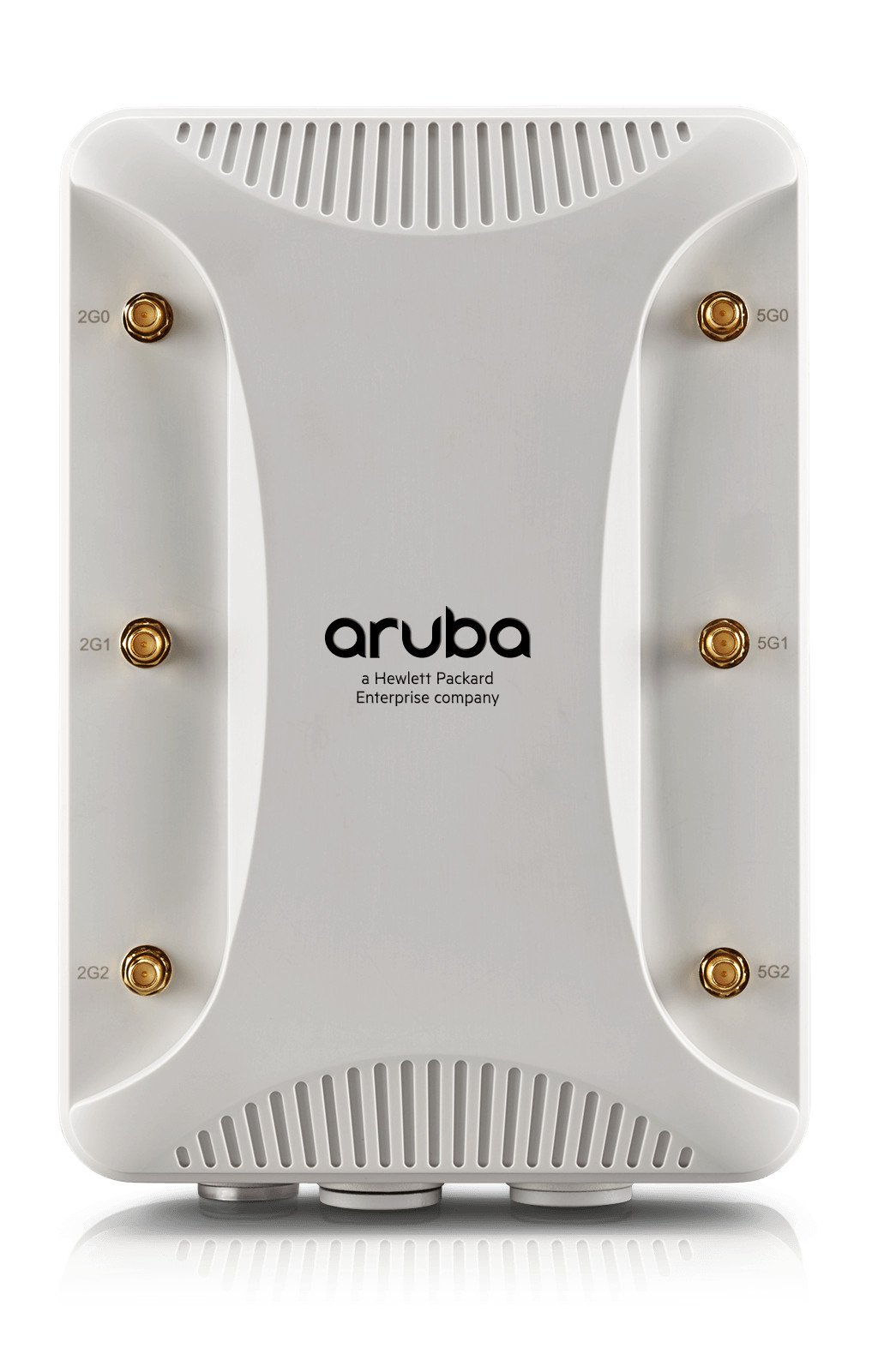
Figure 1: Front view of the Aruba AP-228, showing the Aruba logo and six RPSMA antenna connectors for external antennas.
The Aruba AP-228 features a robust casing designed for durability. Key components include:
- Antenna Connectors: Six RPSMA connectors for attaching external antennas (as shown in Figure 1).
- Ethernet Ports: Two RJ-45 Gigabit Ethernet ports for network connectivity and Power over Ethernet (PoE) input.
- USB Port: For future expansion or specific accessories.
- LED Indicators: Status LEDs to indicate power, network activity, and wireless status.
- Mounting Points: Integrated points for secure wall or ceiling mounting.
6. Setup and Installation
Proper installation is crucial for optimal performance. Follow these general steps:
- Site Survey: Conduct a wireless site survey to determine the best location for the AP, ensuring optimal coverage and minimal interference.
- Mounting: Secure the AP-228 using the provided mounting bracket to a wall or ceiling. Ensure the mounting surface can support the device's weight.
- Antenna Connection: Attach the external antennas to the six RPSMA connectors. Ensure they are securely fastened.
- Network Connection: Connect an Ethernet cable from your network switch (preferably PoE-enabled) to one of the RJ-45 ports on the AP. If not using PoE, connect a separate power adapter.
- Power On: Once connected, the AP will power on. Observe the LED indicators for initial boot-up status.
- Initial Configuration: Access the AP's management interface via a web browser or a dedicated management console (e.g., Aruba Central or a local controller) to perform initial configuration, including setting up SSIDs, security, and network parameters. Refer to the ArubaOS documentation for detailed configuration steps.
7. Operating Instructions
Once installed and configured, the AP-228 operates autonomously to provide wireless connectivity. Key operational aspects include:
- LED Indicators: Monitor the status LEDs for operational health. Typically, a solid green LED indicates normal operation. Consult the full product documentation for specific LED patterns and their meanings.
- Wireless Client Connection: Clients (laptops, smartphones, tablets) can connect to the configured SSIDs using standard Wi-Fi connection procedures.
- Network Management: Manage the AP-228 through its web interface or a centralized management system to monitor performance, adjust settings, and view connected clients.
8. Maintenance
Regular maintenance helps ensure the longevity and optimal performance of your AP-228.
- Cleaning: Periodically clean the exterior of the device with a soft, dry cloth. Do not use liquid cleaners or aerosols.
- Firmware Updates: Regularly check for and apply firmware updates from the official HP Aruba support website. Firmware updates often include performance improvements, security patches, and new features.
- Environmental Checks: Ensure the operating environment remains within specified temperature and humidity ranges.
- Antenna Inspection: Periodically inspect antenna connections for tightness and damage.
9. Troubleshooting
If you encounter issues with your AP-228, consider the following troubleshooting steps:
- No Power:
- Verify the power source (PoE switch or power adapter) is functioning correctly.
- Check all cable connections.
- No Network Connectivity:
- Ensure the Ethernet cable is securely connected to both the AP and the network switch.
- Check the status of the network switch port.
- Verify IP address configuration and network settings.
- Poor Wireless Performance:
- Check antenna connections.
- Perform a site survey to identify potential interference sources or coverage gaps.
- Ensure ClientMatch technology is enabled and functioning.
- Verify firmware is up to date.
- Cannot Access Management Interface:
- Ensure your computer is on the same network segment as the AP or has proper routing.
- Verify the AP's IP address.
- Try resetting the AP (consult full documentation for reset procedures, as this may revert settings).
10. Specifications
| Feature | Specification |
|---|---|
| Brand | HP (Aruba) |
| Model Name | AP-228 |
| Model Number | JW182A |
| Frequency Band Class | Dual-Band (2.4 GHz, 5 GHz) |
| Wireless Communication Standard | 802.11a/ac |
| Connectivity Technology | USB, Wi-Fi |
| Data Transfer Rate | Up to 1300 Mbps (5 GHz), 600 Mbps (2.4 GHz) |
| LAN Port Bandwidth | 1000 Mbps (Gigabit Ethernet) |
| Number of Ports | 3 (2x RJ-45, 1x USB) |
| Operating System | ArubaOS |
| Item Weight | 1225 Grams |
| Voltage | 240 Volts (Input for power adapter, if used) |
| Coverage | Industrial and outdoor environments (weather-protected) |
| UPC | 190017020839 |
11. Warranty and Support
For warranty information, please refer to the warranty card included with your product or visit the official HP Aruba support website. Technical support and additional resources, including detailed documentation and software downloads, are available through the HP Aruba support portal.
HP Aruba Support: www.arubanetworks.com/support-services/
