1. Introduction
This manual provides detailed instructions for the installation, operation, and maintenance of your Pioneer DEH-X4900BT Digital Media CD Receiver. This unit features built-in Bluetooth for hands-free calling and audio streaming, compatibility with the Pioneer ARC (Advanced Remote Control) app, MIXTRAX functionality, and customizable illumination. Please read this manual thoroughly before using your new receiver to ensure proper operation and to prevent damage.

Figure 1.1: Front view of the Pioneer DEH-X4900BT Digital Media CD Receiver.
2. Safety Information
Observe the following safety precautions to prevent accidents and ensure safe operation:
- Do not operate the unit in a manner that distracts you from safe driving.
- Keep the volume at a level where you can still hear outside sounds.
- Consult a qualified technician for installation to avoid electrical shorts or damage.
- Do not disassemble or modify the unit. This may result in electric shock or other hazards.
- Ensure all wiring is properly connected and insulated to prevent short circuits.
3. Package Contents
Verify that all items are present in the package:
- Pioneer DEH-X4900BT CD Receiver Unit
- Wiring Harness
- Remote Control
- Microphone (for hands-free calling)
- Mounting Sleeve and Trim Ring
- Installation Screws
- User Manual (this document)
4. Setup
4.1. Installation
Professional installation is recommended. Ensure the vehicle's battery is disconnected before beginning installation. Refer to your vehicle's service manual for specific dashboard disassembly instructions.
- Mounting: Install the mounting sleeve into the dashboard opening. Bend the tabs outward to secure it.
- Wiring: Connect the supplied wiring harness to the vehicle's wiring. Match wire colors and functions carefully. Common connections include power (yellow, red), ground (black), speaker outputs, and antenna.
- Microphone: Route the microphone cable to a suitable location (e.g., sun visor or A-pillar) and connect it to the unit's microphone input.
- Antenna: Connect the vehicle's antenna cable to the receiver.
- Final Connection: Connect the wiring harness to the back of the DEH-X4900BT unit. Slide the unit into the mounting sleeve until it locks into place.
- Trim Ring: Attach the trim ring around the front of the unit.
- Reconnect Battery: Reconnect the vehicle's battery terminal.
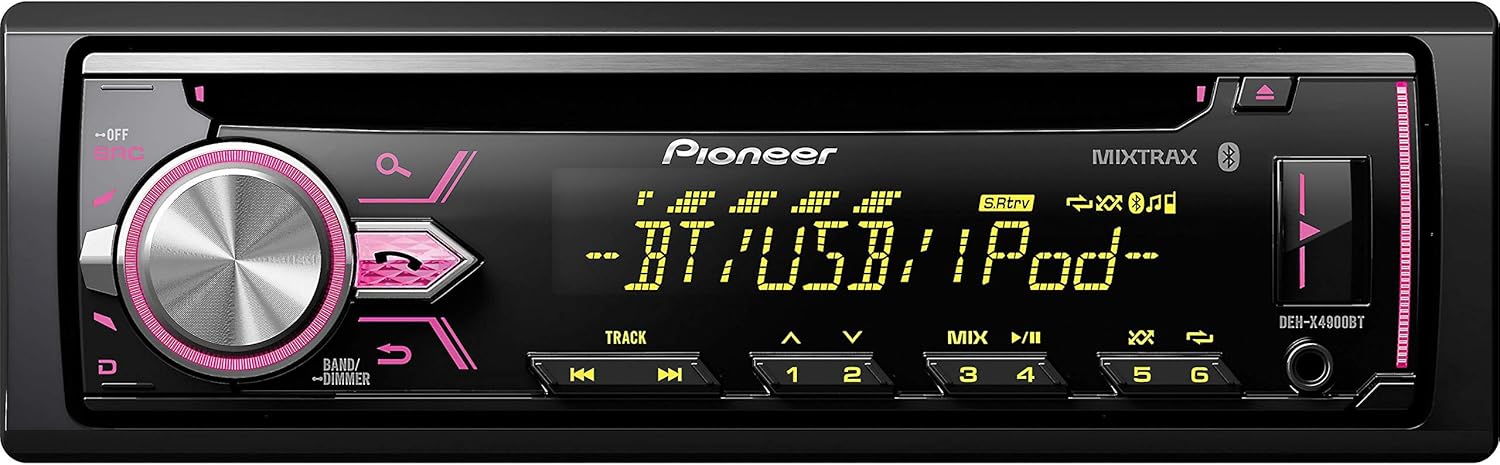
Figure 4.1: Rear panel connections of the receiver with wiring harness.
4.2. Initial Power-On
After installation, turn on the vehicle's ignition. The unit should power on. Follow any on-screen prompts for initial setup, such as language selection or clock setting.
4.3. Bluetooth Pairing
To use Bluetooth features, you must pair your mobile device with the receiver:
- Turn on the DEH-X4900BT and enable Bluetooth on your mobile device.
- On the receiver, navigate to the Bluetooth menu. Select "Pairing" or "Add Device".
- On your mobile device, search for available Bluetooth devices. Select "Pioneer DEH-X4900BT" from the list.
- Confirm the pairing code on both devices if prompted.
- Once paired, the unit will display a confirmation message.
4.4. Pioneer ARC App Setup
The Pioneer ARC (Advanced Remote Control) app allows control of select receiver functions from your smartphone.
- Download the Pioneer ARC app from the App Store (for iPhone) or Google Play (for Android).
- Connect your smartphone to the receiver via Bluetooth or USB.
- Launch the Pioneer ARC app. The app should automatically detect and connect to the receiver.
- You can now control functions like source selection, audio adjustments, and track search through the app.
5. Operating Instructions
5.1. Basic Controls
- Power On/Off: Press the SOURCE button to turn the unit on. Press and hold SOURCE to turn it off.
- Volume: Rotate the rotary knob to adjust the volume level.
- Source Selection: Press the SOURCE button repeatedly to cycle through available audio sources (Tuner, CD, USB, Bluetooth Audio, AUX).
5.2. Radio Operation
- Band Selection: Press the BAND button to switch between FM1, FM2, FM3, and AM bands.
- Manual Tuning: Press the / buttons to manually tune frequencies.
- Seek Tuning: Press and hold the / buttons to automatically seek the next strong station.
- Preset Stations: To store a station, tune to the desired frequency, then press and hold one of the numeric preset buttons (1-6) until the preset number flashes. To recall a preset, press the corresponding numeric button.
5.3. CD Playback
- Insert CD: Gently insert a CD into the disc slot with the label side up. The unit will automatically begin playback.
- Track Selection: Press the / buttons to skip tracks.
- Fast Forward/Rewind: Press and hold the / buttons.
- Eject CD: Press the EJECT button to remove the CD.
5.4. USB/Aux Input
- USB: Connect a USB storage device or compatible smartphone to the USB port. Select the USB source.
- Auxiliary: Connect an external audio player to the 3.5mm AUX input jack. Select the AUX source.
5.5. Bluetooth Audio Streaming
Once your device is paired, select the Bluetooth Audio source. Play music from your paired device, and the audio will stream through the receiver. Use the receiver's controls or your device to manage playback (play/pause, skip track).
5.6. Hands-Free Calling
When a phone is paired via Bluetooth:
- Answer Call: Press the PHONE button.
- End Call: Press the PHONE button again.
- Make Call: Use your phone's dialing function or access your phonebook/call history via the receiver's menu.
5.7. Sound Settings
Press the AUDIO button to access sound settings such as Equalizer (EQ), Bass Boost, Fader, and Balance. Use the rotary knob to adjust values and the / buttons to navigate options.
5.8. Display Customization
The DEH-X4900BT allows customization of display illumination and brightness.
- Illumination Color: Access the SYSTEM menu, then select "ILLUMINATION". Choose from various preset colors or customize RGB values.
- Brightness: Adjust the display brightness through the SYSTEM menu.
6. Maintenance
- Cleaning the Unit: Use a soft, dry cloth to wipe the front panel. For stubborn dirt, dampen the cloth with water. Avoid abrasive cleaners or solvents.
- CD Care: Handle CDs by their edges. Keep them clean and free of scratches. Use a soft, lint-free cloth to wipe from the center outwards.
- Firmware Updates: Periodically check the Pioneer website for available firmware updates to ensure optimal performance and compatibility.
7. Troubleshooting
If you encounter issues, refer to the following table for common problems and solutions:
| Problem | Possible Cause | Solution |
|---|---|---|
| No power | Blown fuse; incorrect wiring; vehicle battery disconnected. | Check vehicle fuses and receiver fuse; verify wiring connections; ensure battery is connected. |
| No sound | Volume too low; mute activated; speaker wiring incorrect; "AMP ERROR" displayed. | Increase volume; deactivate mute; check speaker connections; if "AMP ERROR", disconnect speakers one by one to identify faulty speaker/wiring, or consult technician. |
| Bluetooth not connecting | Device not in pairing mode; receiver not in pairing mode; device already paired to another unit. | Ensure both devices are in pairing mode; delete previous pairings and re-pair; restart both devices. |
| CD will not play/eject | Disc dirty or scratched; incorrect disc format; foreign object in slot. | Clean disc; ensure disc is audio CD or compatible data CD; do not force disc, consult technician if object is present. |
| Pioneer ARC app not connecting | Bluetooth/USB connection issue; app not updated; incompatible device. | Verify Bluetooth/USB connection; update app to latest version; check app compatibility with your smartphone model. |
8. Specifications
| Feature | Specification |
|---|---|
| Brand | PIONEER |
| Model Number | DEH-X4900BT |
| Connectivity Technology | Auxiliary, USB, Bluetooth |
| Controller Type | App Control |
| Special Features | Pandora, Spotify, MIXTRAX, ARC App Compatible |
| Compatible Devices | Smartphone (Android, iPhone) |
| Connector Type | 3.5mm Jack, USB |
| Audio Output Mode | Stereo |
| Color | Black |
| Product Dimensions (D x W x H) | 17" x 15.25" x 9.75" |
| Output Power (RMS) | 14 Watts |
| Max Output Power | 50 Watts x 4 Channels |
| Supported Internet Services | Internet Radio |
| Audio Format Support | WMA (and others via CD/USB) |
| Wireless Technology | Bluetooth |
| UPC | 884938338431 |
9. Warranty Information
Pioneer products are covered by a limited warranty. For specific warranty terms, conditions, and duration, please refer to the warranty card included with your product or visit the official Pioneer Electronics website. Keep your purchase receipt as proof of purchase for warranty claims.
10. Support
For further assistance, technical support, or to download the latest firmware and detailed installation guides, please visit the official Pioneer Electronics website:
You may also contact Pioneer customer service directly through the contact information provided on their website.