
1. Introduction
This manual provides detailed instructions for the setup, operation, maintenance, and troubleshooting of your Logitech G933 Artemis Spectrum RGB 7.1 Surround Sound Gaming Headset. Please read this guide thoroughly to ensure optimal performance and longevity of your device.

Image 1.1: The Logitech G933 Artemis Spectrum headset in black, highlighting its design and blue LED accents.
2. Product Overview
The Logitech G933 Artemis Spectrum is a versatile gaming headset designed for multi-platform compatibility and immersive audio experiences. Key features include:
- Multi-platform Compatibility: Works with PC, mobile devices, home theater systems, PS4, and Xbox One.
- Programmable G-keys: Three customizable G-keys for assigning commands via Logitech Gaming Software.
- Comfortable Design: Features soft and breathable sports mesh materials for ear cups and headband, designed for extended use. Ear cups are removable and washable.
- Advanced Audio: Pro-G audio drivers and 7.1 Dolby Surround Sound with DTS Headphone:X for high-fidelity audio.
- Adjustable RGB Lighting: Customizable lighting with approximately 16.8 million colors.
- Foldaway, Noise-Cancelling Mic: Integrated microphone that can be folded away when not in use.

Image 2.1: An annotated diagram of the G933 headset, pointing out key features such as its wireless capability, surround sound technology, comfortable ear pads, retractable microphone, programmable G-keys, and rotating ear cups.

Image 2.2: A detailed view of the G933's left ear cup, highlighting the customizable RGB lighting, three programmable G-keys for custom commands, and the integrated volume control wheel.
3. Setup
3.1 System Requirements
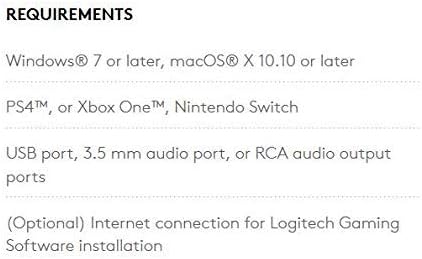
Image 3.1: This image lists the system requirements for the G933 headset, including operating systems (Windows 7 or later, macOS X 10.10 or later), compatible consoles (PS4, Xbox One, Nintendo Switch), and necessary ports (USB, 3.5mm audio, or RCA audio output). It also notes that an internet connection is optional for Logitech Gaming Software installation.
3.2 Initial Charging
Before first use, fully charge the headset using the provided USB cable. Connect the micro-USB end to the headset and the standard USB end to a powered USB port on your computer or a USB wall adapter. The charging indicator light will show the charging status.
3.3 Connecting to Devices
The G933 headset offers multiple connectivity options:
- PC (Wireless): Insert the USB wireless mix adapter into a USB port on your PC. The headset should automatically connect. For advanced settings and customization, download and install the Logitech Gaming Software from the official Logitech website.
- Consoles (PS4, Xbox One, Nintendo Switch): Connect using the 3.5mm audio cable. For Xbox One, a Stereo Headset Adapter (sold separately) may be required for full functionality. Refer to your console's settings for audio output configuration.
- Mobile Devices: Connect using the 3.5mm audio cable.
- Home Theater: Connect the USB-powered wireless mix adapter to your home theater system to listen wirelessly.
- Multi-Connectivity: The headset can connect to two audio sources simultaneously (e.g., wireless USB for PC and 3.5mm for a mobile device).

Image 3.2: This diagram illustrates the versatile compatibility of the G933 headset, showing connections for PC (wireless USB), home theater (wireless USB with analog input), consoles (3.5mm wired for PS4/Xbox One), mobile devices (3.5mm wired), and simultaneous multi-device connectivity.
4. Operating Instructions
4.1 Powering On/Off
Locate the power switch on the headset. Slide it to the 'ON' position to power on and to the 'OFF' position to power off.
4.2 Volume Control
Adjust the audio volume using the integrated volume control wheel located on the left ear cup. Rotate it up to increase volume and down to decrease volume.
4.3 Microphone Usage
The G933 features a foldaway, noise-cancelling microphone. To use, pull the microphone boom down and extend it. Ensure it is fully extended for optimal voice clarity. To mute the microphone, push the microphone boom back into its stowed position or use the dedicated mute button on the headset.
4.4 Programmable G-keys
The three programmable G-keys (G1, G2, G3) on the left ear cup can be customized using the Logitech Gaming Software. You can assign functions such as:
- Controlling audio profiles
- Skipping tracks
- Activating push-to-talk communication
- Triggering in-game command combinations
Refer to the Logitech Gaming Software interface for detailed customization options.
4.5 RGB Lighting Customization
The RGB lighting on the headset can be customized through the Logitech Gaming Software. You can select from a wide range of colors and lighting effects to personalize your headset's appearance.

Image 4.1: A user wearing the Logitech G933 gaming headset while engaged in a computer activity, demonstrating its ergonomic fit during use.
5. Maintenance
5.1 Cleaning
The ear cups of the G933 headset are designed to be removable and washable. Gently detach the ear cups from the headset. Hand wash them with mild soap and water, then allow them to air dry completely before reattaching. For other surfaces, wipe with a soft, damp cloth. Avoid using harsh chemicals or abrasive materials.
5.2 Battery Care
To prolong battery life, avoid fully discharging the headset frequently. Charge the headset regularly, especially if it will not be used for an extended period. Store the headset in a cool, dry place.
6. Troubleshooting
If you encounter issues with your Logitech G933 headset, refer to the following common solutions:
- No Sound/Intermittent Sound:
- Ensure the headset is powered on and fully charged.
- Check that the USB wireless mix adapter is securely plugged into your device.
- Verify that the 3.5mm audio cable is properly connected if using a wired connection.
- Confirm that the volume control on the headset and your device is not set to zero or muted.
- Restart your computer or console.
- Update or reinstall Logitech Gaming Software and headset drivers.
- Microphone Not Working:
- Ensure the microphone boom is fully extended and not muted.
- Check microphone settings in your operating system and communication applications.
- Verify that the correct microphone input device is selected.
- Some users have reported microphone issues after firmware updates. Ensure your Logitech Gaming Software and headset firmware are up to date, or consult Logitech support for specific firmware troubleshooting.
- Connectivity Issues:
- Ensure the headset and wireless adapter are within range.
- Avoid sources of interference (e.g., Wi-Fi routers, other wireless devices).
- Try connecting the wireless adapter to a different USB port.
- Uncomfortable Fit:
- Adjust the headband for a comfortable fit. The headset is designed to accommodate various head sizes.
For further assistance, visit the official Logitech support website.
7. Specifications
| Feature | Specification |
|---|---|
| Model Name | Logitech G933 |
| Connectivity Technology | Wireless (Radio Frequency), 3.5 mm Jack |
| Wireless Communication Technology | Bluetooth (for input device interface) |
| Compatible Devices | PC, Mobile Devices, Home Theater Systems, PS4, Xbox One |
| Material | Thermoplastic Elastomer (TPE) |
| Audio Driver Type | Dynamic Driver (Pro-G) |
| Earpiece Shape | Rounded over-the-ear |
| Special Feature | 7.1 Surround Sound (Dolby, DTS Headphone:X), RGB Lighting |
| Control Method | App (Logitech Gaming Software), Push Button |
| Item Weight | 1.52 pounds |
| Product Dimensions (LxWxH) | 8.82 x 3.74 x 8.82 inches |
| Batteries | 1 Lithium Ion battery required (included) |
| Color | Black |
| Ear Placement | Over Ear |
| Noise Control | Sound Isolation |

Image 7.1: An image depicting the G933 headset with virtual speakers arranged around it, symbolizing its 7.1 Dolby Surround Sound and DTS Headphone:X capabilities, powered by Pro-G audio drivers.
8. Warranty and Support
For detailed warranty information, product registration, and technical support, please visit the official Logitech support website. You can find drivers, software, and frequently asked questions (FAQs) to assist you with any further inquiries or issues.
Online Support: support.logi.com


