Introduction
This manual provides detailed instructions for the proper setup, operation, and maintenance of your Gembird Desktop Microphone MIC-205. Please read this manual thoroughly before using the product to ensure optimal performance and longevity. The Gembird MIC-205 is designed for various applications including gaming, streaming, video conferencing, and voice recording on personal computers.
Package Contents
Verify that all items are present in the package:
- Gembird Desktop Microphone MIC-205 (with integrated 3.5 mm jack cable)

Image: The Gembird Desktop Microphone MIC-205 shown in its retail blister packaging, highlighting the product's appearance and branding.
Setup
- Unpack the Microphone: Carefully remove the Gembird MIC-205 microphone from its packaging.
- Position the Microphone: Place the microphone on a stable, flat surface such as your desktop. Ensure it is positioned optimally for your voice input, typically 15-30 cm (6-12 inches) from your mouth. The flexible gooseneck allows for easy adjustment of the microphone's angle and height.
- Connect to Computer: Locate the 3.5 mm audio input jack (often colored pink or marked with a microphone icon) on your personal computer. Insert the 3.5 mm connector from the microphone cable firmly into this port.
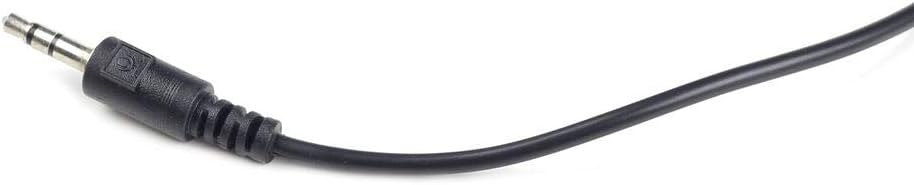
Image: A close-up view of the 3.5 mm jack connector, which is used to connect the microphone to a computer's audio input port.
- Configure Audio Settings (PC):
- Windows: Right-click the speaker icon in the system tray, select "Sound settings" or "Recording devices." Ensure the Gembird MIC-205 (or "Microphone" / "Line In") is selected as the default recording device. Adjust input volume as needed.
- macOS: Go to "System Preferences" > "Sound" > "Input." Select the connected microphone and adjust the input volume.
Operating Instructions
The Gembird MIC-205 is a plug-and-play device. Once connected and configured, it is ready for use.
- Power On/Off: The microphone typically draws power directly from the computer's audio port. Some models may feature an on/off switch on the base; ensure it is in the "On" position if present.
- Adjust Position: Use the flexible gooseneck to adjust the microphone head for optimal sound capture. For best results, speak directly towards the microphone.
- Unidirectional Polar Pattern: The MIC-205 features a unidirectional polar pattern, meaning it primarily picks up sound from the front, reducing background noise from other directions. Position the microphone so the front faces the sound source (your mouth).
- Software Usage: Open your desired application (e.g., voice chat, recording software, streaming software) and ensure the Gembird MIC-205 is selected as the input device within that application's settings.

Image: The Gembird Desktop Microphone MIC-205, showcasing its flexible gooseneck and stable base, ready for desktop use.
Maintenance
- Cleaning: Use a soft, dry cloth to wipe the microphone's exterior. Do not use liquid cleaners or abrasive materials, as these can damage the device.
- Storage: When not in use, store the microphone in a clean, dry place away from extreme temperatures and direct sunlight. Avoid bending the gooseneck excessively or repeatedly.
- Cable Care: Do not pull the cable forcefully or bend it sharply, as this can damage the internal wiring or the connector.
Troubleshooting
| Problem | Possible Solution |
|---|---|
| No sound or very low sound output. |
|
| Poor sound quality (e.g., static, muffled, too quiet). |
|
| Microphone not recognized by computer. |
|
Specifications
| Feature | Detail |
|---|---|
| Brand | Gembird |
| Model | MIC-205 |
| Microphone Form Factor | Boundary |
| Connectivity Technology | Auxiliary |
| Connector Type | 3.5 mm Jack |
| Compatible Devices | Personal Computer |
| Color | Black |
| Included Components | Microphone |
| Polar Pattern | Unidirectional |
| Item Weight | 0.14 Kilograms (140 g) |
| Impedance | 250 Ohms |
| Product Dimensions (L x W x H) | 34.5 x 20 x 10 cm |
| Power Source | Corded Electric |
| Hardware Platform | PC |
| Number of Channels | 1 |
| Recommended Uses | Gaming, Streaming, Video Conference, Voice Recording |
Warranty Information
For specific warranty terms and conditions, please refer to the warranty card included with your product or contact your retailer. Gembird products typically come with a manufacturer's warranty against defects in materials and workmanship. Keep your proof of purchase for warranty claims.
Support
If you require further assistance or have questions not covered in this manual, please visit the official Gembird website for support resources, FAQs, and contact information. You may also contact your point of purchase for customer service.
Gembird Official Website: www.gembird.com


