
1. Introduction
The Ubiquiti Networks EdgeSwitch 16 XG (ES-16-XG) is a high-performance 10 Gigabit 16-Port Managed Aggregation Switch. It is designed to enhance network capacity and provide robust connectivity for demanding environments. This manual provides essential information for the proper installation, configuration, and operation of your EdgeSwitch 16 XG.
2. Package Contents
Verify that the following items are included in your package:
- EdgeSwitch 16 XG (ES-16-XG)
- Power Cord
- Rack-Mount Brackets (2)
- Rack-Mount Screws (8)
- Quick Start Guide
3. Hardware Overview
3.1 Front Panel
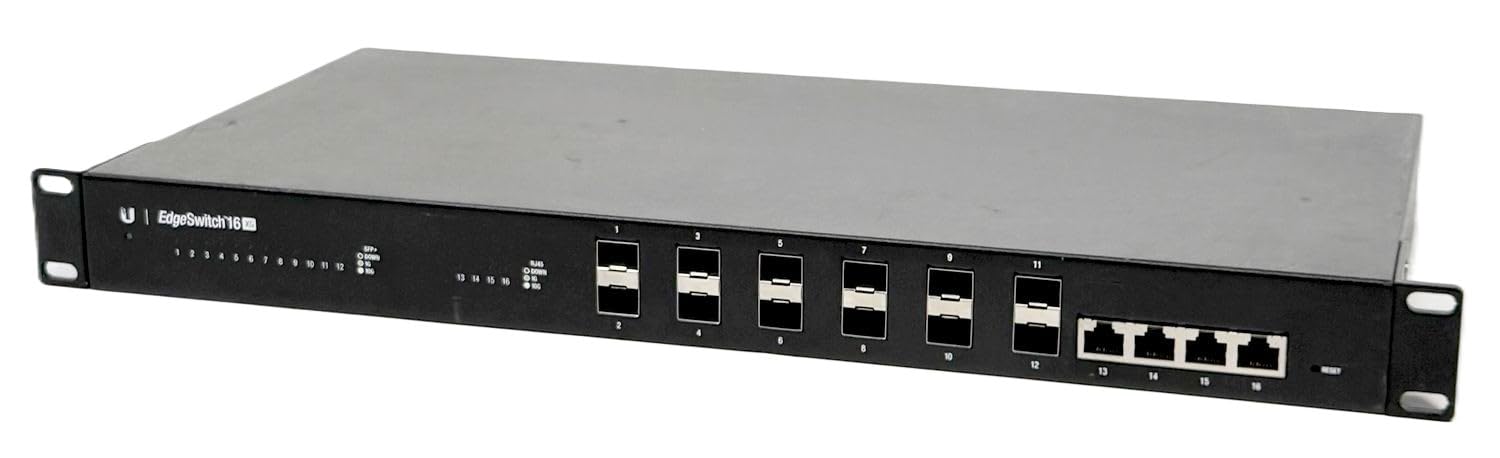
The front panel of the EdgeSwitch 16 XG features high-speed connectivity options:
- (12) SFP+ Ports: These ports support 1/10 Gbps fiber connections.
- (4) 10G RJ45 Ports: These ports support 1/2.5/5/10 Gbps copper Ethernet connections.
3.2 Rear Panel
The rear panel provides power input, a console port, and cooling fans.
- (1) RJ45 Serial Console Port: Used for command-line interface (CLI) access.
- Cooling Fans: Two integrated fans for thermal management.
- AC Power Input: Standard IEC 60320 C14 inlet for AC power cord (100-240V AC, 50/60Hz).
- DC Input Option: The device supports an optional DC power input (not shown in this specific image but available on the model).
4. Installation and Setup
Follow these steps to install and set up your EdgeSwitch 16 XG:
4.1 Rack Mounting
- Attach the two rack-mount brackets to the sides of the EdgeSwitch using the provided screws.
- Secure the EdgeSwitch into a standard 19-inch rack using appropriate rack screws (not included).
4.2 Connecting Power
Connect the included power cord to the AC power input port on the rear panel of the EdgeSwitch and then to a suitable power outlet.
4.3 Network Connections
- SFP+ Ports: Insert compatible SFP+ transceiver modules (not included) into the SFP+ ports, then connect fiber optic cables.
- RJ45 Ports: Connect standard Ethernet cables (Cat6a or higher recommended for 10G) to the RJ45 ports.
4.4 Initial Configuration Access
For initial configuration, you can access the switch via the serial console port or a web browser:
- Console Access: Connect a serial cable from your computer to the RJ45 Serial Console Port. Use a terminal emulator with settings: 115200 baud, 8 data bits, no parity, 1 stop bit, no flow control.
- Web UI Access: Connect an Ethernet cable from your computer to any RJ45 port on the switch. Configure your computer's network adapter to be on the same subnet as the switch's default IP address (refer to the Quick Start Guide for default IP). Open a web browser and navigate to the switch's IP address.
5. Operating Instructions
Once powered on and configured, the EdgeSwitch 16 XG operates as a managed network switch. Key operational aspects include:
- Power On/Off: The switch powers on automatically when connected to a power source. To power off, disconnect the power cord.
- LED Indicators: Observe the LED indicators on the front panel for port status (link/activity) and system status.
- Management Interface: Use the web-based graphical user interface (GUI) or the command-line interface (CLI) via the console port or SSH for advanced configuration and monitoring.
- Firmware Updates: Regularly check for and apply firmware updates from the Ubiquiti support website to ensure optimal performance and security.
6. Maintenance
Proper maintenance ensures the longevity and reliable operation of your EdgeSwitch 16 XG:
- Cleaning: Keep the switch and its ventilation openings free from dust. Use a soft, dry cloth for cleaning. Do not use liquid cleaners.
- Ventilation: Ensure adequate airflow around the device. Do not block the cooling fans or vents.
- Firmware: Maintain the latest stable firmware version. Refer to the Ubiquiti support site for update procedures.
7. Troubleshooting
If you encounter issues with your EdgeSwitch 16 XG, consider the following troubleshooting steps:
- No Power: Verify the power cord is securely connected to both the switch and the power outlet. Check the power source.
- No Link on Port: Ensure the network cable or SFP+ module and fiber cable are correctly inserted and functional. Check the connected device.
- Cannot Access Management Interface:
- Confirm your computer's IP address is on the same subnet as the switch.
- Try accessing via the serial console port.
- Reset the switch to factory defaults (refer to the Quick Start Guide for procedure) if you have lost access credentials.
- Performance Issues: Ensure all connected devices and transceivers are compatible and operating at the expected speeds. Check for firmware updates.
For further assistance, visit the official Ubiquiti support website or community forums.
8. Specifications
| Model | ES-16-XG |
| Ports | (12) 1/10 Gbps SFP+ Ports, (4) 1/2.5/5/10 Gbps RJ45 Ports, (1) RJ45 Serial Console Port |
| Data Transfer Rate | 10 Gigabits Per Second (Max) |
| Power Method | AC: 100-240V AC, 50/60 Hz; DC: Optional DC Input |
| Max. Power Consumption | Not specified in provided data, typically varies by load. |
| Operating Temperature | Up to 60° C (140° F) |
| Case Material | Alloy Steel |
| Dimensions | Standard 1U Rack-Mount (Specific dimensions not provided in source, but implied by rack-mountable) |
| Weight | 5.97 pounds (2.71 kg) |
9. Safety and Compliance Information
Read, follow, and keep these instructions. Heed all warnings.
- Electrical Safety: Use only attachments/accessories specified by the manufacturer. Do not open the device. Refer all servicing to qualified service personnel.
- Environment: Do not use this product in an environment that can be submerged by water. Avoid using this product during an electrical storm. There may be a remote risk of electric shock from lightning.
- Ventilation: Ensure proper ventilation. Do not block any ventilation openings.
- FCC Compliance: This device complies with Part 15 of the FCC Rules. Operation is subject to the following two conditions: (1) This device may not cause harmful interference, and (2) This device must accept any interference received, including interference that may cause undesired operation.
10. Warranty and Support
For warranty information, technical support, and additional resources, please visit the official Ubiquiti Networks website:
You can also find community forums and knowledge base articles for troubleshooting and best practices.