
1. Introduction
This manual provides detailed instructions for the installation, operation, and maintenance of your ORICO 6629US3-C Dual Bay Hard Drive Docking Station. This device is designed to provide convenient access to 2.5-inch and 3.5-inch SATA HDDs and SSDs, offering both data transfer and offline clone functionalities. Please read this manual thoroughly before using the product to ensure proper operation and to prevent damage.
2. Package Contents
Please verify that all items listed below are included in your package:
- ORICO 6629US3-C Dual Bay Hard Drive Docking Station
- USB 3.0 Type-A to Type-B Data Cable
- Power Adapter
- User Manual (this document)

Image: Contents of the ORICO 6629US3-C docking station package, including the device, cables, and manual.
3. Product Overview
The ORICO 6629US3-C is a dual-bay docking station supporting two SATA I/II/III hard drives or solid-state drives (SSDs) simultaneously. It features a USB 3.0 interface for high-speed data transfer and an independent offline clone function.
3.1 Front and Side View

Image: Front-side view of the ORICO 6629US3-C docking station, highlighting the drive bays, clone/PC switch, start button, USB 3.0 port, and power input.

Image: Another front-side view of the ORICO 6629US3-C docking station, showing the ORICO brand logo and LED indicators for drive activity and cloning progress.
3.2 Components and Indicators
- Drive Bays (HDD1, HDD2): Slots for inserting 2.5-inch or 3.5-inch SATA HDDs/SSDs.
- Power Button: Turns the device on/off.
- USB 3.0 Port: Connects the docking station to your computer for data transfer.
- DC Power Input: Connects to the provided power adapter.
- Clone/PC Switch: Selects between PC connection mode and offline clone mode.
- Start Button: Initiates the offline clone process.
- LED Indicators: Display power status, drive activity, and clone progress (25%, 50%, 75%, 100%).
4. Setup Instructions
Follow these steps to set up your ORICO 6629US3-C docking station:
- Connect Power: Connect the provided power adapter to the DC Power Input port on the docking station, then plug the adapter into a power outlet.
- Connect to Computer (for data transfer): If you intend to use the docking station for data transfer, connect the USB 3.0 data cable from the docking station's USB 3.0 port to an available USB 3.0 port on your computer. Ensure the Clone/PC switch is set to 'PC'.
- Insert Hard Drives: Gently insert your 2.5-inch or 3.5-inch SATA HDDs/SSDs into the drive bays (HDD1 and HDD2) until they are securely seated. Ensure the SATA connector on the drive aligns with the connector in the bay.
- Power On: Press the power button on the docking station. The power LED indicator should illuminate.
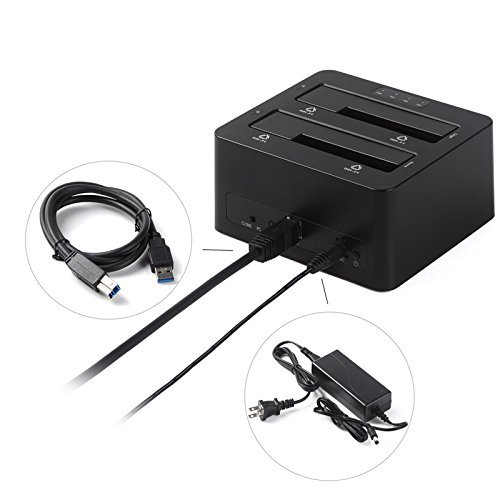
Image: The ORICO 6629US3-C docking station with the USB 3.0 cable and power adapter connected, ready for use.

Image: A 3.5-inch HDD and a 2.5-inch HDD/SSD correctly inserted into the two bays of the ORICO 6629US3-C docking station.
5. Operating Instructions
5.1 Data Transfer Mode
To use the docking station for data transfer with your computer:
- Ensure the docking station is powered on and connected to your computer via the USB 3.0 cable.
- Set the Clone/PC switch to 'PC'.
- Insert your hard drives into the bays.
- Your computer's operating system should detect the drives. You can then access them like any other external storage device.
- To safely remove drives, always eject them from your operating system before powering off the docking station or physically removing the drives.
5.2 Offline Clone Function
WARNING: The clone function will erase all data on the Target Drive (HDD2). Ensure you have backed up any important data from the Target Drive before proceeding.
The offline clone function allows you to duplicate a Source Drive (HDD1) to a Target Drive (HDD2) without connecting to a computer.
- Ensure the docking station is powered off.
- Insert the Source Drive (the drive you want to copy FROM) into the HDD1 bay.
- Insert the Target Drive (the drive you want to copy TO) into the HDD2 bay. The Target Drive must be equal to or larger in capacity than the Source Drive.
- Set the Clone/PC switch to 'Clone'.
- Power on the docking station.
- Press and hold the 'Start' button for approximately 3-5 seconds until the clone progress LEDs begin to flash.
- The cloning process will begin. The progress LEDs (25%, 50%, 75%, 100%) will illuminate sequentially to indicate the cloning status.
- Once all four progress LEDs are solid, the cloning process is complete.
- Power off the docking station before removing the drives.
6. Maintenance
- Keep the device in a dry, well-ventilated area, away from direct sunlight and heat sources.
- Avoid exposing the device to water or other liquids.
- Clean the exterior of the device with a soft, dry cloth. Do not use harsh chemicals or abrasive cleaners.
- Ensure proper ventilation around the device during operation to prevent overheating.
7. Troubleshooting
| Problem | Possible Cause | Solution |
|---|---|---|
| Drive not detected by computer. |
|
|
| Clone function does not start. |
|
|
| Slow data transfer speed. |
|
|
8. Specifications
| Feature | Detail |
|---|---|
| Model | ORICO 6629US3-C |
| Interface | USB 3.0 (External), SATA I/II/III (Internal) |
| Supported Drive Types | 2.5-inch & 3.5-inch SATA HDD/SSD |
| Max Drive Capacity | Up to 6TB per bay (12TB total) |
| Transfer Speed | Up to 5Gbps (USB 3.0) |
| Features | UASP Transfer Protocol Support, Offline Clone Function |
| Number of Bays | 2 |
| Dimensions | Approximately 20.57 x 14.73 x 9.65 cm (Package) |
| Weight | Approximately 1.44 kg (Package) |
| Compatible OS | Windows, macOS, Linux |
9. Warranty and Support
ORICO products typically come with a standard manufacturer's warranty. Please refer to the warranty card included with your product or visit the official ORICO website for detailed warranty terms and conditions specific to your region. For technical support, troubleshooting assistance, or to inquire about warranty claims, please contact ORICO customer service through their official website or the contact information provided in your product packaging.


