
SatelliteSale RC66RX-4pack
DirecTV RC66RX RF Remote Control User Manual
Model: RC66RX-4pack
Introduction
This manual provides comprehensive instructions for the setup, operation, and maintenance of your SatelliteSale DirecTV RC66RX RF Remote Control. Designed for seamless integration with DirecTV receivers, this remote offers both Infrared (IR) and Radio Frequency (RF) capabilities, allowing for flexible control of your entertainment system. It can also be programmed to control up to three additional devices, such as your TV, DVD player, or audio system.
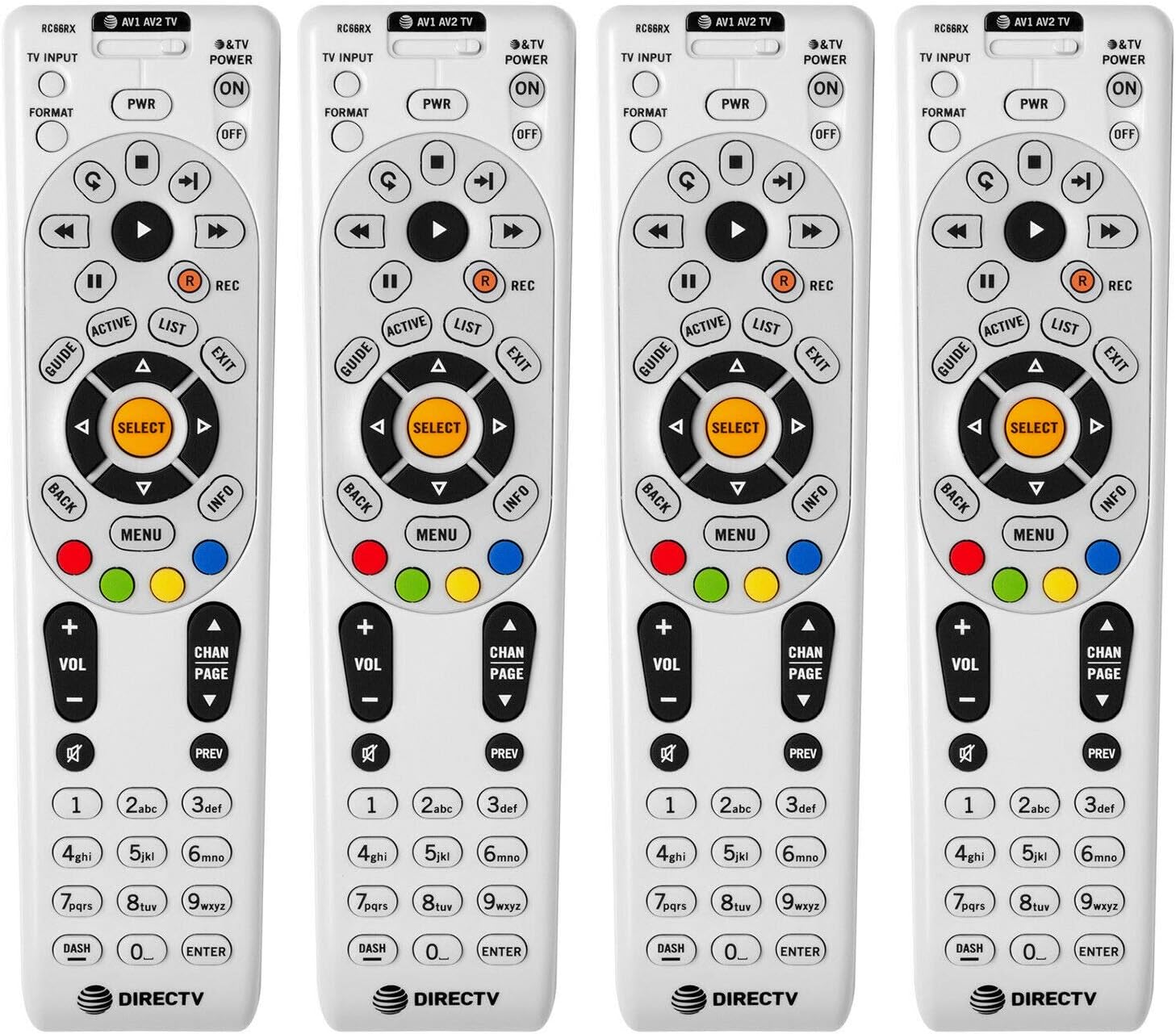
Figure 1: Overview of the DirecTV RC66RX RF Remote Controls (4-pack).
Package Contents
- 4 x DirecTV RC66RX RF Remote Controls
- 8 x AA Batteries (2 per remote, included)
Setup
1. Battery Installation
Your RC66RX remote controls come with batteries included. If batteries need replacement, follow these steps:
- Locate the battery compartment cover on the back of the remote control.
- Press down on the tab and slide the cover off.
- Insert two (2) AA batteries, ensuring the positive (+) and negative (-) ends align with the markings inside the compartment.
- Slide the battery cover back into place until it clicks securely.

Figure 2: Battery compartment on the back of the remote.
2. Initial Pairing with DirecTV Receiver (RF Mode)
For optimal performance and to utilize the RF (Radio Frequency) capabilities, it is recommended to pair the remote with your DirecTV receiver. This allows control without direct line-of-sight.
- Ensure your DirecTV receiver is powered on.
- On the remote, press and hold the MUTE and SELECT buttons simultaneously until the green light at the top of the remote flashes twice.
- Enter the code 961. The green light will flash twice.
- Press the CHAN UP button. The green light will flash twice.
- Enter the last six digits of your DirecTV receiver's RID (Receiver ID) number. This number can usually be found on a sticker on the back or bottom of your receiver, or by pressing the INFO button on your existing remote and navigating to "System Info" or "Receiver Info".
- Press the SELECT button. The green light will flash twice, indicating successful pairing.
- Test the remote by pressing various buttons. If it does not respond, repeat the steps.
Note: If you prefer to use the remote in IR (Infrared) mode, which requires line-of-sight to the receiver, no pairing is necessary. The remote will function in IR mode by default.
Operating Instructions
The RC66RX remote control features a standard layout for easy navigation and control of your DirecTV system and other compatible devices.

Figure 3: Front view of the RC66RX remote control with button layout.
Key Functions:
- PWR (Power): Turns the DirecTV receiver on or off.
- TV INPUT: Cycles through video inputs on your television (if programmed).
- AV1, AV2, TV: Mode buttons to switch control to programmed devices.
- ON/OFF (TV Power): Turns the television on or off (if programmed).
- FORMAT: Changes the screen format.
- GUIDE: Displays the program guide.
- LIST: Accesses your recorded programs list.
- ACTIVE: Accesses the DirecTV Active channel.
- EXIT: Exits menus or returns to live TV.
- MENU: Displays the main DirecTV menu.
- INFO: Displays program information.
- BACK: Returns to the previous screen or channel.
- Arrow Buttons (Up, Down, Left, Right): Navigate through menus and guides.
- SELECT: Confirms selections.
- VOL +/- (Volume): Adjusts the volume (if programmed to control TV or audio system).
- CHAN PAGE +/- (Channel/Page): Changes channels or pages through guides.
- MUTE: Mutes the audio.
- PREV: Returns to the previous channel.
- REC (Record): Records the current program.
- PLAY/PAUSE, STOP, REWIND, FAST FORWARD, SKIP, REPLAY: Playback controls for recorded content.
- Colored Buttons (Red, Green, Yellow, Blue): Context-sensitive functions within menus.
- Number Pad (0-9): Direct channel entry.
- DASH (-): Used for sub-channels (e.g., 7-1).
- ENTER: Confirms channel entry.
Programming for Additional Devices
The RC66RX remote can be programmed to control up to three additional devices, such as your TV, DVD/Blu-ray player, or audio system. Use the mode buttons (TV, AV1, AV2) at the top of the remote to switch between controlling your DirecTV receiver and other devices.
Programming Steps (Example for TV):
- Turn on the device you wish to program (e.g., your TV).
- On the RC66RX remote, press and hold the MUTE and SELECT buttons simultaneously until the green light at the top of the remote flashes twice.
- Press the mode button for the device you are programming (e.g., TV). The green light will flash once.
- Enter the 5-digit programming code for your device's brand. A list of common codes can often be found in your device's manual or online. If you don't have a code, you can try the "Code Search" method below.
- If the code is accepted, the green light will flash twice. Test the remote by pressing the PWR button for the device. If the device turns off, the programming was successful.
- If the device does not respond, try other codes for your brand or use the Code Search method.
Code Search Method:
- Turn on the device you wish to program.
- On the RC66RX remote, press and hold the MUTE and SELECT buttons simultaneously until the green light at the top of the remote flashes twice.
- Press the mode button for the device you are programming (e.g., TV). The green light will flash once.
- Enter the code 991. The green light will flash twice.
- Press the CHAN UP button repeatedly, pointing the remote at the device. Pause briefly after each press to see if the device responds (e.g., turns off).
- Once the device responds, press the SELECT button to save the code. The green light will flash twice.
Compatibility
The DirecTV RC66RX remote control is compatible with a wide range of DirecTV receivers and can replace several older remote models.
Compatible DirecTV Receivers:
- H20, H21, H22, H23, H24, H25
- HR20, HR21, HR22, HR23, HR24, HR34
- R15, R16, R22
- D12
Replaces Remote Models:
- RC-16, RC-23, RC-32, RC-64, RC-65, RC-66, RC66X, RC64R, RC65R, RC65RX
Note: While the remote supports both IR and RF frequencies, some newer DirecTV Genie receivers (e.g., HR54) may not fully support RF mode with this specific remote. For such receivers, IR mode (line-of-sight) will typically function correctly.
Maintenance
- Cleaning: Use a soft, dry cloth to clean the remote's surface. For stubborn dirt, slightly dampen the cloth with water or a mild, non-abrasive cleaner. Do not use harsh chemicals or immerse the remote in liquid.
- Battery Replacement: Replace batteries when the remote's response becomes sluggish or the indicator light does not flash. Always replace both batteries at the same time with new AA alkaline batteries.
- Storage: Store the remote in a cool, dry place away from direct sunlight and extreme temperatures.
- Avoid Drops: Protect the remote from physical impact, as drops can damage internal components.
Troubleshooting
| Problem | Possible Cause | Solution |
|---|---|---|
| Remote not responding to DirecTV receiver. |
|
|
| Remote not controlling TV/DVD/Audio device. |
|
|
| Green light on remote flashes but no action. |
|
|
Specifications
| Feature | Detail |
|---|---|
| Model Number | RC66RX-4pack |
| Brand | SatelliteSale |
| Manufacturer | DIRECTV |
| Connectivity | Infrared (IR) and Radio Frequency (RF) |
| Power Source | 2 x AA Batteries (included) |
| Color | White |
| Product Dimensions (packaging for 4-pack) | 9.4 x 8.2 x 1.3 inches |
| Item Weight (4-pack) | 1.6 pounds |
| Max Supported Devices | 1 DirecTV Receiver + 3 additional devices (TV, DVD/Blu-ray, Audio) |
Warranty and Support
For warranty information and technical support, please refer to the official SatelliteSale website or contact their customer service directly. Keep your purchase receipt as proof of purchase.
Manufacturer: DIRECTV
Brand: SatelliteSale
Contact: Please visit the SatelliteSale Store on Amazon for further assistance or to find contact information.
Related documentsRC66RX-4pack

Ask a question about this manual
Ask about setup, troubleshooting, compatibility, parts, safety, or missing instructions. Manuals+ will review the question and use this page’s manual context to help answer it.