
Luxor WB6040W
LUXOR WB6040W Wall-Mounted Magnetic Whiteboard Instruction Manual
Model: WB6040W | Brand: Luxor
Introduction
This manual provides detailed instructions for the proper installation, operation, and maintenance of your new LUXOR WB6040W Wall-Mounted Magnetic Whiteboard. Please read all instructions carefully before beginning installation to ensure safe and correct setup. This whiteboard is designed for use in office and educational environments, offering a durable and versatile surface for writing and displaying magnetic items.
What's in the Box
- LUXOR WB6040W Whiteboard (60"W x 40"H)
- Mounting Brackets (4x)
- Hardware (Screws and Drywall Anchors)
- Detachable Marker Tray
Tools Required (Not Included)
- Tape Measure
- Chalk Line
- Drill
- 1/4" Drill Bit
- Phillips Head Screwdriver (or Extended Drive)
- Hammer (or Soft Mallet)
Setup and Installation
Installation Overview Video
Watch this official Luxor video for a visual guide on installing your WB Series Whiteboard. This video demonstrates the key steps for a successful wall-mounted installation.
Video: Luxor 60"W x 40"H Wall-Mounted Magnetic Whiteboard Installation Guide.
Detailed Installation Steps
Refer to the diagram below and follow these steps for proper installation. Note: Hardware provided is for drywall installation. If attaching to other material, such as concrete, other fasteners may be required.
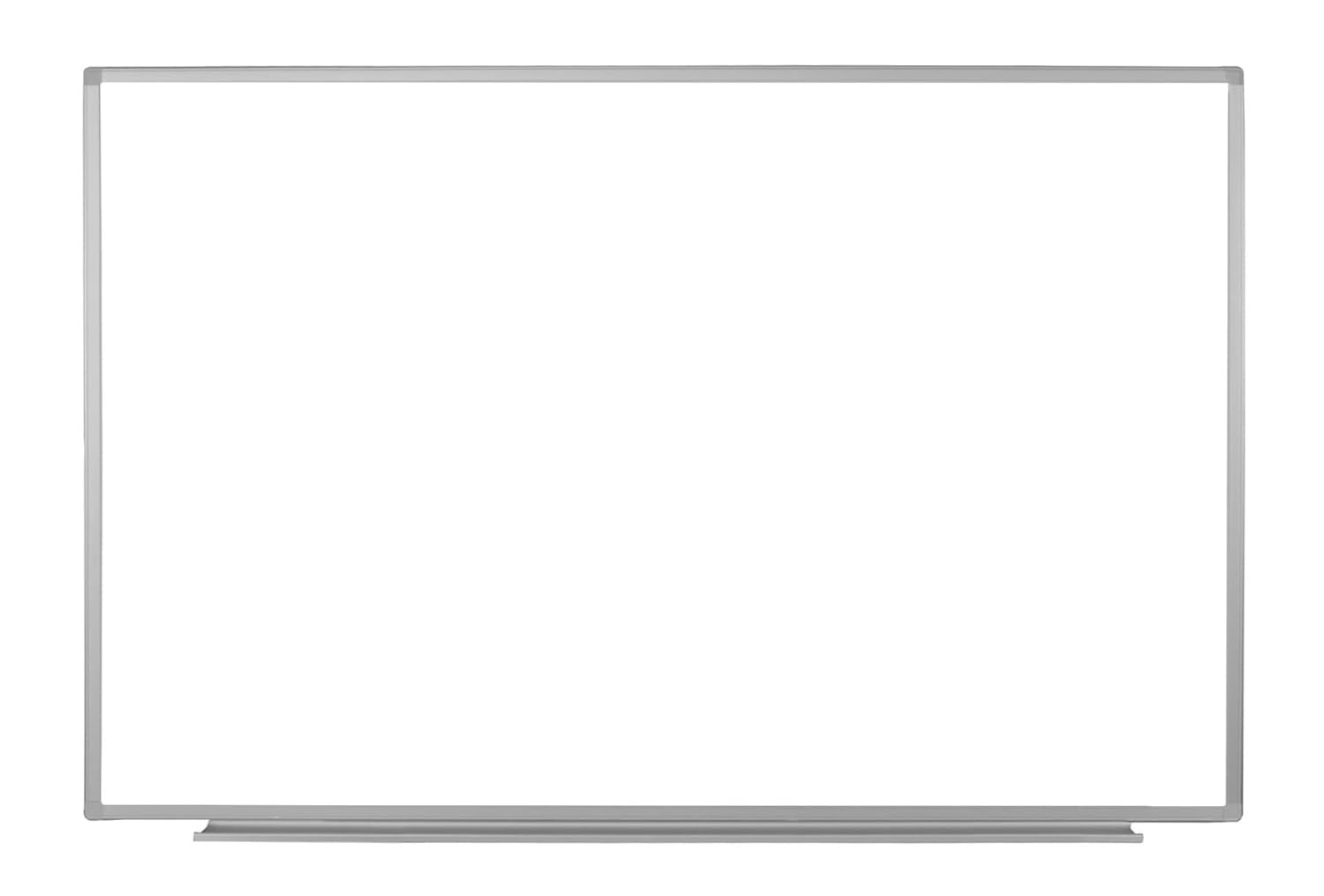
Image: Detailed installation diagram with measurements and hardware components.
- Insert Marker Tray: Insert the detachable marker tray into the bottom groove of your whiteboard. Slide the tray to the center.

Image: Attaching the marker tray to the whiteboard.
- Determine Placement & Mark Chalk Lines: Determine the general location for your whiteboard. Snap two horizontal chalk lines on the wall at the heights indicated in the installation diagram (refer to the diagram for specific measurements based on your whiteboard size).

Image: Whiteboard dimensions and general placement.
- Drill Holes: For drywall installation, drill four 1/4-inch holes at the marked locations as specified in the instruction sheet.

Image: The whiteboard itself, indicating where holes would be drilled on the wall behind it.
- Insert Drywall Anchors: Place the plastic drywall inserts into the pre-drilled holes. Use a soft mallet or hammer to gently tap the inserts until they are flush with the wall surface.
- Attach Lower Brackets: Attach the bottom mounting brackets to the wall using the long screws provided. Ensure the brackets are attached at their lowest possible position to allow for adjustment.
- Attach Upper Brackets: Attach the top mounting brackets to the wall using the long screws provided. Ensure the brackets are attached at their highest possible position. These will be tapped down later.
- Place Whiteboard: Carefully place the whiteboard onto the lower brackets, ensuring it is centered with the middle lower bracket.
- Secure Upper Brackets: Tap the top brackets down so they are touching the top of the whiteboard. Then, attach the brackets to the whiteboard frame using the short screws provided.
- Remove Protective Film: Carefully remove the plastic protective film from the front surface of the whiteboard.
Operating Instructions
Your Luxor WB6040W whiteboard is ready for use immediately after installation. Use only dry-erase markers on the whiteboard surface. The magnetic surface allows for attaching notes, documents, or other magnetic accessories.
- Writing: Use any standard dry-erase markers.
- Erasing: Use a dry-erase eraser or a soft cloth. For stubborn marks, use a specialized dry-erase board cleaner.
- Magnetic Use: Attach magnetic items directly to the board surface.
Maintenance
Proper maintenance will ensure the longevity and optimal performance of your whiteboard.
- Regular Cleaning: Wipe the board clean with a dry-erase eraser after each use.
- Deep Cleaning: For ghosting or residue, use a dry-erase board cleaning spray and a soft cloth. Do not use abrasive cleaners or materials.
- Marker Tray: Keep the marker tray clean of dust and marker residue.
- Avoid Permanent Markers: Never use permanent markers or oil-based pens on the dry-erase surface.
Troubleshooting
If you encounter issues with your whiteboard, try the following solutions:
| Problem | Solution |
|---|---|
| Ghosting or Stains: Marks remain after erasing. | Use a specialized dry-erase board cleaner. Ensure you are using only dry-erase markers. |
| Board is not level: Appears crooked on the wall. | Check the installation of the mounting brackets. Adjust the top brackets by tapping them further down or slightly loosening and re-tightening as needed. Ensure chalk lines were level during initial setup. |
| Markers not erasing cleanly: Ink is difficult to remove. | Ensure markers are fresh and specifically labeled as "dry-erase." Old or low-quality markers can leave residue. Clean the board thoroughly with dry-erase cleaner. |
Specifications
| Feature | Detail |
|---|---|
| Model Number | WB6040W (FBA_WB6040W) |
| Dimensions (W x H) | 60 inches x 40 inches |
| Product Dimensions (L x W x H) | 1 x 60 x 40 inches |
| Item Weight | 29 Pounds |
| Material | Aluminum Frame, Painted Steel Surface |
| Mounting Type | Wall Mount |
| Color | White |
Warranty and Support
For warranty information, technical support, or to purchase replacement parts, please visit the official Luxor website or contact their customer service department. Keep your purchase receipt for warranty claims.
Official Website: www.luxorfurn.com
Related documentsWB6040W


Ask a question about this manual
Ask about setup, troubleshooting, compatibility, parts, safety, or missing instructions. Manuals+ will review the question and use this page’s manual context to help answer it.