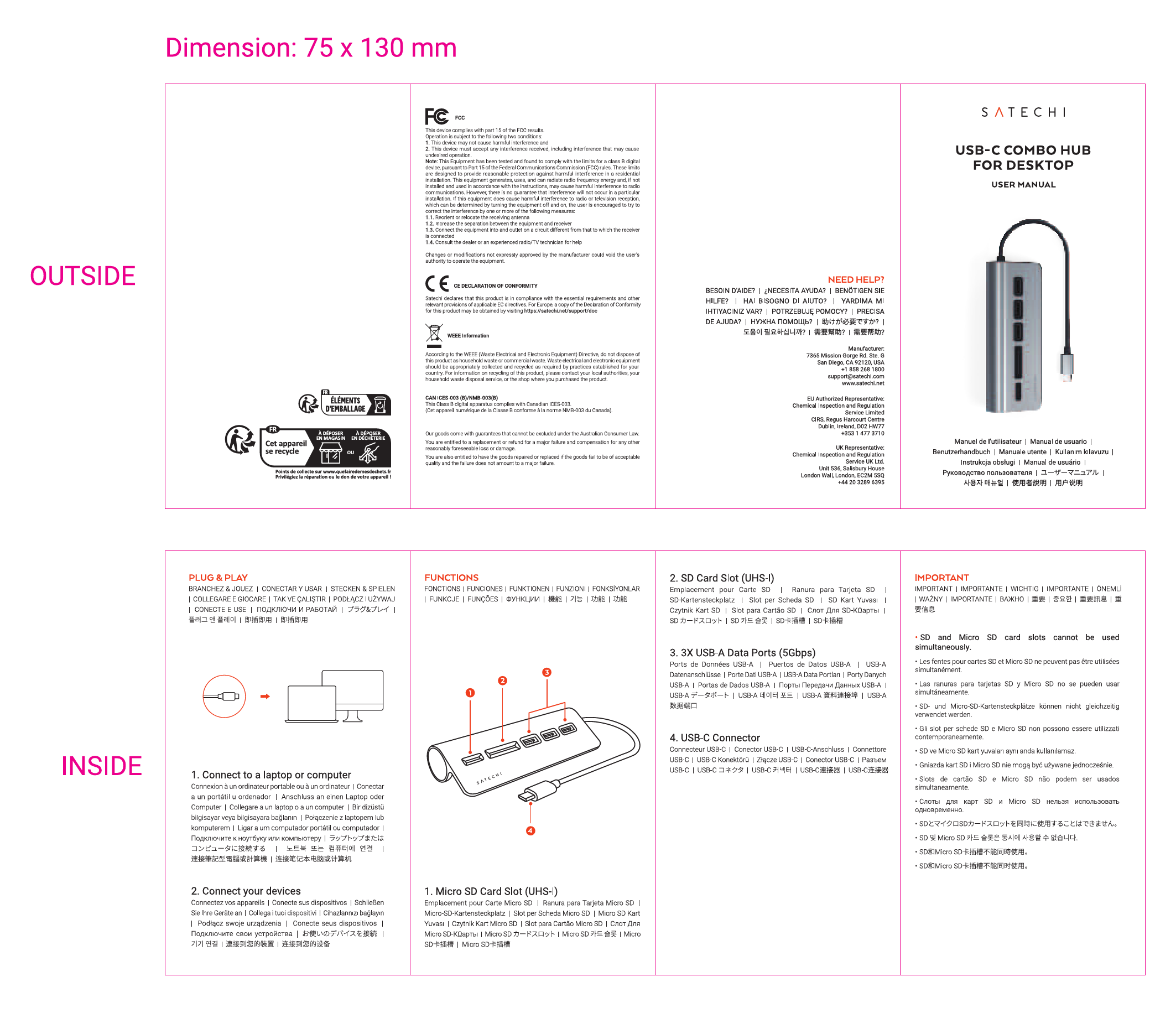
1. Introduction
This manual provides essential instructions for the Satechi 4-in-1 USB-C Multiport Adapter. This compact solution offers seamless connectivity and efficient performance, featuring multiple ports for data transfer, video output, and power delivery. Please read this manual thoroughly before using the product to ensure proper operation and to maximize its capabilities.
2. Product Overview
The Satechi 4-in-1 USB-C Multiport Adapter is designed to expand the connectivity of your USB-C enabled devices. It features a durable aluminum enclosure, a braided cable, and a reinforced neck for long-term reliability.
Key Features:
- Blazing-Fast Data Transfers: Two USB-A 3.2 Gen 2 ports support data transfer speeds up to 10Gbps.
- Powerful Charging: USB-C Power Delivery (PD) port with up to 100W input and 80W output for charging your host device.
- High-Resolution Video Output: HDMI port supports 4K resolution at 60Hz for external displays.
- Enhanced Connectivity: Gigabit Ethernet (10/100/1000 Mbps) for stable wired network access.
- Memory Card Readers: Built-in microSD and SD card readers (UHS-I) for convenient file transfers.
Package Contents:
- Satechi 4-in-1 USB-C Multiport Adapter
- User Manual

Image 1: The Satechi 4-in-1 USB-C Multiport Adapter, showcasing its sleek design and USB-C connector.
3. Setup Instructions
- Connect to Host Device: Plug the USB-C connector of the Satechi adapter into an available USB-C port on your laptop, tablet, or smartphone.
- Power Delivery (Optional): For charging your host device, connect a USB-C power adapter (not included) to the USB-C PD port on the Satechi adapter.
- Connect Peripherals:
- HDMI Display: Connect an HDMI cable from the adapter's HDMI port to your external monitor or TV.
- USB-A Devices: Plug your USB-A peripherals (e.g., mouse, keyboard, external hard drive) into the USB-A data ports.
- Ethernet: Connect an Ethernet cable to the Gigabit Ethernet port for a wired network connection.
- Memory Cards: Insert SD or microSD cards into the corresponding slots.

Image 2: The Satechi 4-in-1 USB-C Multiport Adapter connected to an iPad, demonstrating a typical usage scenario with an external keyboard.
4. Operating Instructions
- Data Transfer: Once connected, your operating system should automatically recognize any USB-A devices or memory cards plugged into the adapter. You can then access and transfer files as you normally would.
- Video Output: After connecting an HDMI display, your host device should detect the external monitor. You may need to adjust display settings (e.g., resolution, mirroring, extension) in your device's system preferences. Ensure your host device supports DisplayPort Alternate Mode (Alt Mode) over USB-C for video output.
- Charging: When a USB-C power adapter is connected to the PD port, the Satechi adapter will pass through power to charge your host device. The adapter supports up to 80W output for charging.
- Network Connection: The Gigabit Ethernet port provides a stable wired internet connection. Once an Ethernet cable is connected, your device should automatically establish a network connection.
5. Compatibility
The Satechi 4-in-1 USB-C Multiport Adapter is broadly compatible with a range of USB-C enabled devices. For optimal performance, ensure your device supports USB-C DisplayPort Alternate Mode for video output and USB Power Delivery for charging.
Compatible Devices Include:
- MacBook Pro 16-inch (2019–2025, M4), MacBook Pro 14-inch (2021–2025, M4), MacBook Pro 13-inch (2016–2023), MacBook Pro 15-inch (2016–2019)
- MacBook Air 15-inch (2022–2025, M4), MacBook Air 13-inch (2018–2025, M4)
- iMac 24-inch (2021–2025), iMac 21.5-inch (2017–2021), iMac 27-inch (2017–2020), iMac Pro (2017)
- Mac mini (2018–2025, including M4), Mac Studio (2022–2025, including M4 Ultra)
- iPad Pro 12.9-inch (3rd gen to M4 – 2024/2025), iPad Pro 11-inch (1st gen to M4 – 2024/2025)
- iPad Air (4th, 5th & 7th gen – including M3 2025), iPad (10th & 11th gen – A16 chip 2025), iPad mini (6th & 7th gen)
- iPhone 16 Pro / Max, iPhone 15 Pro / Max (via USB-C)
- Microsoft Surface Pro 7/8/9/10, Surface Laptop Studio / Studio 2
- ThinkPad X13 Gen 2, X1 Carbon Gen 1 & Gen 12, Yoga 720-13IKB, Legion S7 15ACH6, Legion Pro 7i Gen 9
- Dell XPS 13 9315, Dell XPS 17 9730
- Various USB-C Android smartphones and tablets
Note for Windows PC users: Optimal performance for video output and advanced features requires a host device with Thunderbolt 4, Thunderbolt 3, USB4, or USB 3.2 Gen 2 with DisplayPort Alternate Mode.
6. Troubleshooting
- No Functionality: Ensure the USB-C connector is fully inserted into your host device. Try disconnecting and reconnecting the adapter. Test with a different USB-C port on your host device if available.
- No Display Output: Verify that your host device supports DisplayPort Alternate Mode over its USB-C port. Check the HDMI cable connection to both the adapter and the display. Try a different HDMI cable or monitor if possible.
- Device Not Charging: Confirm that your USB-C power adapter is connected to the adapter's USB-C PD port and that the power adapter provides sufficient wattage for your host device.
- Slow Data Transfer: Ensure that the connected USB-A devices and cables support USB 3.2 Gen 2 speeds for optimal performance.
- Adapter Feels Warm: It is normal for the adapter to become warm during operation, especially under heavy load (e.g., charging, video output, and data transfer simultaneously). The operating temperature range is typically 86-122°F (30-50°C). If the adapter becomes excessively hot, disconnect it and allow it to cool down.
- Ethernet Not Working: Check the Ethernet cable connection. Ensure your device's network settings are configured correctly for a wired connection.
7. Specifications
| Model Number | ST-P4SM |
| Product Dimensions | 4.25 x 1.08 x 0.4 inches |
| Item Weight | 1.63 ounces |
| Color | Space Gray |
| Hardware Interface | HDMI, USB, USB Type C |
| Special Features | Fast Data Transfer, Lightweight, Pass Through Charge, Plug and Play, Portable |
8. Maintenance
- Cleaning: Use a soft, dry cloth to clean the adapter. Avoid using harsh chemicals or abrasive materials.
- Storage: Store the adapter in a cool, dry place away from direct sunlight and extreme temperatures.
- Handling: Avoid dropping the adapter or subjecting it to strong impacts. Do not attempt to disassemble or modify the device.
9. Warranty and Support
The Satechi 4-in-1 USB-C Multiport Adapter comes with a 2-year limited warranty. This warranty covers defects in materials and workmanship under normal use from the date of purchase.
For technical support, warranty claims, or further assistance, please contact Satechi customer support through their official website or the retailer where the product was purchased. Please retain your proof of purchase for warranty service.