
1. Introduction
This manual provides comprehensive instructions for the proper setup, operation, and maintenance of your Datalogic BC9030-BT Base/Charger. Please read this manual thoroughly before using the device to ensure optimal performance and safety.
2. Product Overview
The Datalogic BC9030-BT is a multi-interface base and charging unit designed for Datalogic PowerScan devices. It facilitates communication via Bluetooth, RS-232, USB, and Keyboard Wedge (KBW) interfaces, while also providing charging capabilities for compatible devices.
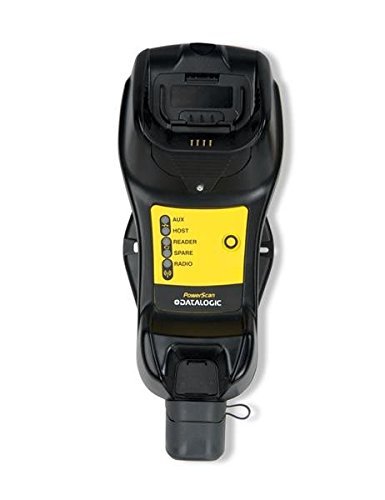
Figure 1: Front view of the Datalogic BC9030-BT Base/Charger. The unit features a device cradle at the top, a yellow panel with indicator lights (AUX, HOST, READER, SPARE, RADIO), and Datalogic branding. A protective cap is visible at the bottom.
2.1. Key Features
- Multi-interface connectivity: RS-232, USB, Keyboard Wedge (KBW).
- Bluetooth (BT) wireless communication support.
- Integrated charging cradle for compatible Datalogic devices.
- Status indicator lights for various functions.
3. Setup
3.1. Unpacking
Carefully remove all components from the packaging. Verify that all items are present and undamaged. Retain the packaging for future storage or shipping.
3.2. Power Connection
- Connect the power adapter cable to the power input port on the base/charger.
- Plug the power adapter into a standard electrical outlet.
- Confirm that the power indicator light (if present, or a general power-on indication) illuminates.
3.3. Host Interface Connection
The BC9030-BT supports multiple host interfaces. Select the appropriate cable and port for your system.
- USB Connection: Connect a USB cable from the base/charger's USB port to an available USB port on your host computer.
- RS-232 Connection: Connect an RS-232 serial cable from the base/charger's serial port to the serial port on your host computer.
- Keyboard Wedge (KBW) Connection: Connect the KBW cable from the base/charger to the keyboard port on your host computer, ensuring the keyboard is then connected to the KBW cable.
3.4. Bluetooth Pairing (for compatible devices)
Refer to the specific Datalogic device manual for detailed Bluetooth pairing instructions. Generally, the process involves:
- Ensure the base/charger is powered on.
- Place the compatible Datalogic device into the cradle.
- Initiate the pairing process on the Datalogic device. The base/charger will typically enter a discoverable mode automatically.
- Confirm successful pairing via the device's display or indicator lights.
4. Operating Instructions
4.1. Charging a Device
To charge a compatible Datalogic device, simply place it securely into the charging cradle at the top of the BC9030-BT base/charger. Ensure proper alignment for the charging contacts. The device's charging indicator will typically illuminate to confirm charging is in progress.
4.2. Data Transmission
Once a compatible Datalogic device is connected (either physically in the cradle or via Bluetooth), data scanned by the device will be transmitted through the base/charger to the connected host system (via USB, RS-232, or KBW).
4.3. Indicator Lights
The yellow panel on the base/charger features several indicator lights:
- AUX: Auxiliary function indicator.
- HOST: Indicates connection status with the host system.
- READER: Indicates status of the connected Datalogic reader/scanner.
- SPARE: Reserved for future use or specific configurations.
- RADIO: Indicates Bluetooth or wireless communication status.
Refer to the specific Datalogic device manual for detailed interpretations of these indicator lights in conjunction with your scanner.
5. Maintenance
5.1. Cleaning
To clean the base/charger, disconnect it from power and use a soft, damp cloth. Do not use abrasive cleaners, solvents, or immerse the unit in water. Ensure all ports are dry before reconnecting power.
5.2. Storage
When not in use for extended periods, store the base/charger in a cool, dry environment, away from direct sunlight and extreme temperatures. Disconnect all cables before storage.
6. Troubleshooting
If you encounter issues with your BC9030-BT Base/Charger, refer to the following common problems and solutions:
- No Power:
- Ensure the power adapter is securely connected to both the base/charger and a working electrical outlet.
- Verify the power outlet is functional.
- Device Not Charging:
- Ensure the device is correctly seated in the charging cradle and making proper contact with the charging pins.
- Check for any debris obstructing the charging contacts on both the base and the device.
- No Data Transmission:
- Verify that the host interface cable (USB, RS-232, KBW) is securely connected to both the base/charger and the host computer.
- Check the HOST indicator light for connection status.
- For Bluetooth connections, ensure the device is properly paired and within range.
- Confirm that the correct drivers are installed on the host computer for USB or RS-232 interfaces.
- Bluetooth Connection Issues:
- Ensure the RADIO indicator light is active.
- Re-attempt the Bluetooth pairing process as described in Section 3.4.
- Ensure no other devices are interfering with the Bluetooth signal.
If problems persist, contact Datalogic technical support for further assistance.
7. Specifications
| Feature | Detail |
|---|---|
| Model Number | BC9030-BT |
| Brand | Datalogic |
| Connectivity Technology | Bluetooth, USB, RS-232, Keyboard Wedge (KBW) |
| Power Source | Corded Electric (for base operation and charging) |
| Package Dimensions | 11.73 x 6.73 x 5.24 inches |
| Weight | 2.01 Pounds (approx.) |
| Manufacturer | BlueStar Inc. |
| Date First Available | May 9, 2014 |
8. Warranty and Support
For information regarding product warranty, please refer to the warranty card included with your product or visit the official Datalogic website. For technical support, service, or replacement parts, please contact Datalogic customer service or your authorized Datalogic reseller.
Datalogic Official Website: www.datalogic.com


