
1. Introduction
The OMOTON Bluetooth Wireless Keyboard is designed for seamless integration with your iOS devices, offering a comfortable and efficient typing experience. This ultra-thin keyboard features high-speed Bluetooth 5.0 technology, a full QWERTY layout with 14 function shortcuts, and quiet keys for enhanced productivity. Its portable design makes it ideal for daily use, travel, or business trips.

Image: OMOTON Bluetooth Wireless Keyboard in use with an iPad and iPhone, demonstrating its compatibility and sleek design.
2. Package Contents
- 1x OMOTON Bluetooth Wireless Keyboard
Note: 2 AAA batteries are required and are not included in the package.
3. Product Overview
3.1 Keyboard Layout

Image: Top view of the OMOTON Bluetooth Wireless Keyboard, highlighting its Spanish QWERTY layout with function keys.
The keyboard features a standard Spanish QWERTY layout with dedicated function keys for iOS. Its slim profile and lightweight design make it highly portable.
3.2 Rear Panel
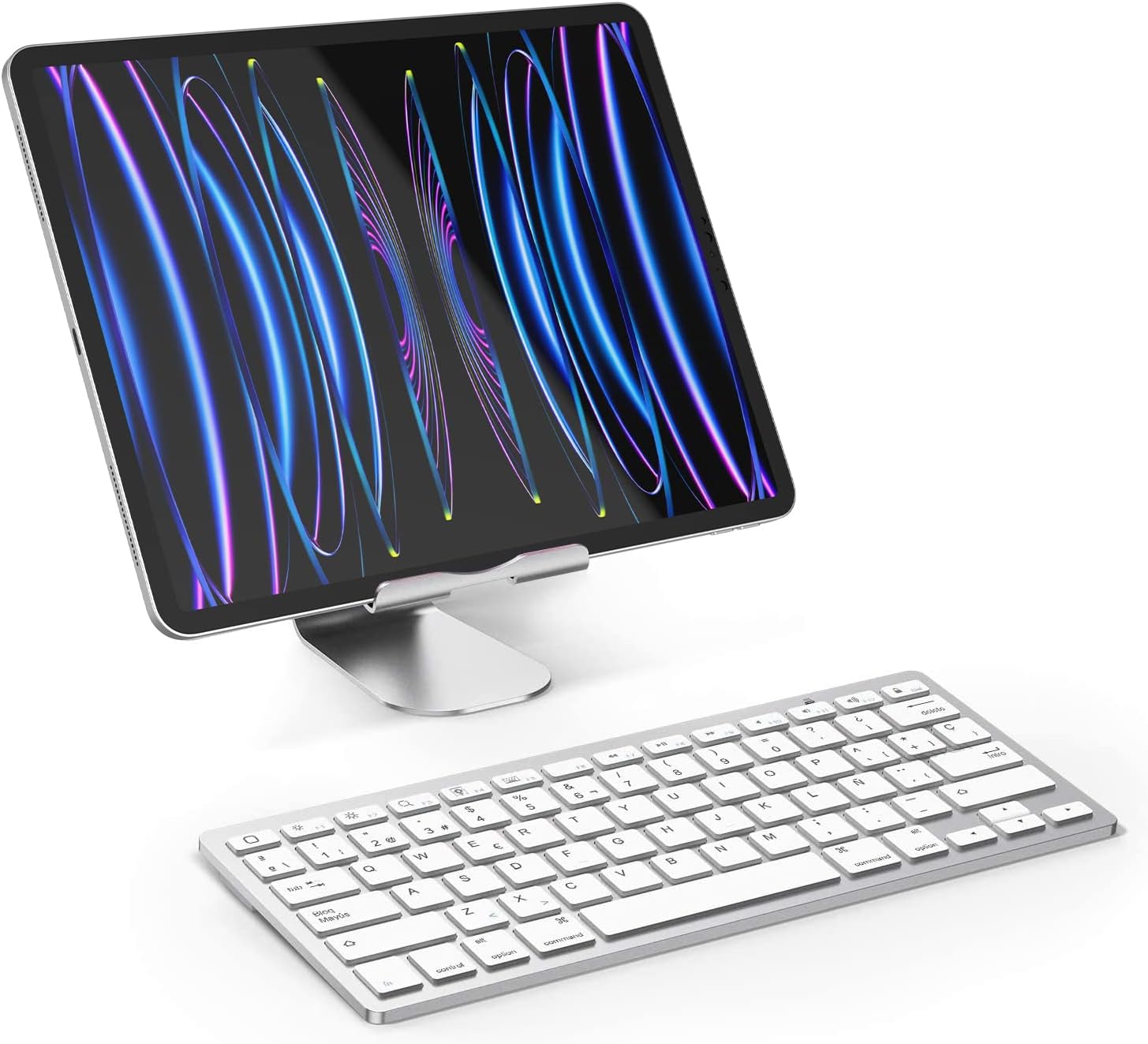
Image: Bottom view of the keyboard, showing the battery compartment, ON/OFF switch, and Bluetooth connect button.
The underside includes the battery compartment, power switch, and Bluetooth connect button.
3.3 Dimensions

Image: Diagram illustrating the precise length, width, and thickness of the keyboard.
The keyboard measures approximately 28.5 cm in length, 11.9 cm in width, and 0.5 cm in height, making it ultra-slim and compact.
4. Setup Guide
4.1 Battery Installation
- Open the battery compartment cover on the back of the keyboard.
- Insert 2 AAA batteries, ensuring correct polarity (+/-).
- Close the battery compartment cover securely.
4.2 Bluetooth Pairing
- Slide the power switch on the keyboard from OFF to ON.
- Double-press the "CONNECT" button, or press and hold it for 2-3 seconds until the Bluetooth indicator light begins to flash. This indicates the keyboard is in pairing mode.
- On your iPad or iPhone, go to "Settings" and tap on "Bluetooth". Ensure Bluetooth is enabled.
- In the list of available devices, tap on "Bluetooth Keyboard".
- A PIN code will appear on your device's screen. Type this PIN code using your OMOTON keyboard, then press the "Enter" key on the keyboard.
- The keyboard will now be connected to your device, and the Bluetooth indicator light will stop flashing.

Image: Visual guide detailing the battery installation and Bluetooth pairing steps for the keyboard.
5. Operating Instructions
5.1 Device Compatibility
This keyboard is designed exclusively for iOS/iPadOS systems. It is not compatible with Mac or other operating systems.
Compatible with a wide range of Apple devices, including:
- iPad Pro: 13-inch (2024), 11-inch (2024), 12.9-inch (All Models), 11-inch (All Models), 10.5 inch, 9.7 inch
- iPad Air: 11-inch (2024), 13-inch (2024), 5th/4th Generation (10.9 inch), 3rd Generation, Air Series
- iPad: 10th Generation, 9th/8th/7th Generation (10.2 inch), 9.7 inch
- iPad Mini: 6th Generation (8.3 inch), 5th/4th Generation (7.9 inch)
- iPhone: 14 Pro/Pro Max, 14/Plus, 13/Pro/Pro Max/mini, 12/11/X series

Image: Detailed compatibility chart for various iPad and iPhone models.
5.2 Function Keys
The keyboard features 14 dedicated function shortcuts (F1-F12, Home, Search, etc.) for quick access to media controls, volume, brightness, and web pages. These keys are optimized for iOS/iPadOS functionality, allowing you to control your device efficiently.

Image: Illustration of the multimedia and function keys available on the keyboard, indicating their iOS-specific functions.
5.3 Language Setting
After connecting the keyboard, it is necessary to set your device's keyboard language to Spanish to ensure correct character input, including the 'Ñ' and accented vowels.
6. Maintenance
6.1 Cleaning
To clean your keyboard, use a soft, lint-free cloth slightly dampened with water or a mild, non-abrasive cleaning solution. Gently wipe the keyboard surface. Avoid excessive moisture, and never spray cleaners directly onto the keyboard as this can damage internal components.
6.2 Battery Replacement
When the keyboard's performance degrades, or if the Bluetooth connection becomes unstable, it may indicate low battery power. Replace the 2 AAA batteries with new ones following the battery installation steps in Section 4.1.
7. Troubleshooting
7.1 Bluetooth Connection Issues
- No Connection: Ensure Bluetooth is enabled on your iPad or iPhone.
- Pairing Mode: Verify that the keyboard's power switch is ON and the Bluetooth indicator light is flashing during pairing mode.
- Re-pairing: If previously paired, remove any existing "Bluetooth Keyboard" entries from your device's Bluetooth settings and attempt to re-pair.
- Low Battery: Ensure the keyboard batteries are not depleted. Replace them with fresh AAA batteries if necessary.
- Range: Keep the keyboard within the effective Bluetooth range (up to 10 meters) of your device.
- Interference: Minimize interference from other wireless devices (e.g., Wi-Fi routers, other Bluetooth devices) that might be operating nearby.
8. Specifications
| Model Number | OM-Teclado-IOS-B2 |
| Brand | OMOTON |
| Connectivity Technology | Bluetooth 5.0 |
| Compatible Devices | Tablet, Smartphone (iOS devices only) |
| Keyboard Description | Multifunctional |
| Recommended Uses | Personal, Office |
| Special Feature | Wireless |
| Color | Silver |
| Keyboard Layout | Spanish QWERTY |
| Product Dimensions (L x W x H) | 28.5 cm x 11.9 cm x 0.5 cm |
| Material | Plastic |
| Power Source | 2 x AAA Batteries (not included) |
| Number of Keys | 78 |
| Minimum OS Requirement | iOS 16 |
| Weight | 281.23 g |
9. Warranty and Support
9.1 Product Warranty
This OMOTON product comes with a 1-year warranty from the original date of purchase. This warranty covers manufacturing defects and workmanship under normal use. It does not cover damage caused by misuse, accidents, unauthorized modifications, or normal wear and tear.
9.2 Customer Support
For technical assistance, warranty claims, or any questions regarding your OMOTON Bluetooth Wireless Keyboard, please contact OMOTON customer support. You can typically find contact information on the official OMOTON website or through the retailer where you purchased the product.


