
1. Introduction and Overview
The Epson Home Cinema 5040UB is a high-performance 3LCD projector designed to deliver an exceptional home theater experience. It features 4K Enhancement Technology, which accepts 4K UHD content and upscales non-4K content for lifelike images. The advanced 3-Chip 3LCD design ensures accurate color reproduction without a color wheel, white segment, or rainbow effect.
Key features include HDR10 support, L*a*b* Ultra Wide Color Gamut for extraordinary color, 2,500 lumens of equal color and white brightness for vibrant images, and an UltraBlack contrast ratio of up to 1,000,000:1 for deep blacks and detailed dark scenes.

Figure 1: Epson Home Cinema 5040UB Projector - At a Glance. This image highlights the projector's PRO-UHD, 4Ke, HDR10, 1,000,000:1 Contrast Ratio, 2,500 Lumens Color Brightness, and 2,500 Lumens White Brightness, along with additional features like Ultra Wide Color Gamut and 100% Balanced Color Brightness.
2. What's in the Box
Carefully unpack the box and ensure all items listed below are present:
- Epson Home Cinema 5040UB Projector
- Power cord
- Remote control with AA batteries
- 2x HDMI® cable clamps
- Quick Setup Guide and CD with User Guide Link

Figure 2: Included Accessories. This image displays the projector, power cord, remote control with batteries, HDMI cable clamps, and the Quick Setup Guide with User Guide CD.
3. Setup
Follow these general steps to set up your projector:
- Placement: Position the projector on a stable, flat surface or mount it to the ceiling. Ensure adequate ventilation around the unit.
- Power Connection: Connect the power cord to the projector and then to a power outlet.
- Source Connection: Connect your video source (e.g., Blu-ray player, gaming console, streaming device) to the projector using an appropriate HDMI cable.
- Power On: Press the power button on the projector or remote control to turn on the unit.
- Focus and Zoom: Adjust the focus and zoom rings on the lens to achieve a clear and sharp image that fills your screen.
- Lens Shift: Use the lens shift controls to fine-tune the image position vertically and horizontally without moving the projector.
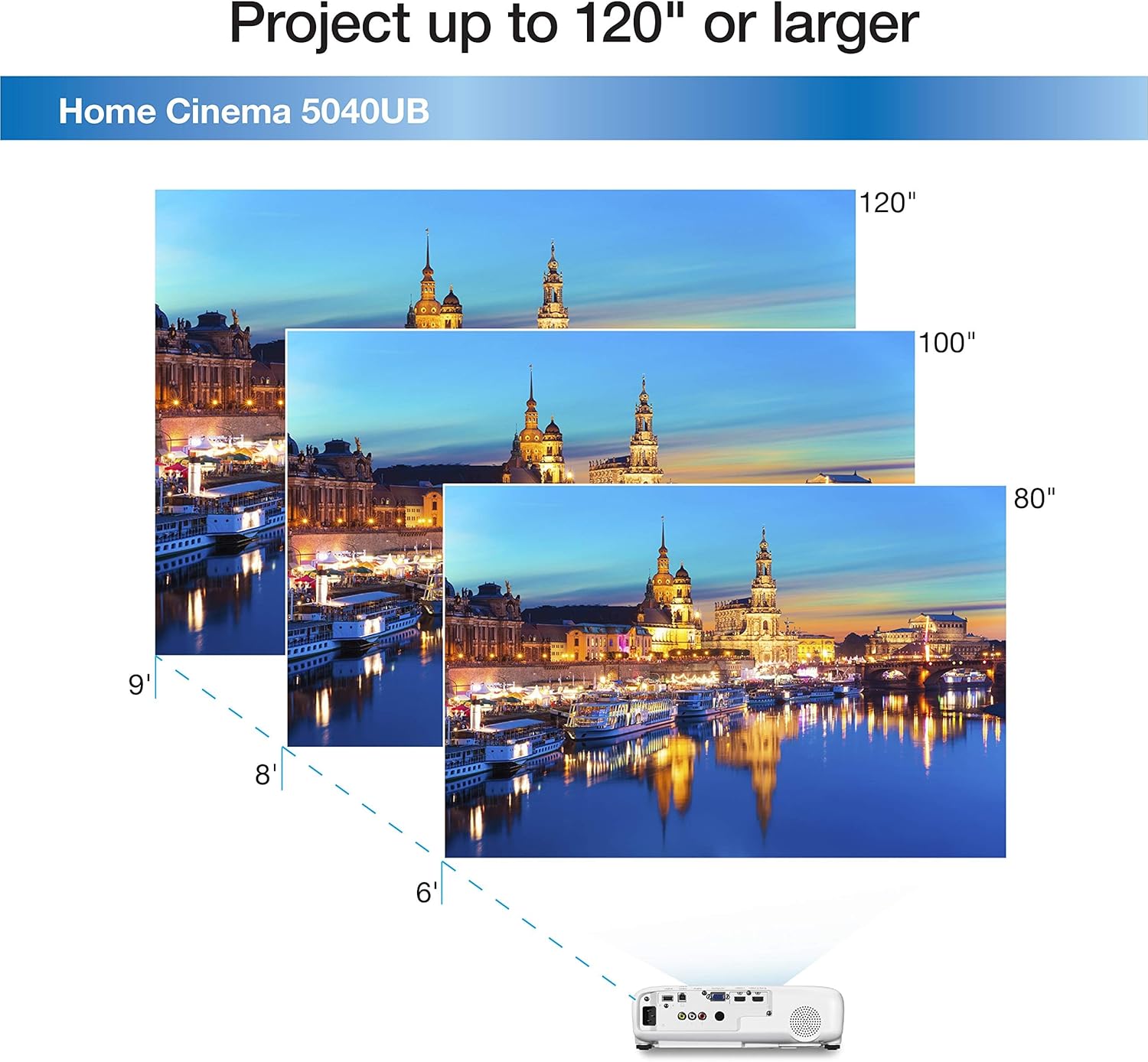
Figure 3: Projector in a Home Environment. This image shows the projector mounted on a ceiling, projecting a large image onto a screen in a living room setup.
4. Connectivity
The Epson Home Cinema 5040UB offers a variety of connectivity options to integrate with your existing home entertainment system:
- HDMI: Two HDMI ports (HDCP 2.2 and HDCP 1.4) for connecting high-definition sources like Blu-ray players, gaming consoles, and streaming devices.
- USB: USB Type A and Mini USB (service only) ports.
- LAN (RJ-45): For network connectivity.
- Computer/D-sub 15 pin: For connecting to a computer.
- RS-232c: For control system integration.
- Trigger out 12 V DC: 200 mA maximum.

Figure 4: Connectivity Options. This image illustrates the various input and output ports on the projector, along with examples of compatible devices such as tablets, smartphones, laptops, game consoles, and Blu-ray players.
5. Operating Instructions
Refer to the Quick Setup Guide for initial power-on and basic navigation. The projector can be controlled via the included remote control or the buttons on the unit itself. Use the menu system to adjust picture settings, input sources, and other advanced features.
The projector supports a wide range of image sizes, from 6.7 inches minimum to 300 inches maximum, allowing flexibility for various room sizes and viewing preferences.
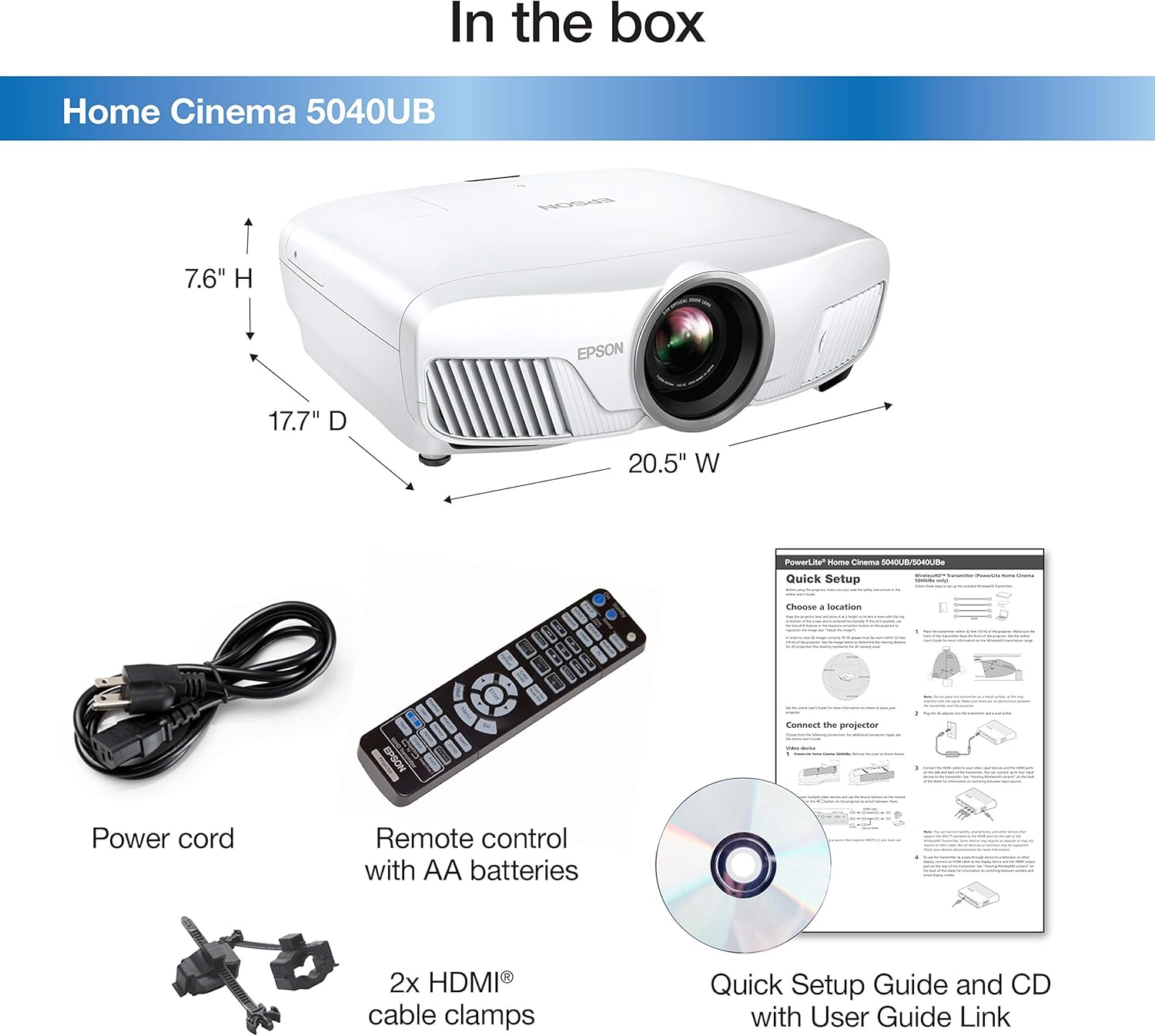
Figure 5: Flexible Projection Sizes. This image demonstrates the projector's capability to project images of different sizes, from 80 inches to 120 inches, suitable for various viewing distances.
Video 1: Epson Home Cinema 5040UBe Overview. This video provides a general overview of the Epson Home Cinema 5040UBe, a similar model to the 5040UB, showcasing its features and capabilities as a 3LCD home theater projector with 4K Enhancement and HDR10.
6. Maintenance
To ensure optimal performance and longevity of your Epson Home Cinema 5040UB projector, regular maintenance is recommended:
- Lens Cleaning: Gently wipe the projector lens with a soft, lint-free cloth. Avoid using abrasive cleaners.
- Air Filter Cleaning/Replacement: Periodically clean or replace the air filter to prevent dust buildup, which can affect performance and lamp life. Refer to the full user manual for specific instructions.
- Lamp Life: The light source has an operating life of up to 5000 hours. Replace the lamp when the indicator light suggests it or when brightness significantly decreases.
7. Troubleshooting
If you encounter any issues with your projector, consult the full user manual for detailed troubleshooting steps. Common issues may include:
- No image displayed
- Image is blurry or distorted
- Color abnormalities
- Remote control not responding
- Overheating warnings
For persistent problems, contact Epson customer support.
8. Specifications
| Feature | Detail |
|---|---|
| Brand | Epson |
| Model Name | 5040UB |
| Display Type | LCD |
| Native Resolution | 2049 x 1080 |
| Display Resolution Maximum | 1920 x 1080p |
| Brightness | 2500 lumen |
| Contrast Ratio | 1000000:1 |
| Connectivity Technology | HDMI, USB, Mini USB, LAN, Computer/D-sub 15 pin, RS-232c |
| Light Source Operating Life | 5000 Hours |
| Maximum Image Size | 300 Inches |
| Item Dimensions L x W x H | 20.5"L x 17.7"W x 7.6"H |
| Item Weight | 24.3 Pounds |
9. Warranty and Support
The Epson Home Cinema 5040UB is covered by an Epson warranty. For specific details regarding warranty coverage, terms, and conditions, please refer to the warranty documentation included with your product or visit the official Epson website.
For technical assistance, troubleshooting, or service inquiries, please contact Epson customer support. Support contact information can typically be found in your user manual or on the Epson website.