Introduction
Thank you for purchasing the SABRENT AU-DDAB USB External Stereo Sound Adapter. This device provides an easy solution to connect your headphones, speakers, or microphone to your computer via a USB port, bypassing your computer's internal sound card. It is designed for plug-and-play functionality, requiring no additional drivers for most operating systems.
Features
- USB Connectivity: Easily connects to any available USB port on your computer.
- 3D Stereo Audio: Enhances audio output for an immersive listening experience.
- Plug & Play: No drivers required for installation on most operating systems.
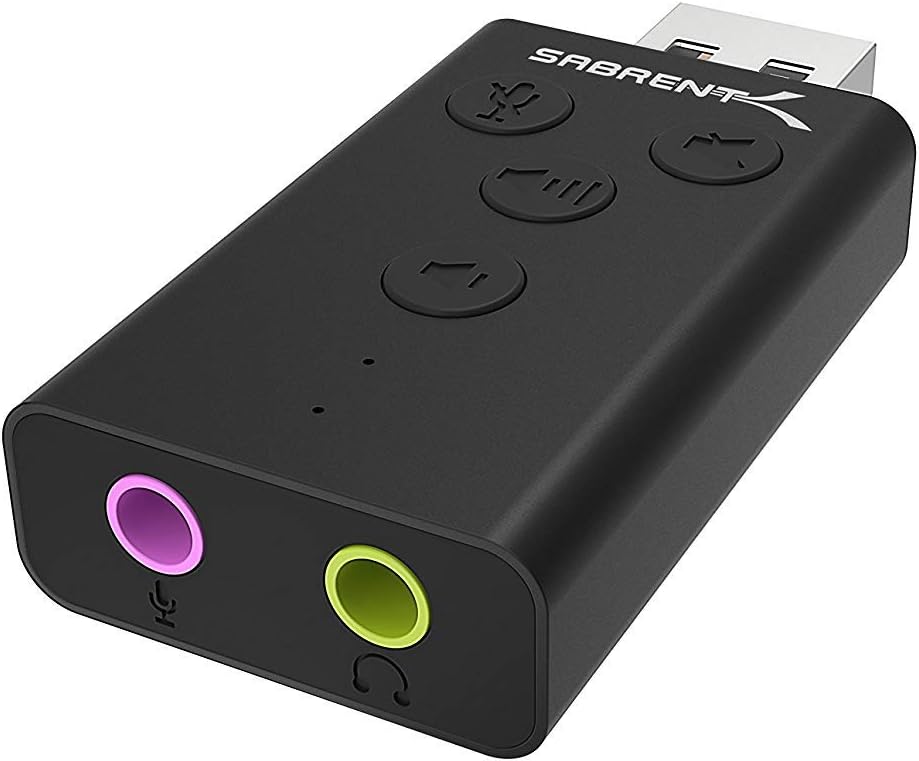
- Integrated Controls: Features dedicated buttons for microphone mute, speaker mute, volume up, and volume down.
- LED Indicators: Visual feedback for microphone mute status and device activity.
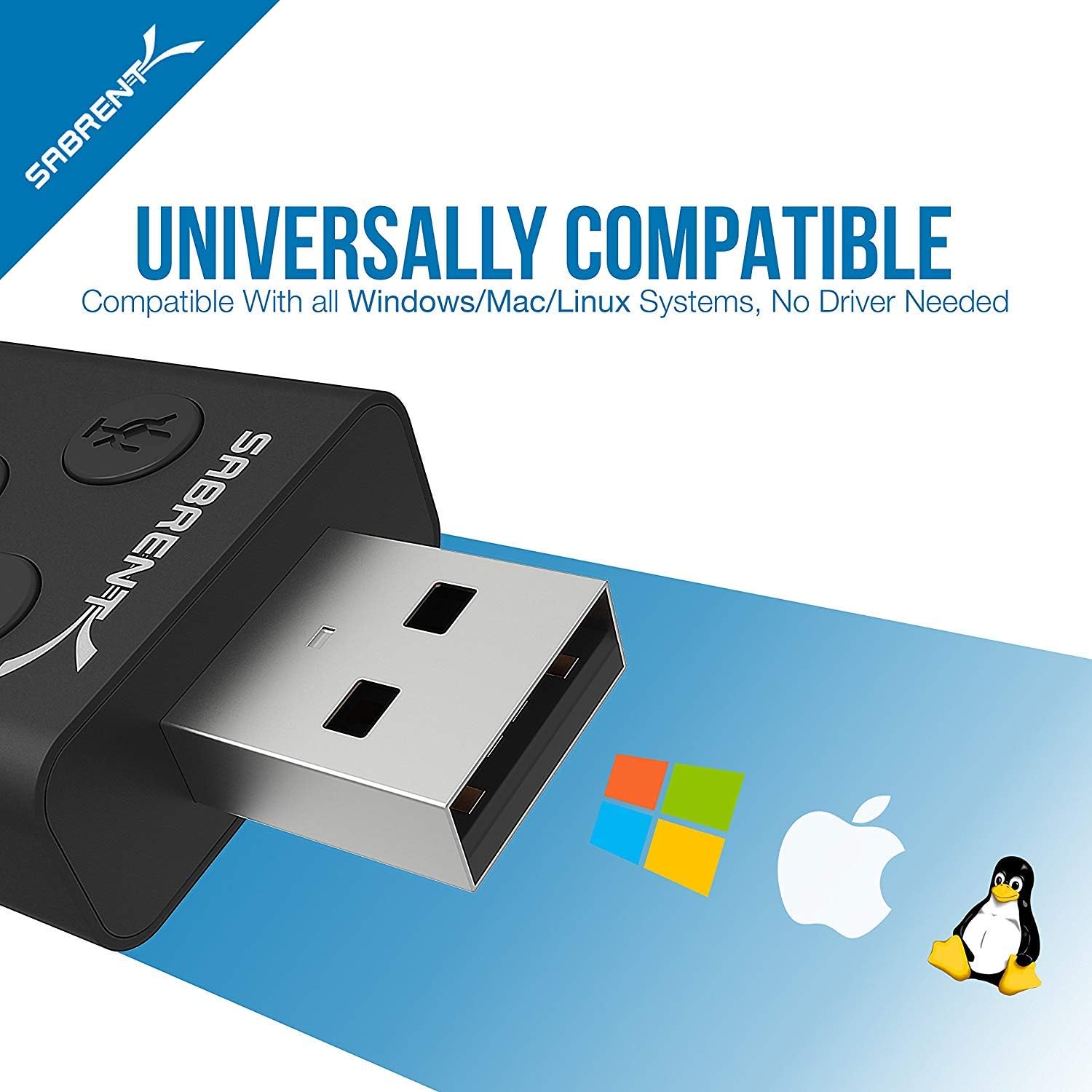
- Universal Compatibility: Works with Windows, Mac, and Linux systems.
- Durable Design: Aluminum casing for enhanced protection and a sleek appearance.

Package Contents
- SABRENT AU-DDAB USB External Stereo Sound Adapter
- User Manual (this document)
Setup
- Connect to Computer: Insert the USB connector of the SABRENT AU-DDAB adapter into an available USB port on your computer. The operating system will automatically detect and install the necessary drivers.
- Connect Audio Output: Plug your headphones or speakers into the green 3.5mm audio output jack on the adapter.
- Connect Microphone (Optional): If using a microphone, plug it into the pink 3.5mm microphone input jack on the adapter.
- Verify Device Recognition:
- Windows: Go to "Sound Settings" (right-click the speaker icon in the taskbar) and ensure "USB Audio Device" is selected as the default playback and recording device.
- Mac: Go to "System Preferences" > "Sound" and select "USB Audio Device" for both input and output.
Operating Instructions
The SABRENT AU-DDAB adapter features integrated controls for convenient audio management.
- Volume Up Button: Press to increase the audio output volume.
- Volume Down Button: Press to decrease the audio output volume.
- Speaker Mute Button: Press to mute or unmute the audio output. An LED indicator will show the mute status.
- Microphone Mute Button: Press to mute or unmute the microphone input. An LED indicator will show the mute status.
Troubleshooting
| Problem | Possible Cause | Solution |
|---|---|---|
| No sound output. |
|
|
| Microphone not working. |
|
|
| Device not recognized. |
|
|
Specifications
- Model: AU-DDAB
- Interface: USB 2.0
- Audio Output: Stereo, 3.5mm jack
- Microphone Input: 3.5mm jack
- Operating System Compatibility: Windows (XP, Vista, 7, 8, 10, 11), macOS, Linux
- Dimensions (LxWxH): Approximately 2.3 x 0.5 x 1.1 inches (5.8 x 1.3 x 2.8 cm)
- Weight: Approximately 0.388 ounces (11 grams)
- Material: Aluminum casing
Warranty and Support
SABRENT products are backed by a limited warranty. For detailed warranty information, technical support, or customer service, please visit the official SABRENT website or contact their support team directly. Keep your purchase receipt for warranty claims.
Official Website: www.sabrent.com


