
1. Introduction
This manual provides essential information for the safe and effective use of your Nikon COOLPIX P900 digital camera. Please read these instructions thoroughly before using the camera and retain them for future reference. The Nikon COOLPIX P900 is a 16-megapixel digital camera featuring an impressive 83x optical zoom NIKKOR lens, built-in Wi-Fi, and NFC capabilities, designed for capturing high-quality images and videos across various scenarios.
2. Product Overview

Figure 2.1: Front view of the Nikon COOLPIX P900 camera, showcasing the large NIKKOR lens.
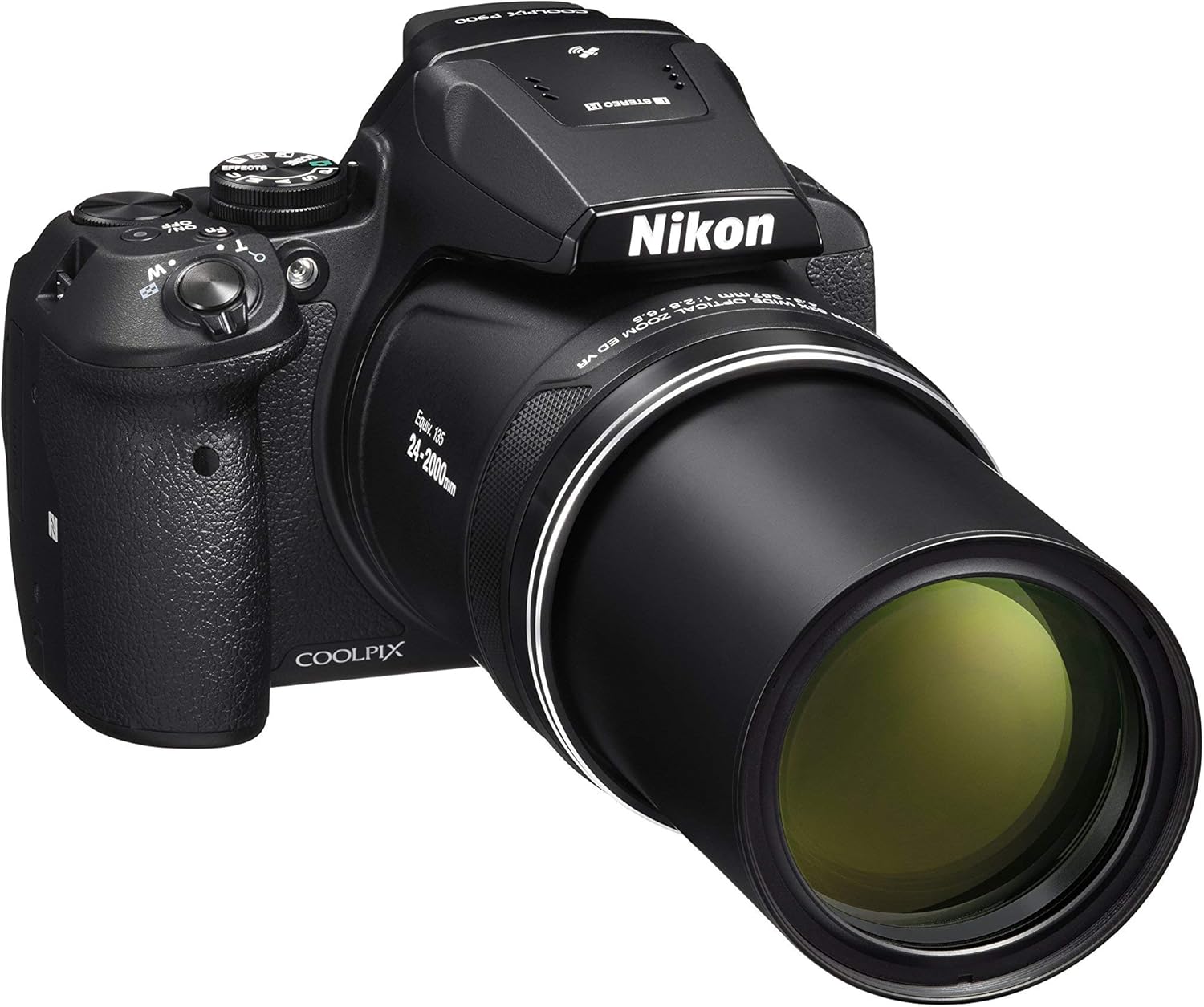
Figure 2.2: Side view of the camera with the 83x optical zoom lens fully extended.

Figure 2.3: Rear view displaying the electronic viewfinder and control buttons.

Figure 2.4: The camera with its vari-angle LCD display rotated outwards for flexible viewing.
3. Setup
3.1. Charging the Battery
- Ensure the camera is powered off.
- Connect the camera to a power source using the supplied USB cable and AC adapter. The battery charges directly within the camera.
- The charging indicator light will illuminate during charging and turn off when the battery is fully charged.
3.2. Inserting a Memory Card
- Open the battery/memory card cover on the bottom of the camera.
- Insert a compatible SD, SDHC, or SDXC memory card into the slot with the contacts facing the correct direction, until it clicks into place.
- Close the battery/memory card cover securely.
3.3. Attaching the Camera Strap
Thread the camera strap through the strap eyelets on both sides of the camera body and secure it firmly. Ensure the strap is properly attached to prevent accidental drops.
3.4. Removing the Lens Cap
Before powering on the camera, gently remove the lens cap by pinching the sides and pulling it away from the lens. Attach the lens cap tether to prevent loss.
4. Operating the Camera
4.1. Power On/Off
Press the [ON/OFF] button located on the top of the camera to power it on or off. The lens will extend when powered on.
4.2. Selecting a Shooting Mode
Rotate the mode dial on the top of the camera to select your desired shooting mode:
- P (Programmed auto): The camera automatically sets shutter speed and aperture for optimal exposure.
- S (Shutter-priority auto): You control the shutter speed, and the camera sets the aperture.
- A (Aperture-priority auto): You control the aperture, and the camera sets the shutter speed.
- M (Manual): You control both shutter speed and aperture.
- SCENE: Access various scene modes for specific situations (e.g., Portrait, Landscape, Night).
- Bird-watching mode: Optimized settings for capturing birds, often found within the SCENE modes or as a dedicated option.
- Moon mode: Optimized settings for photographing the moon, often found within the SCENE modes or as a dedicated option.
4.3. Zoom Operation
Use the zoom control lever around the shutter button to adjust the optical zoom. Push the lever towards T (telephoto) to zoom in, and towards W (wide-angle) to zoom out. The camera features 83x optical zoom and 166x Dynamic Fine Zoom.
4.4. Focusing
The camera uses autofocus by default. Press the shutter button halfway down to focus on your subject. The focus area will illuminate when focus is achieved. Manual focus (MF) is also available via the mode dial.
4.5. Using the Vari-angle Display and Electronic Viewfinder
The camera features a swiveling Vari-angle LCD display for flexible shooting angles. You can also use the high-resolution electronic viewfinder (EVF) by bringing your eye close to it; the camera will automatically switch from the LCD to the EVF.
4.6. Taking Photos
- Frame your shot using the LCD or EVF.
- Press the shutter button halfway down to focus.
- Press the shutter button fully to capture the image.
4.7. Recording Videos
Press the dedicated movie-record button to start and stop video recording. The camera supports Full HD 1080p video resolution at 30 FPS.
4.8. Reviewing Media
Press the [Playback] button (often marked with a play icon) to view your captured photos and videos. Use the multi-selector to navigate through your media.
4.9. Wi-Fi and NFC Connectivity
The built-in Wi-Fi and NFC (Near Field Communication) allow for wireless sharing of photos and remote control of the camera via a compatible smartphone or tablet. Refer to the camera's on-screen menu for detailed connection instructions.
5. Maintenance
5.1. Cleaning the Camera
- Camera Body: Wipe gently with a soft, dry cloth. For stubborn dirt, use a cloth lightly dampened with water.
- Lens: Use a lens brush to remove dust, then gently wipe with a lens cleaning cloth. Avoid touching the lens surface with your fingers.
- LCD Monitor: Use a soft cloth to wipe the screen. Avoid applying pressure.
5.2. Battery Care
To prolong battery life, avoid exposing it to extreme temperatures. Store the battery in a cool, dry place when not in use. Charge the battery fully before extended periods of storage and periodically recharge it every six months.
5.3. Storage
When storing the camera for an extended period, remove the battery and memory card. Store the camera in a dry, well-ventilated area, away from direct sunlight and high humidity. Use a desiccant if storing in humid environments.
6. Troubleshooting
- Camera does not power on: Ensure the battery is fully charged and correctly inserted.
- Images are blurry: Check focus settings. Ensure sufficient lighting. Use a tripod or stable surface, especially at high zoom levels, to prevent camera shake.
- Memory card error: Ensure the memory card is correctly inserted and not full. Try formatting the card (this will erase all data).
- Date/Time settings reset: If the camera consistently loses date/time settings, the internal clock battery may need service.
- Wi-Fi/NFC connection issues: Ensure your smart device is compatible and the Nikon SnapBridge app (or equivalent) is installed and updated. Check camera and device settings for proper pairing.
7. Specifications
| Feature | Specification |
|---|---|
| Brand | Nikon |
| Model Name | Nikon Coolpix P900 |
| Effective Still Resolution | 16 MP |
| Photo Sensor Size | 1/2.3-inch |
| Optical Zoom | 83x |
| Maximum Focal Length | 2000 Millimeters |
| Minimum Focal Length | 24 Millimeters |
| Image Stabilization | Optical |
| Video Resolution | FHD 1080p |
| Frame Rate | 30 FPS |
| Connectivity Technology | Wi-Fi, NFC |
| Display Type | Articulating LCD |
| Viewfinder | Electronic |
| Supported File Format | JPEG, RAW |
| Item Weight | 1.73 Pounds |
8. Warranty and Support
This Nikon COOLPIX P900 camera, as a renewed product, includes a 90-day warranty. For specific warranty details or to inquire about support, please refer to the warranty information provided with your purchase or contact Nikon customer service. The warranty description ASIN is B01HGWM3FY.


