
ViewSonic VA2259-SMH
ViewSonic VA2259-SMH Monitor User Manual
Model: VA2259-SMH
1. Introduction
The ViewSonic VA2259-SMH is a 22-inch (21.5-inch viewable) Full HD LED monitor designed for versatile use in both office and home environments. It features SuperClear IPS panel technology, providing wide viewing angles and consistent color performance. With a vivid 1920x1080 resolution and integrated dual speakers, this monitor delivers an immersive visual and audio experience. Its sleek, edge-to-edge frameless design is ideal for multi-screen setups, offering a nearly seamless viewing area. Connectivity options include HDMI and VGA inputs, ensuring compatibility with various computing and gaming devices. The monitor also incorporates ViewSonic's exclusive ViewMode feature for optimized screen performance across different applications, along with Flicker-Free technology and a Blue Light Filter to reduce eye strain during extended use.

Figure 1.1: Front view of the ViewSonic VA2259-SMH monitor.
2. Safety Information
Please read these safety instructions carefully before operating the monitor. Keep this manual for future reference.
- Do not expose the monitor to rain or moisture to prevent fire or shock hazards.
- Do not open the monitor casing. There are no user-serviceable parts inside. Refer all servicing to qualified service personnel.
- Ensure proper ventilation. Do not block ventilation openings.
- Use only the power cord and adapter supplied with the monitor.
- Place the monitor on a stable, flat surface to prevent it from falling.
- Disconnect the power plug from the wall outlet if the monitor is not used for a long period.
3. Package Contents
Verify that all items listed below are present in your package. If any items are missing or damaged, contact your retailer.
- ViewSonic VA2259-SMH Monitor
- Power Cable
- HDMI to HDMI Cable (1.5m)
- Quick Start Guide
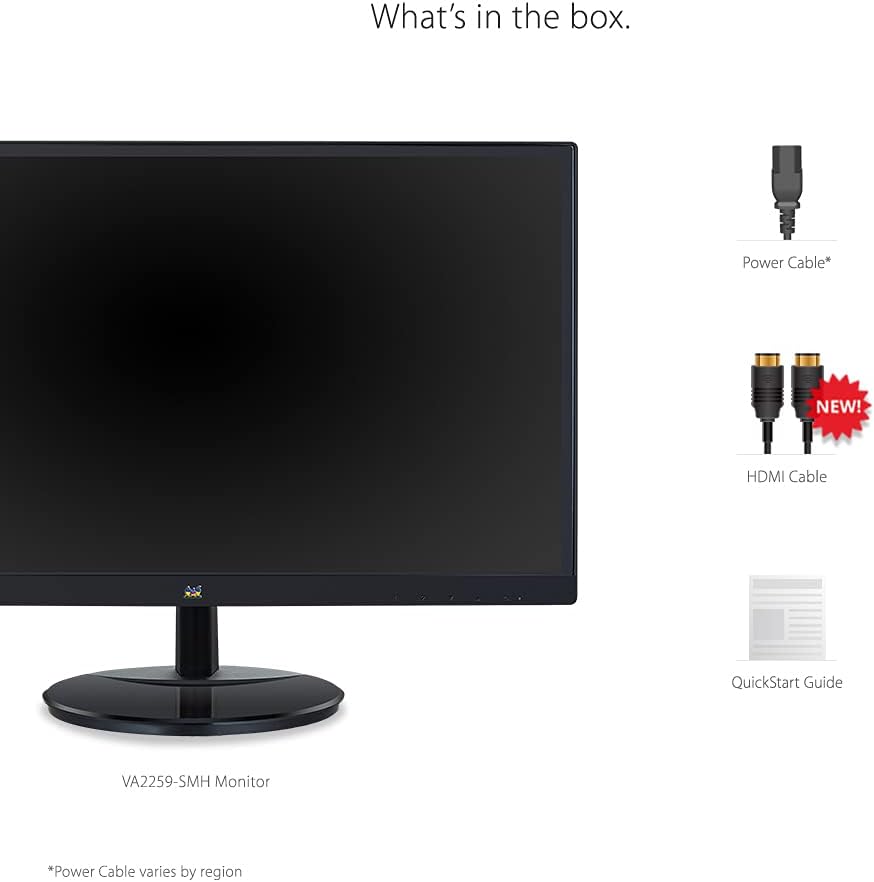
Figure 3.1: Included accessories and monitor in the package.
4. Setup
4.1 Assembling the Stand
- Carefully remove the monitor from its packaging.
- Attach the stand base to the stand neck, ensuring it clicks securely into place or is fastened with screws if provided.
- Attach the assembled stand to the back of the monitor until it locks securely.

Figure 4.1: Monitor dimensions and physical form factor.
4.2 Connecting the Monitor
The VA2259-SMH monitor supports HDMI and VGA inputs.
- Power Connection: Connect the power cable to the monitor's power input and then to a power outlet.
- Video Connection:
- For HDMI: Connect one end of the HDMI cable to the HDMI port on your computer and the other end to the HDMI port on the monitor.
- For VGA: Connect one end of the VGA cable to the VGA port on your computer and the other end to the VGA port on the monitor.
- Audio Connection (Optional): If you wish to use external speakers or headphones, connect them to the audio output port on the monitor. The monitor also has built-in 2.5-watt integrated speakers.

Figure 4.2: Rear view of the monitor highlighting connectivity ports and speaker locations.
5. Operating the Monitor
5.1 Powering On/Off
Press the power button located on the bottom right bezel of the monitor to turn it on or off. The power indicator light will illuminate when the monitor is on.
5.2 On-Screen Display (OSD) Menu
The OSD menu allows you to adjust various monitor settings. Use the control buttons, typically located on the bottom right or rear of the monitor, to navigate the menu.
- Menu Button: Opens the OSD menu.
- Navigation Buttons: Used to move through menu options and adjust values.
- Select/Enter Button: Confirms a selection.
- Exit Button: Closes the OSD menu.
5.3 ViewMode Settings
The ViewSonic VA2259-SMH features exclusive ViewMode presets to optimize screen performance for different applications. These modes adjust gamma curve, color temperature, contrast, and brightness to deliver an optimized viewing experience.
- Game: Enhances visibility and detail in dark scenes for gaming.
- Movie: Optimizes brightness and contrast for watching movies.
- Web: Provides balanced settings for general web browsing.
- Text: Reduces blue light and adjusts brightness for comfortable reading.
- Mono: Displays content in grayscale, suitable for specific tasks.

Figure 5.1: Illustration of various ViewMode settings.
5.4 Eye Care Features
To minimize eye strain during extended viewing periods, the monitor includes:
- Flicker-Free Technology: Eliminates screen flickering at all brightness levels, reducing eye fatigue.
- Blue Light Filter: Reduces the emission of harmful blue light, which can cause eye discomfort and sleep disruption. This feature can be adjusted via the OSD menu.

Figure 5.2: Visual representation of eye care technologies.
6. Maintenance
6.1 Cleaning the Monitor
- Always power off the monitor and unplug the power cord before cleaning.
- Use a soft, lint-free cloth lightly dampened with water or a non-abrasive screen cleaner.
- Do not spray cleaner directly onto the screen.
- Avoid using benzene, thinner, ammonia, or abrasive cleaners, as these can damage the monitor's surface.
6.2 Storage
When storing the monitor for an extended period, place it in its original packaging or a suitable protective container to prevent dust and damage. Store in a cool, dry place.
7. Troubleshooting
This section addresses common issues you might encounter with your monitor. If the problem persists after following these steps, contact ViewSonic customer support.
| Problem | Possible Cause | Solution |
|---|---|---|
| No Power | Power cable not connected; Power outlet not working. | Ensure power cable is securely connected to the monitor and a working power outlet. Check power switch. |
| No Signal | Video cable not connected; Incorrect input source selected. | Verify video cable (HDMI/VGA) is securely connected to both monitor and computer. Use OSD menu to select correct input source. |
| Image is blurry or distorted | Incorrect resolution; Cable issue. | Set display resolution to 1920x1080. Ensure video cable is not damaged and is properly connected. |
| No Audio from speakers | Volume too low; Audio cable not connected (if using external source); Incorrect audio output selected on computer. | Adjust monitor volume via OSD. Ensure audio cable is connected if using external audio input. Check computer's audio output settings. |
8. Specifications
| Feature | Detail |
|---|---|
| Screen Size | 22 Inches (21.5" viewable) |
| Panel Type | IPS SuperClear |
| Resolution | 1920x1080 (Full HD) |
| Aspect Ratio | 16:9 |
| Refresh Rate | 60Hz |
| Response Time | 5ms (GtG) |
| Brightness | 250 cd/m² |
| Connectivity | 1x HDMI, 1x VGA, 2x Audio In/Out |
| Speakers | 2x 2.5-watt integrated speakers |
| Dimensions (LxWxH) | 19.7 x 7.9 x 14.8 inches (with stand) |
| Weight | 6.16 pounds (with stand) |
| Voltage | AC 100-240V (universal), 50-60Hz |
9. Warranty and Support
9.1 Limited Warranty
The ViewSonic VA2259-SMH monitor comes with an industry-leading 3-year limited warranty. This warranty covers defects in materials and workmanship under normal use. For full warranty terms and conditions, please refer to the official ViewSonic website or the warranty card included with your product.
9.2 Customer Support
For technical assistance, product registration, or to download the latest drivers and user manuals, please visit the official ViewSonic support website. You can also refer to the User Guide (PDF) or User Manual (PDF) available online for more detailed information.
Related documentsVA2259-SMH


Ask a question about this manual
Ask about setup, troubleshooting, compatibility, parts, safety, or missing instructions. Manuals+ will review the question and use this page’s manual context to help answer it.