
URANT Router
URANT 300Mbps Wireless-N Router/Repeater/AP Mode User Manual
Model: Router | Brand: URANT
1. Introduction
This manual provides detailed instructions for setting up and operating your URANT 300Mbps Wireless-N Router/Repeater. This versatile device can function as a WiFi Repeater, a Wireless Router, or an Access Point (AP), designed to extend your wireless network coverage and enhance signal strength. Please read this manual carefully to ensure proper installation and optimal performance.
2. Product Overview
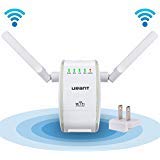
An image showing the URANT Wireless-N Router/Repeater. It is white with two adjustable external antennas, status indicator lights, and a power plug. The image also depicts WiFi signal waves emanating from the device.
Key Features
- High-Speed Performance: Offers up to 300 Mbps data transfer rate, suitable for video streaming, web browsing, online gaming, and file downloads.
- Enhanced Coverage: Equipped with dual 315° high-gain external antennas for improved signal coverage and a strong, stable wireless connection.
- Multiple Operating Modes: Supports Repeater, Router, and AP (Access Point) modes for versatile network solutions.
- Universal Compatibility: Wall-plug design compatible with most major devices including smartphones, tablets, PCs, and laptops.
- Secure Connection: Features WPS (Wi-Fi Protected Setup) technology for easy and secure network setup.
3. Setup Instructions
3.1 Wireless Configuration
- Plug the URANT device into a wall outlet. Wait approximately 1 minute for the device to establish a signal, indicated by a steady blinking light.
- On your phone, tablet, laptop, or PC, connect to the WiFi signal named "Wireless-N". Do not connect to your existing WiFi network at this stage.
- Open a web browser (e.g., Chrome, Firefox, Edge) and enter 192.168.10.253 into the address bar.
- The default username and password are both "admin". Enter these credentials to log in.
- Select your desired operating mode (e.g., Repeater, Router, AP) from the configuration page and then click "Save".
- If you selected Repeater mode, the device will scan for available WiFi networks. Select your existing WiFi network from the list and click "Apply".
- You can optionally change the Repeater SSID (network name) and security key to match your main WiFi network's SSID and password for seamless roaming, or set a new one. Click "Apply" to save changes.
3.2 Optimizing Signal Placement
Proper placement of your URANT device is crucial for maximizing WiFi coverage and performance:
- Mid-point Placement: For optimal signal extension, place the device approximately halfway between your main router (where the signal is strong) and the area where the signal is weak. For example, if Room 1 has a strong signal and Room 2 has a weak signal with 10 meters between them, placing the extender about 4 meters from Room 1 would be ideal to capture a strong signal and extend it to Room 2.
- Avoid Obstructions: Keep the device away from physical obstructions such as thick walls, metal objects, and electronic devices like microwaves or Bluetooth devices, which can interfere with the wireless signal.
- Main Router Strength: The final signal strength and quality provided by the extender are always dependent on the signal received from your main router. A stronger signal from your main router will result in better performance from the extender.
4. Operating Modes
The URANT device supports three primary operating modes to suit various networking needs:
- Repeater Mode: This mode extends the coverage of an existing wireless network. It receives the wireless signal from your main router and re-transmits it, effectively eliminating WiFi dead zones.
- Router Mode: In this mode, the device functions as a standard wireless router. When connected to a modem via an Ethernet cable, it creates a new private wireless network for your devices.
- AP (Access Point) Mode: This mode converts a wired internet connection into a wireless network. Connect the device to a wired network (e.g., an Ethernet port in a hotel room) to create a new wireless access point.
5. Maintenance
To ensure the longevity and optimal performance of your URANT device, consider the following maintenance tips:
- Keep Clean: Regularly wipe the device with a soft, dry cloth to remove dust. Ensure ventilation holes are not blocked.
- Firmware Updates: Check the manufacturer's website periodically for firmware updates. Keeping the firmware updated can improve performance, add new features, and enhance security.
- Environmental Conditions: Operate the device within recommended temperature and humidity ranges. Avoid exposing it to extreme heat, cold, or moisture.
6. Troubleshooting
6.1 Cannot Access Login Page (192.168.10.253)
- Verify Connection: Ensure your device (phone, tablet, PC) is connected to the wireless network named "Wireless-N", which is the default setup SSID of the URANT device.
- Direct Connection: If wireless access fails, try connecting the URANT unit directly to your PC using an Ethernet cable and then attempt to access 192.168.10.253.
- Try Another Device: If your computer still cannot access the login page, attempt to use a different device, such as a smartphone or tablet, to rule out device-specific issues.
- Reset Device: If you cannot find the "Wireless-N" WiFi signal or all other steps fail, please reset the unit to its factory default settings by pressing and holding the reset button (usually a small pinhole button) for about 5-10 seconds.
6.2 General Tips
- Signal Strength: Remember that the extender's performance is directly tied to the signal it receives from your main router. Ensure your main router is providing a strong, stable signal.
- Interference: Minimize interference by placing the extender away from other electronic devices and large metal objects.
- Firmware: Keep the device's firmware updated to benefit from performance improvements and bug fixes.
7. Specifications
| Feature | Detail |
|---|---|
| Brand | URANT |
| Model Number | Router |
| Wireless Standard | 802.11b/g/n |
| Data Transfer Rate | 300 Mbps |
| Frequency Band | 2.4 GHz |
| Antennas | Dual External |
| Operating Modes | Repeater, Router, AP |
| Security | WPS (Wi-Fi Protected Setup) |
| Power Source | Wall-plug |
| Product Dimensions | 11 x 3 x 11 cm (4.33 x 1.18 x 4.33 inches) |
| Product Weight | 9.07 g |
| Batteries Included | No |
| ASIN | B01HQ0KBS2 |
8. Warranty Information
For detailed warranty information, please refer to the warranty card included with your product or visit the official URANT website. Warranty terms and conditions may vary by region and retailer.
9. Technical Support
Should you encounter any issues or require further assistance with your URANT device, please contact our technical support team:
Email: amazon@sz-urant.com
Related documentsRouter


Ask a question about this manual
Ask about setup, troubleshooting, compatibility, parts, safety, or missing instructions. Manuals+ will review the question and use this page’s manual context to help answer it.