
1. Introduction
This manual provides instructions for the setup, operation, and maintenance of your NPET M20 RGB FPS Gaming Mouse. Please read this manual thoroughly before using the product to ensure proper function and longevity.
2. Product Features
- Ergonomic Design: The mouse features an ergonomic design for comfortable hand feeling during extended use.
- High Polling Rate: A 1000Hz polling rate ensures smooth and responsive gaming performance.
- Programmable Buttons: Customizable buttons allow for quick access to frequently used commands.
- Wide Compatibility: Compatible with laptops and personal computers running Windows operating systems.
- RGB Lighting: Features customizable RGB lighting with 16.8 million color options.
- 6 Buttons: Includes standard left/right click, scroll wheel, DPI adjustment, and side buttons.
- Optical Sensor: Equipped with an optical movement detection technology for precise tracking.
- Durable Braided Cable: A 5.7ft braided fiber cable provides durability and includes an anti-interference magnetic ring.
- Gold-plated USB Connector: Ensures reliable connectivity.
- Non-slip Design: Unique non-slip design for enhanced grip and comfort.
3. Setup Instructions
- Connect the Mouse: Plug the gold-plated USB connector of the NPET M20 Gaming Mouse into an available USB port on your computer.
- Driver Installation: The mouse is typically plug-and-play. For advanced customization, including programmable buttons and lighting effects, install the dedicated driver software. Refer to the manufacturer's website for the latest software download.
- System Compatibility: Ensure your operating system is compatible (Windows 10, 8, 7, XP, Vista are supported).
4. Operating Instructions
4.1 Button Functions
The NPET M20 Gaming Mouse features 6 buttons for various functions:
- Left Button: Standard primary click function.
- Right Button: Standard secondary click function.
- Scroll Wheel (Middle Button): Used for scrolling and acts as a clickable middle button.
- Forward Button: Located on the left side, typically used for navigating forward in web browsers or applications.
- Backward Button: Located on the left side, typically used for navigating backward in web browsers or applications.
- DPI Adjustment Button: Located on the top, near the scroll wheel, used to cycle through DPI settings.
- Shortcut Mode Switch Button: Located on the underside of the mouse, allows switching between three different modes.
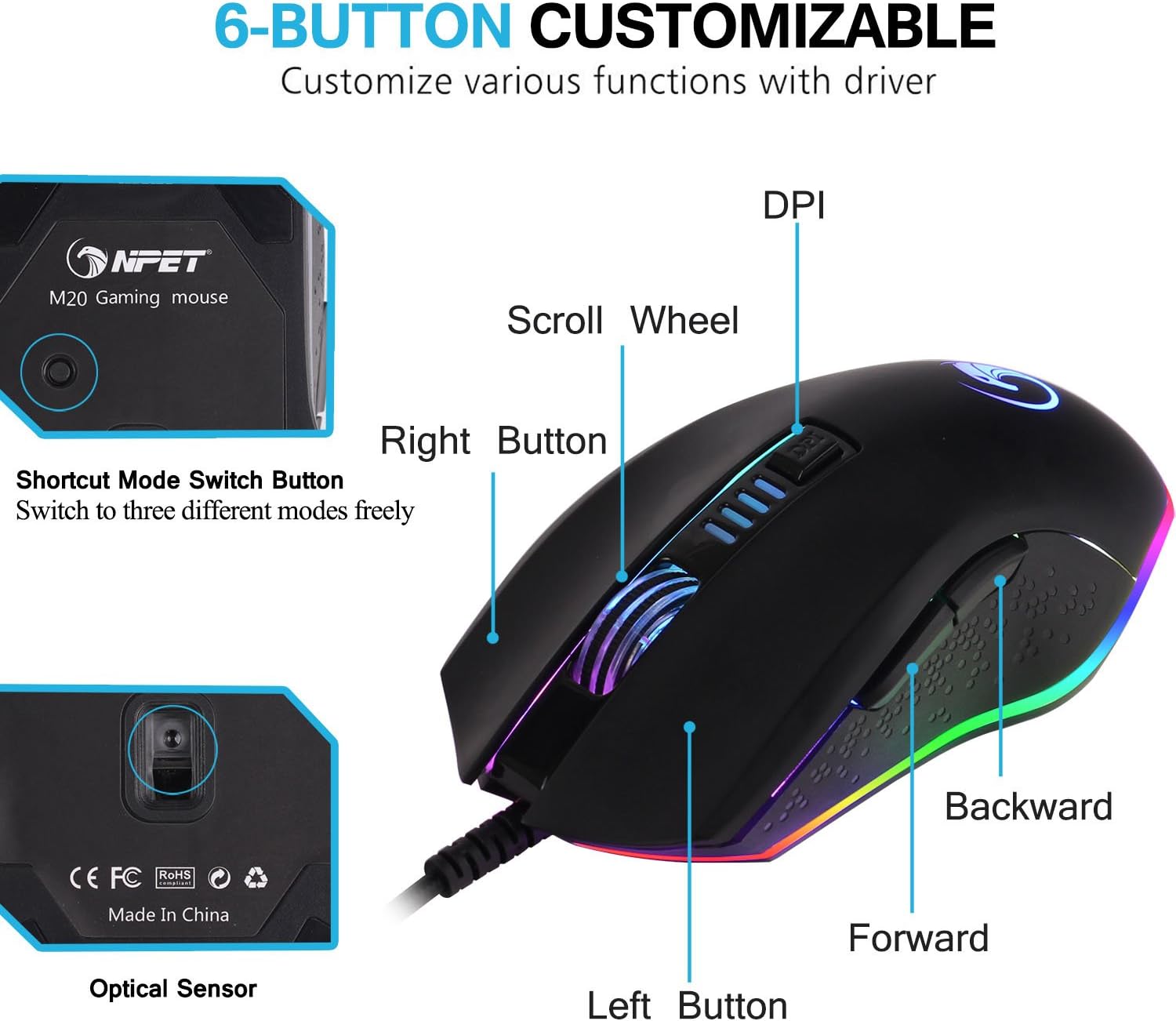
Diagram of the NPET M20 Gaming Mouse, identifying its 6 customizable buttons: DPI, Scroll Wheel, Right Button, Left Button, Forward, Backward, and a Shortcut Mode Switch Button on the underside.
4.2 DPI Settings and LED Indication
The mouse offers adjustable DPI (Dots Per Inch) settings, which can be cycled using the DPI Adjustment Button. The color of the NPET logo on the mouse indicates the current DPI setting:
- Red: 1000 DPI
- Green: 2000 DPI
- Blue: 3000 DPI
- Yellow: 4000 DPI

Image demonstrating the NPET M20 Gaming Mouse's LED lights, where different colors indicate different DPI settings.
4.3 RGB Lighting Control
The NPET M20 features dynamic RGB lighting. You can turn the LEDs on or off using the dedicated button on the underside of the mouse. Further customization of lighting modes and colors is available through the driver software.
Official product video from NPETtech showcasing the RGB lighting effects, ergonomic design, and various button functions of the NPET M20 Gaming Mouse in a product review format.
4.4 Software Customization
The included driver software allows for advanced customization of the mouse. This includes:
- Programming the 6 buttons for specific functions or macros.
- Adjusting DPI settings beyond the default presets.
- Customizing RGB lighting modes and colors.
- Setting mouse parameters and polling rate.

Screenshot of the NPET M20 Gaming Mouse's driver software, showing options to customize the 6 programmable buttons, including DPI settings, macro editor, lighting, mouse parameters, and polling rate.
5. Maintenance
- Cleaning: Use a soft, dry cloth to clean the mouse surface. For optical sensor, use a cotton swab lightly dampened with rubbing alcohol.
- Cable Care: Avoid sharp bends or excessive pulling on the braided cable to prevent damage.
- Storage: Store the mouse in a dry, dust-free environment when not in use.
6. Troubleshooting
- Mouse Not Responding: Ensure the USB cable is securely plugged into a working USB port. Try a different USB port or computer to rule out port issues.
- LEDs Not Lighting Up: Check the LED on/off switch on the underside of the mouse. Ensure the driver software is installed correctly and lighting settings are configured.
- Buttons Not Working/Moving Freely: Verify that the driver software is installed and updated. If specific buttons feel loose or unresponsive, contact customer support.
- DPI Not Changing: Press the DPI adjustment button to cycle through settings. If the indicator light does not change, reinstall the driver software or contact support.
- Software Issues: If the customization software is not functioning correctly, try reinstalling it from the official NPET website.
7. Specifications
| Feature | Specification |
|---|---|
| Product Dimensions | 5.02 x 2.66 x 1.61 inches |
| Item Weight | 6.3 ounces |
| Item Model Number | ECCAV |
| Movement Detection Technology | Optical |
| Number of Buttons | 6 |
| Polling Rate | 1000Hz |
| Cable Length | 5.7 feet (braided) |
| Connector Type | Gold-plated USB |
| Compatibility | Windows 10, 8, 7, XP, Vista |

Image displaying the NPET M20 Gaming Mouse, highlighting its high precision control features including 4 adjustable DPI levels, 125Hz to 1000Hz refresh rate, 6000 FPS, and 20G acceleration.

Image illustrating the NPET M20 Gaming Mouse, emphasizing its professional AWG A3050 gaming sensor for fast and accurate movement.
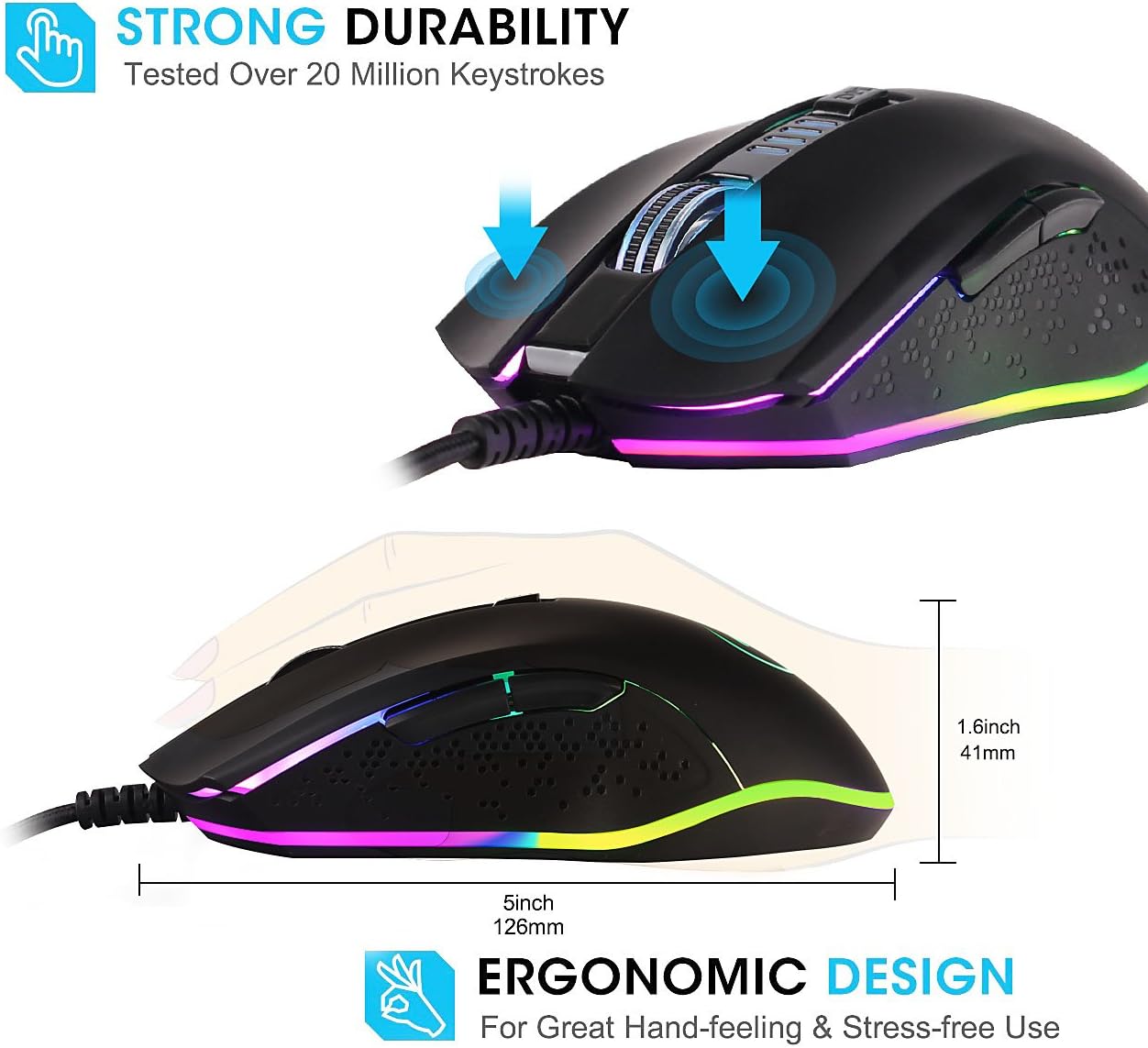
Image showcasing the NPET M20 Gaming Mouse's strong durability, tested over 20 million keystrokes, and its ergonomic design for comfortable hand-feeling, with dimensions of 5 inches length and 1.6 inches height.
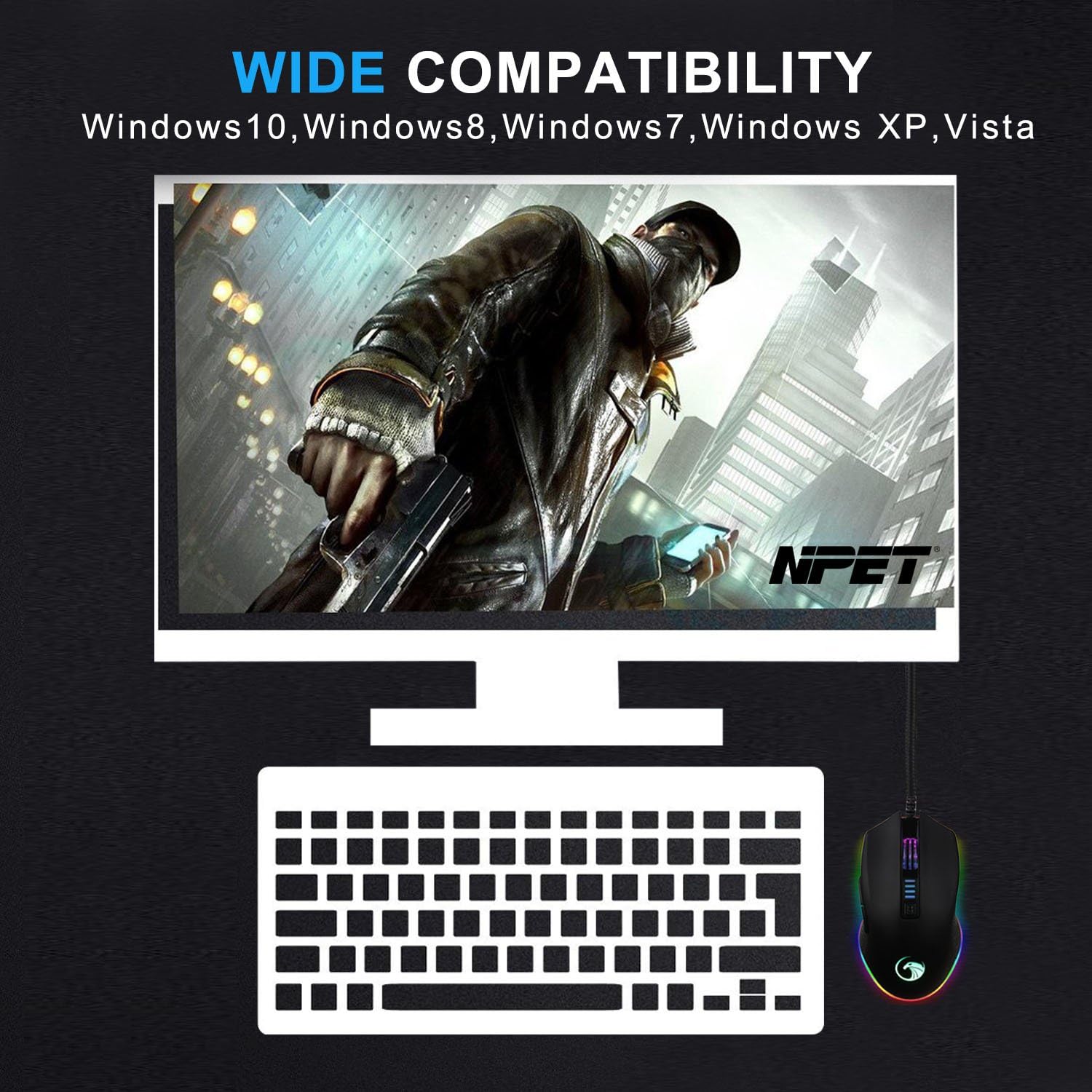
Image indicating the wide compatibility of the NPET M20 Gaming Mouse with Windows 10, Windows 8, Windows 7, Windows XP, and Vista operating systems.

Detailed view of the NPET M20 Gaming Mouse, highlighting its gold-plated USB connector, 5.7ft braided fiber cable with anti-interference magnetic ring, DPI adjustment buttons, unique non-slip design for thumb rest, ring finger rest, and front LED lights with over 16 million customizing LED color options.
8. Warranty and Support
For warranty information, technical support, or to download the latest drivers and software, please visit the official NPET website or contact their customer service. Keep your purchase receipt for warranty claims.