
1. Introduction
This manual provides detailed instructions for the installation, operation, and maintenance of the NVIDIA E220370 Video Card. This graphics card is designed to enhance the visual performance of your desktop computer, supporting various display outputs and applications.
Please read this manual thoroughly before attempting installation or operation to ensure proper usage and to prevent damage to the product or your system.
2. Safety Information
Observe the following safety precautions to prevent injury and damage to your equipment:
- Always disconnect power from your computer before installing or removing any components.
- Wear an anti-static wrist strap or frequently touch a grounded metal object to discharge static electricity before handling the video card. Static discharge can damage electronic components.
- Handle the video card by its edges. Avoid touching the gold connector pins or other components on the board.
- Ensure proper ventilation within your computer case to prevent overheating.
- Keep the video card away from liquids and excessive moisture.
3. Setup and Installation
Follow these steps to install the NVIDIA E220370 Video Card into your desktop computer.
3.1. Preparation
- Power off your computer and unplug the power cord from the wall outlet.
- Open your computer case. Refer to your computer's manual for specific instructions on how to open the case.
- Locate an available PCI Express x16 slot on your motherboard. This card requires a PCI Express x16 slot for optimal performance.
- Remove the metal bracket cover from the back of the computer case corresponding to the chosen PCI Express slot.
3.2. Card Installation
- Carefully align the video card with the PCI Express x16 slot.
- Press down firmly and evenly on both ends of the card until it is fully seated in the slot. You should hear a click as the retention clip engages.
- Secure the video card to the computer case with a screw or the case's retention mechanism.
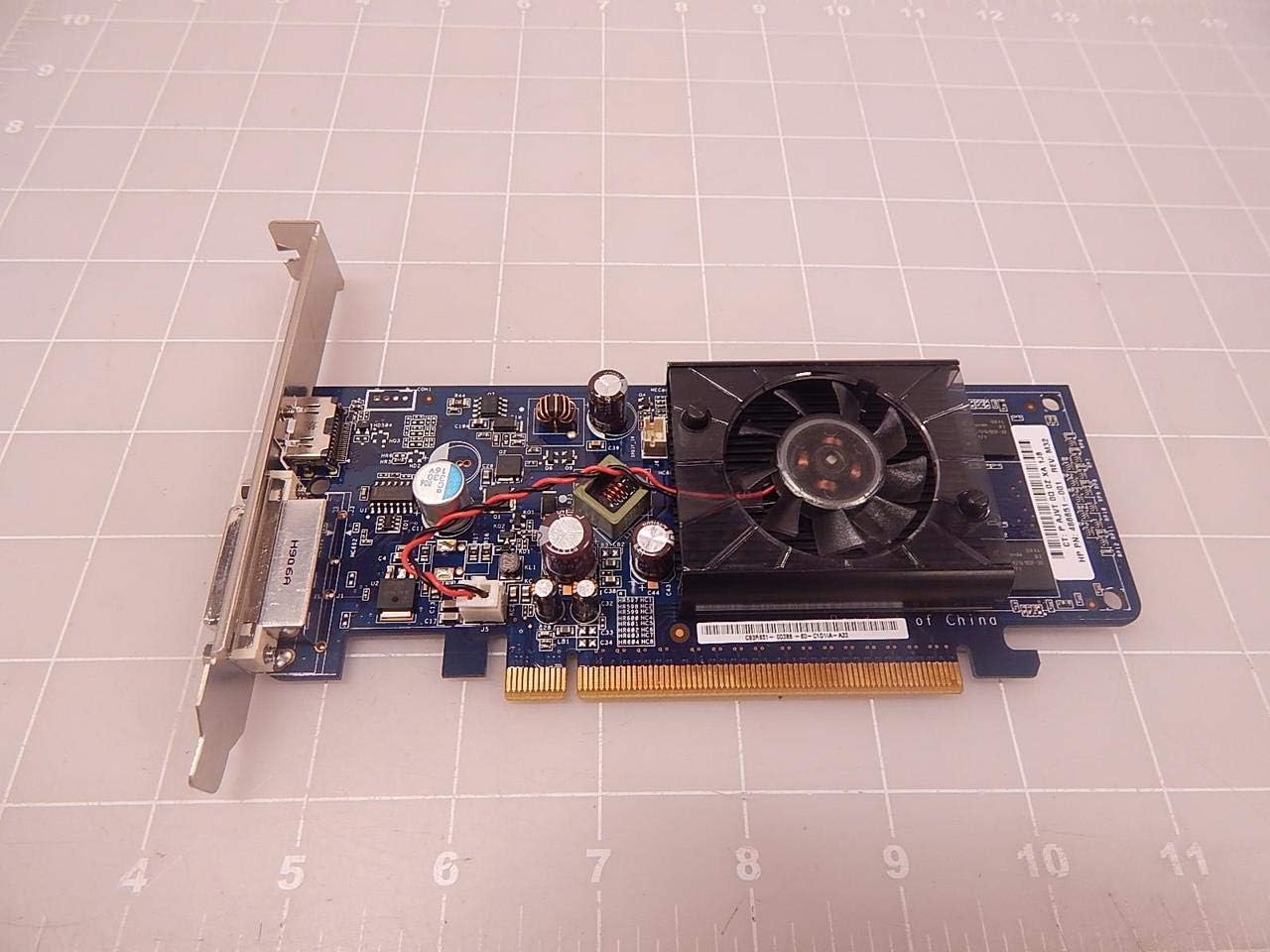
Figure 3.2.1: Top view of the NVIDIA E220370 Video Card, showing the cooling fan and general layout. This view helps in identifying the card for installation.
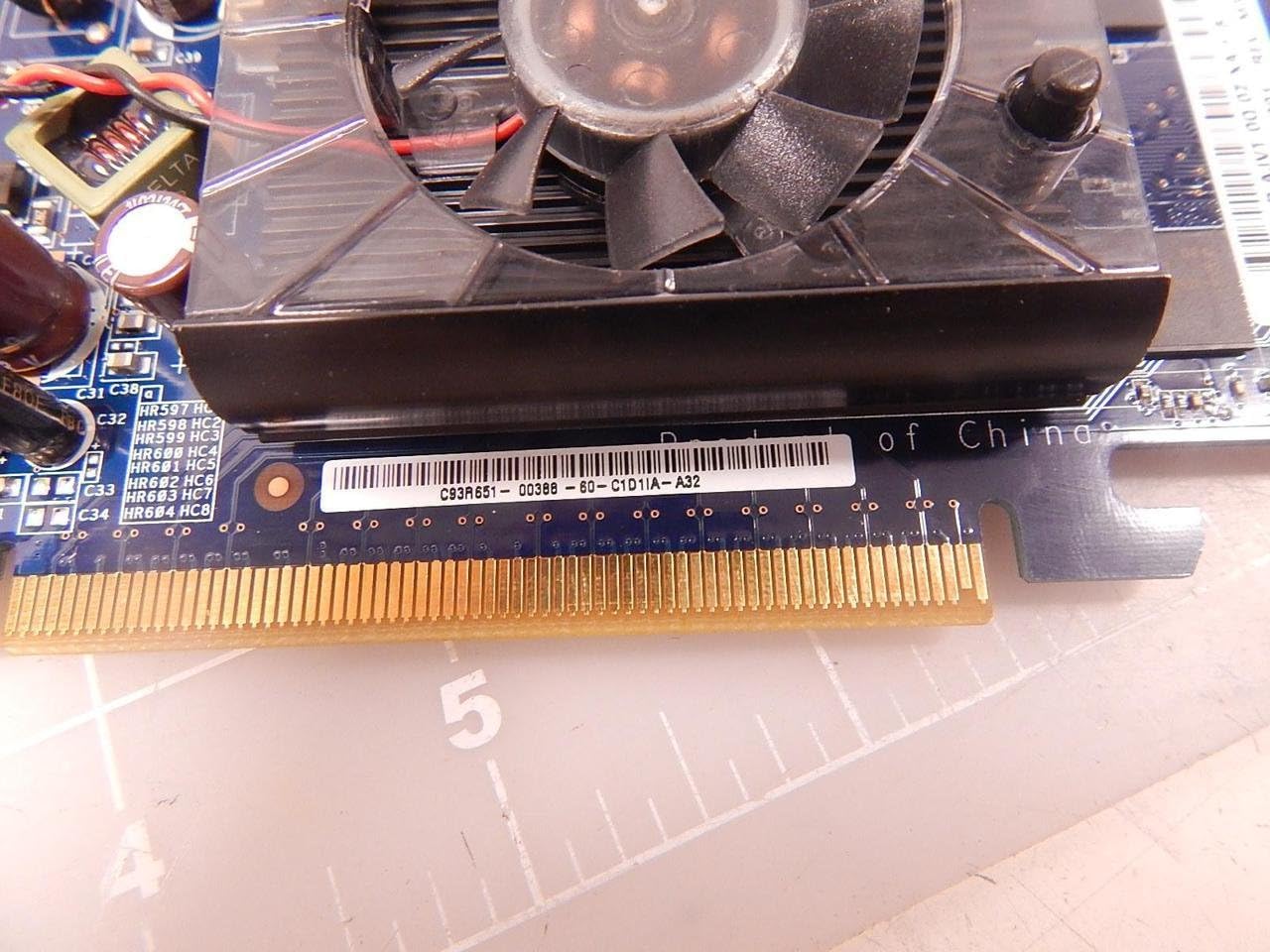
Figure 3.2.2: Close-up of the PCI Express connector (gold pins) on the NVIDIA E220370 Video Card. This connector must be fully seated into the motherboard's PCI Express slot.
3.3. Driver Installation
- Close your computer case and reconnect the power cord.
- Connect your monitor to one of the video card's output ports (HDMI or DVI).
- Power on your computer.
- Once the operating system loads, download the latest drivers for the NVIDIA E220370 from the official NVIDIA website (www.nvidia.com/drivers).
- Follow the on-screen instructions to complete the driver installation. A system restart may be required.
4. Operating the Video Card
Once installed and drivers are updated, your NVIDIA E220370 Video Card will automatically handle graphics processing for your system.
4.1. Connecting Displays
The video card supports multiple display outputs. You can connect your monitor(s) to the available ports:
- HDMI: For high-definition digital video and audio.
- DVI: For digital video output.
- DisplayPort: For high-resolution digital video and audio (if available on your specific model variant).
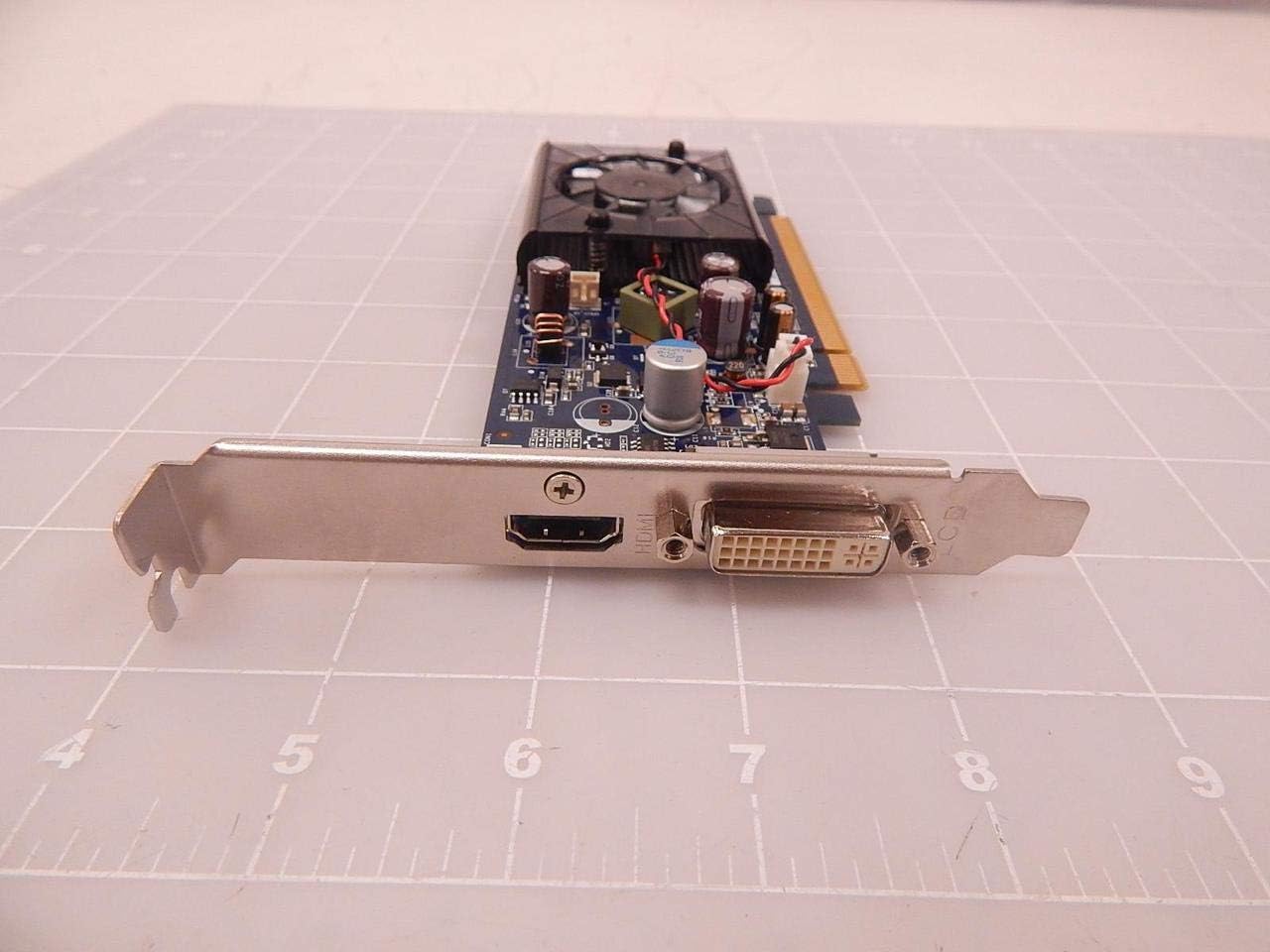
Figure 4.1.1: The output panel of the NVIDIA E220370 Video Card, showing the HDMI and DVI ports for connecting displays.
4.2. Graphics Settings
You can adjust graphics settings through the NVIDIA Control Panel (usually accessible via your desktop's right-click context menu or Windows Control Panel). This allows you to:
- Configure display resolution and refresh rates.
- Manage multiple displays.
- Optimize 3D settings for games and applications.
- Update drivers.
5. Maintenance
Regular maintenance helps ensure the longevity and optimal performance of your video card.
- Dust Removal: Periodically clean the cooling fan and heatsink to prevent dust buildup, which can impede airflow and lead to overheating. Use compressed air to gently blow dust away from the fan blades and heatsink fins. Ensure the fan is held stationary while cleaning to prevent damage.
- Airflow: Ensure your computer case has adequate airflow. Keep vents clear and consider additional case fans if temperatures are consistently high.
- Driver Updates: Keep your graphics drivers updated. NVIDIA regularly releases new drivers that include performance improvements, bug fixes, and compatibility updates.
6. Troubleshooting
If you encounter issues with your NVIDIA E220370 Video Card, refer to the following troubleshooting steps:
6.1. No Display Output
- Check Connections: Ensure the monitor cable is securely connected to both the video card and the monitor. Try a different cable or monitor if possible.
- Card Seating: Power off the computer, unplug it, and re-seat the video card firmly into its PCI Express slot.
- Power Supply: Verify that your power supply unit (PSU) meets the minimum wattage requirements for your system, including the video card.
- BIOS/UEFI Settings: Check your motherboard's BIOS/UEFI settings to ensure the primary display output is set to PCI Express (PEG) if applicable.
6.2. Display Artifacts or Glitches
- Driver Issues: Uninstall current drivers using Display Driver Uninstaller (DDU) in Safe Mode, then install the latest drivers from NVIDIA's website.
- Overheating: Monitor the GPU temperature using third-party software. If temperatures are high, clean the heatsink and fan, and ensure proper case airflow.
- Card Fault: If issues persist after driver and temperature checks, the card itself might be faulty.
6.3. System Instability or Crashes
- Driver Conflicts: Ensure all other system drivers are up to date.
- Power Supply: An insufficient or failing power supply can cause instability.
- Overheating: As mentioned, high temperatures can lead to system crashes.
7. Specifications
The following are key specifications for the NVIDIA E220370 Video Card:
| Feature | Specification |
|---|---|
| Brand | NVIDIA |
| Model Name | E220370 |
| Part Numbers | E220370, BTC-202B, 466851-001 |
| Graphics Co-processor | NVIDIA |
| Graphics RAM Type | GDDR5 |
| Video Output Interface | DisplayPort, HDMI |
| Graphics Card Interface | PCI Express |
| Recommended Product Uses | Gaming, Professional Use |
| Compatible Devices | Desktop |
| Wattage | 2.16 watts |
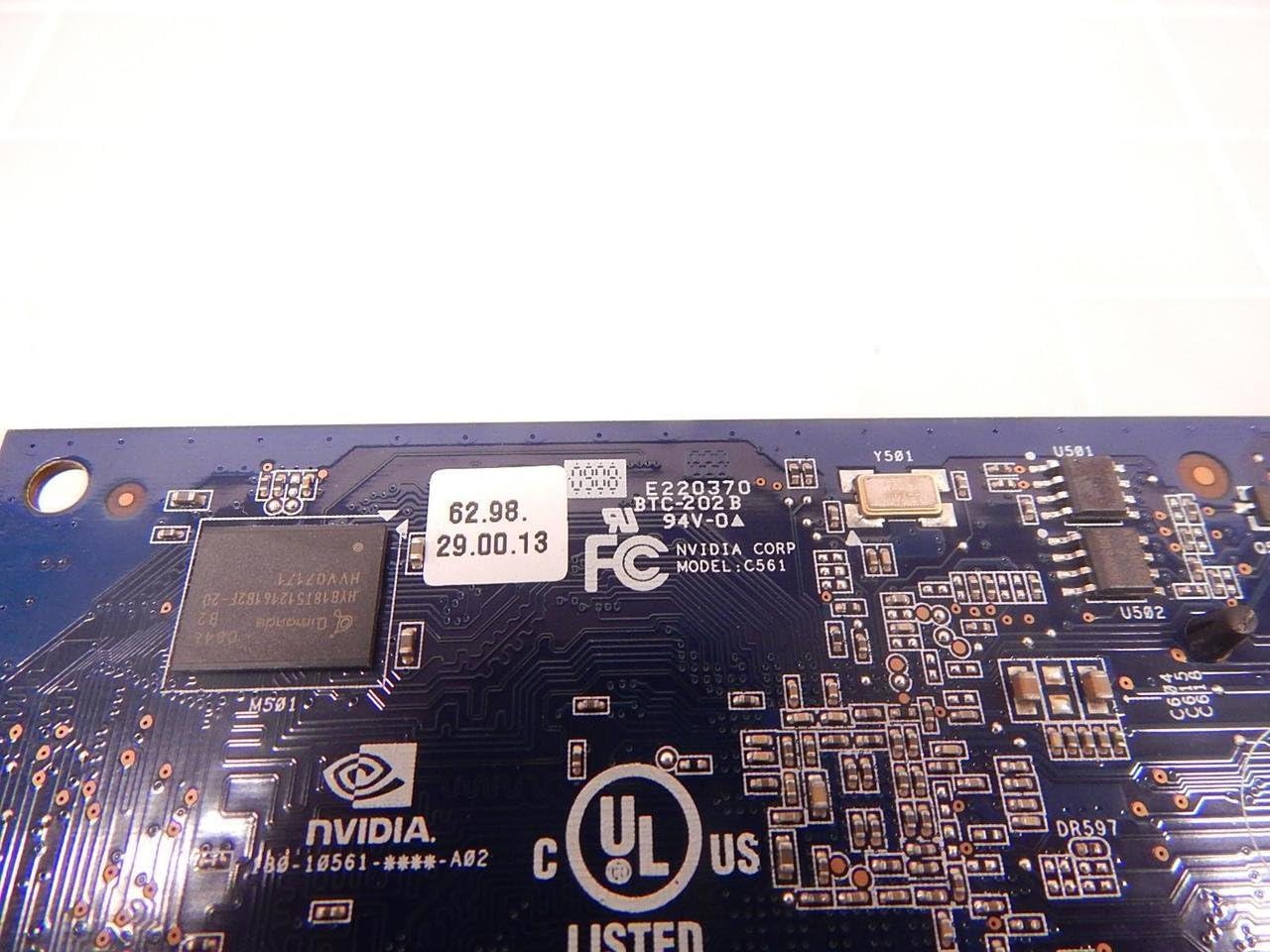
Figure 7.1: Detailed view of the NVIDIA E220370 PCB, showing the model number E220370 and BTC-202B, along with other manufacturing details.
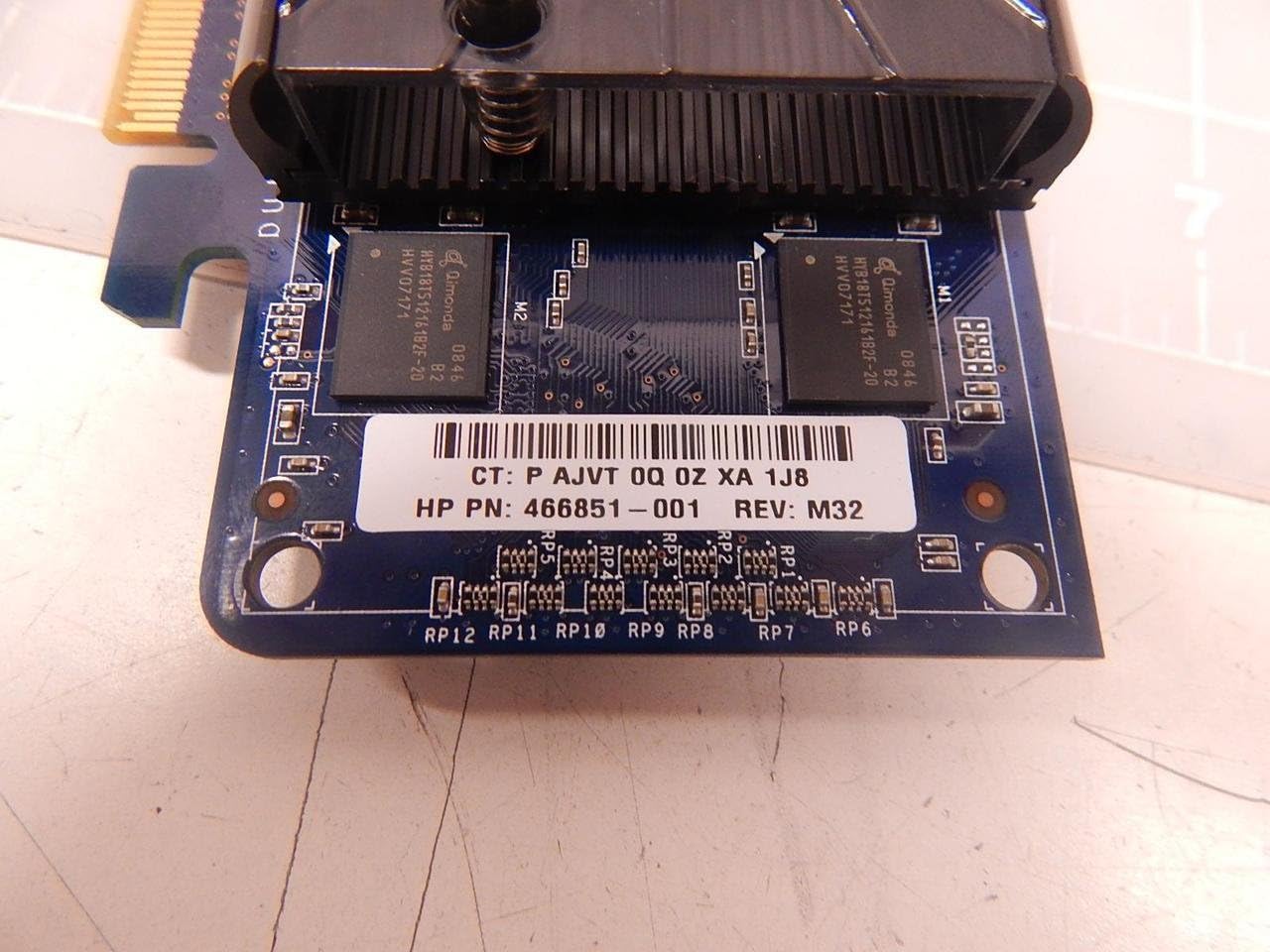
Figure 7.2: Close-up showing the HP Part Number 466851-001, which is associated with this NVIDIA E220370 video card.
8. Warranty and Support
For warranty information and technical support, please refer to the documentation provided with your original purchase or visit the official NVIDIA support website.
- NVIDIA Support: www.nvidia.com/support
- Product Registration: Registering your product may be required for warranty claims.
- Proof of Purchase: Keep your proof of purchase for warranty validation.


