
HP OfficeJet 250 (CZ992A)
HP OfficeJet 250 All-in-One Portable Printer User Manual
Model: OfficeJet 250 (CZ992A)
Introduction
The HP OfficeJet 250 All-in-One Portable Printer is designed for mobile professionals and telecommuters, offering versatile print, scan, and copy functionalities from nearly any location. Its compact design and wireless capabilities ensure convenience and productivity on the go.
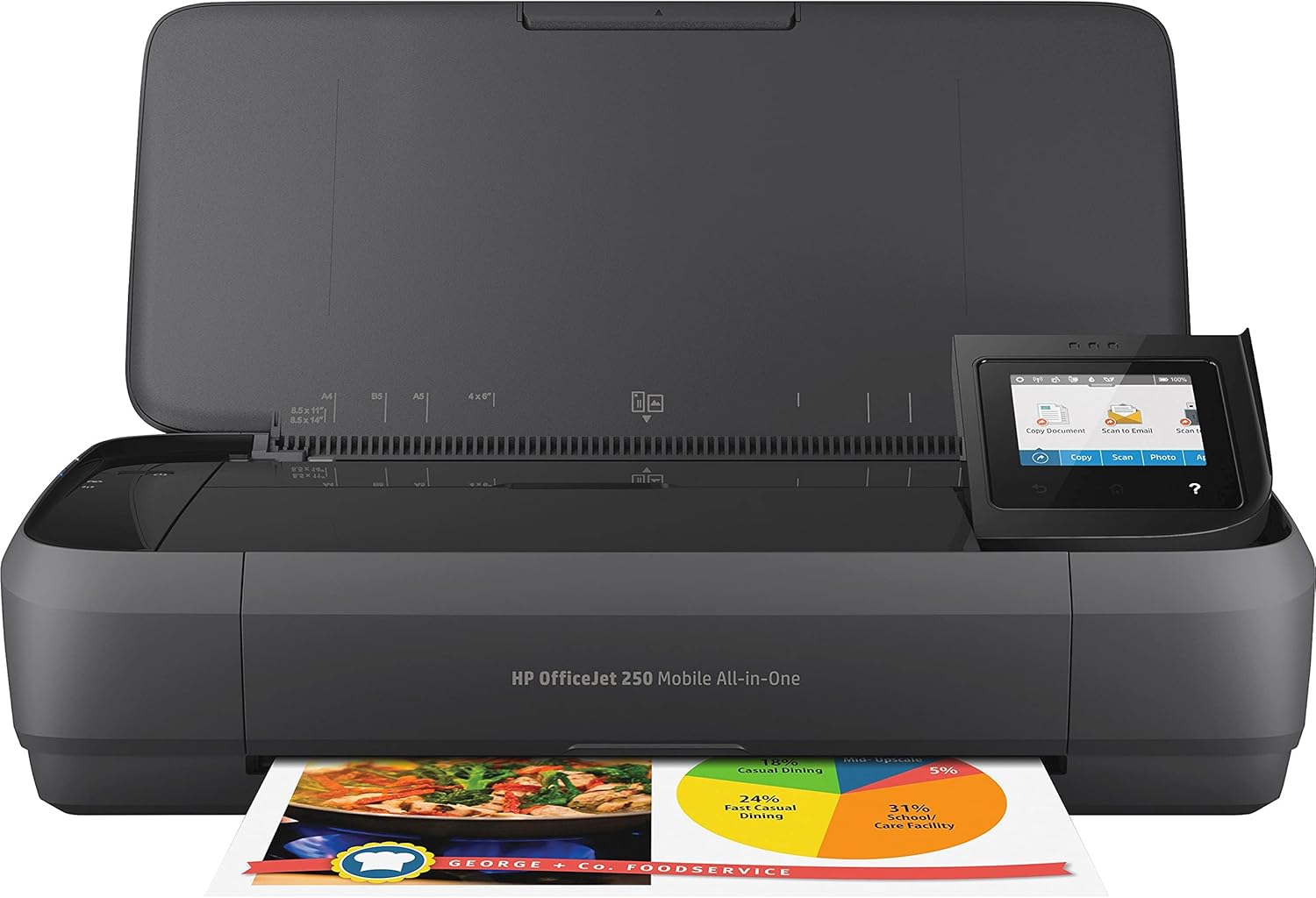
Image: The HP OfficeJet 250 All-in-One Portable Printer, showcasing its compact design and front paper output.
What's in the Box
Verify that all components are present in the packaging:
- HP OfficeJet 250 Mobile All-in-One Printer
- HP 62 Setup Black Ink Cartridge (~200 pages)
- HP 62 Setup Tricolor Ink Cartridge (~120 pages)
- Software CD
- Setup Poster
- Power Cord

Image: All items included in the HP OfficeJet 250 Mobile All-in-One Printer package, including the printer, ink cartridges, software CD, setup poster, and power cord.
Product Overview
Familiarize yourself with the key components and features of your HP OfficeJet 250 printer.

Image: A top-down view of the HP OfficeJet 250 printer with key features labeled, including the 50-sheet input capacity, wireless/Wi-Fi Direct printing, mobile printing, power and battery lights, 2.65-inch color touchscreen, USB charging port, and paper output slot.
Key Features:
- All-in-One Functionality: Print, scan, and copy capabilities.
- Portable Design: Compact size (7.8"D x 14.96"W x 3.6"H) for easy transport.
- Wireless Connectivity: Bluetooth® Smart and Wi-Fi Direct for printing without a network.
- Mobile Printing: Print directly from laptops, tablets, and smartphones.
- 10-page Automatic Document Feeder (ADF): For efficient multi-page scanning and copying.
- Color Touchscreen: 2.65-inch display for intuitive control.
- HP Fast Charge: Quickly recharges the battery within 90 minutes when the printer is off.
- High Page Yield: Uses Original HP 62 series cartridges for extended printing.

Image: The HP OfficeJet 250 printer with its dimensions clearly marked: 14.96 inches wide, 3.60 inches high, and 7.80 inches deep, illustrating its compact size next to a laptop.
Setup Guide
- Unpack the Printer: Remove all packaging materials and protective tapes from the printer.
- Connect Power: Plug the power cord into the printer and a wall outlet. The printer battery can be charged while the printer is off.
- Install Ink Cartridges: Open the ink cartridge access door and install the HP 62 Black and Tricolor ink cartridges into their respective slots.
- Load Paper: Extend the input tray and load paper. Adjust the paper guides to fit the paper size.
- Initial Setup: Follow the on-screen instructions on the 2.65-inch color touchscreen to complete the initial setup, including language selection and network connection.
- Connect to Devices:
- Wireless (Wi-Fi Direct/Bluetooth Smart): The printer supports HP Auto Wireless Connect for easy setup with laptops and mobile devices without a router.
- USB Connection: Connect the printer to your PC using a USB 2.0 cable (not included).
- Install Software: Insert the provided Software CD into your computer or download the latest drivers and software from the official HP support website.

Image: The HP OfficeJet 250 printer wirelessly connected to a smartphone and a tablet, illustrating its easy mobile printing capabilities.
Operating Instructions
Printing
The HP OfficeJet 250 allows printing from various devices and locations.
- Mobile Printing: Use the HP Smart app on your smartphone or tablet to print documents and photos. The printer supports AirPrint for Apple devices.
- Wireless Printing: Connect your laptop or other devices wirelessly via Wi-Fi Direct or Bluetooth Smart.
- USB Printing: Connect directly to a computer using a USB 2.0 cable.
Scanning and Copying
Utilize the 2.65-inch color touchscreen to access scan and copy functions.

Image: A close-up view of the HP OfficeJet 250's color touchscreen, showing options for copying, scanning, and other functions, with a finger interacting with the display.
- Scan: Place documents on the scanner glass or use the 10-page Automatic Document Feeder (ADF) for multiple pages. Scan to email, cloud, or computer.
- Copy: Place the original document on the scanner glass or in the ADF. Select copy options (e.g., number of copies, color/black & white) from the touchscreen.
Paper Handling
The printer supports a convenient range of paper sizes and types:
- Supported Sizes: Letter, legal, statement, executive, cards (3x5 in, 4x6 in, 5x8 in), photo (8x10 in, 5x7 in, 4x6 in, 3.5x5 in), envelopes (No. 10, Monarch, 6 3/4 in).
- Input Capacity: Up to 50 sheets.
- Output Capacity: Up to 50 sheets.
- Print Media: Envelopes, plain paper, card stock.
Maintenance
Ink Cartridge Replacement
The HP OfficeJet 250 uses HP 62 series cartridges. Replace cartridges when print quality deteriorates or the printer indicates low ink levels.
- Open the ink cartridge access door.
- Press the tab on the old cartridge to release it and pull it out.
- Remove the new cartridge from its packaging and carefully insert it into the correct slot until it clicks into place.
- Close the ink cartridge access door.
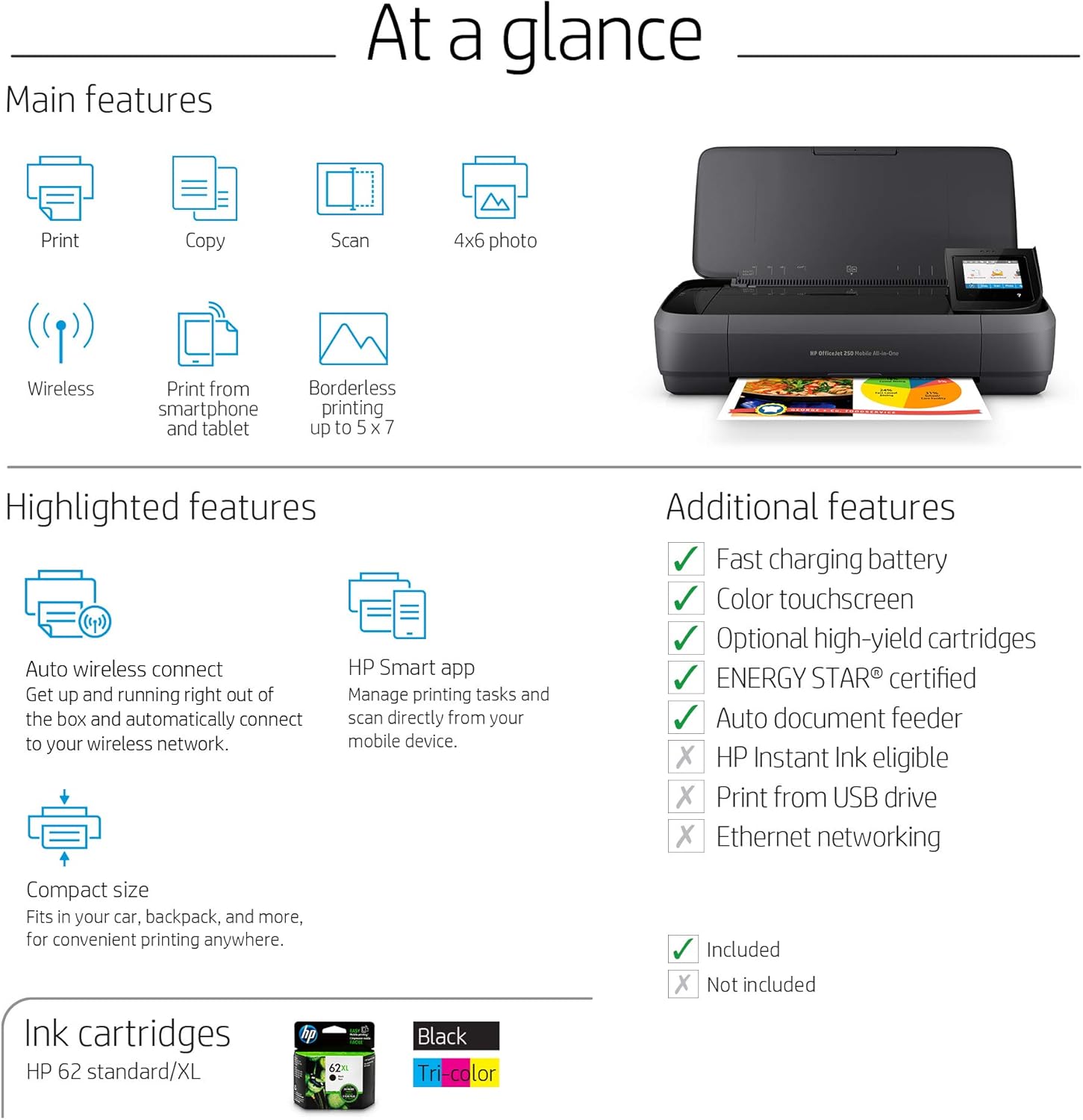
Image: An overview of the HP OfficeJet 250's features, including a visual representation of the HP 62 standard/XL ink cartridges (black and tri-color) used by the printer.
Cleaning
Regular cleaning helps maintain print quality and printer longevity.
- Exterior: Wipe the exterior surfaces with a soft, damp, lint-free cloth.
- Scanner Glass: Clean the scanner glass with a soft cloth and a non-abrasive glass cleaner.
- Printhead Cleaning: If print quality issues persist, use the printer's utility software or the touchscreen menu to perform a printhead cleaning cycle.
Troubleshooting
This section addresses common issues you might encounter with your HP OfficeJet 250 printer.
Printer Not Responding
- Ensure the printer is powered on and the power cord is securely connected.
- Check wireless connection: Verify that Wi-Fi Direct or Bluetooth is enabled on both the printer and your device.
- For USB connection: Ensure the USB cable is properly connected to both the printer and the computer. Try a different USB port.
- Restart the printer and the device you are trying to print from.
Poor Print Quality
- Check ink levels: Replace any low or empty ink cartridges.
- Perform a printhead cleaning cycle through the printer's maintenance menu.
- Ensure you are using genuine HP ink cartridges.
- Verify that the paper type setting in your print driver matches the paper loaded in the printer.
Paper Jams
- Turn off the printer and carefully remove any jammed paper from the input tray, output tray, or inside the printer.
- Ensure paper is loaded correctly and not overfilled in the input tray.
- Use paper that meets the printer's specifications.
Specifications
| Feature | Detail |
|---|---|
| Model Name | OfficeJet 250 |
| Manufacturer Part Number | CZ992A |
| Product Dimensions (D x W x H) | 7.8" x 14.96" x 3.6" |
| Item Weight | 6.51 pounds |
| Connectivity Technology | Wired (USB 2.0), Wireless (Wi-Fi, Bluetooth) |
| Printing Technology | Inkjet |
| Printer Output | Color |
| Max Print Speed (Monochrome) | 20 ppm |
| Max Print Speed (Color) | 19 ppm |
| Scanner Type | Portable |
| Max Input Sheet Capacity | 50 sheets |
| Output Sheet Capacity | 50 sheets |
| Display Type | Color Graphic Display (CGD) |
| Supported Media Sizes | 3 x 5 to 8.5 x 14 inches (Letter, Legal, Envelope, Cards, Photo) |
| Duplex Printing | Manual |
| Memory Storage Capacity | 256 MB |
| Power Consumption | 3.4 watts |
System Requirements
Minimum system requirements for operating the HP OfficeJet 250:
- Windows: Windows 10, 8.1, 8, 7: 32-bit or 64-bit, 2 GB available hard disk space, CD-ROM/DVD drive or Internet connection, USB port, Internet Explorer. Windows Vista (32-bit only): 2 GB available hard disk space, CD-ROM/DVD drive or Internet connection, USB port, Internet Explorer 8. Windows XP SP3 or higher (32-bit only): any Intel Pentium II, Celeron or 233 MHz compatible processor, 850 MB available hard disk space, CD-ROM/DVD drive or Internet connection, USB port, Internet Explorer 8.
- Apple OS X: v10.11 El Capitan, OS X v10.10 Yosemite, OS X v10.9 Mavericks; 1 GB HD; Internet required; USB.
- Linux: For more information, refer to hplipopensource.com.
Warranty and Support
Warranty Information
The HP OfficeJet 250 All-in-One Portable Printer comes with a one-year limited hardware warranty.
Customer Support
For further assistance, technical support, or to download the latest drivers and software, please visit the official HP support website or contact HP customer service.
You can find more information and support resources on the HP Official Website.
Related documentsOfficeJet 250 (CZ992A)


Ask a question about this manual
Ask about setup, troubleshooting, compatibility, parts, safety, or missing instructions. Manuals+ will review the question and use this page’s manual context to help answer it.