
Bose 752195-0100
Bose SoundLink Color II Portable Bluetooth Speaker User Manual
Model: 752195-0100
Brand: Bose
Introduction
This manual provides comprehensive instructions for the setup, operation, maintenance, and troubleshooting of your Bose SoundLink Color II Portable Bluetooth Speaker. Designed for portability and robust sound, this speaker features a water-resistant design and intuitive controls. Please read this manual thoroughly to ensure optimal performance and longevity of your device.
What's in the Box
Upon unboxing your SoundLink Color II speaker, verify that all components are present:
- Bose SoundLink Color Bluetooth speaker II
- USB cable
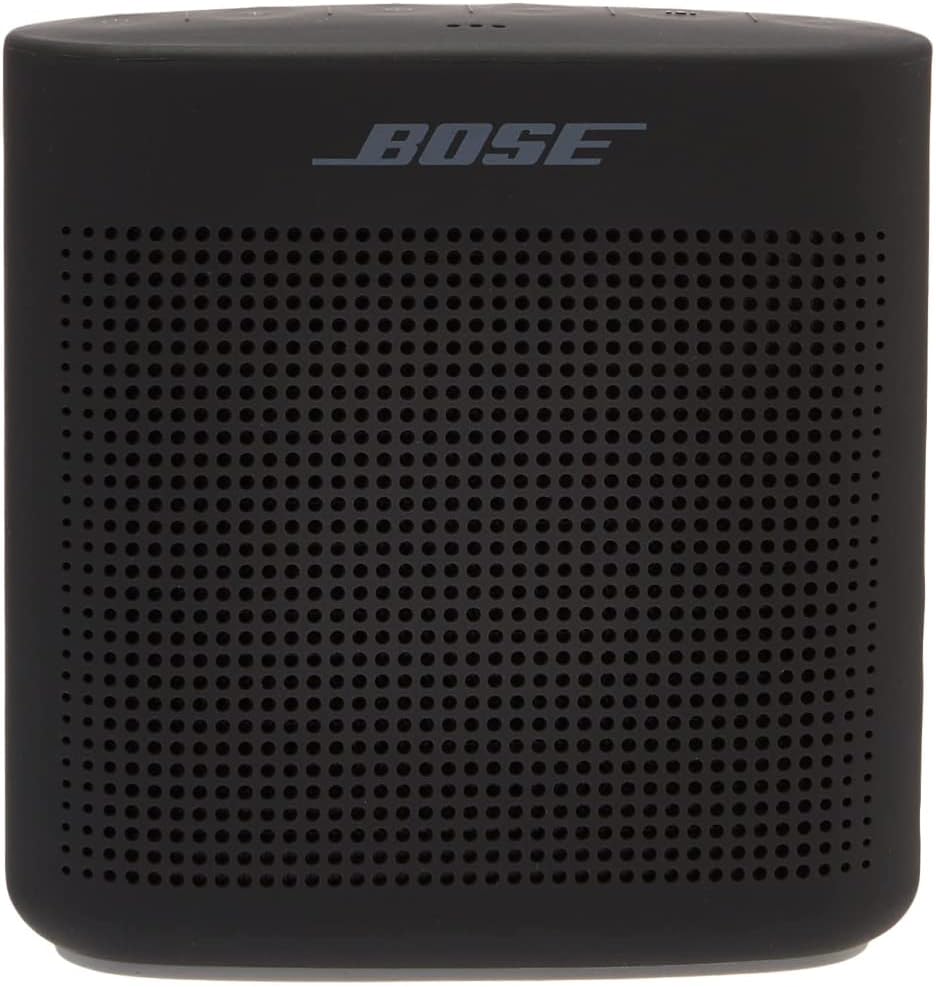
Image: Front view of the Bose SoundLink Color II speaker, showcasing its soft black finish and speaker grille.

Image: Back view of the Bose SoundLink Color II speaker, showing the smooth silicone surface.
Setup
1. Charging the Battery
Before first use, fully charge the speaker. The lithium-ion battery provides up to 8 hours of playtime.
- Connect the small end of the USB cable to the Micro B USB port on the speaker.
- Connect the large end of the USB cable to a USB wall charger (not included) or a computer's USB port.
- The battery indicator light will blink amber during charging and turn solid green when fully charged. A minimum 1.8A - 2A power block is recommended for effective charging.

Image: Side view of the speaker, highlighting the charging port and durable silicone exterior.
2. Powering On/Off
- To power on, press the Power button (
 ). A voice prompt will indicate the battery level and connected device.
- To power off, press and hold the Power button until the speaker turns off.
3. Bluetooth Pairing
The speaker uses voice prompts to guide you through the pairing process.
- Turn on the speaker. It will automatically enter pairing mode if no device is connected, or if it's the first time using it. The Bluetooth indicator will blink blue.
- On your device (smartphone, tablet, etc.), enable Bluetooth and select "Bose Color II" from the list of available devices.
- Once connected, a voice prompt will confirm the connection, and the Bluetooth indicator will glow solid white.
- To pair a new device, press the Bluetooth button () until the voice prompt says "Ready to pair another device."

Image: Top view of the speaker, displaying the power, Bluetooth, multi-function, volume down, and volume up buttons.
4. NFC Pairing (If supported by your device)
- Ensure NFC is enabled on your device.
- Tap your NFC-enabled device to the top center of the speaker where the Bose logo is located. Your device may prompt you to confirm the connection.
Operating the Speaker
Controls
The speaker features intuitive controls on its top surface:
- Power Button (): Powers the speaker on or off.
- Bluetooth Button (): Enters pairing mode or connects to the last paired device.
- Multi-function Button ():
- Press once to play/pause audio.
- Press twice to skip to the next track.
- Press three times to skip to the previous track.
- Press and hold to activate your device's voice assistant (Siri, Google Assistant).
- Volume Down (-) / Volume Up (+) Buttons (): Adjust the speaker's volume.
Speakerphone Functionality
The built-in microphone allows you to take calls directly through the speaker.
- When a call comes in, the speaker will ring.
- Press the Multi-function Button once to answer the call.
- Press the Multi-function Button again to end the call.
- Press and hold the Multi-function Button to decline an incoming call.
Bose Connect App
Enhance your experience by downloading the Bose Connect app. The app allows you to:
- Manage Bluetooth connections (drag and drop).
- Unlock additional features.
- Access product updates.
- Enable Party Mode or Stereo Mode.
Party Mode and Stereo Mode
You can connect two Bose SoundLink speakers for an enhanced audio experience:
- Party Mode: Play audio simultaneously through two speakers for louder, more expansive sound.
- Stereo Mode: Designate one speaker as the left channel and the other as the right channel for a true stereo soundstage.
These modes are enabled via the Bose Connect app.

Image: The Bose SoundLink Color II speaker integrated into a home environment, demonstrating its versatile placement.
Maintenance
Water Resistance
The SoundLink Color II is designed to be water-resistant, making it suitable for use near water, such as by a pool or at the beach. It is not designed to be submerged in water.

Image: The speaker with water droplets, demonstrating its water-resistant capability.
Cleaning
To clean the speaker, use a soft, damp cloth. Do not use any solvents, chemicals, or cleaning sprays. Ensure the charging port is dry before charging after exposure to water.
Troubleshooting
| Problem | Possible Solution |
|---|---|
| Speaker does not turn on. | Ensure the battery is charged. Connect the speaker to a power source and allow it to charge for at least 30 minutes before attempting to power on. |
| Battery not charging. |
|
| Cannot pair with Bluetooth device. |
|
| No sound or low sound. |
|
Specifications
| Feature | Detail |
|---|---|
| Model Name | SoundLink Color II |
| Material | Silicone |
| Color | Soft black |
| Product Dimensions | 2.2"D x 5"W x 5.2"H |
| Item Weight | 1.2 Pounds |
| Battery Life | Up to 8 Hours |
| Charging Time | 8 Hours (full charge) |
| Connectivity Technology | Bluetooth, Wireless |
| Wireless Range | Approximately 30 feet (9 meters) |
| Waterproof | Yes (Water-resistant) |
| Built-in Microphone | Yes |
| Control Method | Button, Voice |
| Power Source | Battery Powered |

Image: Diagram showing the dimensions of the SoundLink Color II speaker: 5.2 inches high, 5 inches wide, and 2.2 inches deep.
Warranty Information
Bose products are covered by a limited warranty. The specific terms and duration of your warranty may vary based on your region and product. Please refer to the warranty card included with your product or visit the official Bose website for detailed warranty information and registration.
Typically, the limited warranty covers manufacturing defects in materials and workmanship under normal use. It does not cover damage caused by misuse, accidents, unauthorized modifications, or normal wear and tear.
Support
For further assistance, product registration, or to access additional resources, please visit the official Bose support website. You can also find the full User Guide (PDF) for your SoundLink Color II speaker online.
- Official Bose Support: www.bose.com/support
- User Guide (PDF): Download User Guide
Related documents752195-0100


Ask a question about this manual
Ask about setup, troubleshooting, compatibility, parts, safety, or missing instructions. Manuals+ will review the question and use this page’s manual context to help answer it.