
1. Introduction
This manual provides detailed instructions for the installation, operation, and maintenance of your Wipro 4.3-inch iview Video Door Phone. Please read this manual thoroughly before using the product to ensure proper function and safety. The Wipro iview-mini is a compact and secure video door phone system featuring a 4.3-inch TFT color monitor and a high-resolution HD-CMOS camera for clear visuals. It includes an exclusive SOS alarm system for enhanced security and an outdoor unit with IP55 protection.
2. Safety Information
- Ensure all wiring is performed by a qualified technician to prevent electrical hazards.
- Do not expose the indoor monitor to direct sunlight, high temperatures, or high humidity.
- Keep the outdoor unit free from obstructions that may block the camera's view or microphone.
- Use only the provided power supply adapter.
- Do not attempt to disassemble or repair the unit yourself. Contact qualified service personnel.
- Clean the units with a soft, dry cloth. Avoid using abrasive cleaners or solvents.
3. Package Contents
Verify that all the following items are included in your package:
- 4.3" TFT color monitor (Indoor Unit)
- Door camera unit (Outdoor Unit)
- Power supply adapter
- User manual
4. Product Overview
4.1 Outdoor Unit
The outdoor unit houses the HD-CMOS camera, microphone, speaker, and call button. It is designed for outdoor installation and features IP55 protection against dust and water splashes.

Figure 4.1: Front view of the Wipro iview outdoor unit. This image shows the camera lens, speaker grille, call button, and Wipro branding.

Figure 4.2: Side view of the Wipro iview outdoor unit, illustrating its compact design and mounting bracket.
4.2 Indoor Monitor
The indoor monitor features a 4.3-inch TFT color display for viewing the outdoor camera feed. It includes buttons for various functions such as monitoring, answering calls, and activating the SOS alarm.
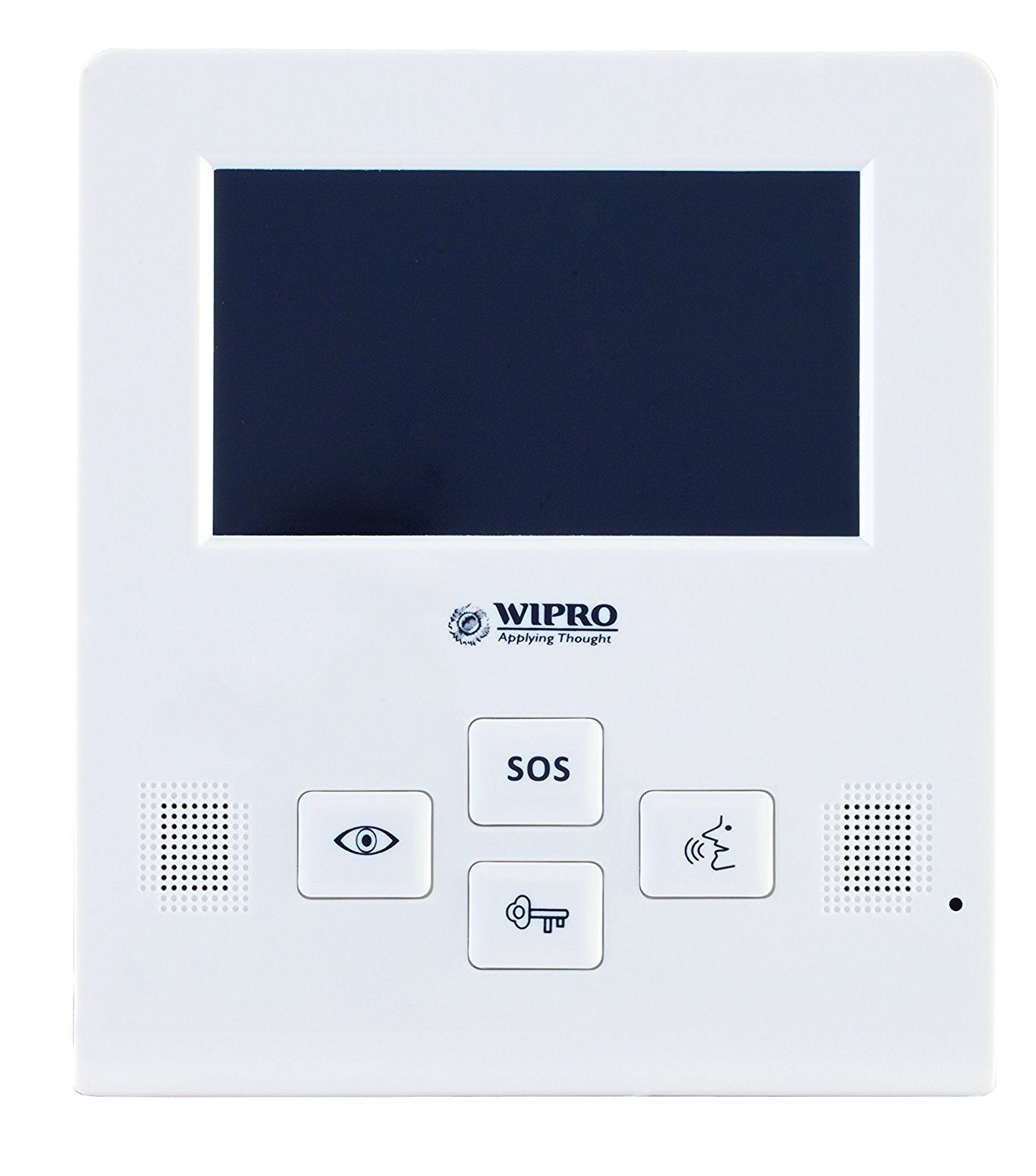
Figure 4.3: Front view of the Wipro iview indoor monitor. This image displays the 4.3-inch screen, speaker grilles, and control buttons including SOS, view, talk, and unlock.
5. Setup and Installation
Proper installation is crucial for optimal performance. It is recommended to have the installation performed by a qualified technician.
5.1 Mounting the Outdoor Unit
- Choose a suitable location near your door, ensuring the camera has a clear view of the visitor's face. The recommended height is approximately 1.5 meters (5 feet) from the ground.
- Mark the drilling points for the mounting bracket.
- Drill holes and insert wall plugs if necessary.
- Secure the mounting bracket to the wall.
- Connect the wiring from the outdoor unit to the indoor monitor as per the wiring diagram (refer to section 5.3).
- Attach the outdoor unit to the mounting bracket.
5.2 Mounting the Indoor Monitor
- Select a convenient indoor location, typically near the main entrance, where the monitor is easily accessible.
- Mark the drilling points for the indoor monitor's mounting bracket.
- Drill holes and secure the bracket to the wall.
- Connect the wiring from the outdoor unit and the power adapter to the indoor monitor.
- Mount the indoor monitor onto its bracket.
5.3 Wiring Connections
A typical wiring setup involves connecting the outdoor unit to the indoor monitor using a multi-core cable. Ensure correct polarity for power and signal lines. Consult the detailed wiring diagram provided in the separate installation guide or contact customer support for specific wiring instructions.
Note: Incorrect wiring can damage the device and void the warranty.
5.4 Powering On
Once all connections are secure, plug the power supply adapter into a wall outlet and connect it to the indoor monitor. The monitor should power on, and you should see the Wipro logo or a standby screen.
6. Operating Instructions
6.1 Answering a Call
- When a visitor presses the call button on the outdoor unit, the indoor monitor will ring and display the visitor's image.
- Press the Talk button (often indicated by a microphone icon) on the indoor monitor to establish two-way audio communication with the visitor.
- To end the conversation, press the Talk button again or wait for the call to automatically disconnect after a set period.
6.2 Monitoring
You can view the outdoor camera feed at any time without a visitor pressing the call button.
- Press the View button (often indicated by an eye icon) on the indoor monitor. The screen will display the live feed from the outdoor camera.
- Press the View button again to turn off the monitoring function.
6.3 Unlocking (If Connected to an Electronic Lock)
If your video door phone system is connected to an electronic door lock (purchased separately), you can unlock the door remotely.
- During a call or while monitoring, press the Unlock button (often indicated by a key icon) on the indoor monitor.
- The door will unlock for a brief period.
6.4 Using the SOS Alarm
The Wipro iview features a built-in SOS alarm for emergencies.
- In case of an emergency or unwanted intruder, press and hold the SOS button on the indoor monitor.
- The system will activate an audible alarm to deter intruders and alert others.
- Refer to the full installation guide for details on how the SOS alarm integrates with other security systems, if applicable.
7. Maintenance
- Cleaning: Use a soft, dry, lint-free cloth to clean the indoor monitor screen and the outdoor unit's camera lens. Do not use liquid or aerosol cleaners, as they may damage the finish or internal components.
- Outdoor Unit Care: Regularly check the outdoor unit for any obstructions (e.g., dirt, spiderwebs) that might block the camera or microphone. Ensure the unit is securely mounted.
- Power Supply: Ensure the power adapter is not damaged and is securely connected.
8. Troubleshooting
| Problem | Possible Cause | Solution |
|---|---|---|
| No image on indoor monitor. |
|
|
| No audio during conversation. |
|
|
| Outdoor unit not ringing indoor monitor. |
|
|
9. Specifications
| Feature | Detail |
|---|---|
| Model | iview |
| Indoor Monitor Display | 4.3" TFT Color |
| Outdoor Unit Camera | HD-CMOS |
| Outdoor Unit Protection | IP55 |
| Wattage | 12 watts |
| Material | Plastic |
| Finish | Glossy |
| Color | White |
| Item Dimensions (L x W x H) | 365 mm x 275 mm x 85 mm (Package dimensions, actual unit dimensions may vary) |
| Item Weight | 1 kg 40 g |
| Shipping Weight | 1.04 Kilograms |
10. Warranty and Support
The Wipro 4.3-inch iview Video Door Phone comes with a 1-year warranty on the product from the date of purchase. Please retain your purchase receipt as proof of warranty.
For technical support, service, or warranty claims, please contact Wipro customer service. Contact details can typically be found on the Wipro official website or on your product packaging.


