
Introduction
The iSmartAlarm Home Security System Preferred Package-ISA3 provides a DIY solution for monitoring and managing your home security. This system is designed for easy setup and operation, offering peace of mind without requiring monthly fees or contracts. This manual provides essential information for the proper installation, operation, and maintenance of your security system.
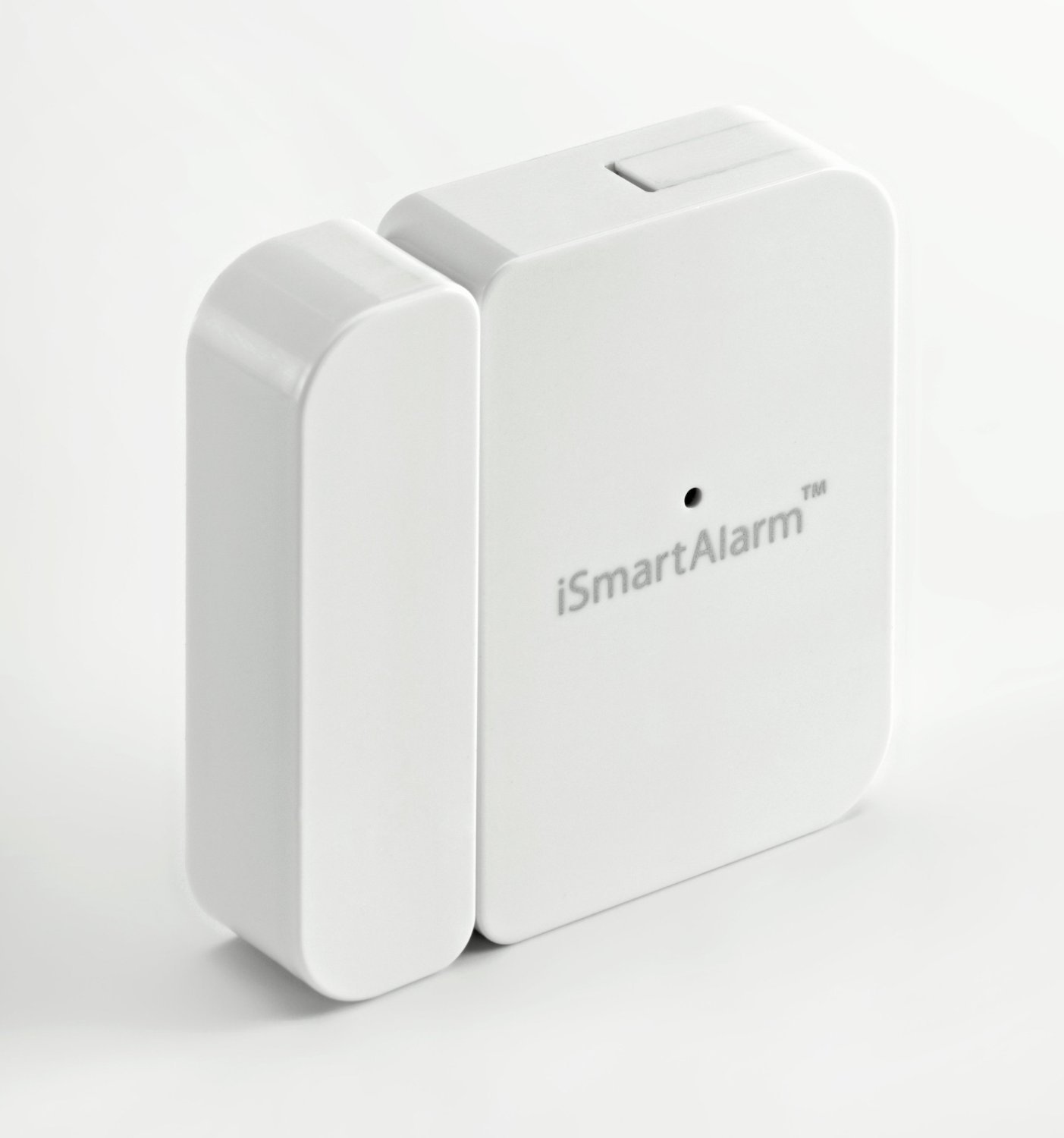
Figure 1: Overview of the iSmartAlarm Home Security System Preferred Package-ISA3. This image displays the main components of the security system, including the central hub and various sensors, providing a visual reference for the product.
Safety Information
Please read all safety instructions before operating the device. Failure to follow these instructions may result in electric shock, fire, or other hazards.
- Do not expose the device to water or moisture.
- Do not attempt to disassemble or repair the device yourself. Refer all servicing to qualified personnel.
- Ensure the power adapter is compatible with your local power supply.
- Keep the device away from heat sources and direct sunlight.
- Use only accessories specified by the manufacturer.
Package Contents
The iSmartAlarm Preferred Package-ISA3 typically includes the CubeOne™ hub, contact sensors, motion sensors, and remote tags. Refer to your specific product packaging for a complete list of included items and their quantities.
Setup
1. Initial CubeOne™ Hub Setup
- Connect Power: Plug the power adapter into the CubeOne™ hub and then into a wall outlet.
- Connect to Network: Connect the CubeOne™ hub to your internet router using the provided Ethernet cable. Ensure your router has an active internet connection.
- Wait for Initialization: The CubeOne™ hub's indicator light will change color during startup. Wait until it indicates a stable connection (refer to the CubeOne™ LED indicator guide in the app for specific light patterns).
2. App Installation and Account Creation
- Download App: Download the iSmartAlarm app from your mobile device's app store (iOS App Store or Google Play Store).
- Create Account: Open the app and follow the on-screen instructions to create a new user account.
- Add CubeOne™: Follow the app's prompts to add your CubeOne™ hub to your account. This typically involves scanning a QR code on the device or entering its serial number.
3. Pairing Sensors and Accessories
- Access Pairing Mode: In the iSmartAlarm app, navigate to the 'Devices' section and select 'Add Device' or 'Pair New Sensor'.
- Activate Sensor: Follow the app's instructions to activate each sensor (e.g., pull a battery tab, press a pairing button).
- Placement: Install contact sensors on doors and windows, and motion sensors in areas requiring coverage, ensuring they are within range of the CubeOne™ hub. Refer to individual sensor manuals for optimal placement guidelines.
Operating
Arming and Disarming the System
The iSmartAlarm system can be armed or disarmed using the mobile app or a remote tag.
- Via Mobile App: Open the iSmartAlarm app. Select the desired mode (e.g., 'Arm', 'Disarm', 'Home'). The CubeOne™ hub will provide an audible confirmation.
- Via Remote Tag: Press the corresponding button on your remote tag for 'Arm', 'Disarm', or 'Home' mode. Ensure you are within range of the CubeOne™ hub.
Monitoring and Alerts
When the system is armed and a sensor is triggered, the CubeOne™ hub will activate its siren and send notifications to your registered mobile device(s). These notifications may include push alerts, emails, or phone calls, depending on your app settings.
Maintenance
Battery Replacement
Sensors are powered by batteries. The iSmartAlarm app will notify you when a sensor's battery level is low. To replace a battery:
- Carefully open the sensor casing (refer to the specific sensor's manual for instructions).
- Remove the old battery and insert a new one of the correct type and orientation.
- Close the sensor casing securely.
Cleaning
Wipe the CubeOne™ hub and sensors with a soft, dry cloth. Do not use liquid cleaners or abrasive materials, as these can damage the devices.
Software Updates
Periodically check the iSmartAlarm app for available firmware updates for your CubeOne™ hub and sensors. Keeping your system updated ensures optimal performance and access to new features.
Troubleshooting
- System Not Connecting to Internet:
Ensure the Ethernet cable is securely connected to both the CubeOne™ hub and your router. Verify your router has an active internet connection. Try restarting both the CubeOne™ hub and your router. - Sensor Not Responding:
Check the sensor's battery level in the app and replace if necessary. Ensure the sensor is within range of the CubeOne™ hub. Try re-pairing the sensor through the app. - False Alarms:
Review the placement of motion sensors to avoid areas with pets or drafts. Ensure contact sensors are properly aligned and securely attached. Adjust sensor sensitivity settings in the app if available. - App Not Receiving Notifications:
Check your mobile device's notification settings for the iSmartAlarm app. Ensure the app has permission to send notifications. Verify your internet connection.
Specifications
| Feature | Specification |
|---|---|
| Brand | iSmartAlarm |
| Model Number | ISA3 |
| Color | red |
| Item Dimensions (L x W x H) | 7.3 x 2.6 x 7.1 inches |
| Item Weight | 2.6 Pounds |
| UPC | 858176004007 |
| Manufacturer | iSmartAlarm |
| ASIN | B01H7X7O5G |
| GTIN | 858176004007 |
Warranty and Support
Warranty Information
The iSmartAlarm Home Security System Preferred Package-ISA3 typically comes with a limited manufacturer's warranty. Please refer to the warranty card included with your product or visit the official iSmartAlarm website for detailed warranty terms and conditions.
Customer Support
For technical assistance, troubleshooting, or warranty claims, please contact iSmartAlarm customer support. Contact information can usually be found on the official iSmartAlarm website or within the iSmartAlarm mobile application.


