
1. Introduction
This manual provides comprehensive instructions for the setup, operation, and maintenance of your BenQ Zowie RL2455S 24-inch 1080p Gaming Monitor. Designed for competitive console and PC gaming, this monitor features a 1ms response time, 75Hz refresh rate, and specialized technologies like Black eQualizer and Color Vibrance to enhance your gaming experience. Please read this manual thoroughly before using the monitor to ensure proper functionality and to maximize its performance.
2. What's in the Box
Verify that all the following items are included in your package:
- Monitor
- Signal Cables (HDMI)
- Power Cable
- User Manual (this document)
- Warranty Card

Image: Front view of the BenQ Zowie RL2455S Gaming Monitor, showcasing its design and display.
3. Setup Instructions
3.1 Assembling the Stand
- Carefully remove the monitor and stand components from the packaging.
- Attach the stand base to the stand neck, securing it with the provided screw.
- Connect the assembled stand to the back of the monitor until it clicks into place. Ensure it is securely fastened.

Image: Side view of the BenQ Zowie RL2455S Monitor, illustrating the stand attachment point and monitor profile.
3.2 Connecting to a Device
The BenQ Zowie RL2455S monitor supports multiple input sources. Connect your gaming console or PC using the appropriate cables.
- HDMI Connection: Connect one end of the HDMI cable to the HDMI port on your console/PC and the other end to one of the HDMI ports on the monitor.
- Power Connection: Connect the power cable to the monitor's power input and then to a power outlet.

Image: Rear view of the BenQ Zowie RL2455S Monitor, highlighting the input ports including HDMI and power input.
Compatible Devices: PS3, PS4, PS4 Pro, Xbox 360, Xbox One, Xbox One X, Xbox One S, Nintendo Switch, Wii, Wii U, and PC platforms.
4. Operating Instructions
4.1 Powering On/Off
Press the power button located on the right side of the monitor to turn it on or off. The power indicator light will illuminate when the monitor is on.

Image: Side view of the BenQ Zowie RL2455S Monitor, showing the control buttons and power button on the right bezel.
4.2 On-Screen Display (OSD) Menu Navigation
Use the control buttons on the side of the monitor to navigate the OSD menu. These buttons allow you to adjust various settings such as brightness, contrast, color, and input source.
- Press any OSD button to activate the OSD menu.
- Use the directional buttons to move through menu options.
- Press the 'Enter' or 'OK' button to select an option or confirm a setting.
- Press the 'Exit' or 'Back' button to return to the previous menu or exit the OSD.
4.3 Key Gaming Features
- Black eQualizer: This technology enhances the visibility of dark scenes without overexposing bright areas, allowing you to spot hidden elements more easily. Access this setting in the OSD menu under 'Picture'.

Image: Illustration demonstrating how Black eQualizer improves visibility in dark areas of a game scene.
- Color Vibrance: Adjust the color tone to differentiate elements from the background in-game. This setting offers 20 levels of color vibrance to suit your preferences. Find it in the OSD menu under 'Picture'.
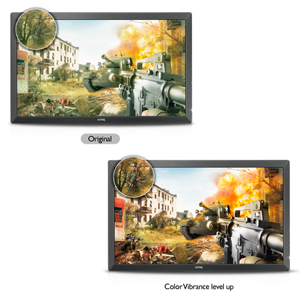
Image: Illustration showing the effect of Color Vibrance on game visuals, making colors more distinct.
- Game Modes: The monitor includes optimized display presets for various game genres such as RTS, FPS, and fighting games. Select the appropriate mode for your current game to enhance visual performance.
- Smart Scaling/Display Mode: Customize screen sizes to your preference, allowing for a tailored viewing experience.
- Flicker-Free Technology: Designed to minimize visual distractions and reduce eye strain during extended gaming sessions.
Video: An official BenQ ZOWIE video demonstrating the features and performance of the monitor in a gaming context.
5. Specifications
| Feature | Detail |
|---|---|
| Brand | BenQ |
| Screen Size | 24 inches |
| Resolution | FHD 1080p (1920 x 1080 pixels) |
| Aspect Ratio | 16:9 |
| Refresh Rate | 75 Hz (up to, configure through GPU settings) |
| Response Time | 1 ms (GTG) |
| Display Type | LED |
| Contrast Ratio | 1000:1 |
| Brightness | 250 cd/m² |
| Viewing Angle | 170 degrees |
| Connectivity Technology | HDMI (Dual HDMI ports) |
| Additional Features | Flicker-Free, Black eQualizer, Color Vibrance, Built-in Speakers |
| Item Weight | 5.7 kg |
| Power Consumption | 33 watts |
| Mounting Type | Wall Mount (VESA compatible) |
6. Maintenance
6.1 Cleaning the Monitor
- Always power off the monitor and unplug the power cord before cleaning.
- Use a soft, lint-free cloth slightly dampened with water or a mild, non-abrasive screen cleaner.
- Do not spray cleaner directly onto the screen. Apply it to the cloth first.
- Avoid using harsh chemicals, solvents, or abrasive materials, as these can damage the screen or casing.
6.2 General Care
- Keep the monitor away from direct sunlight, excessive heat, and humidity.
- Ensure proper ventilation around the monitor to prevent overheating.
- Avoid placing heavy objects on the monitor or its cables.
7. Troubleshooting
If you encounter issues with your monitor, refer to the following common problems and solutions:
| Problem | Possible Solution |
|---|---|
| No image on screen |
|
| Image is blurry or distorted |
|
| No sound from built-in speakers |
|
| Monitor flickers |
|
8. Warranty and Support
Your BenQ Zowie RL2455S Gaming Monitor comes with a 3-year manufacturer limited warranty. Please retain your proof of purchase for warranty claims.
For technical support, service, or further inquiries, please visit the official BenQ support website or contact their customer service. Refer to the warranty card included in your package for specific contact details and warranty terms.
Online Resources:
- BenQ Official Website: www.benq.com
- BenQ Support: www.benq.com/en-us/support.html