
1. Introduction
This manual provides detailed instructions for the installation, operation, and troubleshooting of your JideTech 16-Port HDMI USB KVM Switch. This device allows you to control up to sixteen computers from a single console, consisting of one HDMI monitor, one USB keyboard, and one USB mouse. It supports resolutions up to 3840x2160@30Hz and is compatible with various operating systems including Windows, Linux, Mac OS, and Unix.
2. Package Contents
Please verify that all items are present in your package:
- 1 x JideTech 16-Port HDMI USB KVM Switch
- 1 x DC 12V Power Adapter
- 16 x HDMI Cables
- 16 x USB Cables
- 1 x User Manual
- Mounting Brackets (for rack installation)
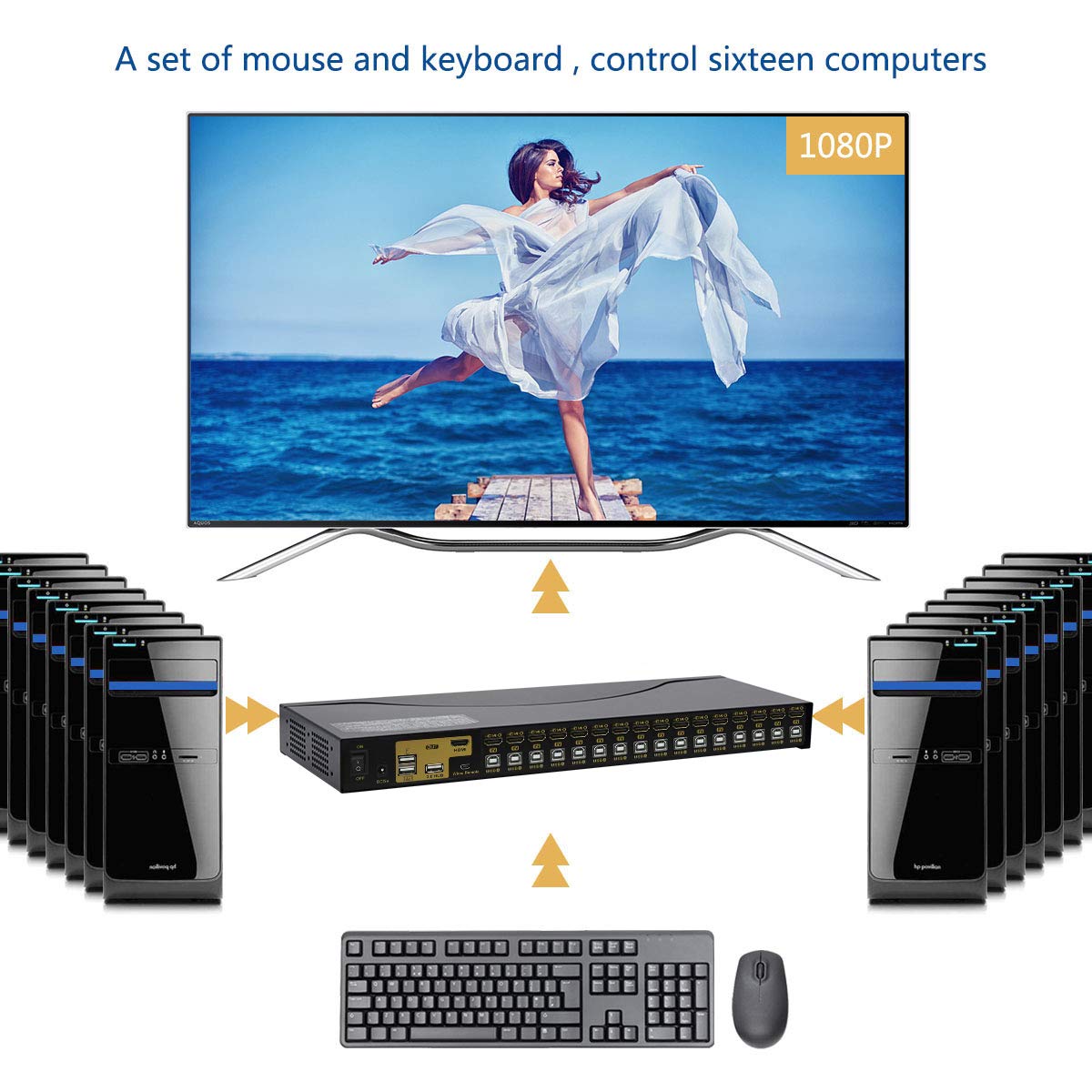
Image: The JideTech 16-Port KVM Switch shown with its included accessories, including HDMI cables, USB cables, and power adapter.
3. Product Overview
3.1 Front Panel

Image: Front view of the KVM switch, highlighting the 16 selection buttons and corresponding LED indicators for active ports.
- Power LED: Indicates the power status of the KVM switch.
- Port Selection Buttons: Press to manually switch to the corresponding computer port.
- Port Status LEDs: Indicate which computer port is currently active.
3.2 Rear Panel

Image: Rear view of the KVM switch, showing the power input, USB hub, HDMI output, and 16 sets of HDMI and USB input ports.
- DC 12V Power Input: Connect the provided power adapter here.
- Power Switch: Toggles the KVM switch power on/off.
- USB 2.0 Hub Ports: For connecting additional USB devices (e.g., printers, flash drives).
- USB Input (Keyboard/Mouse): Dedicated ports for your USB keyboard and mouse.
- HDMI Output: Connects to your monitor.
- HDMI IN (1-16): Connects to the HDMI output of each computer.
- USB IN (1-16): Connects to a USB port on each computer.
4. Setup and Installation
Follow these steps to properly set up your KVM switch:
- Power Off All Devices: Ensure all computers and the monitor are powered off before making any connections.
- Connect Monitor: Connect your HDMI monitor to the HDMI OUT port on the KVM switch.
- Connect Keyboard and Mouse: Connect your USB keyboard and mouse to the dedicated USB input ports on the rear panel of the KVM switch.
- Connect Computers: For each computer (up to 16):
- Connect an HDMI cable from the computer's HDMI output to an HDMI IN port on the KVM switch.
- Connect a USB cable from a USB port on the computer to the corresponding USB IN port on the KVM switch.
- Connect Power: Plug the DC 12V power adapter into the KVM switch's power input, then plug the adapter into a power outlet.
- Power On: Turn on the KVM switch using the power switch on the rear panel. Then, power on your monitor and all connected computers.
Image: A visual representation of the KVM switch setup, illustrating how multiple computers connect to the KVM via HDMI and USB, and how a single monitor, keyboard, and mouse connect to the KVM for control.
5. Operating Instructions
The JideTech KVM switch offers multiple methods for switching between connected computers:
5.1 Switching Methods
- Front Panel Push Buttons: Simply press the corresponding button (1-16) on the front panel to switch to the desired computer. The LED indicator will illuminate to show the active port.
- Hotkey Switching: Use keyboard hotkeys for quick switching. The default hotkey sequence is:
Press the [Scroll Lock] key twice rapidly, then press the port number (1-16), and finally press [Enter].
Example: To switch to computer 3, press [Scroll Lock], [Scroll Lock], [3], [Enter]. - Mouse Switching: Double-click the middle scroll wheel of your mouse to switch to the next active port in sequence.

Image: Illustration of the KVM switch's various switching methods, including direct button presses on the unit and keyboard hotkey combinations.
5.2 Auto-Scan Function
The KVM switch supports an auto-scan function to automatically switch between computers at preset intervals. This function is typically activated and configured via an On-Screen Display (OSD) menu or specific hotkey commands. Refer to the detailed manual for OSD navigation and auto-scan interval settings.
5.3 Audio Control
To enable or disable audio output through the KVM, use the hotkey sequence: Press the [Right Ctrl] key twice rapidly, then press [P], and finally press [Enter]. This toggles the loudspeaker setting.
5.4 Disabling the Beep Sound
The KVM switch emits a beep sound when switching between ports. To disable this sound: Press the [Right Ctrl] key twice rapidly, then press [B], and finally press [Enter]. Repeat the sequence to re-enable the beep.
5.5 Operating System Compatibility
The KVM switch is designed to be compatible with a wide range of operating systems, ensuring broad usability across different computing environments.

Image: Icons representing various operating systems such as Mac OS, Windows, Linux, and DOS, indicating the KVM switch's broad compatibility.
6. Maintenance
To ensure optimal performance and longevity of your KVM switch:
- Keep the device in a cool, dry environment, away from direct sunlight and heat sources.
- Avoid exposing the device to moisture or extreme temperatures.
- Clean the exterior with a soft, dry cloth. Do not use liquid cleaners or aerosols.
- Ensure proper ventilation around the unit to prevent overheating.
- Periodically check all cable connections to ensure they are secure.
7. Troubleshooting
If you encounter issues with your KVM switch, refer to the following common problems and solutions:
- No Display on Monitor:
- Ensure all HDMI cables are securely connected between the KVM, monitor, and computers.
- Verify that the KVM switch is powered on and the correct input port is selected.
- Try connecting the monitor directly to a computer to confirm the monitor and computer's video output are functional.
- Restart the KVM switch and the connected computers.
- Keyboard or Mouse Not Responding:
- Ensure the keyboard and mouse are connected to the dedicated USB input ports on the KVM switch.
- Try unplugging and re-plugging the keyboard/mouse.
- If using a specialized keyboard/mouse (e.g., gaming, mechanical), some advanced features may not be fully supported through the KVM's dedicated ports. Try connecting them to the USB 2.0 Hub ports if available, or consider a powered USB hub for complex devices.
- Disable hotkey functionality temporarily to see if it resolves the issue (refer to the full manual for specific hotkey commands to toggle this).
- Beep Sound on Switching:
- This is a normal function. To disable it, use the hotkey sequence: [Right Ctrl], [Right Ctrl], [B], [Enter].
- Intermittent Display or Flickering:
- Ensure you are using high-quality HDMI cables, especially for 4K resolutions. The provided cables are recommended.
- Check for potential interference from other electronic devices.
- Cycle the power of the KVM switch.
- USB Devices in Hub Not Working:
- Some high-power USB devices may require an external power source or a powered USB hub connected to the KVM's USB 2.0 hub port.
- Ensure the device drivers are installed on the active computer.
8. Specifications
| Brand | JideTech |
| Model Number | 9116H-CA1 |
| Product Dimensions | 17.3 x 1.6 x 5.9 inches |
| Weight | 5 Pounds |
| Video Resolution | Up to 3840x2160@30Hz (4K@30Hz) |
| USB Standard | USB 2.0 |
| Operation Mode | Push Button, Hotkey, Mouse Switching, Auto-Scan |
| Operating Voltage | 12 Volts |
| Current Rating | 1.99 Amps |
| Connector Type | HDMI, USB |
| Supported OS | Windows, Linux, MacOS9/OSX, Sun Micro Systems, Unix |
9. Warranty and Support
JideTech products are designed for reliability and performance. For warranty information and technical support, please refer to the official JideTech website or contact your retailer. Keep your purchase receipt for warranty claims.
For further assistance, you may visit the JideTech Store on Amazon.


