
FOINNEX MD-VHD10
FOINNEX Mini DisplayPort to HDMI DVI VGA Adapter User Manual
Model: MD-VHD10
Introduction
Thank you for choosing the FOINNEX Mini DisplayPort to HDMI DVI VGA Adapter. This versatile 3-in-1 adapter allows you to connect your Mini DisplayPort or Thunderbolt 2 enabled device to an external display, projector, or TV via HDMI, DVI, or VGA. It is designed for reliable connectivity and supports high-resolution video output, making it ideal for presentations, extended desktop setups, or mirroring your display.
Product Overview
The FOINNEX Mini DisplayPort Adapter is a compact and portable solution for connecting your device to various display types. It features a Mini DisplayPort input and three output ports: HDMI, DVI, and VGA. This design eliminates the need for multiple adapters, providing a convenient all-in-one solution.

Image: The FOINNEX Mini DisplayPort to HDMI DVI VGA Adapter, showing its compact white design with Mini DisplayPort input cable and HDMI, DVI, and VGA output ports.
Key Features:
- 3-in-1 Functionality: Provides HDMI, DVI, and VGA output options from a single Mini DisplayPort input.
- High Resolution Support: Supports up to 4Kx2K@30Hz for HDMI, and 1080p@60Hz for DVI and VGA.
- Audio Pass-thru: Flawless audio pass-thru for uncompressed digital 7.1, 5.1, or 2 channels via HDMI. (Audio is not supported for DVI & VGA output).
- Reliable Chipset: Utilizes original PARADE and ANALOGIX chipsets for enhanced compatibility and stable performance.
- Plug and Play: No external drivers or power required.
Compatibility
This adapter is designed to work with devices equipped with a Mini DisplayPort or Thunderbolt 2 port. It is important to verify your device's port type before purchase.

Image: Diagram illustrating compatible input devices such as MacBook, iMac, Surface, and ThinkPad, and compatible output displays like Monitors, TVs/HDTVs, and Projectors.
Compatible Input Devices:
- Apple Mac Mini
- MacBook Pro
- MacBook Air
- Microsoft Surface Pro 3, 4, 5, 6
- Surface Book
- ThinkPad X1
- Other devices with Mini DisplayPort or Thunderbolt 2 port.
Compatible Output Displays:
- Monitors with HDMI, DVI, or VGA input
- HDTVs with HDMI, DVI, or VGA input
- Projectors with HDMI, DVI, or VGA input
Important Note:
- This adapter is NOT compatible with Thunderbolt 3.0 or any USB-C Port devices.
- Only one of the three output ports (HDMI, DVI, VGA) can be used at a time. Simultaneous output to multiple displays is not supported.

Image: Visual representation confirming compatibility with Thunderbolt 2 and Mini DP, and explicitly showing incompatibility with Thunderbolt 3 and USB-C ports.
Setup Instructions
Setting up your FOINNEX Mini DisplayPort Adapter is a straightforward plug-and-play process. No drivers or external power are required.
- Connect the Adapter: Insert the Mini DisplayPort end of the adapter into the Mini DisplayPort or Thunderbolt 2 port on your computer (e.g., MacBook, Surface Pro).
- Choose Your Output: Select one of the three output ports (HDMI, DVI, or VGA) on the adapter based on the input available on your external display.
- Connect Display Cable: Connect the corresponding cable (HDMI, DVI, or VGA, sold separately) from your external display to the chosen port on the adapter.
- Power On Display: Ensure your external display is powered on and set to the correct input source (e.g., HDMI 1, DVI, VGA).
- System Detection: Your computer should automatically detect the external display. You may need to adjust display settings in your operating system.

Image: The FOINNEX adapter connected to a laptop via Mini DisplayPort and to an external monitor via VGA, demonstrating a typical setup.
Important Considerations:
- Ensure your display cable is securely connected to both the adapter and the display.
- If using HDMI, ensure your display supports audio input via HDMI for sound pass-thru. DVI and VGA do not transmit audio.
- Only one output port can be active at a time. If multiple cables are connected, the adapter will prioritize DVI, then HDMI, then VGA.

Image: A visual reminder that HDMI, VGA, and DVI outputs cannot be used simultaneously. Only one connection is active at a time.
Operating Instructions
Once connected, you can configure your display settings through your computer's operating system.
Display Modes
Most operating systems allow you to choose between different display modes:
- Mirror Mode (Duplicate Display): The external display shows the same content as your primary computer screen. Ideal for presentations or sharing content.
- Extended Mode: The external display acts as an extension of your primary screen, providing more desktop space. Ideal for multitasking and productivity.
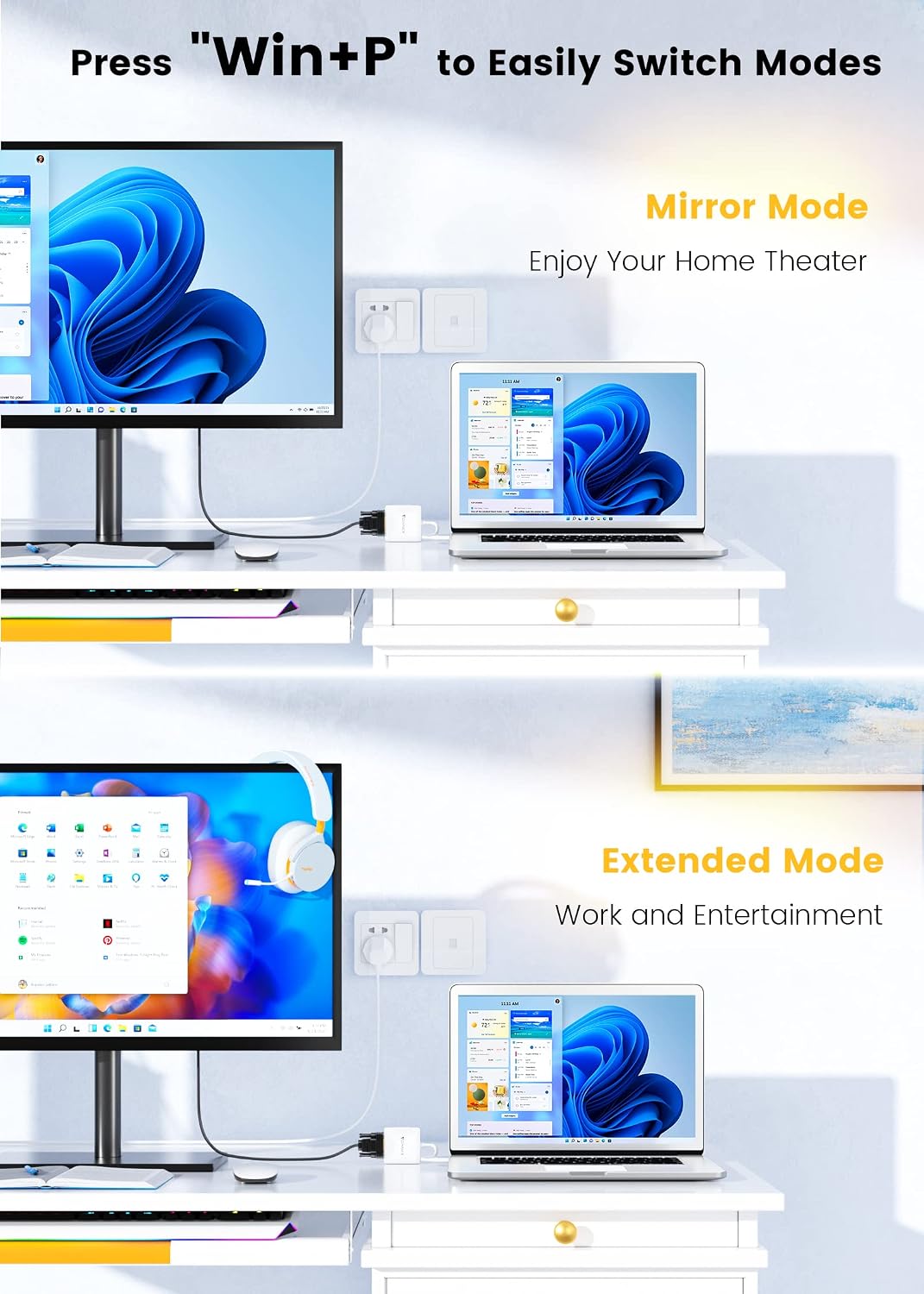
Image: Two diagrams illustrating Mirror Mode (displaying the same content on both laptop and external monitor) and Extended Mode (extending the desktop across both screens).
Switching Modes (Windows): Press "Win + P" on your keyboard to quickly switch between display modes (PC screen only, Duplicate, Extend, Second screen only).
Switching Modes (macOS): Go to System Settings (or System Preferences) > Displays to configure your display arrangement and mirroring options.
Audio Output (HDMI Only)
When using the HDMI output, the adapter supports audio pass-thru. To ensure audio is routed to your HDMI display:
- Windows: Right-click the speaker icon in the taskbar, select Sound settings or Playback devices, and choose your HDMI display as the default playback device.
- macOS: Go to System Settings (or System Preferences) > Sound > Output, and select your HDMI display.
DVI and VGA connections do not transmit audio. For these connections, audio will continue to play through your computer's speakers or a separate audio output.
Specifications
Detailed technical specifications for the FOINNEX Mini DisplayPort to HDMI DVI VGA Adapter.
| Feature | Specification |
|---|---|
| Model Number | MD-VHD10 |
| Input | Mini DisplayPort (Mini DP) / Thunderbolt 2 |
| Output Ports | HDMI, DVI, VGA (one active at a time) |
| HDMI Resolution Support | Up to 4Kx2K@30Hz (3840x2160@30Hz) |
| DVI Resolution Support | Up to 1080p@60Hz (1920x1200@60Hz) |
| VGA Resolution Support | Up to 1080p@60Hz (1920x1200@60Hz) |
| Audio Support | HDMI: Uncompressed digital 7.1, 5.1, or 2 channels. DVI/VGA: No audio support. |
| Chipset | Original PARADE and ANALOGIX |
| Color | White |
| Product Dimensions | 9.45 x 2.36 x 0.59 inches |
| Item Weight | 2.12 ounces |

Image: Visual representation of the adapter's resolution capabilities for VGA (1920x1080@60Hz), HDMI (3840x2160@30Hz with audio), and DVI (1920x1080@60Hz).
Troubleshooting
If you encounter issues with your adapter, please refer to the following common solutions:
- No Display Signal:
- Ensure all cables are securely connected to both the adapter and the display.
- Verify that your external display is powered on and set to the correct input source (e.g., HDMI 1, DVI, VGA).
- Check if your computer's display settings are configured correctly (e.g., extended or mirrored display).
- Try restarting your computer.
- Test the adapter with a different display or cable if possible to isolate the issue.
- No Audio (HDMI Only):
- Confirm that your display supports audio input via HDMI.
- Check your computer's sound settings to ensure the HDMI output is selected as the default playback device.
- Adjust the volume on both your computer and the external display.
- Flickering or Unstable Display:
- Ensure the display cable is not too long or of poor quality.
- Reduce the display resolution or refresh rate in your computer's display settings.
- Ensure there are no strong electromagnetic interferences nearby.
- Adapter Not Recognized:
- Verify that your computer has a Mini DisplayPort or Thunderbolt 2 port. This adapter is not compatible with Thunderbolt 3 (USB-C).
- Try connecting the adapter to a different Mini DisplayPort/Thunderbolt 2 port on your computer, if available.
- Ensure your operating system is up to date.
Maintenance
To ensure the longevity and optimal performance of your FOINNEX adapter, follow these simple maintenance guidelines:
- Cleaning: Use a soft, dry cloth to wipe the adapter. Avoid using liquid cleaners or abrasive materials.
- Storage: Store the adapter in a cool, dry place away from direct sunlight and extreme temperatures.
- Handling: Avoid bending or twisting the cable excessively. Do not drop the adapter or subject it to strong impacts.
- Connectivity: Always grasp the connector ends when plugging or unplugging the adapter; do not pull on the cable itself.
Safety Information
Please read and adhere to the following safety precautions:
- Do not expose the adapter to water, moisture, or extreme temperatures.
- Do not attempt to disassemble or modify the adapter. This will void the warranty and could cause damage or injury.
- Keep the adapter away from children and pets.
- Use the adapter only for its intended purpose as a video display converter.

Image: A warning symbol indicating "SAFETY FIRST. To avoid danger of suffocation, keep the plastic bag away from babies and children." and a recycling symbol stating "Our products and packaging are made from recyclable material, support environment protection and take care of our unique earth."
Warranty and Support
FOINNEX provides a 24-month warranty for this product, along with a 30-day refund policy. This warranty covers manufacturing defects and ensures product quality.
For technical support, warranty claims, or any inquiries, please contact FOINNEX customer service through the retailer where you purchased the product or visit the official FOINNEX website for contact information.
FOINNEX is committed to providing high-quality products and customer experiences.
FOINNEX Store: Visit the FOINNEX Store on Amazon
Related documentsMD-VHD10


Ask a question about this manual
Ask about setup, troubleshooting, compatibility, parts, safety, or missing instructions. Manuals+ will review the question and use this page’s manual context to help answer it.