
FEELWORLD FW760
FEELWORLD FW760 7-Inch On-Camera Monitor User Manual
Model: FW760 | Brand: FEELWORLD
Introduction
This manual provides detailed instructions for the proper setup, operation, and maintenance of your FEELWORLD FW760 7-inch On-Camera Monitor. Please read this manual thoroughly before using the product to ensure optimal performance and to prevent damage.
Product Overview
The FEELWORLD FW760 is a 7-inch Full HD on-camera monitor designed for professional videography and photography. It features a 1920x1200 resolution IPS panel, 4K HDMI input, and a lightweight, ultra-thin design. Key features include a built-in sunshade and an HDMI lock for secure connections.
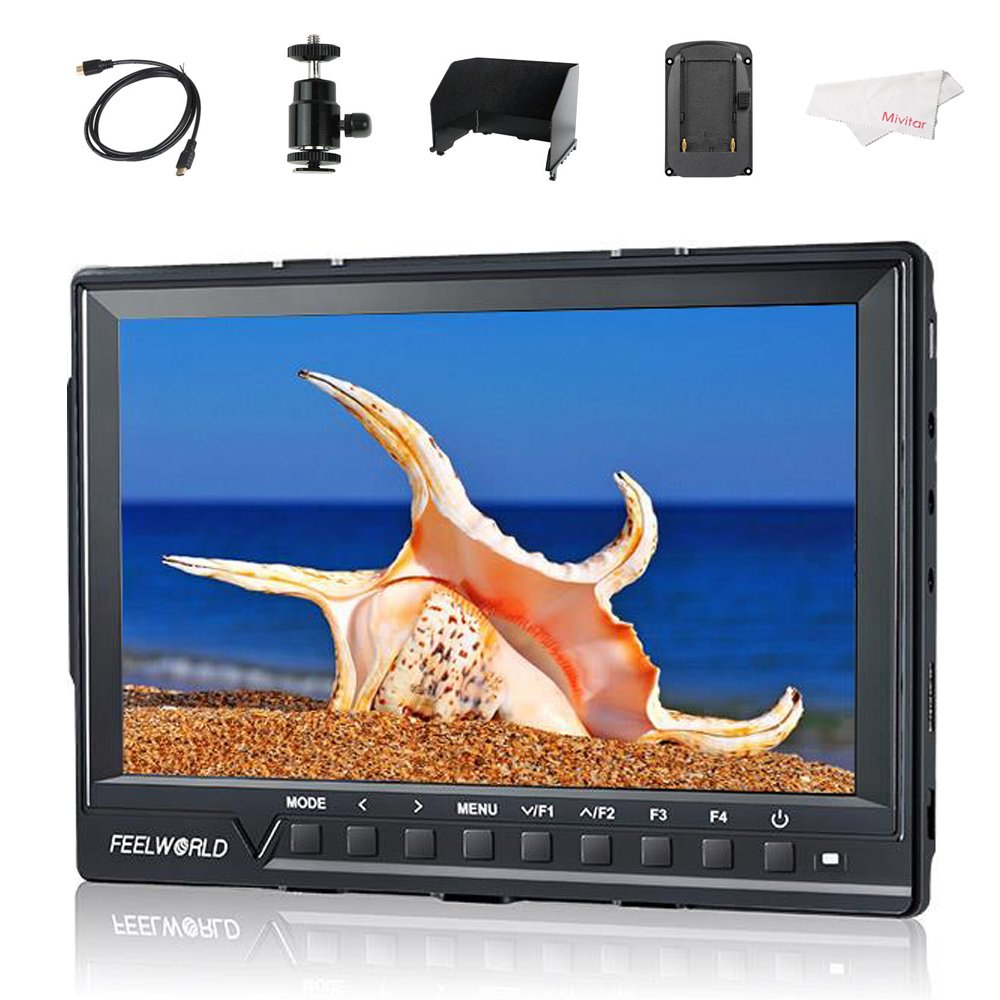
Image: The FEELWORLD FW760 monitor displaying an image, with callouts for Full HD 1920x1200 Resolution, 4K HDMI Input, and 1200:1 Contrast Ratio.
Package Contents
Verify that all items listed below are included in your package. If any items are missing or damaged, please contact your retailer.
- 1 × FEELWORLD FW760 Monitor
- 1 × Mini HDMI Cable
- 1 × Sunshade
- 1 × Hot Shoe Mount
- 1 × F970 Battery Plate (pre-installed or separate)
- 1 × HDMI Plug Lock
- 1 × Operation Manual (this document)

Image: A visual representation of the standard accessories: Mini HDMI Cable, Sun Shade, Hot Shoe Mount, HDMI Plug Lock, Operation Manual, and F970 Battery Plate.
Setup Instructions
1. Attaching the HDMI Plug Lock
The HDMI plug lock secures the HDMI cable to prevent accidental disconnection during operation.
- Locate the HDMI port on the side of the monitor.
- Align the HDMI plug lock with the screw hole next to the HDMI port.
- Insert the HDMI cable into the port.
- Secure the HDMI plug lock by tightening the screw.

Image: The rear view of the monitor, highlighting the HDMI port with the HDMI lock mechanism and the F970 battery plate.

Image: A step-by-step visual guide demonstrating the attachment of the HDMI plug lock to the monitor's HDMI port.
2. Attaching the Sunshade
The sunshade reduces glare and improves screen visibility in bright conditions.
- Align the sunshade with the grooves around the monitor's screen.
- Gently slide the sunshade into place until it is securely attached.

Image: The FEELWORLD FW760 monitor with its sunshade fully assembled and attached, providing shade to the screen.

Image: A sequence of images illustrating how to correctly attach the sunshade to the monitor, showing the monitor both with and without the sunshade.
3. Attaching the Hot Shoe Mount
The hot shoe mount allows you to attach the monitor to your camera's hot shoe or other compatible mounting points.
- Screw the hot shoe mount onto the 1/4-inch screw hole at the bottom or side of the monitor.
- Tighten the locking ring on the hot shoe mount to secure it.
- Attach the hot shoe mount to your camera's hot shoe and tighten its locking mechanism.
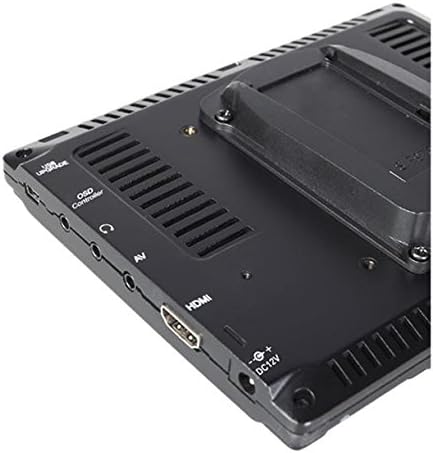
Image: A close-up side view of the monitor, detailing the various input/output ports and the threaded mounting point.
4. Powering the Monitor
The monitor can be powered via a DC 12V adapter or an F970 series battery (not included).
- DC Power: Connect a 12V DC power adapter to the DC 12V input port on the monitor.
- Battery Power: Ensure an F970 battery is securely attached to the F970 battery plate on the back of the monitor.

Image: The back panel of the monitor, showing the DC 12V power input and the F970 battery plate for portable power.
5. Connecting to a Camera (HDMI)
Use the provided Mini HDMI cable to connect your camera to the monitor.
- Connect one end of the Mini HDMI cable to your camera's HDMI output.
- Connect the other end to the HDMI input port on the FEELWORLD FW760 monitor.
- If installed, ensure the HDMI plug lock is secured.

Image: A close-up of the monitor's input ports, specifically highlighting the 4K HDMI input and listing supported resolutions such as 4K UHD 3840x2160P and 4096x2160P.
Setup Video Guide
Video: A visual guide demonstrating the unboxing, assembly of the HDMI lock, sunshade, and hot shoe mount for the FEELWORLD FW760 monitor.
Operating Instructions
Basic Operation
- Power On/Off: Press and hold the power button (usually located on the front panel) to turn the monitor on or off.
- Menu Navigation: Use the 'MENU' button to access the main menu. Use the arrow buttons (<, >) to navigate through options and 'V/F1' or 'F2' to confirm selections.
- Function Buttons (F1-F4): These customizable buttons can be assigned to frequently used functions like False Color, Peaking, Zoom, etc. Refer to the menu settings to configure them.
Advanced Features
False Color
The False Color feature assists in setting exposure by displaying different luminance values as distinct colors. This helps identify overexposed or underexposed areas quickly.

Image: A side-by-side comparison showing a normal image and the same image with the False Color function activated, displaying different exposure levels in various colors.
Zebras Exposure
Zebras indicate areas of the image that are overexposed, helping to prevent blown-out highlights. The zebra pattern appears on parts of the image exceeding a set luminance threshold.

Image: A comparison showing a normal image of a horse and the same image with Zebras Exposure activated, indicating overexposed areas with diagonal stripes.
Zoom Function
The zoom function allows you to magnify a portion of the image for critical focus assessment. Multiple zoom levels are available.

Image: Four screen captures illustrating different zoom modes: Normal Mode, 1.3X zoom, 2.0X zoom, and 2.0X magnified view.
Image Flip
This feature allows you to flip the image horizontally, vertically, or both, which is useful when the monitor is mounted in unconventional positions.

Image: Four images demonstrating the Image Flip function: Normal image, Horizontal flip, Vertical flip, and Horizontal & Vertical flip.
Nine Grid
The Nine Grid function overlays a 3x3 grid on the screen, assisting with composition using the rule of thirds.

Image: A split image showing the Nine Grid overlay for composition on one side and a zoomed-in portion of an image on the other.
Pixel to Pixel
This mode displays the image at its native resolution without scaling, allowing for precise focus checking.

Image: A comparison showing an image in normal display mode versus Pixel to Pixel mode, highlighting the unscaled, native resolution view.
Specifications
| Feature | Detail |
|---|---|
| Screen Size | 7 inches |
| Resolution | 1920x1200 (Full HD) |
| Panel Type | IPS |
| Viewing Angle | 160° Wide |
| Contrast Ratio | 1200:1 |
| Brightness | 450 cd/m² |
| HDMI Input | 4K HDMI (Supports 4K UHD 3840x2160P, 4096x2160P) |
| Thickness | 17mm |
| Weight | 270g (0.6 lbs) |
| Item Weight (packaged) | 1.9 pounds |
| Power Input | DC 12V, F970 Battery Plate |
| Special Features | HDMI Lock, Built-in Sunshade, Histogram, False Color, Zebras, Zoom, Image Flip, Nine Grid, Pixel to Pixel |

Image: A visual representation of the monitor's 160° wide viewing angles, showing consistent image quality from various perspectives.

Image: A side view of the monitor emphasizing its ultra-thin profile, measuring 17mm in thickness.
Troubleshooting
- No Power: Ensure the DC power adapter is correctly connected or the F970 battery is fully charged and properly seated.
- No Signal: Verify that the HDMI cable is securely connected to both the camera and the monitor. Check camera output settings. Ensure the HDMI lock is engaged.
- Image Issues: If the image is distorted or incorrect, check the input resolution settings on both the camera and the monitor. Reset monitor settings to default if necessary.
- Buttons Unresponsive: Power cycle the monitor. If the issue persists, contact customer support.
Maintenance
- Cleaning: Use a soft, dry cloth to clean the monitor screen and body. For stubborn smudges, a slightly damp cloth with a mild, non-abrasive cleaner suitable for electronics can be used. Avoid harsh chemicals.
- Storage: Store the monitor in a cool, dry place away from direct sunlight and extreme temperatures. Use the sunshade or a protective case during transport.
- Battery Care: If using battery power, follow the manufacturer's guidelines for battery charging and storage to prolong battery life.
Warranty and Support
For warranty information, technical support, or service inquiries, please refer to the warranty card included with your product or visit the official FEELWORLD website. Keep your purchase receipt as proof of purchase for warranty claims.
Official FEELWORLD Store: Visit the FEELWORLD Store on Amazon
Ask a question about this manual
Ask about setup, troubleshooting, compatibility, parts, safety, or missing instructions. Manuals+ will review the question and use this page’s manual context to help answer it.