
1. Introduction
This manual provides comprehensive instructions for the setup, operation, and maintenance of your Epson Perfection V19 Photo Scanner. Please read this manual thoroughly before using the scanner to ensure proper functionality and to maximize its performance.
The Epson Perfection V19 is designed for easy scanning and sharing of both photos and documents. It features a high resolution of 4800 x 4800 DPI, fast scanning speeds, and convenient one-touch buttons for direct scanning to computers, email, or PDF files. Its compact design includes a built-in kickstand for vertical placement, and a single USB connection handles both power and data transfer, eliminating the need for an external power adapter.
2. Product Overview
The Epson Perfection V19 is a compact flatbed scanner equipped with essential features for efficient scanning.
2.1 Scanner Components
- Scanner Lid: Protects the scanning bed and can be removed for scanning bulky items.
- Scanning Bed: Glass surface where documents and photos are placed.
- Control Buttons: One-touch buttons for common scanning tasks.
- USB Port: For connecting to a computer and receiving power.
- Built-in Kickstand: Allows for vertical positioning to save desk space.
2.2 Product Views

Figure 2.1: Epson Perfection V19 scanner with its lid open, revealing a photo placed on the scanning bed. The photo shows two smiling individuals.
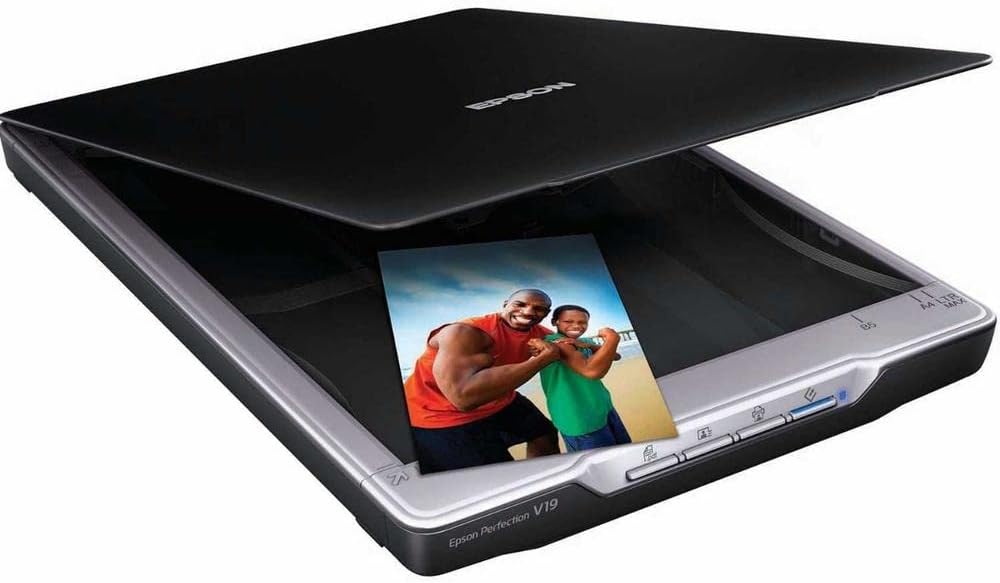
Figure 2.2: Angled view of the Epson Perfection V19 scanner with its lid partially open, showing a photo on the scanning surface.

Figure 2.3: Top-down view of the Epson Perfection V19 scanner with its lid closed, displaying the Epson logo and model name.

Figure 2.4: Front view of the Epson Perfection V19 scanner with its lid closed, showing the control buttons.

Figure 2.5: The Epson Perfection V19 scanner positioned vertically using its built-in kickstand, showcasing its space-saving design.

Figure 2.6: The Epson Perfection V19 scanner in a vertical orientation with its lid open, demonstrating its capability to scan while upright.
3. Setup
3.1 Unpacking
Carefully remove the scanner and all accessories from the packaging. Ensure all protective materials are removed from the scanner, especially from the scanning bed.
3.2 Software Installation
- Visit the official Epson support website for the Perfection V19 model to download the latest drivers and scanning software.
- Run the installer and follow the on-screen instructions to complete the software installation. This software includes utilities for color restoration and dust removal.
3.3 Connecting the Scanner
- Connect the supplied USB cable to the USB port on the scanner.
- Connect the other end of the USB cable to an available USB port on your computer. The scanner receives power directly through the USB connection, so no separate power adapter is required.
3.4 Placement
The scanner can be placed horizontally on a flat surface or vertically using its built-in kickstand to save desk space. Ensure adequate ventilation around the scanner.
4. Operating Instructions
4.1 Preparing for Scanning
- Ensure the scanner is connected to your computer and the software is installed.
- Open the scanner lid.
- Place the document or photo face-down on the scanning bed, aligning it with the corner guide.
- For bulky items like photo albums, the scanner lid can be removed to ensure proper contact with the scanning surface.
- Close the scanner lid gently.
4.2 Using One-Touch Buttons
The Epson Perfection V19 features several one-touch buttons for quick access to common scanning functions:
- Scan to PDF: Initiates a scan and saves the output as a PDF file.
- Scan to Email: Scans a document or photo and attaches it to a new email message.
- Copy: Scans a document and sends it to your default printer.
- Start Scan: Initiates a general scan, opening the Epson Scan software for further options.
Press the desired button to start the corresponding scanning process. The scanner requires no warm-up time.
4.3 Using Epson Scan Software
For advanced scanning options, open the Epson Scan software on your computer. This software allows you to:
- Select scan type (Photo, Document, etc.).
- Adjust resolution (up to 4800 x 4800 DPI).
- Apply image enhancements such as color restoration for faded photos and dust removal.
- Choose output format (JPEG, TIFF, PDF, etc.) and destination.
- Scan and share directly to cloud services like Evernote or social media platforms like Facebook.
The scanner can capture letter-sized documents in approximately 10 seconds.
5. Maintenance
5.1 Cleaning the Scanner
To maintain optimal scan quality, regularly clean the scanner's glass surface and exterior.
- Glass Surface: Use a soft, lint-free cloth lightly dampened with a mild glass cleaner. Do not spray cleaner directly onto the glass.
- Exterior: Wipe the outer casing with a soft, dry cloth. Avoid abrasive cleaners or solvents.
Always ensure the scanner is disconnected from the computer before cleaning.
5.2 General Care
- Keep the scanner in a clean, dust-free environment.
- Avoid exposing the scanner to direct sunlight or extreme temperatures.
- Do not place heavy objects on top of the scanner.
6. Troubleshooting
This section addresses common issues you might encounter with your Epson Perfection V19 scanner.
6.1 Scanner Not Powering On
- Ensure the USB cable is securely connected to both the scanner and a functioning USB port on your computer.
- Try connecting to a different USB port or a different computer to rule out port or computer issues.
6.2 Scan Quality Issues (Streaks, Fading, Dust)
- Clean the scanner glass as described in the Maintenance section.
- Ensure the document or photo is placed flat and correctly aligned on the scanning bed.
- Utilize the color restoration and dust removal features within the Epson Scan software.
- Check the resolution settings in the Epson Scan software; higher resolutions yield better quality but take longer.
6.3 Scanner Not Recognized by Computer
- Verify that the scanner drivers are correctly installed. Reinstall them if necessary.
- Restart your computer and the scanner.
- Check your computer's Device Manager (Windows) or System Information (macOS) to see if the scanner is listed.
6.4 Slow Scanning Speed
- Scanning at very high resolutions or with multiple image correction features enabled will increase scan time. Adjust settings in the Epson Scan software if speed is a priority.
- Ensure your computer meets the minimum system requirements for the scanner and software.
For further assistance, refer to the Epson support website or contact customer service.
7. Specifications
| Feature | Specification |
|---|---|
| Brand | Epson |
| Model Name | Perfection V19 (FBA_B11B231201) |
| Scanner Type | Flatbed, Document, Photo |
| Connectivity Technology | USB |
| Optical Resolution | 4800 dpi |
| Color Depth | 48-bit color |
| Greyscale Depth | 16 bits |
| Item Weight | 3.4 pounds (1.54 kg) |
| Product Dimensions | 9.9 x 14.4 x 1.5 inches (25.1 x 36.6 x 3.8 cm) |
| Wattage | 2.5 watts |
| Standard Sheet Capacity | 1 |
| Optical Sensor Technology | CCD |
8. Warranty and Support
8.1 Warranty Information
For detailed warranty information regarding your Epson Perfection V19 Photo Scanner, please refer to the warranty card included with your product or visit the official Epson website. Warranty terms and conditions may vary by region.
8.2 Customer Support
If you require further assistance, technical support, or have questions not covered in this manual, please visit the official Epson support website or contact Epson customer service directly. You can typically find support resources, FAQs, and contact information at www.epson.com/support.


