
1. Product Overview
The Ghost Controls Premium 5-Button Remote Transmitter, Model AXP1, is designed for seamless operation of Ghost Controls Automatic Gate Openers. This remote offers advanced features for convenience and security, including extended range and specialized functions like PartyMode and a battery diagnostic test.
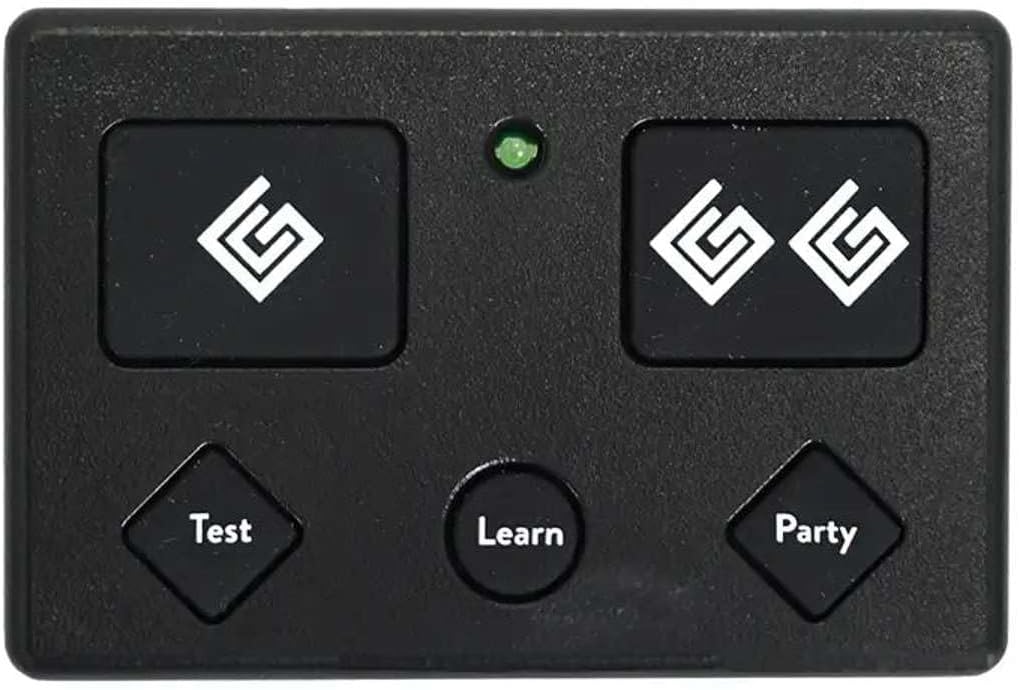
Figure 1: Front view of the AXP1 Remote Transmitter. It features two large primary buttons, a green LED indicator, and three smaller diamond-shaped buttons for 'Test', 'Learn', and 'Party' functions.

Figure 2: Back view of the AXP1 Remote Transmitter, displaying the integrated metal visor clip and regulatory labels including the model number AXP1 and FCC ID: 2AGMZGC433TX1-5. The QR code on the label is TXC3AAC000123652.
2. Key Features
- Extended Range: Operates up to 1,000 ft (300 M) from the gate opener, depending on environmental interference.
- GhostCode Remote-to-Remote Learning: Simplifies the process of adding new remotes to your system directly from an existing working remote.
- PartyMode Control: Dedicated button to enable or disable the patent-pending PartyMode feature on your Ghost Controls Gate Opener System, allowing the gate to remain open.
- Battery Diagnostic: A dedicated 'Test' button provides an audible indication of the remote's battery status (available only on the 5-Button Premium Remote).
- Power Source: Includes one CR2032 Coin Cell battery for long-lasting operation. An LED indicator confirms transmission.
- Versatile Control: Can control one Ghost Controls gate using both primary buttons or two different Ghost Controls gates independently.
- Visor Clip: Comes with a durable visor clip that can be adjusted to four different orientations for convenient vehicle mounting.

Figure 3: AXP1 Remote Button Functions. This diagram illustrates the purpose of the 'Test', 'Learn', and 'Party' buttons, highlighting their specific functionalities for battery diagnostics, remote programming, and gate PartyMode activation.
3. Setup and Programming
3.1. Adding a New Remote (Remote-to-Remote Learning)
This method applies to all Ghost Controls remotes (AXP1, AXS1, & AXR1) and assumes you have an existing working remote (Remote A) to train a new remote (Remote B). If you do not have a working remote, please refer to your gate opener's manual for programming instructions to the gate controller.
- Position Remotes: Stack your working remote (Remote A) on top of the new remote (Remote B) you are training. Ensure the remotes are touching.
- Activate Learn Mode (Remote B): Press and hold the LEARN button on the bottom remote (Remote B) until its LED turns on.
- Transmit Signal (Remote A): Press and hold the button on the top remote (Remote A) that currently operates your gate. Continue holding until the LEDs on both remotes start flashing.
- Confirm Learning (Remote B): Press and release the desired button on the bottom remote (Remote B) that you wish to program. The LED on the bottom remote will turn off, indicating successful programming.

Figure 4: Remote-to-Remote Learning Process. This image provides a visual guide for programming a new AXP1 remote using an existing one, detailing the stacking of remotes, button presses, and LED feedback for successful pairing.

Figure 5: Remote Learning Diagram with LED Guide. This diagram further clarifies the remote-to-remote learning process, including a legend for LED light states (Off, On, Flashing) and how to assign buttons for controlling one or two gates.
4. Operation
4.1. Opening/Closing Gate
Once programmed, press the assigned button on your AXP1 remote to activate your Ghost Controls gate opener. The gate will open or close according to its current state and programming.
4.2. Using PartyMode
Press the PARTY button to activate PartyMode. In PartyMode, your gate will remain in the open position, even if AutoClose is enabled on your gate opener system. This is useful for events or when frequent entry/exit is required without needing to use the remote or a gate code. Press the PARTY button again to deactivate PartyMode and return to normal operation.
4.3. Checking Battery Status
Press the TEST button on your AXP1 remote. The remote will emit a series of beeps to indicate the battery's charge level. This feature is exclusive to the 5-Button Premium Remote.
5. Maintenance
5.1. Battery Replacement
The AXP1 remote uses one CR2032 Coin Cell battery. When the battery diagnostic indicates a low charge, or if the remote's range decreases significantly, it is time to replace the battery. To replace the battery:
- Locate the battery compartment on the back of the remote.
- Carefully open the compartment.
- Remove the old CR2032 battery.
- Insert a new CR2032 battery with the positive (+) side facing up.
- Close the battery compartment securely.
Dispose of old batteries responsibly according to local regulations.
6. Troubleshooting
- Remote Not Responding:
- Check the battery using the 'Test' button. Replace if low.
- Ensure the remote is within range of the gate opener.
- Verify the remote is properly programmed to your gate opener. Refer to Section 3.1 or your gate opener's manual.
- Reduced Range:
- Replace the battery.
- Check for sources of interference (e.g., large metal objects, other radio frequency devices) between the remote and the gate opener.
- PartyMode Not Activating/Deactivating:
- Ensure the remote is within range.
- Verify that your gate opener system supports PartyMode and is configured correctly.
7. Specifications
| Attribute | Detail |
|---|---|
| Model Number | AXP1 |
| Product Dimensions | 2.75 x 1.75 x 0.75 inches |
| Item Weight | 1.6 ounces |
| Battery Type | 1 x CR2032 Lithium Metal (included) |
| Max Number of Supported Devices | 2 (two different Ghost Controls gates) |
| Compatible Devices | Ghost Controls Automatic Gate Openers |
| Color | Black |
| Manufacturer | Ghost Controls |
| Date First Available | June 2, 2016 |
8. Warranty and Support
For warranty information, technical assistance, or further support regarding your Ghost Controls AXP1 Premium 5-Button Remote Transmitter, please contact Ghost Controls directly. Refer to the contact information provided with your gate opener system or visit the official Ghost Controls website.

Figure 6: Technical Support Icon. For assistance, please reach out to Ghost Controls customer service.