Introduction
This user manual provides detailed instructions for the Rii i8+ Mini Bluetooth Keyboard with Touchpad & QWERTY Keyboard. It is designed to help you set up, operate, and maintain your device for optimal performance across various platforms including PC, notebooks, Smart TV, Google Android TV, PS3, XBOX, and Raspberry Pi.
What's in the Box
- 1 x Rii i8+ Mini Bluetooth Keyboard
- 1 x Charging Data Cable
- 1 x User Manual
- 1 x Rii Certificate of Authentication
Product Overview
The Rii i8+ is a versatile mini keyboard featuring a full QWERTY layout and a multi-touch touchpad. Its compact design makes it ideal for portable use with a wide range of devices.

Front view of the Rii i8+ Mini Bluetooth Keyboard, showcasing the QWERTY key layout, touchpad with gesture instructions, and multimedia control buttons.
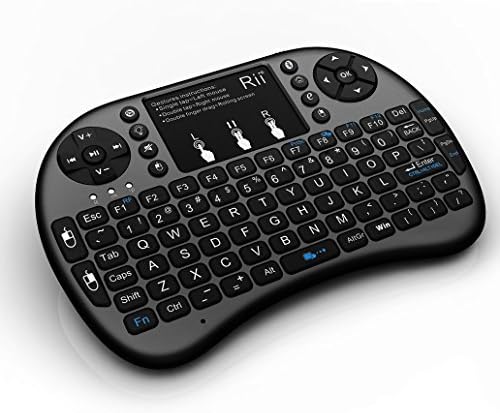
An angled perspective of the Rii i8+ Mini Bluetooth Keyboard, highlighting its ergonomic design and compact form factor.
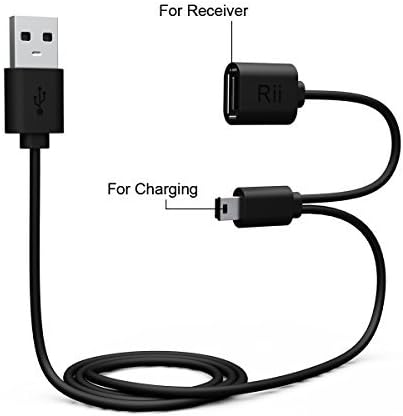
The included charging data cable and USB receiver for the Rii i8+ Mini Bluetooth Keyboard, indicating connections for charging and wireless receiver.
Setup
Charging the Keyboard
The Rii i8+ keyboard comes with a built-in rechargeable Lithium-ion battery. Before first use, fully charge the device.
- Connect the smaller end of the provided charging data cable to the charging port on the keyboard.
- Connect the larger USB end of the cable to a USB power source (e.g., computer USB port, USB wall adapter).
- The charging indicator light will illuminate. Once fully charged, the light may change color or turn off.
Bluetooth Pairing
To connect your Rii i8+ keyboard via Bluetooth, follow these steps:
- Ensure the keyboard is charged and powered on.
- Press and hold the Fn key and the F1 key simultaneously for a few seconds until the Bluetooth indicator light starts blinking rapidly. This puts the keyboard into pairing mode.
- On your device (PC, smartphone, Smart TV, etc.), navigate to the Bluetooth settings.
- Search for new devices. The Rii i8+ (or similar name) should appear in the list of available devices.
- Select the keyboard to initiate the pairing process. Your device may prompt you to enter a code displayed on the screen using the Rii i8+ keyboard, then press Enter.
- Once paired, the Bluetooth indicator light on the keyboard will stop blinking and remain solid, or turn off, indicating a successful connection.
This video demonstrates the Bluetooth pairing process for the Rii i8+ Mini Bluetooth Keyboard. It shows how to activate pairing mode on the keyboard and connect it to a device. Note: This video is a customer-uploaded video and may not represent official instructions.
Operating Instructions
Keyboard Functions
The Rii i8+ features a full QWERTY keyboard layout. Most keys function as standard. Special functions are accessed using the Fn key.
- Fn + F1: Bluetooth Pairing (as described in Setup).
- Fn + F8: Turns off click input from Touch Pad.
- Fn + Spacebar: Adjusts DPI / sensitivity of the touchpad.
- Fn + Enter: Sends Ctrl+Alt+Del signal (Windows specific).
- Multimedia Keys: Dedicated keys for media control (play/pause, volume up/down, next/previous track).
Touchpad Functions
The integrated touchpad supports various gestures for navigation:
- Single tap: Left mouse click.
- Double tap: Left mouse click.
- Single tap with two fingers: Right mouse click.
- Double finger drag: Scrolling (vertical and horizontal).
- Fn + Swipe Up/Down on Touch Pad: Scroll Up/Down.
The touchpad is highly sensitive and supports 360-degree flip design, allowing for comfortable use in various orientations.
Maintenance
Cleaning
To clean your Rii i8+ keyboard, use a soft, dry, lint-free cloth. For stubborn dirt, slightly dampen the cloth with water or a mild, non-abrasive cleaner. Avoid excessive moisture and do not submerge the device.
Battery Care
To prolong battery life, avoid fully discharging the keyboard frequently. Charge the device when the low battery indicator appears. If storing the keyboard for an extended period, ensure it is partially charged (around 50%) and recharge it every few months.
Troubleshooting
| Problem | Possible Cause | Solution |
|---|---|---|
| Keyboard not responding | Low battery; Not paired; Out of range. | Charge the keyboard; Re-pair the device; Move closer to the host device (within 15 meters). |
| Touchpad not working correctly | Touchpad disabled; Incorrect sensitivity. | Press Fn + F8 to enable/disable touchpad click; Adjust sensitivity with Fn + Spacebar. |
| Frequent disconnections | Interference; Device going to sleep. | Ensure no strong interference sources nearby; The keyboard has an auto sleep function (after 3 minutes of inactivity). Press any key to wake it up. |
| Keys not registering | Software issue on host device; Keyboard malfunction. | Restart the host device; Try connecting to another device to isolate the problem. |
Specifications
- Operating Range: Up to 15 meters (without signal disturbance and no direction limit)
- Frequency Range: 2.403GHz - 2.480GHz
- Operational Voltage: 3.3V
- Charge Voltage: 4.4V - 5.25V
- Layout: US QWERTY
- Power: Less than +5dBm
- Transmission Rate: 1M bit/sec
- Frequency Tolerance: +/-30ppm
- Power Consumption: 55mA (on), 1mA (sleep)
- Battery Type: Built-in lithium-ion rechargeable battery
- Product Dimensions: 7 x 4 x 1 inches
- Item Weight: 5.3 ounces
- System Supported: HID compatible device, Windows 2000, Windows XP, Windows Vista, Win CE, Win 7, Windows 8, Windows 10, Linux (Debian-3.1, Redhat-9.0 Ubuntu.10, Fedora.0 tested), Android
Warranty and Support
For warranty information, technical support, or further assistance, please visit the official Rii website or contact their customer service. You can find more information at the Rii Store on Amazon.


