
1. Product Overview
This manual provides essential instructions for the safe and efficient installation, operation, and maintenance of your ZOTAC GeForce GTX 1080 AMP Extreme graphics card. Please read this manual thoroughly before proceeding with installation.
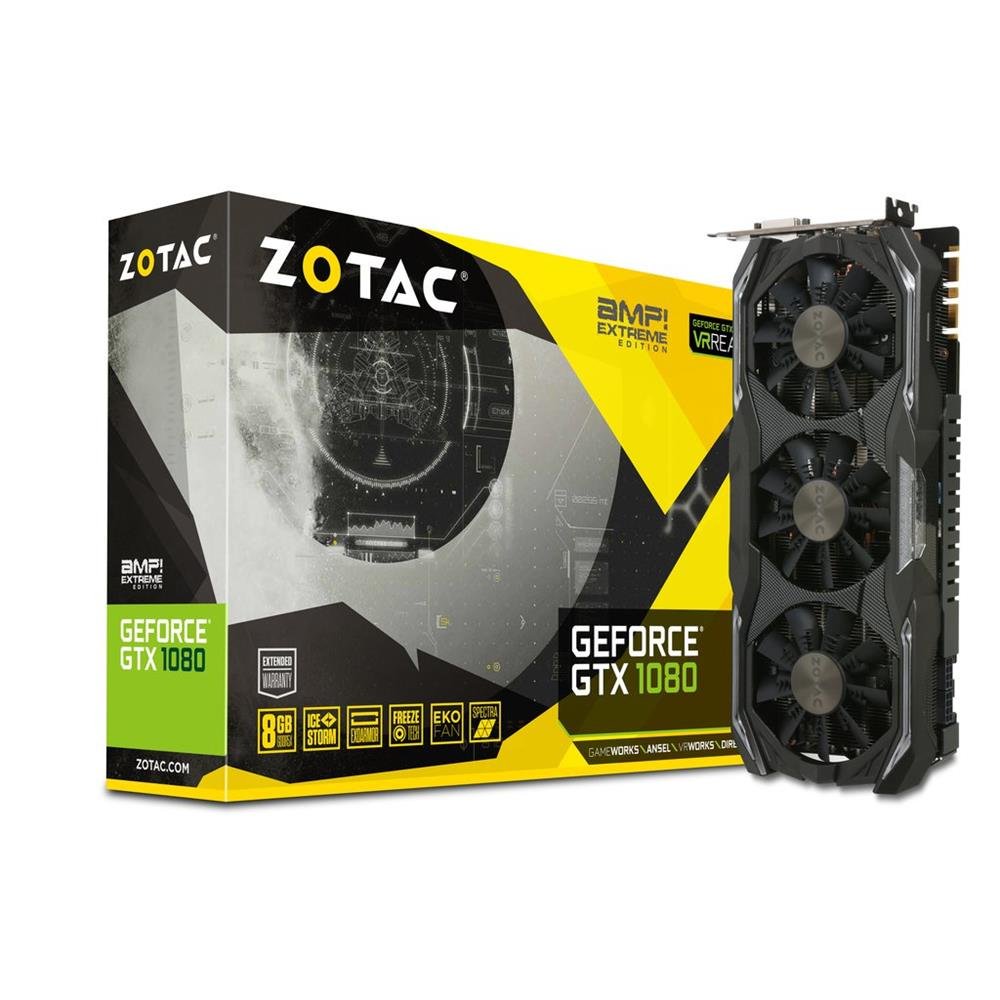
Image 1.1: ZOTAC GeForce GTX 1080 AMP Extreme Graphics Card. This image displays the front view of the graphics card, highlighting its triple-fan cooling system and overall design.
2. Package Contents
Verify that all items listed below are present in your product package:
- ZOTAC GeForce GTX 1080 AMP Extreme Graphics Card
- DVI-VGA Adapter
- Dual 6-pin to 4 x 2-pin Power Cable
- Driver CD
- Instruction Manual (this document)
3. Setup and Installation
3.1. System Requirements
- PCI Express x16 slot on a compatible motherboard.
- Minimum 500W power supply with two 8-pin (or 6+2 pin) PCIe power connectors.
- Compatible operating system (e.g., Windows 7/8/10/11).
- At least 4GB of system memory (8GB recommended).
3.2. Physical Installation
- Power Off: Shut down your computer completely and unplug the power cord from the wall outlet.
- Open Case: Open your computer case to access the motherboard and expansion slots.
- Locate PCIe Slot: Identify an available PCI Express x16 slot on your motherboard.
- Remove Slot Cover: Remove the metal slot cover from the back of the computer case corresponding to the chosen PCIe slot.
- Insert Graphics Card: Carefully align the graphics card with the PCIe slot and press it firmly until it is fully seated. Ensure the retention clip on the slot locks into place.
- Secure Card: Secure the graphics card to the computer case with a screw or retention mechanism.
- Connect Power: Connect the required PCIe power cables from your power supply to the graphics card. The ZOTAC GeForce GTX 1080 AMP Extreme typically requires two 8-pin (or 6+2 pin) power connectors. Use the provided dual 6-pin to 4 x 2-pin power cable if your power supply only has 6-pin connectors.
- Close Case: Close your computer case and reconnect the power cord.
3.3. Driver Installation
- Boot System: Power on your computer. The system may boot into a basic display mode.
- Install Drivers: Insert the provided Driver CD into your optical drive and follow the on-screen instructions to install the NVIDIA graphics drivers. Alternatively, download the latest drivers directly from the official ZOTAC or NVIDIA website for optimal performance and compatibility.
- Restart: Restart your computer after the driver installation is complete.
3.4. Connecting Displays
Connect your monitor(s) to the appropriate output ports on the graphics card. This model supports HDMI, DisplayPort, and DVI connections. Use the DVI-VGA adapter if your monitor only supports VGA input.
4. Operating Instructions
4.1. Basic Operation
Once the drivers are installed, your graphics card will automatically manage display output and graphics processing. You can adjust display settings, resolution, and refresh rates through your operating system's display settings or the NVIDIA Control Panel.
4.2. Multi-Monitor Setup
The ZOTAC GeForce GTX 1080 AMP Extreme supports multiple displays. Connect additional monitors to the available video output ports. Use the NVIDIA Control Panel to configure display modes such as extended desktop, duplicate displays, or NVIDIA Surround for an immersive gaming experience.
5. Maintenance
Regular maintenance helps ensure optimal performance and longevity of your graphics card.
- Cleaning: Periodically clean the fans and heatsink to prevent dust buildup, which can impede airflow and lead to overheating. Use compressed air to gently remove dust from the cooling fins and fan blades. Ensure the system is powered off and unplugged before cleaning.
- Airflow: Ensure your computer case has adequate airflow to dissipate heat generated by the graphics card. Keep the area around your PC clear of obstructions.
- Driver Updates: Keep your graphics drivers updated by regularly checking the ZOTAC or NVIDIA website for the latest versions.
6. Troubleshooting
If you encounter issues with your graphics card, refer to the following common troubleshooting steps:
- No Display Output:
- Ensure the monitor is correctly connected and powered on.
- Verify that the graphics card is fully seated in the PCIe slot.
- Check that all PCIe power cables are securely connected to the graphics card.
- Try connecting the monitor to a different video output port on the card or to the motherboard's integrated graphics (if available) to isolate the issue.
- Driver Issues:
- If you experience crashes, artifacts, or poor performance, try reinstalling the graphics drivers. Use a driver uninstaller utility to completely remove old drivers before installing new ones.
- Ensure you are installing the correct drivers for your operating system and graphics card model.
- Performance Problems:
- Check system temperatures using monitoring software. Overheating can lead to performance throttling.
- Ensure your power supply meets the minimum wattage requirements for the graphics card and other system components.
- Verify that your system's BIOS/UEFI settings are configured correctly for a discrete graphics card.
7. Specifications
| Feature | Detail |
|---|---|
| Brand | ZOTAC |
| Model Name | GTX 1080 |
| Model Number | ZT-P10800B-10P |
| Graphics Coprocessor | NVIDIA GeForce GTX 1080 |
| Graphics RAM Size | 8 GB GDDR5X |
| Memory Clock Speed | 10800 MHz |
| Engine Clock Speed | 1771 MHz (Base), 1911 MHz (Boost) |
| Video Output Interface | HDMI, DisplayPort, DVI |
| Video Interface | PCI Express |
| Max Screen Resolution | 7680x4320 |
| Number of Fans | 3 |
| Recommended Use | Gaming |
| Item Weight | 1.6 Kilograms |
| UPC | 816264016721 |
8. Warranty and Support
8.1. Product Warranty
This ZOTAC graphics card comes with a 24-month warranty from the date of purchase. Please retain your proof of purchase for warranty claims. The warranty covers manufacturing defects and malfunctions under normal use. It does not cover damage caused by misuse, accidents, unauthorized modifications, or improper installation.
8.2. Technical Support
For technical assistance, driver downloads, or further information, please visit the official ZOTAC website:
You may also refer to the FAQ section on the ZOTAC website for solutions to common issues.


