
Introduction
This manual provides instructions for the installation and operation of your Satechi Aluminum USB-C 2.5-inch HDD/SSD Enclosure. This enclosure allows you to convert any 2.5-inch SATA hard drive (HDD) or solid-state drive (SSD) into a portable external storage device, utilizing a USB-C connection for data transfer speeds up to 10 Gbps.
Package Contents
- Satechi Aluminum USB-C 2.5-inch HDD/SSD Enclosure
- USB-C to USB-C Cable
- Mini Screwdriver
- Mounting Screws
Setup and Installation
Follow these steps to install your 2.5-inch HDD or SSD into the enclosure:
- Open the Enclosure: Use the provided mini screwdriver to remove the two small screws located on the side of the enclosure. Carefully slide the internal tray out from the aluminum casing.
- Insert the Drive: Align your 2.5-inch SATA HDD or SSD with the SATA connector on the internal tray. Gently push the drive into the connector until it is firmly seated.
- Secure the Drive: Use the provided mounting screws to secure the HDD/SSD to the internal tray. Ensure the drive is stable and does not move.
- Close the Enclosure: Carefully slide the internal tray, with the installed drive, back into the aluminum casing. Re-insert and tighten the two small screws to secure the enclosure.

Image: Enclosure disassembled, revealing the internal tray and screws.
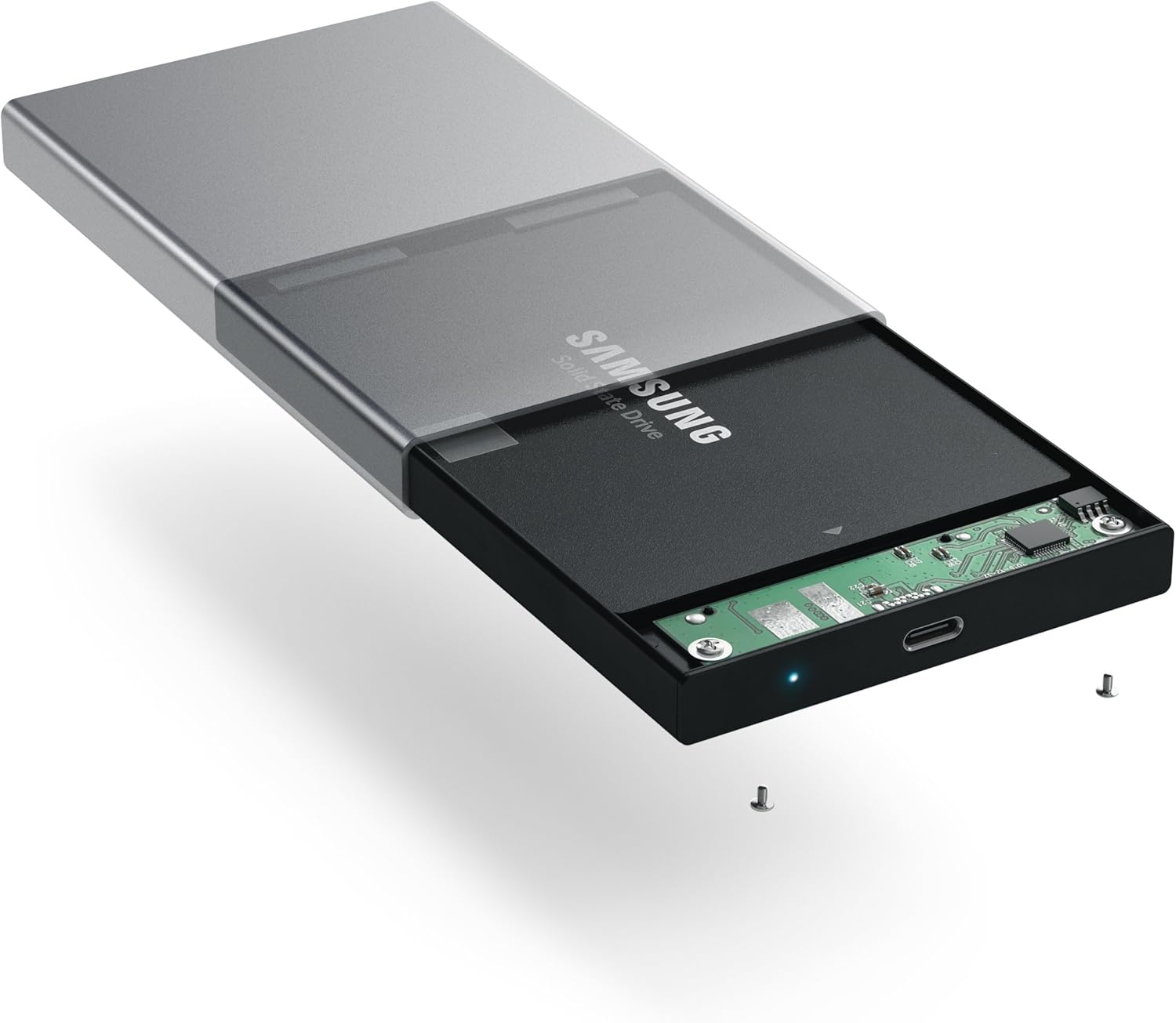
Image: Inserting a 2.5-inch SSD into the internal tray.

Image: SSD fully inserted and secured in the tray.
Operating Instructions
- Connect to Computer: Use the included USB-C to USB-C cable to connect the enclosure to an available USB-C port on your computer.
- Power Indicator: A blue LED indicator light on the enclosure will illuminate when connected and powered, indicating readiness for use. The LED will blink during data transfer activity.
- Accessing the Drive: Your computer should automatically detect the external drive. If it is a new drive, you may need to format it before use. Refer to your operating system's documentation for drive formatting procedures.
- Data Transfer: Drag and drop files to and from the external drive as you would with any other storage device. The enclosure supports data transfer speeds up to 10 Gbps, depending on your drive and computer's USB-C port capabilities.
- Safe Removal: Always safely eject the external drive from your operating system before disconnecting the cable to prevent data corruption.

Image: Enclosure connected to a laptop.

Image: Enclosure with cable connected, showing the blue LED.
Maintenance
- Keep the enclosure clean and free from dust. Use a soft, dry cloth for cleaning.
- Avoid exposing the device to extreme temperatures, humidity, or direct sunlight.
- Do not attempt to disassemble the enclosure beyond the initial drive installation, as this may void the warranty.
Troubleshooting
- Drive Not Detected:
- Ensure the USB-C cable is securely connected to both the enclosure and your computer.
- Try connecting to a different USB-C port on your computer.
- Verify that the HDD/SSD is correctly seated within the enclosure's SATA connector.
- If it is a new drive, ensure it has been formatted for your operating system.
- Slow Transfer Speeds:
- Ensure your computer's USB-C port supports USB 3.1 Gen 2 (10 Gbps) for optimal performance.
- The performance of the drive itself (HDD vs. SSD) will impact transfer speeds.
- Consider using a high-quality, certified USB-C cable, especially if experiencing intermittent disconnections or slower-than-expected speeds.
- Enclosure Disconnects Randomly:
- This can sometimes be caused by an incompatible or low-quality USB-C cable. Try using a different, certified USB-C cable.
- Ensure your computer's power settings are not configured to turn off USB ports to save power.
Specifications
| Model Number | ST-TCDEM |
| UPC | 879961006242 |
| Material | Aluminum |
| Compatible Drive Type | 2.5-inch SATA HDD/SSD |
| Max Number of Supported Devices | 1 |
| Data Transfer Rate | Up to 10 Gigabits Per Second (USB 3.1 Gen 2) |
| Connectivity Technology | USB-C |
| Item Weight | 6.4 ounces (181 Grams) |
| Color | Space Gray |
Warranty and Support
For warranty information and technical support, please refer to the official Satechi website or contact their customer service directly. Keep your purchase receipt for warranty claims.


