
1. Introduction
Thank you for choosing the Karaoke USA GF842 Karaoke Machine. This all-in-one media player is designed to provide an engaging karaoke experience with its 7-inch TFT digital color screen, versatile media playback options, and dynamic LED disco lights. This manual provides essential information for setting up, operating, and maintaining your device to ensure optimal performance and enjoyment.
2. Package Contents
Please verify that all items listed below are included in your package:
- Karaoke Machine (GF842 Unit)
- AC Adapter (110V/50Hz~AC 240V/60Hz, UL Approved)
- Remote Control (AAA x 2 batteries not included)
- 2 x Wired Microphones
- 2 x MP3G Karaoke Discs (300 songs total)
- Universal Cradle for Storing Media Devices
- 3.5mm to RCA Audio Cable
- RCA Audio/Video to RCA Audio/Video Cable
- User Manual
- Warranty Card
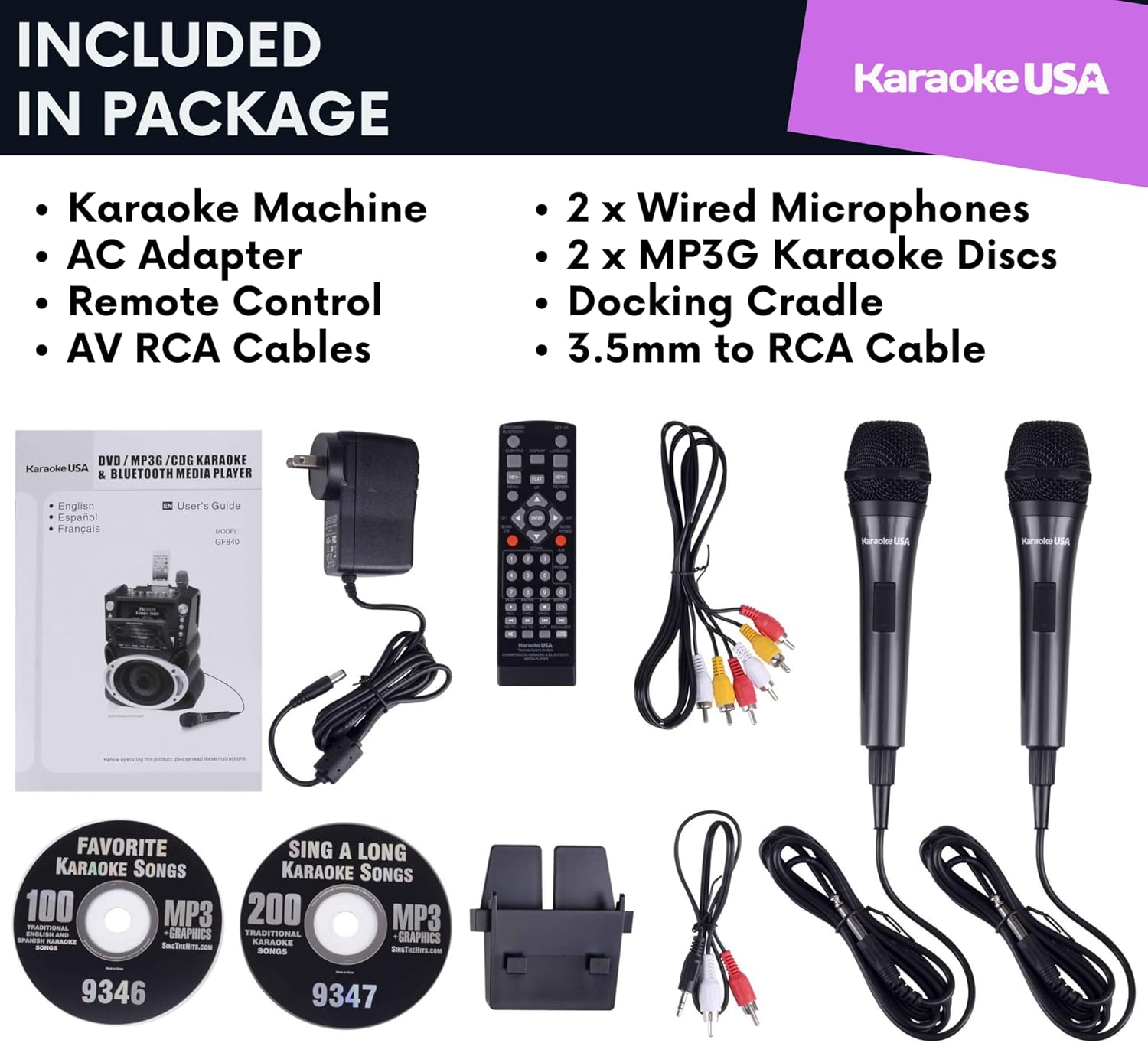
This image displays the Karaoke USA GF842 machine along with its accessories: two wired microphones, a remote control, an AC adapter, RCA cables, a 3.5mm to RCA audio cable, a universal cradle, and two MP3G karaoke discs.
3. Product Overview
The Karaoke USA GF842 is a comprehensive karaoke system featuring a 7-inch TFT digital color screen for lyrics display and video playback. It supports multiple media formats including CD+G, DVD, MP3+G, MP3, CD, USB, and SD cards. The unit also includes Bluetooth connectivity for wireless audio streaming and dynamic LED disco lights that synchronize with music.

This image shows the front of the Karaoke USA GF842 machine, highlighting its 7-inch screen, control panel, speaker with LED lights, and two wired microphones. Two bonus karaoke discs are also visible.

This image illustrates the various media types compatible with the GF842, including DVD, CD+G, Audio CD, USB stick, and SD card, along with Bluetooth connectivity.
4. Setup
- Power Connection: Connect the provided AC adapter to the DC 12V input on the back of the karaoke machine and plug it into a standard electrical outlet.
- Microphone Connection: Insert the wired microphones into the MIC 1 and MIC 2 input jacks on the front panel.
- External Display/Audio (Optional): If you wish to display lyrics on a larger screen or output audio to an external sound system, connect the RCA Audio/Video cable from the unit's A/V output to your TV or home entertainment system.
- Smart Device Cradle: Place your smartphone or tablet in the universal cradle located on top of the unit for convenient viewing or charging via the built-in USB charger.
5. Operating Instructions
5.1. Powering On/Off
Press the POWER button on the unit or remote control to turn the machine on or off. The 7-inch screen will illuminate upon startup.
5.2. Media Playback
- CD/DVD/MP3+G/CD+G: Open the disc tray, insert your desired disc, and close the tray. The machine will automatically detect the disc type and begin playback. Use the navigation buttons (PLAY/PAUSE, STOP, SKIP) on the unit or remote to control playback.
- USB/SD Card: Insert a USB flash drive into the USB port or an SD card into the SD card slot. The unit will automatically switch to USB/SD mode. Navigate through your files using the control buttons on the unit or remote.

This image shows a child watching a DVD movie on the 7-inch integrated screen of the Karaoke USA GF842, demonstrating its video playback capability.
5.3. Bluetooth Connection
To connect a Bluetooth device:
- Ensure the karaoke machine is powered on.
- Press the BLUETOOTH button on the unit or remote to enter Bluetooth pairing mode. The screen may display a pairing indicator.
- On your smart device, enable Bluetooth and search for available devices. Select "Karaoke USA" from the list.
- Once paired, you can stream audio wirelessly from your device to the karaoke machine.
5.4. Microphone Usage
Adjust the individual microphone volume controls on the top panel to balance vocal levels. Use the ECHO control to add a reverberation effect to your voice. The DIGITAL KEY CONTROL allows you to adjust the key of the music to match your vocal range.
5.5. Recording Voice and Music Mix
The GF842 allows you to record your vocal performance mixed with the background music onto an SD card in MP3 format. Insert an SD card into the slot, then press the RECORD button. Press STOP to end recording. You can instantly play back your recorded tracks.

This image highlights the voice recording capability and digital key control feature, showing a person singing into a microphone with the karaoke machine in the background.
5.6. LED Disco Lights
The integrated LED disco lights synchronize and flash with the rhythm of the music, enhancing the party atmosphere. Use the ON/OFF switch for Sync Lights on the unit to control this feature.
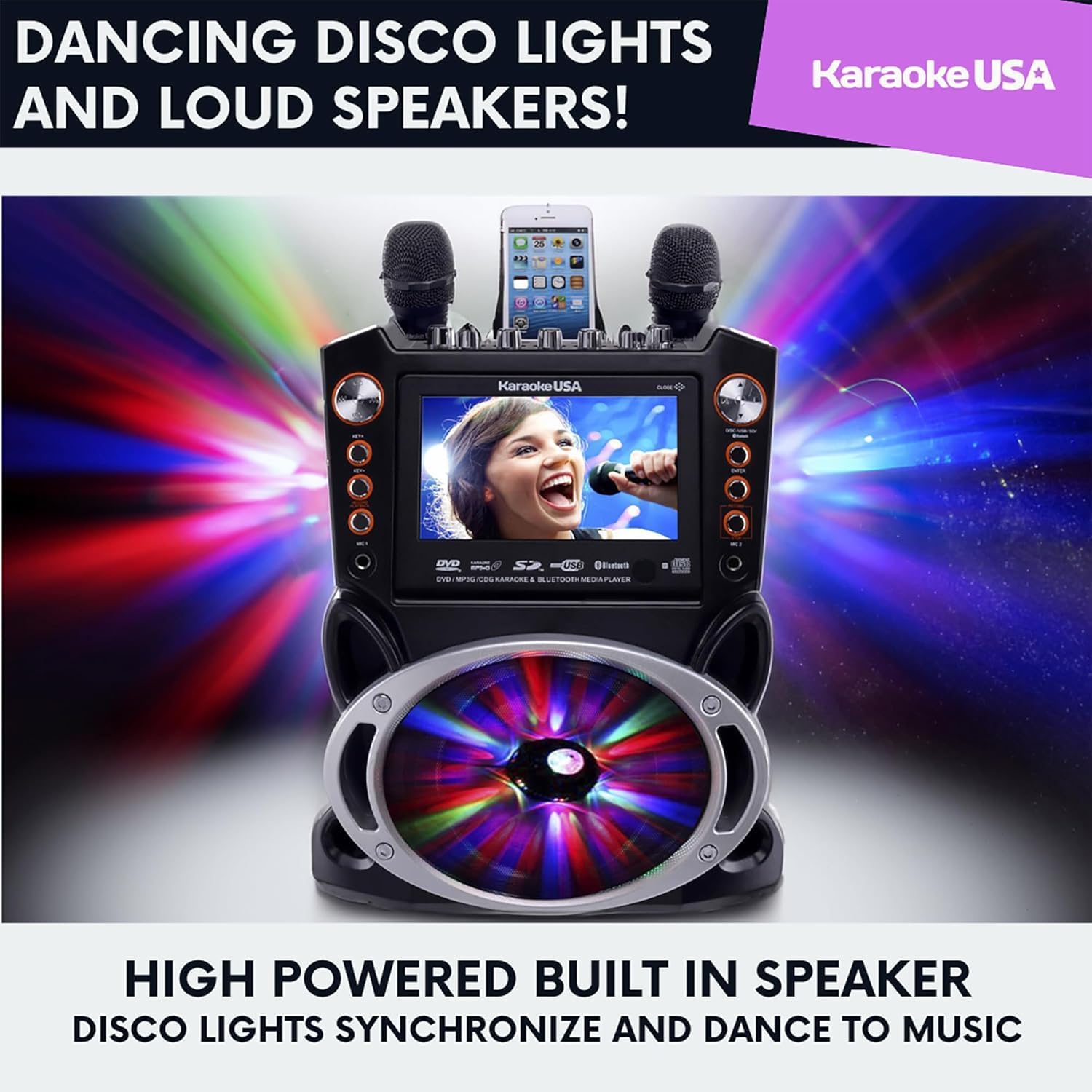
This image displays the Karaoke USA GF842 machine with its multi-colored LED disco lights actively flashing, creating a vibrant visual effect.
5.7. Audio/Video Inputs/Outputs
The unit features RCA audio/video inputs and outputs for connecting to external devices. This allows for connection to a larger TV screen for lyrics or to a home entertainment system for enhanced sound.
6. Maintenance
- Cleaning: Use a soft, dry cloth to clean the exterior of the unit. Do not use liquid cleaners or abrasive materials.
- Disc Care: Handle discs by their edges. Clean discs with a soft, lint-free cloth, wiping from the center outwards.
- Storage: When not in use, store the karaoke machine in a cool, dry place away from direct sunlight and extreme temperatures.
7. Troubleshooting
| Problem | Possible Cause | Solution |
|---|---|---|
| No power | AC adapter not connected or faulty outlet. | Ensure AC adapter is securely connected and the outlet is functional. |
| No sound from microphones | Microphones not connected, volume too low, or microphone switch off. | Check microphone connections, increase MIC volume, and ensure microphone switch is ON. |
| Disc not playing/reading | Disc is dirty, scratched, or inserted incorrectly. | Clean the disc, try a different disc, or re-insert the disc correctly. |
| Bluetooth not connecting | Device too far, Bluetooth not enabled on device, or unit not in pairing mode. | Move device closer, enable Bluetooth on your device, and ensure the unit is in Bluetooth pairing mode. |
| Lyrics not appearing on TV | RCA A/V cable not connected or incorrect TV input selected. | Verify RCA A/V cable connection and select the correct A/V input on your TV. |
8. Specifications
- Model: GF842
- Product Dimensions: 13 x 10 x 17.8 inches
- Item Weight: 10 pounds
- Screen: 7" TFT Digital Color Screen
- Power Amplifier: 35W Peak Digital Power (25W RMS)
- Media Compatibility: CD+G, DVD, MP3+G, MP3, CD, USB Flash, SD Card
- Connectivity: Bluetooth Wireless Speaker, Auxiliary Input, RCA Audio/Video Outputs
- Microphone Inputs: 2 (with individual volume control)
- Special Features: PA System Capable, Analog Echo Control, Balance Control, Digital Key Control, LED Lights (Synchronize with Music, On/Off Switch), Built-in USB Charger for Smart Devices
- Power Source: AC Adaptor (110V/50Hz~AC 240V/60Hz UL Approved), DC 12V Car Adaptor (optional)
9. Warranty and Support
Your Karaoke USA GF842 Karaoke Machine comes with a Warranty Card. Please refer to this card for detailed information regarding warranty coverage, terms, and conditions. For technical support, troubleshooting assistance beyond this manual, or inquiries about replacement parts, please contact Karaoke USA customer service. Contact information can typically be found on the Warranty Card or the official Karaoke USA website.


