
1. Introduction
The Lenovo ThinkPad X1 Tablet is a versatile device designed for mobile professionals, combining the functionality of a tablet, laptop, and optional projector. This manual provides essential information for setting up, operating, maintaining, and troubleshooting your ThinkPad X1 Tablet, Model 20GG0032US.

Figure 1: Lenovo ThinkPad X1 Tablet in use for a video conference.
2. Setup
2.1 Initial Power On
- Connect the power adapter to the tablet and a power outlet.
- Press the power button located on the side of the tablet.
- Follow the on-screen prompts to complete the initial Windows 10 Pro setup, including language, region, network connection, and user account creation.
2.2 Attaching the Detachable Keyboard
Align the magnetic connectors on the detachable keyboard with the corresponding ports on the bottom edge of the tablet. The keyboard will snap into place securely. This transforms your tablet into a laptop-like experience.

Figure 2: Side view of the ThinkPad X1 Tablet with the detachable keyboard connected.
2.3 Using the Active Pen
The Active Pen allows for precise input on the touchscreen. It can be used for writing, drawing, and navigating the interface. Ensure the pen has a charged battery if applicable (refer to pen-specific instructions for battery replacement).
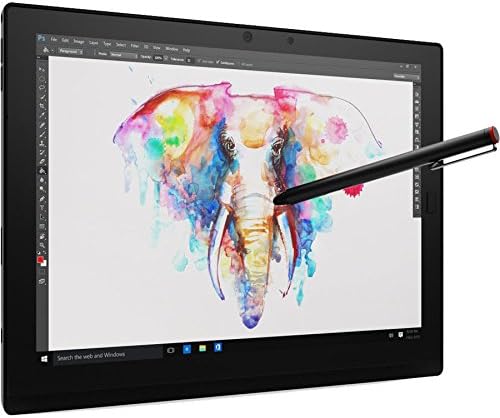
Figure 3: Using the Active Pen for creative tasks on the ThinkPad X1 Tablet.
2.4 Optional Modules
The ThinkPad X1 Tablet supports various optional modules, such as the Presenter Module (with integrated projector) or Productivity Module (for additional ports and battery boost). To attach a module, align it with the bottom edge of the tablet and secure it according to the module's specific instructions.

Figure 4: ThinkPad X1 Tablet with the optional Presenter Module, featuring an integrated projector.
3. Operating Instructions
3.1 Display and Kickstand
The 12-inch 2K (2160 x 1440) IPS touchscreen provides a clear and vibrant viewing experience. The integrated, adjustable kickstand allows for multiple viewing angles, enhancing comfort for both work and entertainment.

Figure 5: Rear view of the ThinkPad X1 Tablet, illustrating the adjustable kickstand.
3.2 Keyboard and Input
When the detachable keyboard is connected, you can utilize the full ThinkPad keyboard experience, including the integrated TrackPoint and trackpad for precise cursor control. The touchscreen also supports multi-touch gestures for intuitive navigation.
3.3 Audio and Multimedia
The X1 Tablet features integrated speakers with Dolby surround sound technology, providing an enhanced audio experience for videos, music, and calls.
3.4 Connectivity
The device supports 802.11ac Wi-Fi for high-speed wireless internet access and Bluetooth for connecting to peripherals such as headphones or external mice.
3.5 Security Features
For enhanced security, the X1 Tablet includes a Touch-Sensor Fingerprint Reader for biometric authentication and a Discrete Trusted Platform Module (dTPM) for hardware-based encryption. Remote manageability features like Intel vPro and Active Management Technology (AMT) are also available for enterprise environments.

Figure 6: ThinkPad X1 Tablet displaying a business presentation, showcasing its professional utility.
4. Maintenance
4.1 Cleaning the Device
- Use a soft, lint-free cloth slightly dampened with water or a screen cleaner specifically designed for electronics to clean the display.
- For the body and keyboard, use a soft, dry cloth. Avoid harsh chemicals or abrasive materials.
4.2 Battery Care
The integrated lithium-polymer battery provides an average life of 10 hours. To maximize battery lifespan, avoid extreme temperatures and allow the battery to discharge partially before recharging. For optimal performance, occasionally allow the battery to fully discharge and then fully recharge.
4.3 Software Updates
Regularly update your Windows 10 Pro operating system and device drivers to ensure optimal performance, security, and compatibility. These updates are typically managed through Windows Update.
4.4 Storage Management
The device comes with a 256GB M.2 Solid State Drive. You can expand storage using the microSD card slot, which supports up to 64GB.
5. Troubleshooting
This section addresses common issues you might encounter with your ThinkPad X1 Tablet.
5.1 Power Issues
- Device does not turn on: Ensure the power adapter is securely connected and the outlet is functional. Try holding the power button for 10-15 seconds to perform a hard reset.
- Battery not charging: Verify the power adapter and cable are not damaged. Try a different power outlet.
5.2 Display Problems
- Screen is blank: Ensure the device is powered on. Connect an external monitor to check if the issue is with the tablet's display.
- Touchscreen unresponsive: Restart the device. Ensure the screen is clean and free of debris.
5.3 Keyboard/Pen Issues
- Detachable keyboard not working: Ensure the keyboard is properly aligned and securely connected to the tablet. Restart the tablet.
- Active Pen not responding: Check the pen's battery. Ensure Bluetooth is enabled on the tablet if the pen connects wirelessly.
For more complex issues or if the problem persists, please refer to the Lenovo support website or contact customer service.
6. Specifications
Below are the technical specifications for the Lenovo ThinkPad X1 Tablet (Model 20GG0032US).
| Feature | Specification |
|---|---|
| Processor | Intel Core m7-6Y75 (1.2 GHz, Burst up to 3.1 GHz) |
| RAM | 16 GB LPDDR3 (1866 MHz) |
| Storage | 256 GB M.2 Solid State Drive |
| Display | 12-inch Full-HD+ IPS Touchscreen (2160 x 1440 pixels) |
| Graphics Coprocessor | Integrated Intel HD Graphics 515 |
| Operating System | Windows 10 Professional |
| Wireless Type | 802.11ac, Bluetooth |
| Average Battery Life | 10 Hours |
| Item Weight | 3 pounds (approximately 1.36 kg) |
| Product Dimensions | 14.7 x 4.2 x 11.4 inches (approximately 37.3 x 10.7 x 29 cm) |
| MicroSD Card Slot | Supports up to 64GB |
7. Warranty and Support
7.1 Warranty Information
The Lenovo ThinkPad X1 Tablet comes with a 1 Year Lenovo Warranty. Please retain your proof of purchase for warranty claims. This product is not eligible for AppleCare Warranty upgrades.
7.2 Customer Support
For technical assistance, driver downloads, or further information, please visit the official Lenovo Support website. You can typically find support resources by searching for your product model (20GG0032US) on their site.