
1. Introduction
This manual provides essential instructions for the proper setup, operation, and maintenance of your YI YAS.1616.INT 4K Action Camera Kit. Please read this manual thoroughly before using the product to ensure optimal performance and safety. Keep this manual for future reference.
2. Product Overview
2.1 Kit Contents
The YI YAS.1616.INT 4K Action Camera Kit includes the following components:
- YI 4K Action Camera
- YI Monopod
- Bluetooth Remote
- Rechargeable Battery
- USB Cable
- Instruction Manual

Image 2.1: Contents of the YI 4K Action Camera Kit.
2.2 Camera Features
The YI 4K Action Camera is designed for high-quality video and photo capture, featuring:
- 4K/30fps Video Recording: Captures video at 60mbps, offering 4 times the quality of standard 1080p.
- Advanced Imaging Hardware: Equipped with an Amarelle A9SE75 chip, Sony IMX377 image sensor, and 7-layer optical glass lenses with an F2.8 large aperture for enhanced light intake.
- 2.19" LCD Touchscreen: A 640 x 360 high-resolution display with Gorilla Glass Retina for easy previewing, shooting, and scratch resistance.
- Long Battery Life: A 1400mAh 4.4V lithium-ion battery provides up to 120 minutes of 4K/30fps video recording on a single charge.
- Efficient Cooling System: Prevents overheating during extended recording sessions.
- Connectivity: Built-in Wi-Fi for smartphone app control and Bluetooth for remote control.
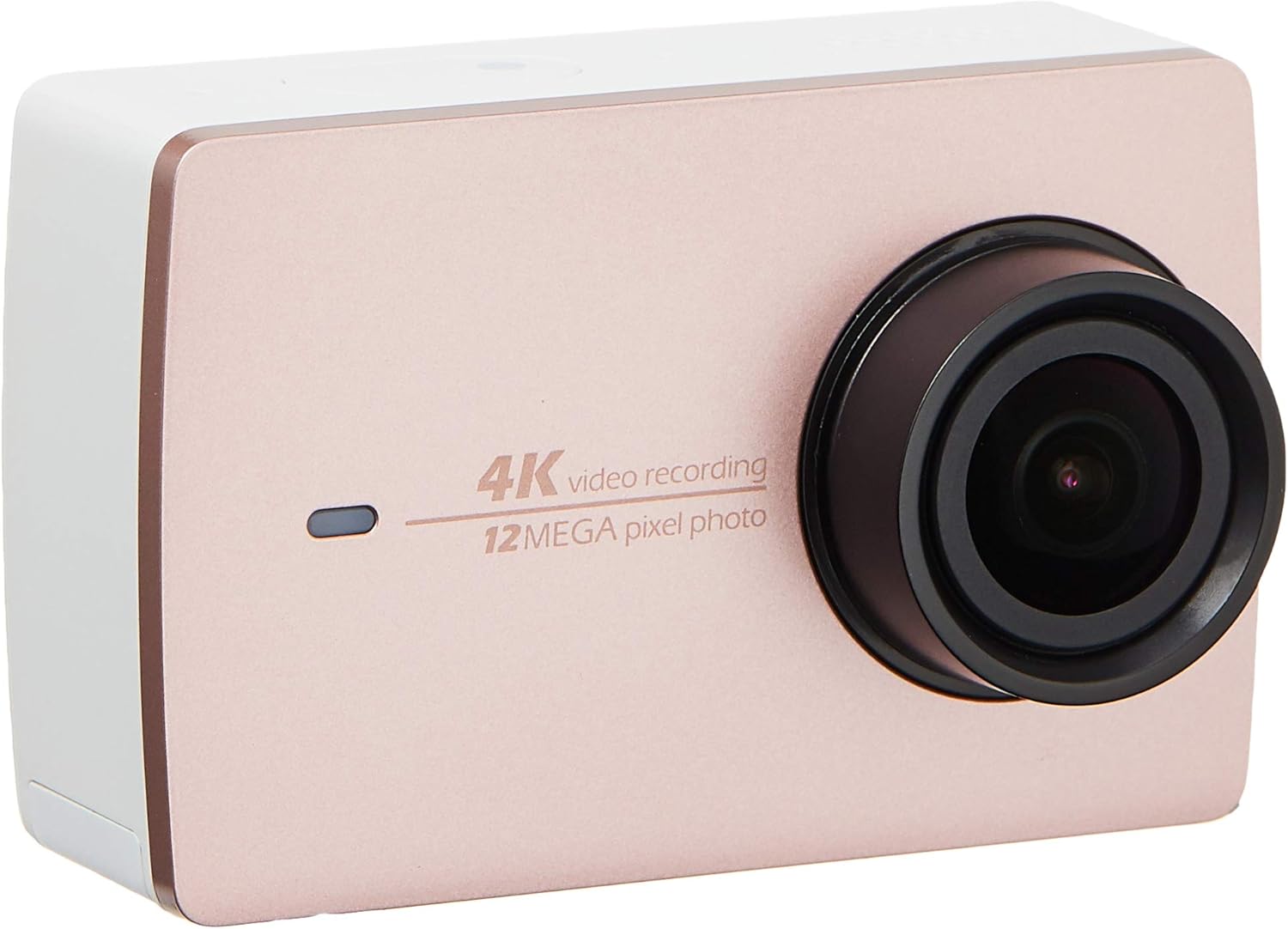
Image 2.2: Front view of the YI 4K Action Camera.
3. Setup
3.1 Battery Installation and Charging
- Locate the battery compartment on the camera.
- Insert the 1400mAh lithium-ion battery, ensuring correct polarity.
- Close the battery compartment securely.
- Connect the camera to a power source using the provided USB cable for charging. The charging indicator will illuminate.
3.2 Memory Card Installation
The YI 4K Action Camera supports SDHC and SmartMedia flash memory types.
- Open the memory card slot cover.
- Insert a compatible memory card (not included) into the slot with the contacts facing the correct direction. Push until it clicks into place.
- Close the memory card slot cover.
3.3 Powering On/Off
- To Power On: Press and hold the Power button until the screen illuminates.
- To Power Off: Press and hold the Power button until the camera shuts down.
3.4 Connecting the Bluetooth Remote
The included Bluetooth remote allows for convenient control of the camera.
- Ensure the camera is powered on.
- Activate Bluetooth pairing mode on the camera via the settings menu.
- Follow the remote's instructions to enter pairing mode.
- Once paired, the remote can be used to switch between video and photo modes and trigger recording/capture.

Image 3.1: The YI Monopod, included in the kit.
4. Operating the Camera
4.1 Touchscreen Navigation
The 2.19" LCD touchscreen provides intuitive control:
- Swipe: Navigate through different modes (Video, Photo, Time-lapse, etc.) and settings.
- Tap: Select options, adjust settings, or start/stop recording.
- Preview: View your captured footage and photos directly on the screen.
4.2 Video Recording
- Select the Video mode on the touchscreen.
- Adjust video resolution (e.g., 4K/30fps) and other settings as desired.
- Press the Shutter button or tap the record icon on the screen to start recording.
- Press the Shutter button or tap the record icon again to stop recording.
4.3 Photo Capture
- Select the Photo mode on the touchscreen.
- Adjust photo settings such as resolution, exposure, and white balance.
- Press the Shutter button or tap the capture icon on the screen to take a photo.
4.4 Wi-Fi Connectivity and App Usage
The camera's built-in Wi-Fi allows connection to a smartphone app for remote control, live preview, and content management.
- Download the official YI Action Camera app from your device's app store.
- Enable Wi-Fi on the camera via the settings menu.
- Connect your smartphone to the camera's Wi-Fi network (SSID and password displayed on camera screen).
- Open the YI Action Camera app to control the camera, view footage, and transfer files.
5. Maintenance
5.1 Cleaning
- Use a soft, lint-free cloth to clean the camera body and touchscreen.
- For the lens, use a specialized lens cleaning cloth and solution. Avoid abrasive materials.
- Ensure all ports are free of dust and debris.
5.2 Storage
- Store the camera in a cool, dry place away from direct sunlight and extreme temperatures.
- Remove the battery if storing for extended periods to prevent leakage.
5.3 Firmware Updates
Periodically check the official YI website or the YI Action Camera app for available firmware updates. Keeping your camera's firmware updated ensures optimal performance and access to new features.
6. Troubleshooting
6.1 Common Issues and Solutions
- Camera not powering on: Ensure the battery is fully charged and correctly inserted.
- Recording stops unexpectedly: Check if the memory card has sufficient space or if it's a high-speed card suitable for 4K recording. Ensure the battery is not depleted.
- Touchscreen unresponsive: Try restarting the camera. If the issue persists, ensure the screen is clean and dry.
- Bluetooth remote not connecting: Ensure both the camera and remote are in pairing mode and within range. Check the remote's battery.
- Wi-Fi connection issues: Verify the camera's Wi-Fi is enabled and your smartphone is connected to the correct network. Try restarting both devices.
For further assistance, refer to the official YI support resources.
7. Specifications
| Manufacturer | YI |
| Model Number | 90010 |
| Product Dimensions | 6.6 x 3 x 4.3 cm |
| Weight | 96.39 g |
| Photo Sensor Technology | CMOS |
| Video Capture Resolution | 4K |
| Maximum Focal Length | 1 |
| Maximum Aperture | 2.8 Millimeters |
| Flash Memory Type | SDHC, SmartMedia |
| Video Capture Format | MP4 |
| Supported Audio Format | AAC, MP3 |
| Screen Size | 2.19 Inches |
| Connectivity Technology | Wi-Fi |

Image 7.1: YI 4K Action Camera with monopod, illustrating approximate dimensions.
8. Warranty and Support
8.1 Warranty Information
This product comes with a 1 Year Local (Singapore) Warranty. Please retain your proof of purchase for warranty claims. The warranty covers manufacturing defects under normal use conditions.
8.2 Customer Support
For technical support, service, or warranty inquiries, please visit the official YI Technology website or contact their authorized service centers in Singapore. Contact information can typically be found on the product packaging or the official website.


