
evga
EVGA GeForce GTX 1080 Founders Edition User Manual
Model: 08G-P4-6180-KR
1. Introduction
This manual provides comprehensive instructions for the installation, operation, and maintenance of your EVGA GeForce GTX 1080 Founders Edition graphics card. Please read this manual thoroughly before proceeding with installation to ensure proper setup and optimal performance.

Figure 1.1: The EVGA GeForce GTX 1080 Founders Edition graphics card alongside its packaging.
2. Safety Information
Always observe the following safety precautions to prevent damage to the graphics card, your computer system, or personal injury:
- Ensure your computer system is powered off and unplugged from the wall outlet before installing or removing the graphics card.
- Discharge any static electricity from your body by touching a grounded metal object (e.g., the computer chassis) before handling the graphics card.
- Handle the graphics card by its edges. Avoid touching the gold-plated PCI Express connector or the components on the circuit board.
- Do not expose the graphics card to moisture or extreme temperatures.
- Ensure adequate airflow within your computer case to prevent overheating.
- If you are unsure about any installation steps, consult a qualified technician.
3. Package Contents
Verify that all items are present in your EVGA GeForce GTX 1080 Founders Edition package:
- EVGA GeForce GTX 1080 Founders Edition Graphics Card
- Driver CD / DVD (or link to driver download)
- Quick Installation Guide / User Manual
- Power Adapter Cable (if applicable, e.g., 6-pin to 8-pin PCIe power adapter)
- EVGA Case Badge

Figure 3.1: Examples of EVGA documentation and branding materials that may be included.

Figure 3.2: A PCIe power adapter cable, which may be necessary for some power supply configurations.
4. System Requirements
Before installation, ensure your system meets the following minimum requirements:
- PCI Express-compliant motherboard with one dual-width x16 graphics slot.
- Minimum 500W or greater power supply with one 8-pin PCI Express power connector. (Consult your power supply manufacturer for specific details).
- 300MB of available hard-disk space.
- 4GB system memory (8GB or more recommended).
- Microsoft Windows 10, Windows 8.1, Windows 8, Windows 7, or Linux operating system.
- CD-ROM or DVD-ROM drive (for driver installation) or internet connection.
5. Setup and Installation
Follow these steps to install your EVGA GeForce GTX 1080 Founders Edition graphics card:
- Prepare Your System: Power off your computer and unplug the power cord from the wall outlet. Open your computer case.
- Locate PCI Express Slot: Identify an available PCI Express x16 slot on your motherboard. This card requires a dual-width slot, meaning it will occupy two expansion slots on your case.
- Remove Slot Covers: Remove the two metal slot covers from the back of your computer case corresponding to the chosen PCI Express slot.
- Install the Graphics Card: Carefully align the graphics card with the PCI Express slot. Apply even pressure to both ends of the card until it is fully seated in the slot. A click may be heard when it is properly seated.
- Secure the Card: Secure the graphics card to the computer case using the screws from the removed slot covers.
- Connect Power: Connect the 8-pin PCI Express power connector from your power supply to the corresponding port on the graphics card. If your power supply does not have an 8-pin connector, use the included 6-pin to 8-pin adapter cable.
- Close Case and Connect Peripherals: Close your computer case. Reconnect the power cord, monitor cables, and any other peripherals.

Figure 5.1: The EVGA GeForce GTX 1080 Founders Edition graphics card, ready for installation into a PCI Express slot.

Figure 5.2: The rear I/O panel of the graphics card, featuring DisplayPort, HDMI, and DVI connectors for display output.
6. Operating the Graphics Card
6.1 Driver Installation
After physical installation, you must install the graphics drivers for proper functionality:
- Boot Your System: Power on your computer. Windows will detect new hardware and may attempt to install generic drivers.
- Install Drivers:
- From CD/DVD: Insert the included driver CD/DVD into your optical drive and follow the on-screen instructions.
- From Internet: Visit the official EVGA website (www.evga.com/drivers/) or NVIDIA's official website (www.nvidia.com/drivers) to download the latest drivers for your GeForce GTX 1080. Run the downloaded installer and follow the prompts.
- Restart System: After the driver installation is complete, restart your computer when prompted.
6.2 Software and Utilities
EVGA provides additional software to enhance your experience:
- EVGA Precision XOC: This utility allows for monitoring, overclocking, and fan control of your graphics card. It can be downloaded from the EVGA website.
- NVIDIA GeForce Experience: This software optimizes game settings, updates drivers, and provides features like ShadowPlay for recording gameplay.
7. Maintenance
Proper maintenance ensures the longevity and performance of your graphics card:
- Keep Drivers Updated: Regularly check for and install the latest graphics drivers from EVGA or NVIDIA to ensure optimal performance and compatibility with new games and applications.
- Clean Dust: Periodically clean dust from the graphics card's heatsink and fans using compressed air. Ensure the system is powered off and unplugged before cleaning. Hold the fan blades gently to prevent them from spinning rapidly during cleaning.
- Monitor Temperatures: Use monitoring software (e.g., EVGA Precision XOC) to keep an eye on GPU temperatures, especially during heavy loads. Ensure temperatures remain within safe operating limits.
- Ensure Proper Airflow: Verify that your computer case has adequate ventilation and that case fans are functioning correctly to facilitate proper airflow around the graphics card.
8. Troubleshooting
If you encounter issues with your graphics card, refer to the following common troubleshooting steps:
| Problem | Possible Cause / Solution |
|---|---|
| No display output / Black screen |
|
| System crashes / Freezes during gaming |
|
| Poor performance in games / applications |
|
| Fan noise is excessive |
|
For further assistance, refer to the EVGA support website or contact their technical support.
9. Specifications
| Feature | Detail |
|---|---|
| Model Number | 08G-P4-6180-KR |
| Graphics Processor | NVIDIA GeForce GTX 1080 |
| Memory | 8GB GDDR5X |
| GPU Clock Speed | 1607 MHz (Base) / 1733 MHz (Boost) |
| Video Output Interfaces | 3x DisplayPort 1.4, 1x HDMI 2.0b, 1x Dual-Link DVI-D |
| PCI Express | PCI Express 3.0 x16 |
| Power Connectors | 1x 8-pin PCIe |
| Recommended PSU | 500W or greater |
| Dimensions (L x W x H) | 10.63 x 0.39 x 4.33 inches |
| Weight | 2.2 pounds |

Figure 9.1: Top view of the graphics card, showcasing its cooling solution.
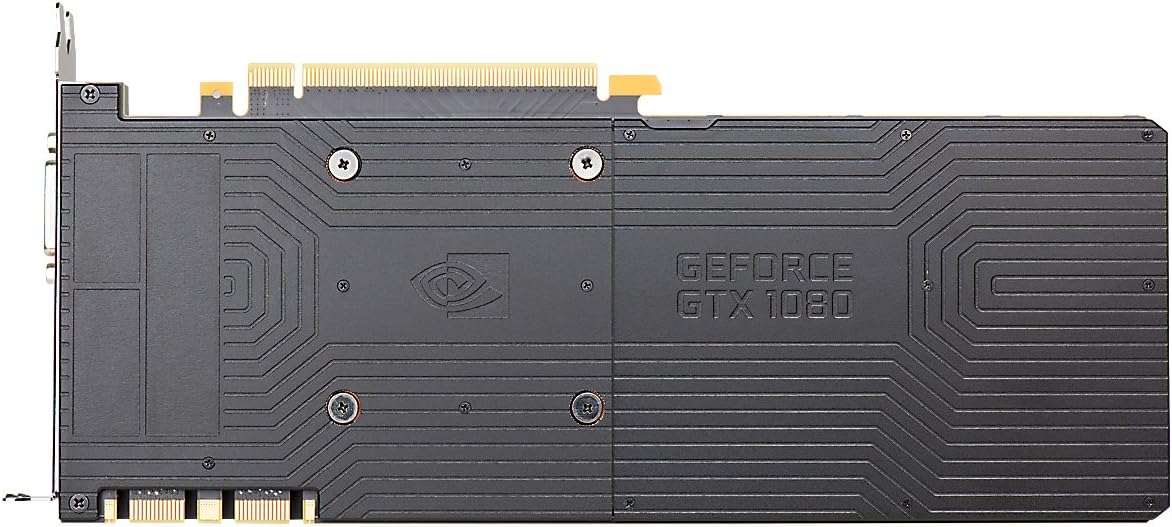
Figure 9.2: The backplate of the graphics card, providing structural support and heat dissipation.
10. Warranty and Support
EVGA products are backed by a limited warranty. For detailed warranty information, including terms, conditions, and registration, please visit the official EVGA website:
For technical support, driver downloads, FAQs, and community forums, please visit:
When contacting support, please have your product model number (08G-P4-6180-KR) and serial number ready.
Related documents


Ask a question about this manual
Ask about setup, troubleshooting, compatibility, parts, safety, or missing instructions. Manuals+ will review the question and use this page’s manual context to help answer it.