1. Introduction
This manual provides essential information for setting up, operating, maintaining, and troubleshooting your Toshiba Satellite S55 laptop. Please read this manual thoroughly to ensure proper use and to maximize the performance and longevity of your device.
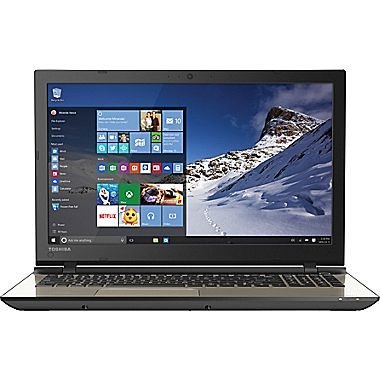
Figure 1.1: Toshiba Satellite S55 Laptop. This image shows the laptop in a closed position, highlighting its sleek design and silver finish.
2. Package Contents
Verify that all items are present in the package:
- Toshiba Satellite S55 Laptop
- AC Adapter and Power Cord
- Documentation (Quick Start Guide, Warranty Information)
The laptop includes built-in Harman/Kardon speakers, a backlit keyboard, DVD-SuperMulti drive, MultiMediaCard, SD Memory Card, SDHC Memory Card, SDXC Memory Card slots, and an HDMI port.
3. Setup
3.1 Connecting the AC Adapter
- Connect the AC adapter to the power connector on the side of the laptop.
- Plug the power cord into a wall outlet.
- Allow the battery to charge fully before initial use.
3.2 Initial Power On
- Open the laptop lid.
- Press the power button located above the keyboard on the right side.
- Follow the on-screen instructions to complete the Windows 10 setup process. This includes setting up your user account, network connection, and basic preferences.
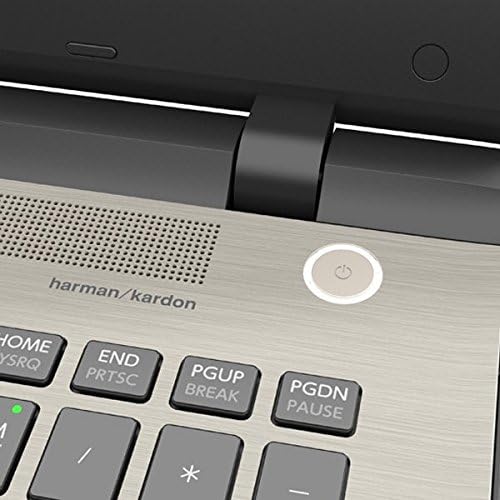
Figure 3.1: Power Button Location. This image provides a close-up view of the power button, located on the top right of the keyboard deck, next to the Harman/Kardon speaker grille.
4. Operating Your Laptop
4.1 Keyboard and Touchpad
The Toshiba Satellite S55 features a frameless TruType LED backlit keyboard with a 10-keypad for comfortable typing in various lighting conditions. The click pad pointing device supports multi-touch gestures for intuitive navigation.
- Backlit Keyboard: Use the dedicated function keys to toggle the keyboard backlight on or off.
- Multi-touch Gestures: Refer to Windows 10 settings for customizing touchpad gestures such as scrolling, zooming, and switching applications.
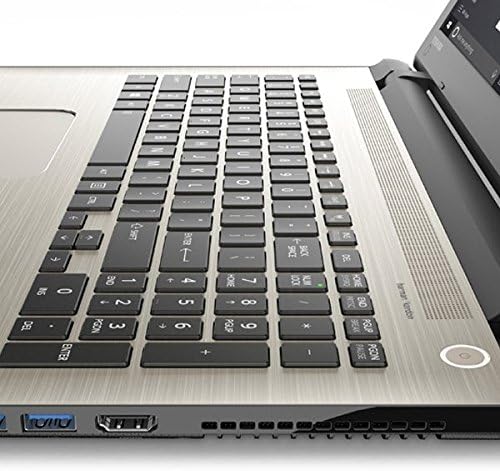
Figure 4.1: Keyboard and Touchpad. This image provides a detailed view of the backlit keyboard, 10-keypad, and the multi-touch click pad.
4.2 Optical Drive
The laptop includes a DVD-SuperMulti drive (+/-R double layer) supporting up to 11 formats. To open the drive tray, press the eject button located on the drive itself or use the eject function within Windows Explorer.
4.3 Ports and Connectivity
The Satellite S55 offers various ports for connecting external devices:
- USB 3.0 Ports: Three USB 3.0 ports are available, with one supporting USB Sleep and Charge for powering devices even when the laptop is off or in sleep mode.
- HDMI Port: Connect to external displays or TVs with 4K Ultra HD output capability.
- LAN (RJ-45) Port: For wired network connections (10/100/1000 Ethernet).
- Headphone/Microphone Jack: A shared port for audio output and input.
- Memory Card Reader: Supports MultiMediaCard, SD Memory Card, SDHC Memory Card, and SDXC Memory Card.
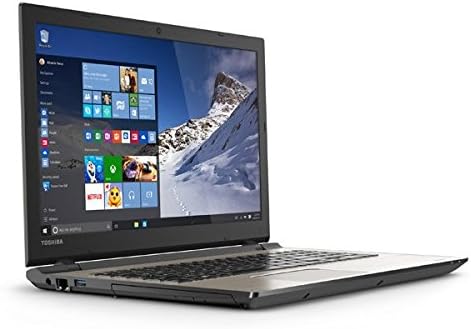
Figure 4.2: Left Side Ports. This image displays the left side of the laptop, showing the power input, LAN port, HDMI port, and USB 3.0 ports.
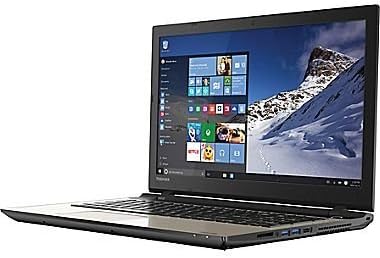
Figure 4.3: Right Side Ports and Optical Drive. This image shows the right side of the laptop, featuring the DVD-SuperMulti drive, additional USB ports, and the headphone/microphone jack.
4.4 Wireless Communication
The laptop supports Intel Dual Band Wireless-N 7265 2x2 AC (802.11AC) for high-speed Wi-Fi connectivity and Bluetooth (4.1) for connecting wireless peripherals.
- Wi-Fi: Connect to available wireless networks through the Windows 10 network settings.
- Bluetooth: Pair Bluetooth devices such as headphones, mice, or keyboards via Windows 10 Bluetooth settings.
4.5 Webcam and Audio
An HD webcam with TruTalk dual microphones is integrated for video conferencing and voice commands. The laptop features harman/kardon stereo speakers with DTS Sound™ for enhanced audio experience.
5. Maintenance
5.1 Battery Care
The Lithium Ion (45Wh, 4-Cell) battery is not user-replaceable. To prolong battery life (up to 6 hours), avoid extreme temperatures and fully discharge and recharge the battery periodically. For optimal performance, keep the laptop connected to the AC adapter when possible.
5.2 Cleaning
- Use a soft, lint-free cloth to clean the screen and exterior surfaces.
- Avoid using harsh chemicals or abrasive cleaners.
- Gently clean keyboard keys and touchpad with a slightly damp cloth.
5.3 Software Updates
Regularly check for and install Windows updates and Toshiba driver updates to ensure system stability, security, and optimal performance.
6. Troubleshooting
6.1 Power Issues
- Laptop does not turn on: Ensure the AC adapter is securely connected and the power outlet is functional. Check if the battery has sufficient charge.
- Battery not charging: Verify the AC adapter and power cord are not damaged. Try a different power outlet.
6.2 Display Problems
- Blank screen: Connect an external monitor to check if the issue is with the laptop's display. Adjust brightness settings.
- Incorrect resolution: Adjust display settings in Windows 10 to the recommended 1366x768 resolution.
6.3 Network Connectivity
- Cannot connect to Wi-Fi: Ensure Wi-Fi is enabled in Windows settings. Restart your router and the laptop. Verify network password.
- No internet access: Check your internet service provider's status. Ensure your router is functioning correctly.
7. Specifications
| Feature | Detail |
|---|---|
| Model | S55 |
| Operating System | Windows 10 Home 64-bit |
| Processor | Intel Core i7-5500U Dual-Core (2.0GHz up to 2.9GHz) |
| RAM | 12GB DDR3L 1600MHz |
| Hard Drive | 1TB (5400rpm) HDD |
| Display | 15.6" TruBrite LED Backlit (1366x768 HD) |
| Graphics | Mobile Intel HD 6000 Graphics |
| Optical Drive | DVD-SuperMulti drive |
| Wireless | Intel Dual Band Wireless-N 7265 2x2 AC (802.11AC), Bluetooth 4.1 |
| LAN | 10/100/1000 Ethernet |
| USB Ports | 3 x USB 3.0 (1 with USB Sleep and Charge) |
| HDMI | Yes, with 4K Ultra HD output capability |
| Audio | harman/kardon stereo speakers, DTS Sound™ |
| Webcam | HD webcam with TruTalk dual microphones |
| Battery | Lithium Ion (45Wh, 4-Cell), up to 6 hours |
| Weight | 4.85 lbs (2.2 kg) |
| Dimensions (LxWxH) | 14 x 1 x 12 inches |
| Color | Brushed Aluminum Finish (Silver) |
8. Warranty and Support
For warranty information, please refer to the documentation included with your product. For technical support, driver downloads, or service inquiries, please visit the official Toshiba support website or contact their customer service department.
You can find additional resources and contact information on the Toshiba Store on Amazon.


