
j5create JCA374
j5create USB C Hub Multi-Adapter Docking Station User Manual
Model: JCA374
1. Introduction
This user manual provides comprehensive instructions for the j5create USB C Hub Multi-Adapter Docking Station (Model: JCA374). This versatile hub is designed to expand the connectivity of your USB Type-C enabled devices, such as MacBooks, Chromebooks, and other laptops, by adding essential ports for display, data transfer, and network connectivity.
Please read this manual thoroughly before using the product to ensure proper operation and to maximize its capabilities.
2. Product Overview and Features
The j5create JCA374 is a compact and powerful multi-adapter designed to enhance your device's connectivity. Key features include:
- USB 3.0 SuperSpeed Ports: Equipped with two USB 3.0 SuperSpeed ports, offering data transfer speeds of up to 5Gbps. These ports are backwards compatible with USB 2.0 and USB 1.1 devices.
- HDMI 4K Output: Supports display resolutions up to 4K@30Hz or 1080P@60Hz, allowing you to connect an external monitor for extended desktop or mirroring.
- Gigabit Ethernet Port: Provides a stable and fast wired network connection through a Gigabit Ethernet port. A driver download may be required for LAN usage.
- Power Delivery 2.0: Supports power delivery to charge your connected USB Type-C laptop while using the hub.
- Broad Compatibility: Ideal for MacBook, Chromebook, and other laptops with a USB Type-C port.

Figure 2.1: The j5create USB C Hub Multi-Adapter Docking Station, showcasing its compact design and various ports.

Figure 2.2: A detailed view of the j5create hub's ports, including USB, Ethernet, and HDMI.
3. Setup Instructions
Follow these steps to set up your j5create USB C Hub:
- Connect the Hub to Your Device: Plug the USB Type-C connector of the j5create hub into an available USB Type-C port on your laptop (e.g., MacBook, Chromebook).
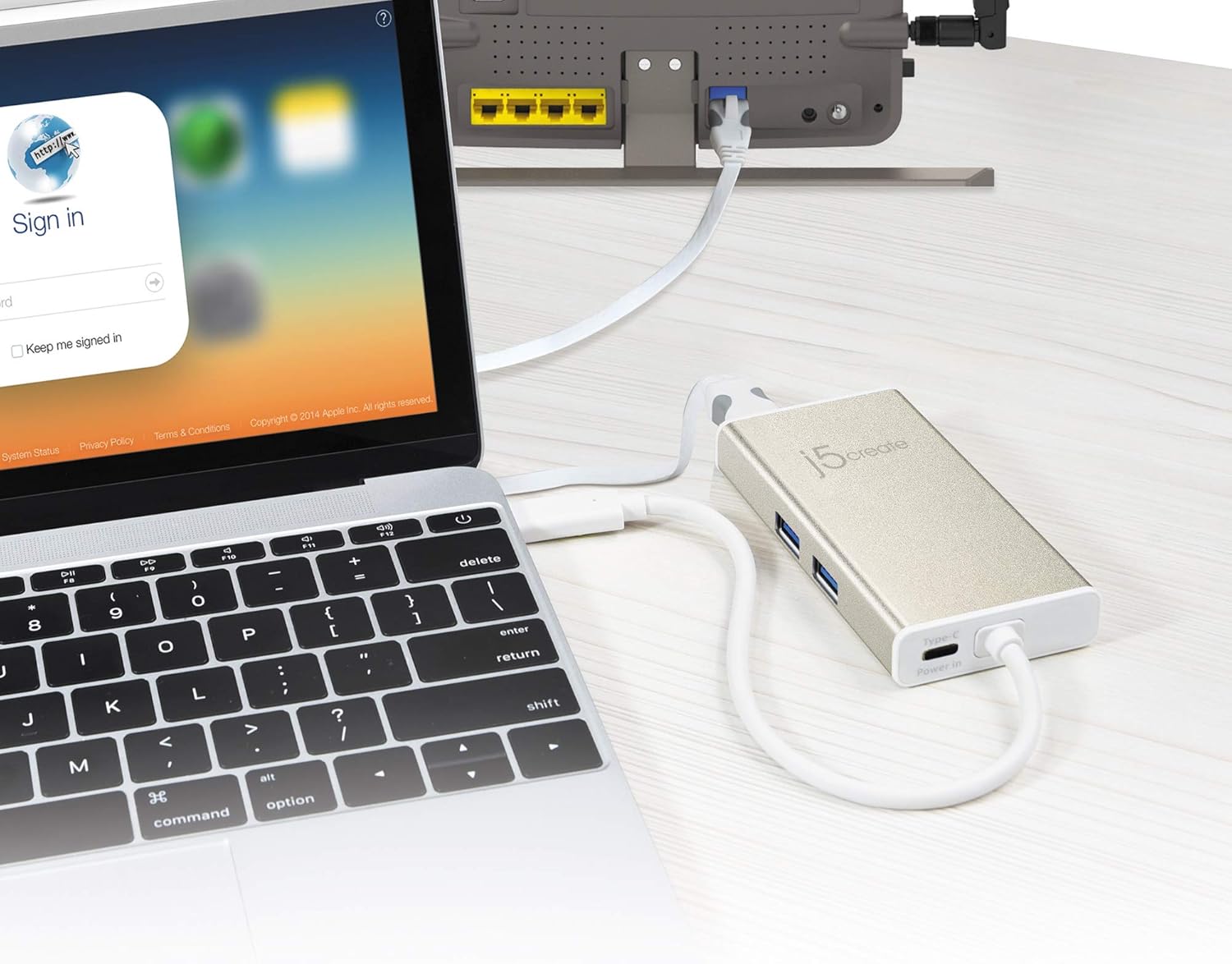
Figure 3.1: The j5create hub connected to a laptop, ready for use.
- Connect External Display (Optional): If you wish to connect an external monitor, use an HDMI cable to connect the monitor to the HDMI port on the j5create hub. Ensure your monitor is set to the correct input source.

Figure 3.2: A laptop connected to an external 4K UHD monitor through the j5create hub, demonstrating display extension.
- Connect USB Peripherals (Optional): Plug your USB devices (e.g., mouse, keyboard, USB flash drive) into the USB 3.0 SuperSpeed ports on the hub.

Figure 3.3: Multiple peripherals, including a USB mouse and flash drive, connected to the j5create hub, expanding connectivity options.
- Connect to Network (Optional): For a wired internet connection, connect an Ethernet cable from your router or modem to the Gigabit Ethernet port on the hub.
Note: For LAN functionality, you may need to download and install a driver. Please visit the j5create official website for the latest drivers specific to your operating system.
- Power Delivery (Optional): If your laptop supports USB Power Delivery, you can connect your laptop's USB-C power adapter to the Power Delivery port on the hub to charge your laptop while using the hub.

Figure 3.4: The j5create hub connected to a laptop and a power adapter, illustrating simultaneous charging and peripheral use.
- General Connections Overview:

Figure 3.5: An overview of the j5create hub connected with various cables, demonstrating its multi-functional capabilities.
4. Operating Instructions
The j5create USB C Hub is designed for plug-and-play functionality. Once connected, your operating system should automatically detect the connected devices and external display.
- Display Settings: For external displays, you may need to adjust display settings within your operating system (e.g., extend display, duplicate display, resolution). Refer to your operating system's help documentation for specific instructions.
- USB Device Recognition: USB devices connected to the hub should be recognized automatically. If a device is not recognized, try reconnecting it or restarting your computer.
- Ethernet Connection: After connecting the Ethernet cable and installing any necessary drivers, your computer should establish a wired network connection. Verify network status in your system settings.

Figure 4.1: A tablet connected to an external monitor and charging via the j5create hub, demonstrating multi-device compatibility.
5. Maintenance
To ensure the longevity and optimal performance of your j5create USB C Hub, follow these maintenance guidelines:
- Cleaning: Use a soft, dry cloth to clean the surface of the hub. Avoid using liquid cleaners or abrasive materials.
- Storage: When not in use, store the hub in a cool, dry place, away from direct sunlight and extreme temperatures.

Figure 5.1: The compact j5create hub easily fits into a laptop bag, highlighting its portability and ease of storage.
- Handle with Care: Avoid dropping the device or subjecting it to strong impacts. Do not bend or pull the integrated USB-C cable excessively.
- Ventilation: Ensure the hub has adequate ventilation during operation to prevent overheating.
6. Troubleshooting
If you encounter issues with your j5create USB C Hub, please refer to the following common solutions:
| Problem | Possible Solution |
|---|---|
| No display on external monitor. |
|
| USB devices are not recognized. |
|
| Ethernet connection is not working. |
|
| Laptop is not charging via Power Delivery. |
|
| General connectivity issues or intermittent problems. |
|
7. Specifications
| Feature | Detail |
|---|---|
| Product Dimensions | 5.21 x 0.78 x 0.23 inches |
| Item Weight | 7.7 ounces |
| Manufacturer | j5create |
| Model Number | JCA374 |
| Brand | j5create |
| Color | White |
| Hardware Interface | HDMI, USB, Ethernet |
| Special Feature | Fast Charging (Power Delivery) |
| Compatible Devices | PC, Monitors, Laptops |
| HDMI Resolution | 4K@30Hz / 1080P@60Hz |
| USB Ports | 2x USB 3.0 SuperSpeed (5Gbps) |
8. Warranty Information
Specific warranty details for the j5create USB C Hub (Model: JCA374) are typically provided with the product packaging or can be found on the official j5create website. Please refer to these resources for the most accurate and up-to-date warranty terms and conditions.
9. Customer Support
For technical support, driver downloads, or further assistance with your j5create USB C Hub, please visit the official j5create support website or contact their customer service. Contact information and support resources are usually available on the manufacturer's website.
Note: No official seller videos were available for direct embedding in this manual.
Related documentsJCA374


Ask a question about this manual
Ask about setup, troubleshooting, compatibility, parts, safety, or missing instructions. Manuals+ will review the question and use this page’s manual context to help answer it.